


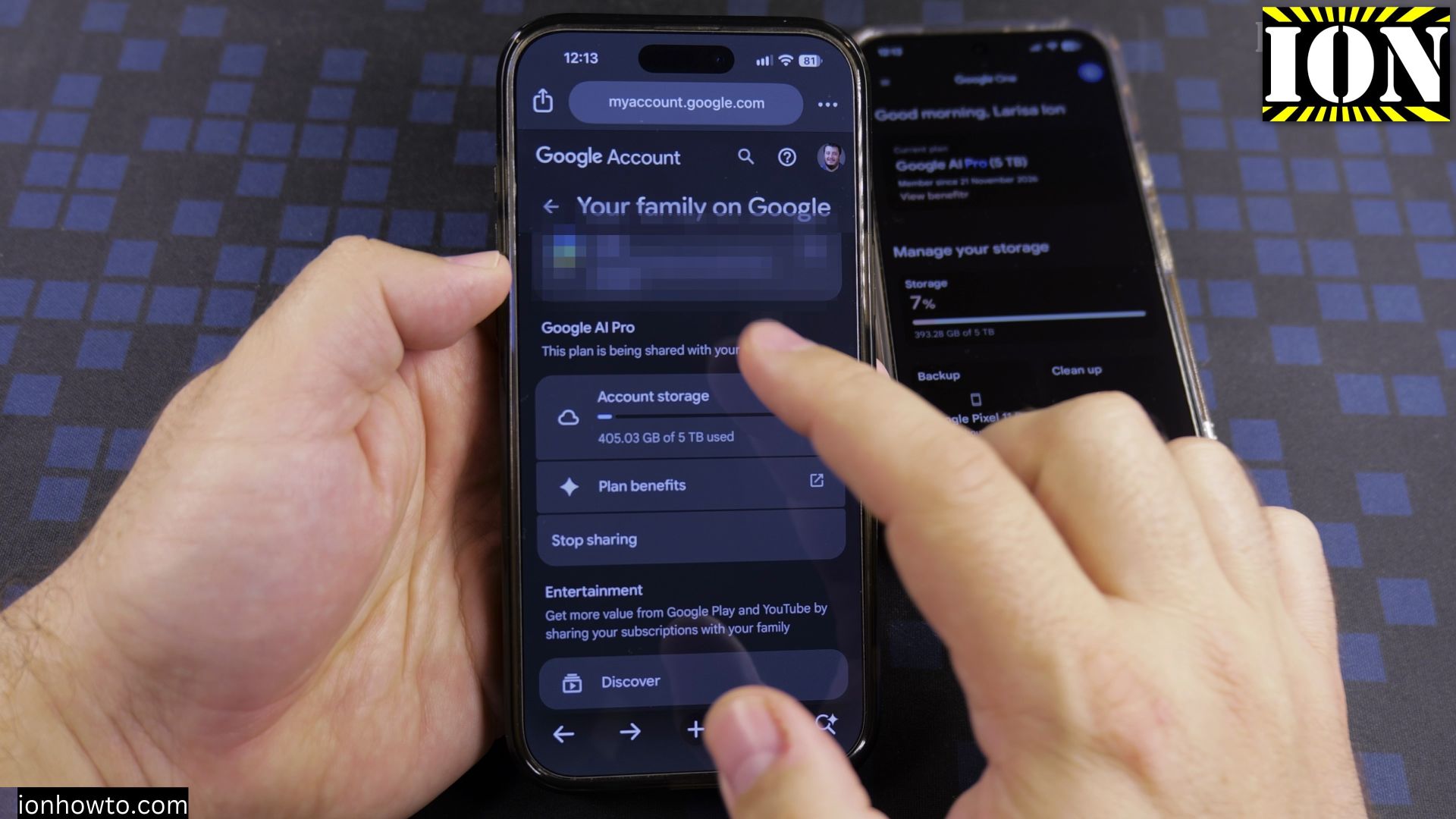
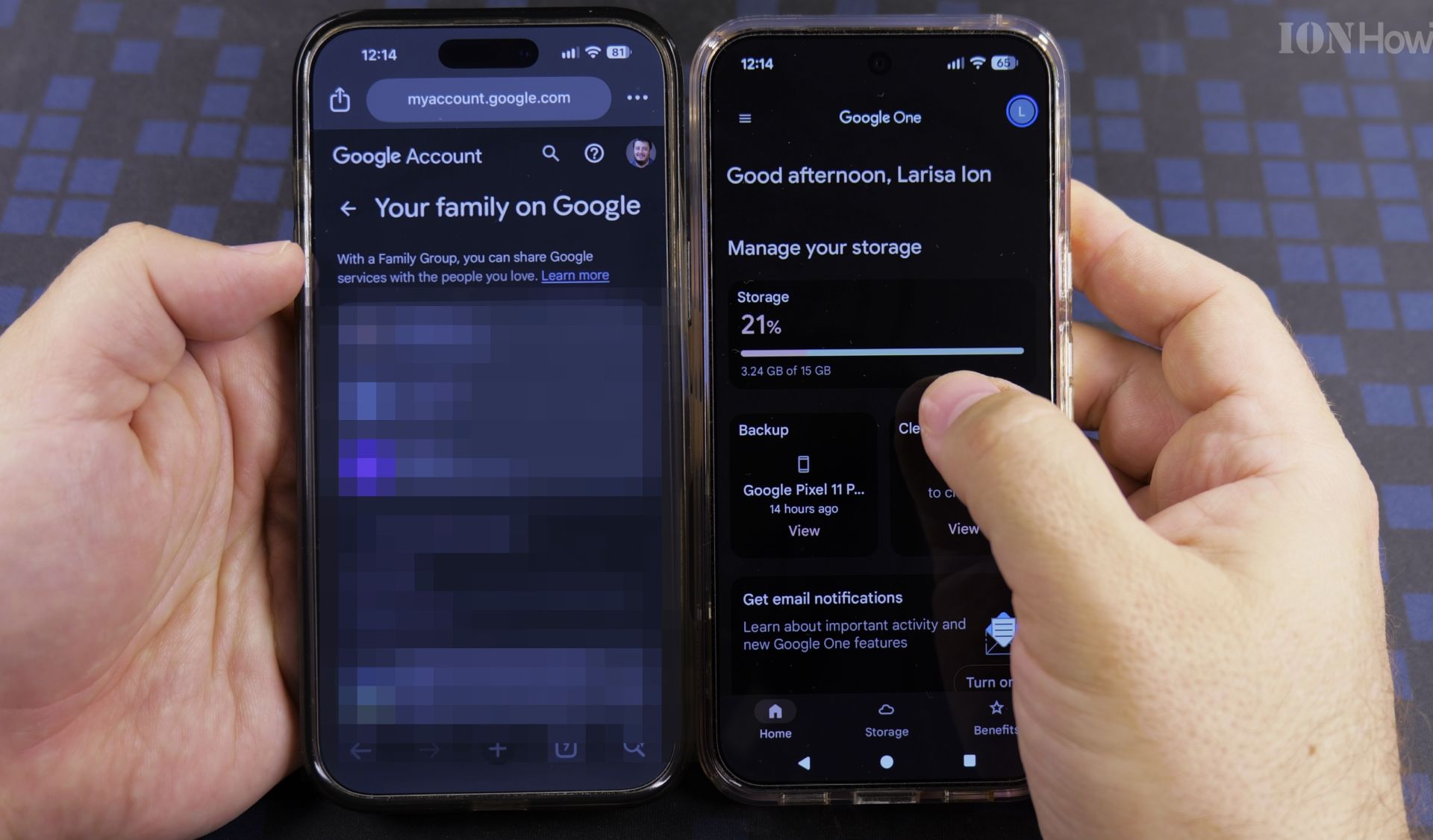
If you share a Google One or Google AI Pro subscription with your family group and want to turn off sharing, you can stop it in a few taps from your browser. In this step-by-step tutorial, I’ll show you how to open your Google Family settings at myaccount.google.com, stop sharing storage and AI benefits, and see what happens on a family member’s phone.

Your roadmap
- Open myaccount.google.com in your phone browser
- Tap Family and open Plan benefits
- Tap Stop sharing and read the warning
- Verify the change or restart sharing later
1. Open myaccount.google.com in your phone browser
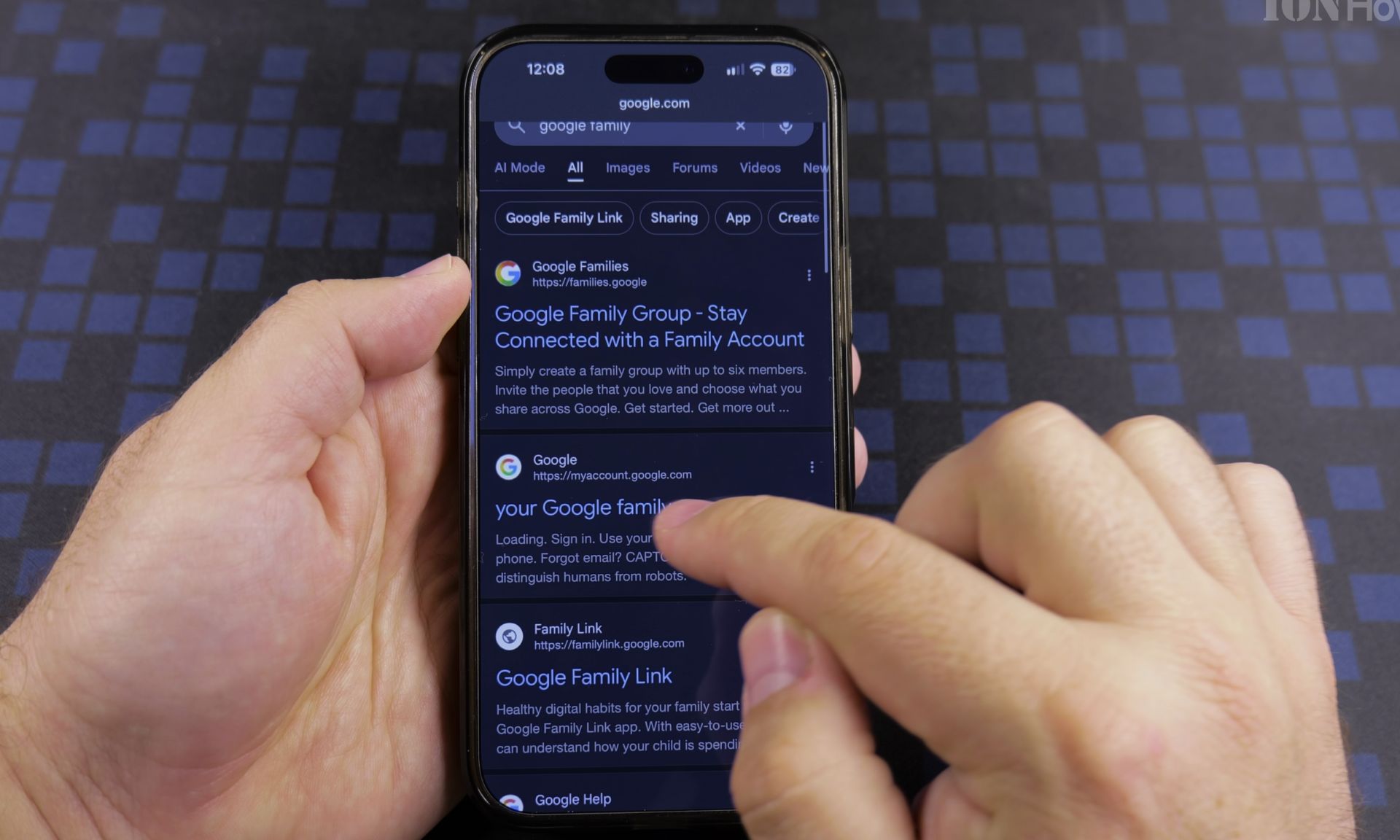
Open Chrome or Safari on your phone and go to myaccount.google.com instead of relying on the Family Link app, because the browser page reliably displays Google One subscription sharing on both iPhone and Android. Sign in with the Google account that acts as the family manager.

2. Tap Family and open Plan benefits
Scroll to the Family section on your Google Account page and tap Your family on Google to manage your group of up to five members. Look under Plan benefits where your Google AI Pro or Google One subscription says it is being shared with your family.

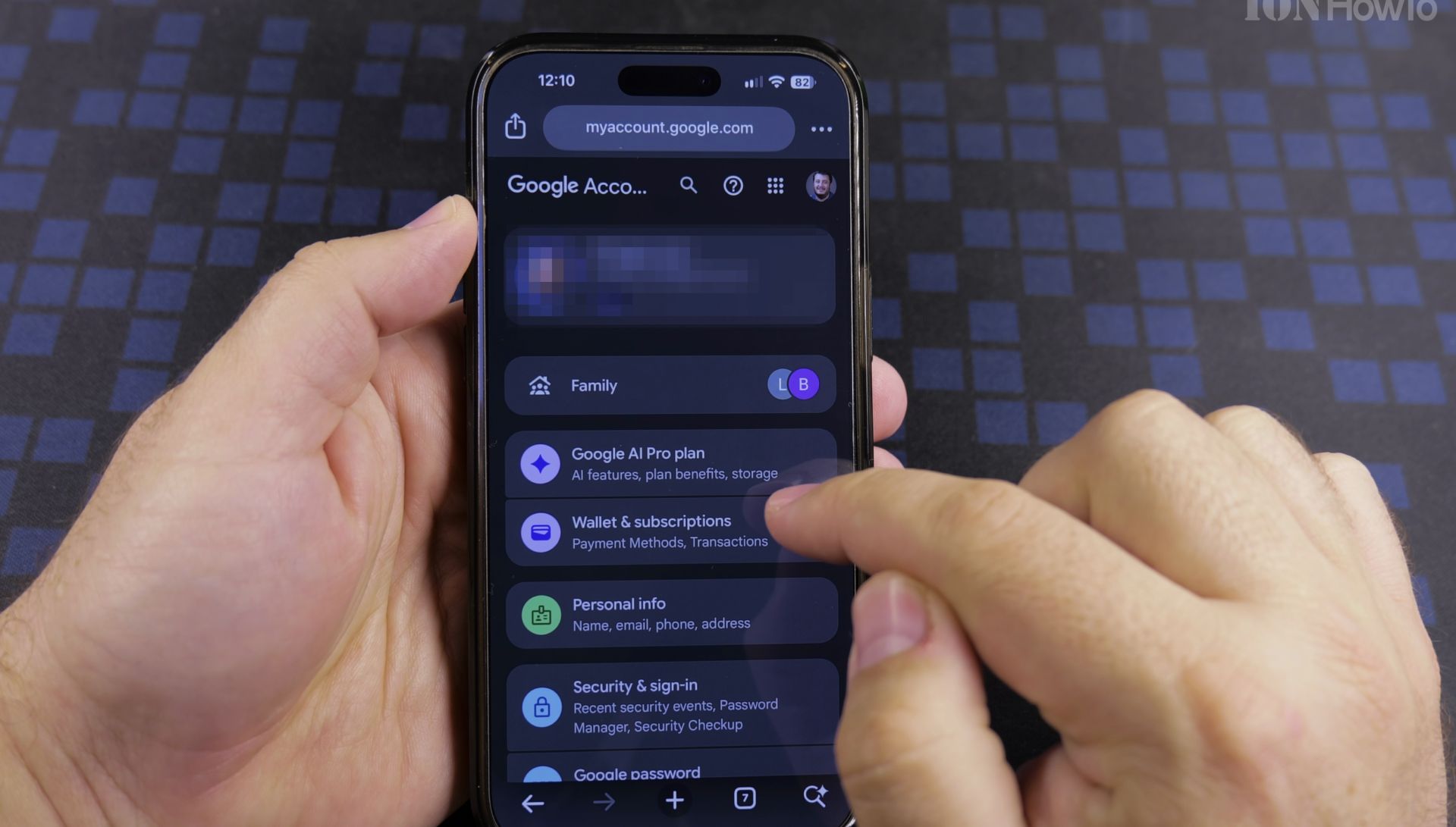
3. Tap Stop sharing and read the warning
Tap Stop sharing next to your Google AI Pro plan to remove shared access for family members without deleting your family group. Google reminds you that members immediately lose the extra 5 TB storage, Gemini in Gmail and Docs, and other Google One perks. If a family member already used more than their free 15 GB limit, they will not be able to save new Drive files or send and receive Gmail until they free up space.

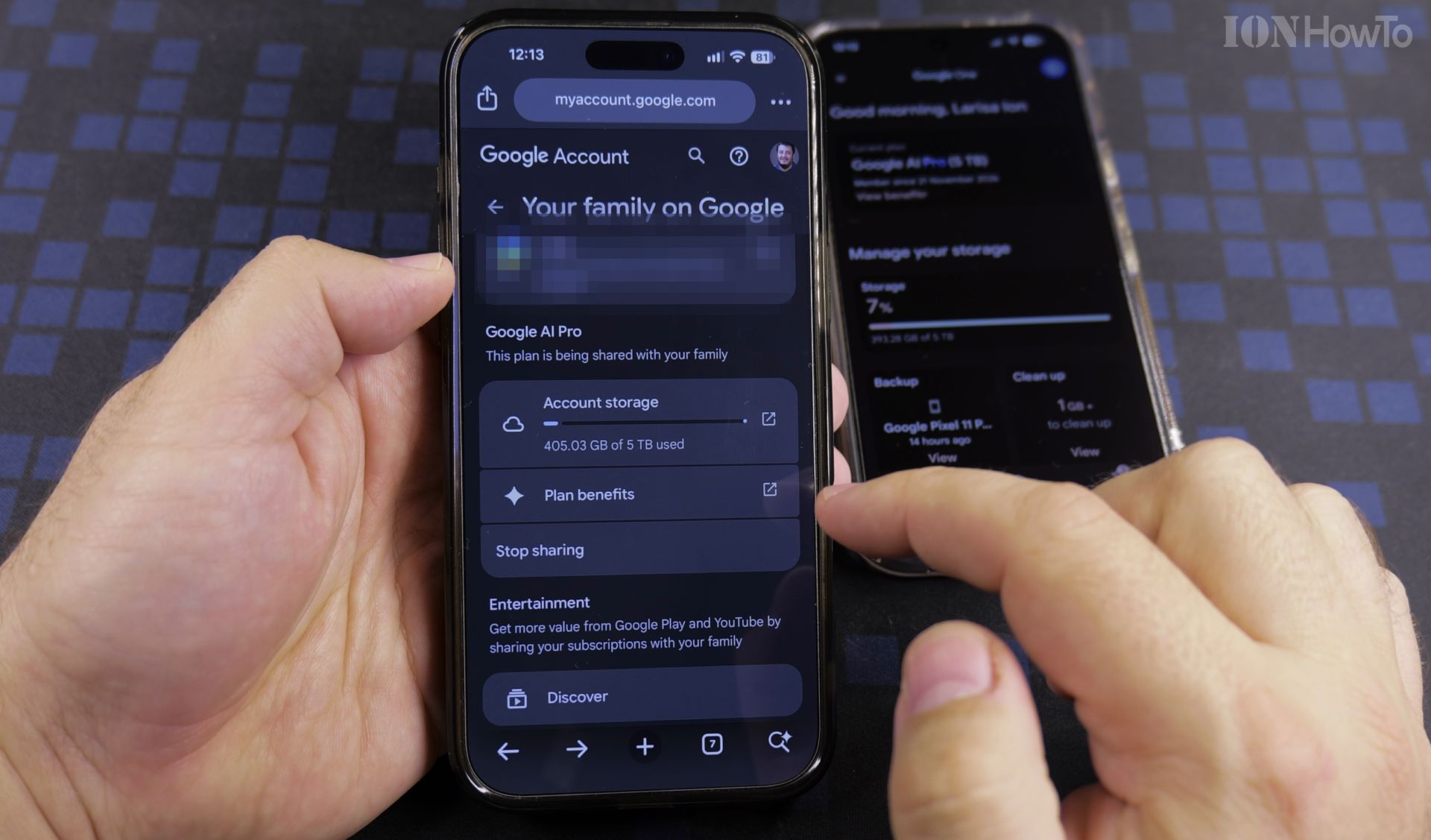
4. Verify the change or restart sharing later
When the family member refreshes Google One on their phone, their plan returns from 5 TB back to the standard 15 GB limit. If you ever change your mind later, tap Start sharing on the same Google AI Pro family card to restore shared storage at no extra cost.

Helpful Tips
- Stopping subscription sharing does not delete your Google Family group, shared calendar, or parental controls unless you choose Delete family group separately.
- Warn family members before tapping Stop sharing if they store lots of photos or files, because crossing the free 15 GB limit blocks new Gmail messages.
- The exact same steps work if you subscribe to Google AI Ultra or any standard Google One storage plan.
Related Guides
- How to Transfer Data from iPhone to Google Pixel 11 Pro XL Step-by-Step – Moving from an iPhone to a new Android smartphone is much simpler when you use the built-in Transfer to Android feature…
- How to Setup Google Pixel 11 Pro XL: Transfer Settings from iPhone or Android Guide – Setting up a new flagship phone is exciting, and Google modern transfer assistant makes moving from an iPhone or older…
- Remove AI Overview from Google Search Results – How to Remove AI Overview from Google Search Results.
- iPhone How-To Guides – Browse more tutorials and practical guides in this section.
Watch the Extended Step-by-Step Guide (Two-Phone Comparison)
If you want to see both the family manager phone and the family member phone side by side, including shared 5 TB usage checks, Google Antigravity and Gemini benefits, and how to turn sharing back on right away, watch my extended tutorial below.

Leave a Reply Cancel reply