


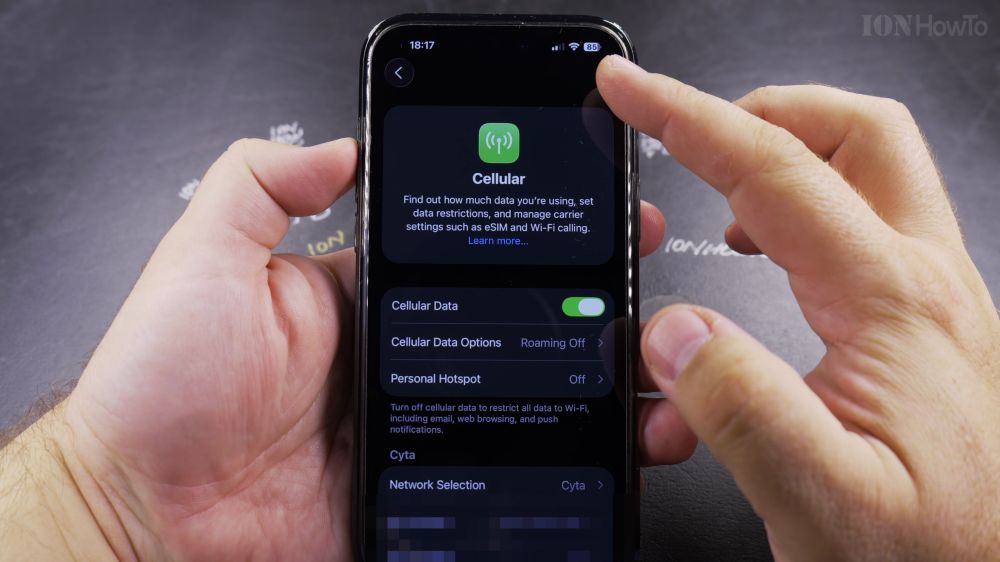
If 5G reception in your area is weak or drains your phone’s battery quickly, locking your connection to reliable 4G LTE works wonders. I’ll show you how to disable 5G and use 4G only on your iPhone in a few simple steps.

1. Open Settings
Open the **Settings** app on your iPhone.

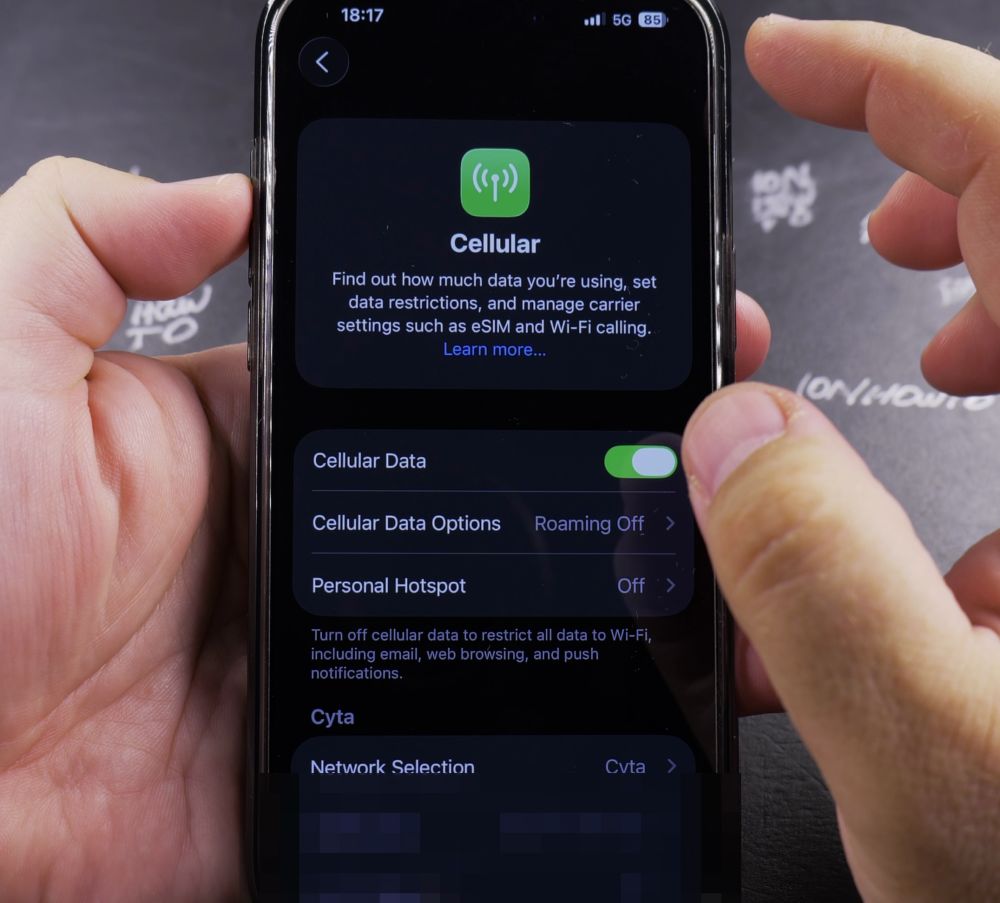
2. Tap Cellular
Tap **Cellular** (or **Mobile Service**).
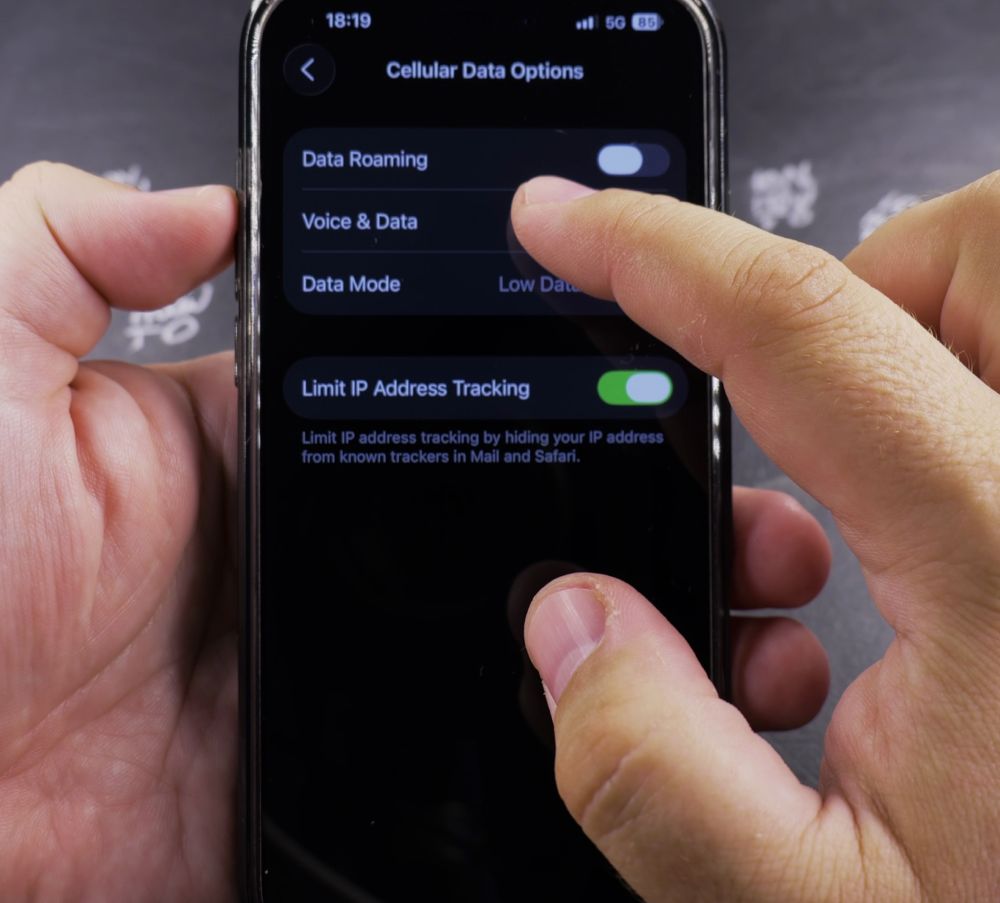
3. Tap Cellular Data Options
Near the top of the cellular screen, tap **Cellular Data Options**.
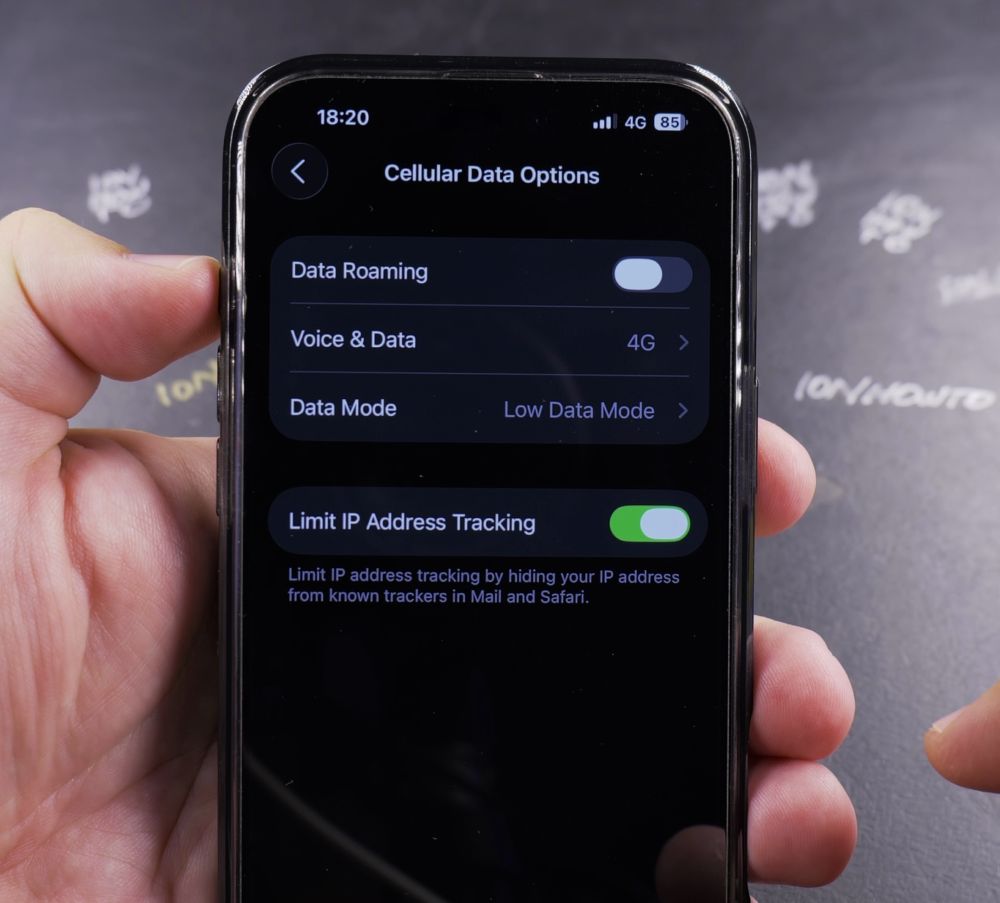
4. Tap Voice & Data
Tap on the **Voice & Data** heading.
5. Select LTE (or 4G)
Tap **LTE** (or **4G**) so a blue checkmark appears beside it. Your iPhone disconnects from weak 5G towers and stays locked to reliable 4G.
Helpful Tips
Locking to LTE significantly extends battery life during commutes when phones constantly hunt between 5G and 4G cell towers. For more cellular guides, visit our iPhone Guides collection.
Leave a Reply Cancel reply