


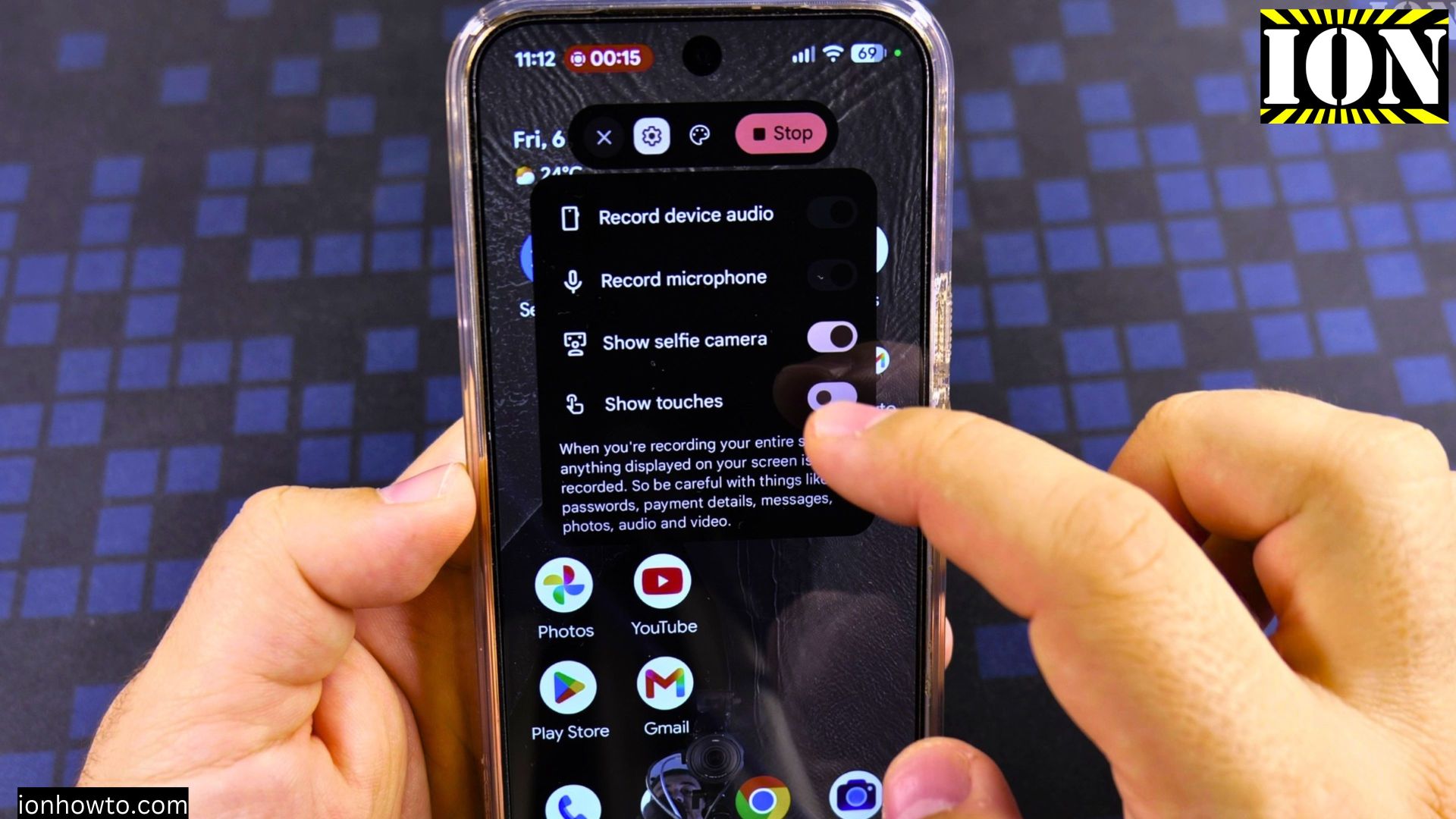
If you want to show your face in a small floating bubble while walking someone through your phone screen, Android’s built-in Screen record feature does it without any extra apps. I’ll show you how to turn on the front selfie camera overlay, include your microphone and device audio, and save the finished clip.

Quick Steps and Scenarios Overview
| What You Need to Do | Quick Jump |
|---|---|
| Open Screen Record in Quick Settings | Jump to Step 1 |
| Turn On Show Selfie Camera and Audio Options | Jump to Step 2 |
| Choose Camera Style and Tap Start Recording | Jump to Step 3 |
| Stop and Save Your Recording | Jump to Step 4 |
Recommended Amazon Gear and Accessories
Disclosure: This article contains Amazon affiliate links. As an Amazon Associate, we earn from qualifying purchases at no extra cost to you.
- Phone Accessories
- Android Phone Case
- USB-C Charger
- USB-C Cable
- Wireless Charger Stand
- Wireless Car Charger
1. Open Screen Record in Quick Settings
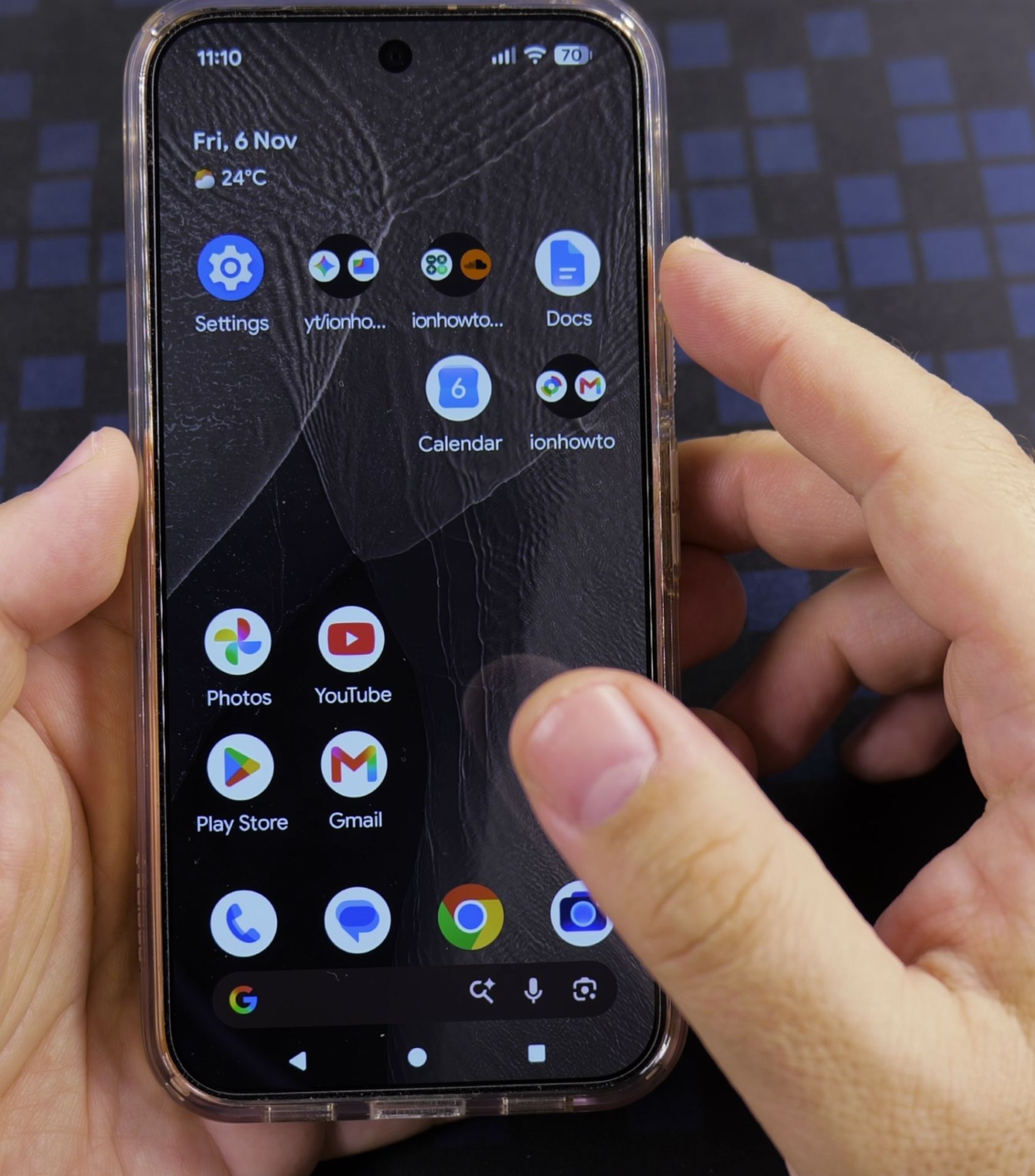
Swipe down twice from the top edge of your screen to open **Quick Settings** and tap the **Screen record** tile. If the tile is missing, tap the pencil **Edit** icon and tap the plus sign next to **Screen record**.

2. Turn On Show Selfie Camera and Audio Options
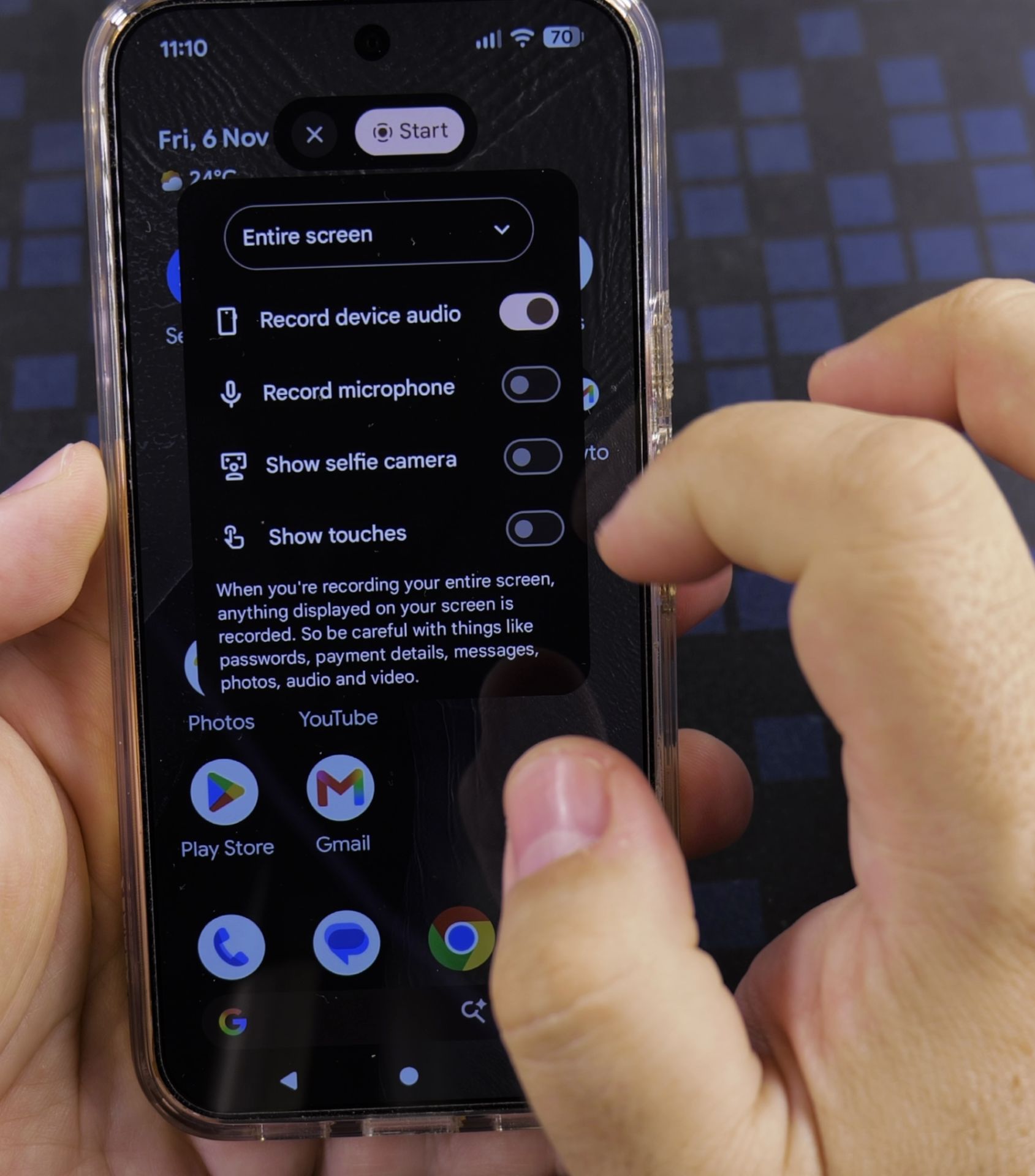
Select **Entire screen** in the recording pop-up, then turn on **Show selfie camera** so your front camera window appears on screen. Switch on **Record microphone** and **Record device audio** (and **Show touches** if you want visible taps).
3. Choose Camera Style and Tap Start Recording
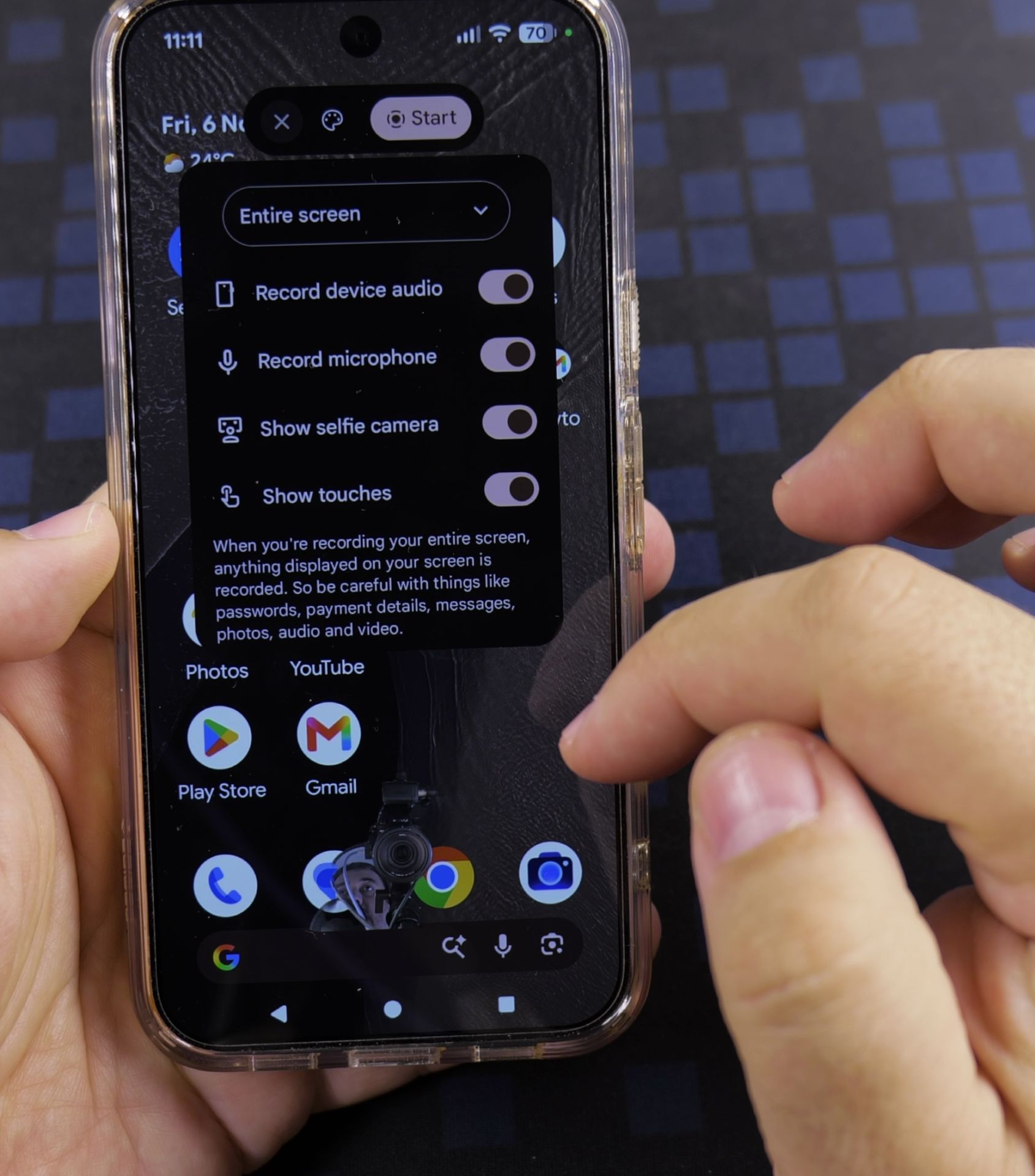
Tap **Start recording** and watch the quick countdown at the top of your screen before speaking. You can open color or background options for your selfie bubble and toggle camera or touches during recording.
4. Stop and Save Your Recording
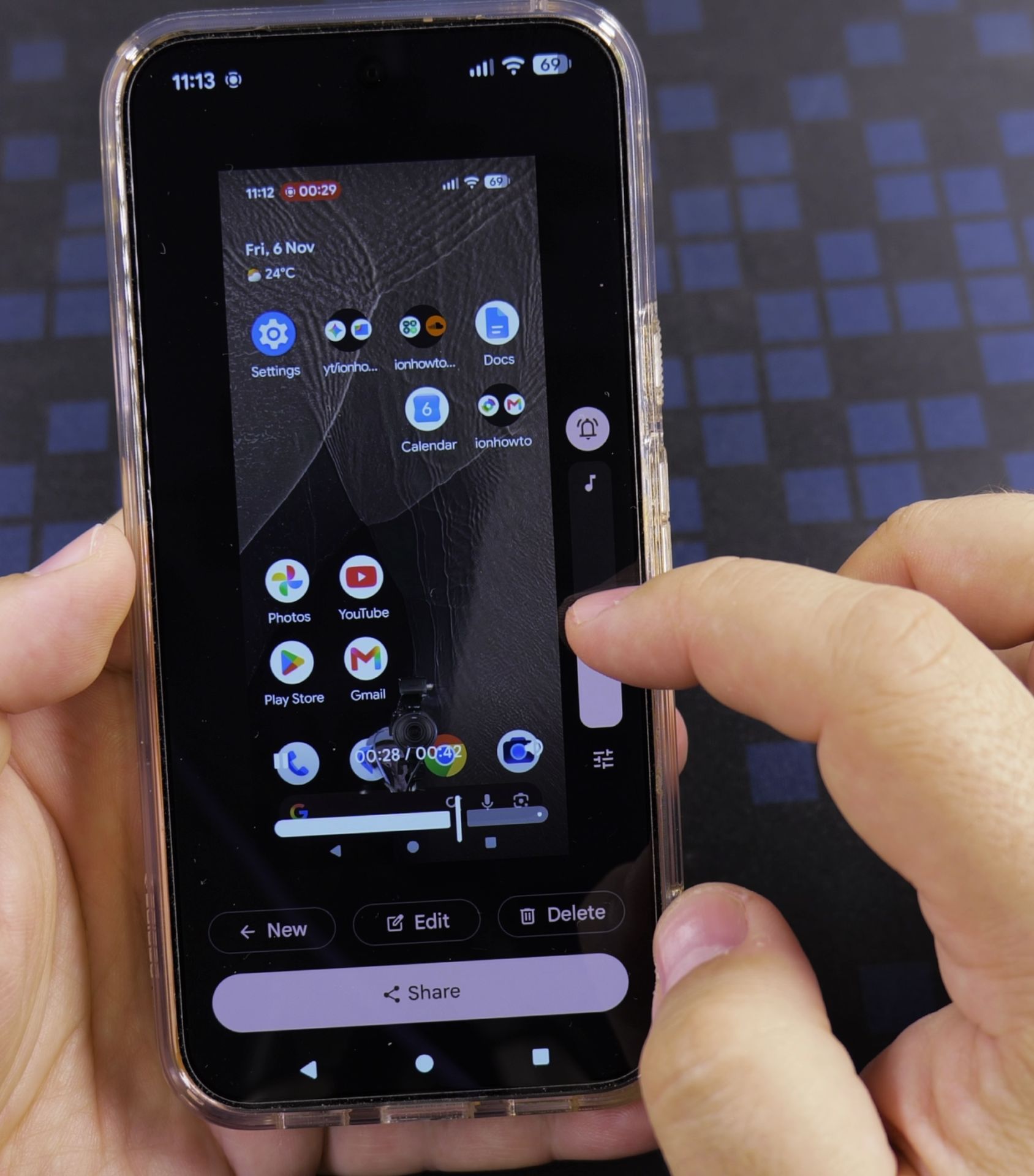
When you finish demonstrating your steps, tap the red recording timer pill at the top or swipe down and tap **Stop**. Your finished video saves straight to your photos gallery ready to share.

Helpful Tips
- Tap the floating selfie camera window if you want to adjust background effects or switch the camera off mid-recording.
- Turning on Show touches displays a small dot wherever your finger taps, which makes instructions easier for friends and family to follow.
Related Guides
- Switch Between Front and Back Camera on Android – How to Switch Between Front and Back Camera on Android.
- Remove Apps from Samsung Android Home Screen – How to Remove Apps from Home Screen on Samsung Android.
- Remove App From Android Home Screen – How to Remove an App from Your Home Screen on Android.
- Android & Mobile – Browse more tutorials and practical guides in this section.
Leave a Reply Cancel reply