


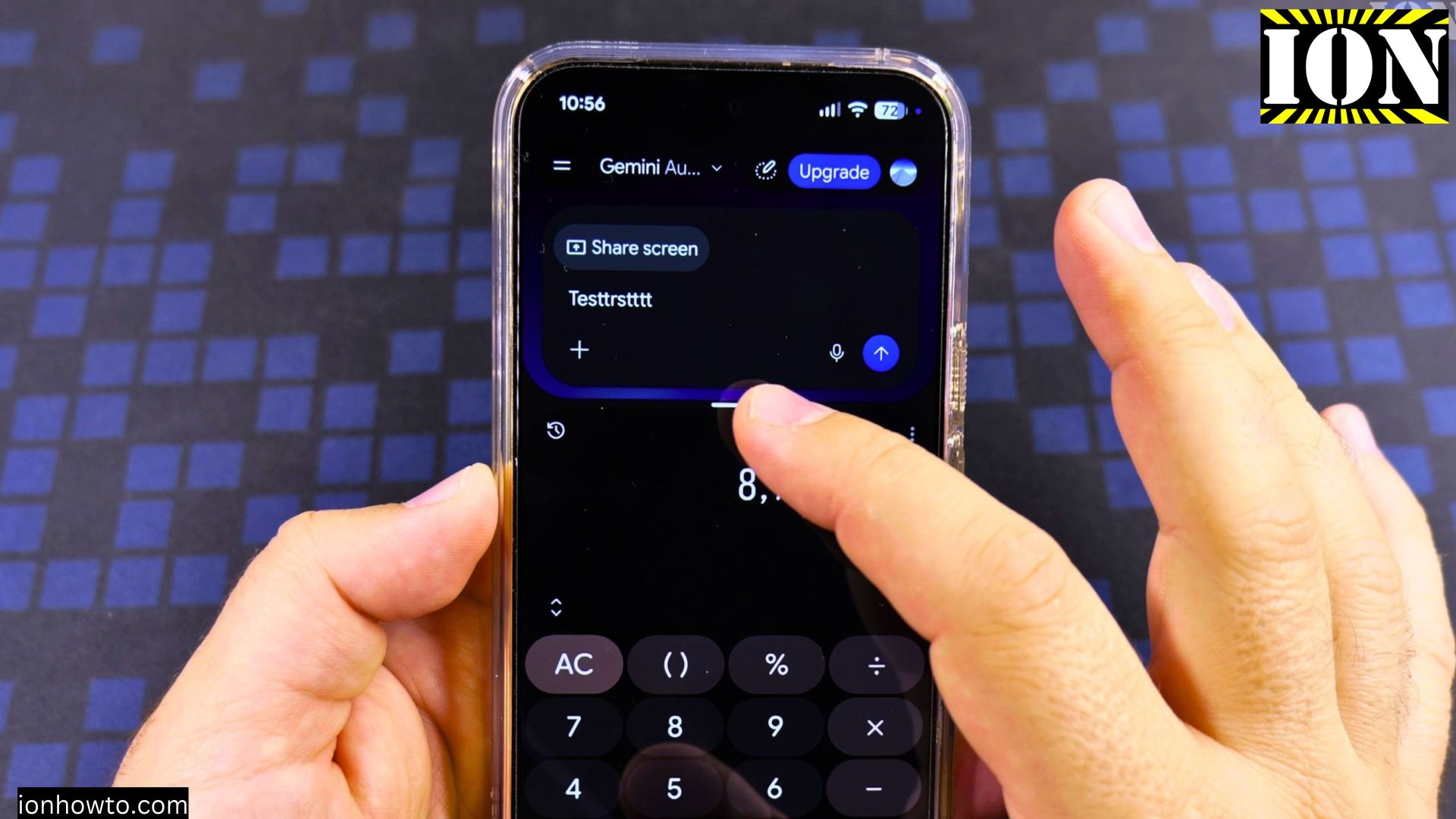
You can view and use two apps on your Android screen at the same time without switching back and forth. I’ll show you how to open split screen mode on your Google Pixel Android phone in just a few taps.

Quick Steps and Scenarios Overview
| What You Need to Do | Quick Jump |
|---|---|
| Open both apps you want to use | Jump to Step 1 |
| Open the recent apps switcher | Jump to Step 2 |
| Tap the top app icon and choose Split screen | Jump to Step 3 |
| Select your second app and resize the split | Jump to Step 4 |
| Save an app pair or close split screen | Jump to Step 5 |
Recommended Amazon Gear and Accessories
Disclosure: This article contains Amazon affiliate links. As an Amazon Associate, we earn from qualifying purchases at no extra cost to you.
- Phone Accessories
- Android Phone Case
- USB-C Charger
- USB-C Cable
- Wireless Charger Stand
- Wireless Car Charger
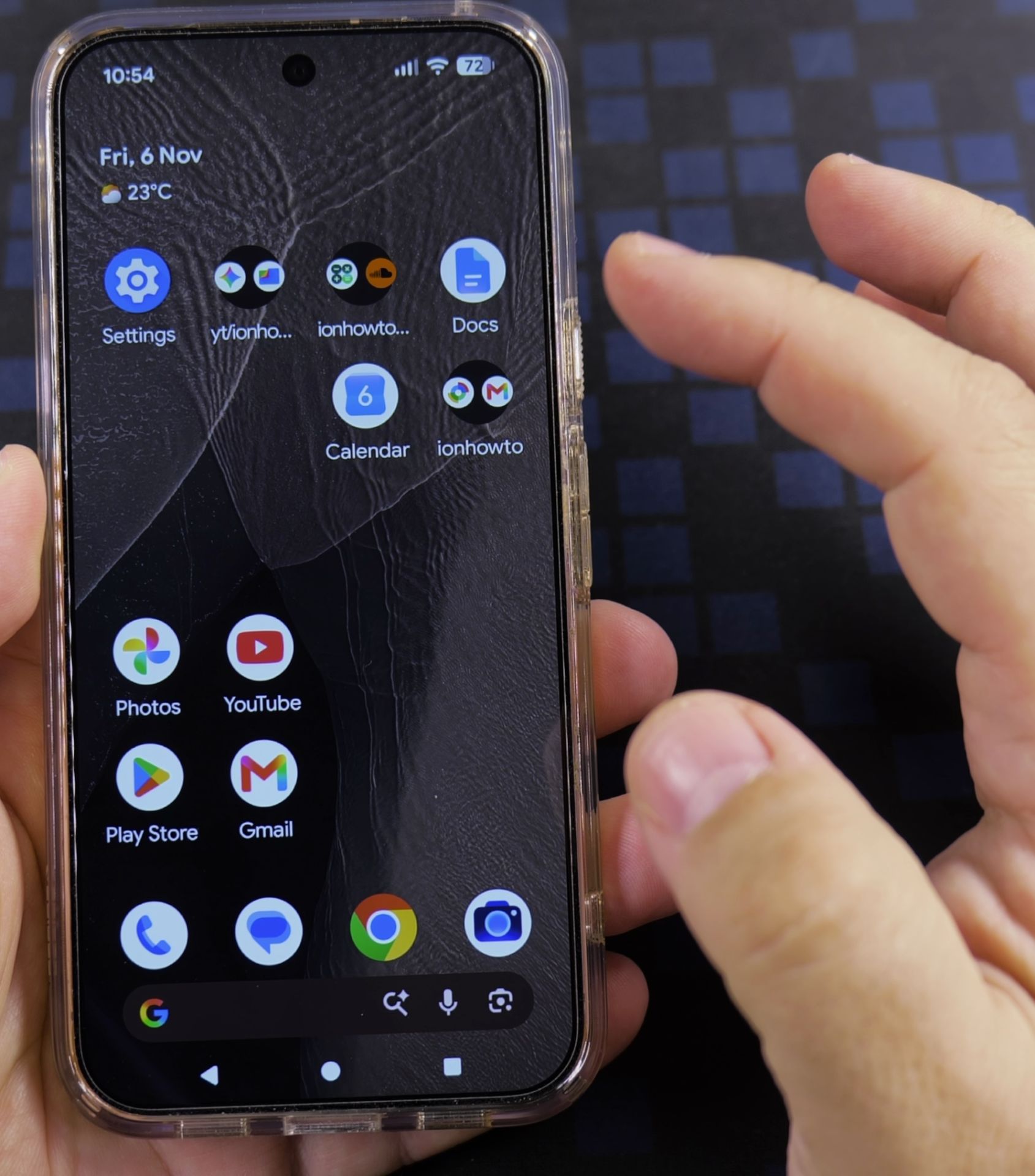
1. Open both apps you want to use
Open your first app, like Calculator, then open your second app, such as Gemini or Notes. Having both apps open beforehand puts them at the front of your recent apps list.

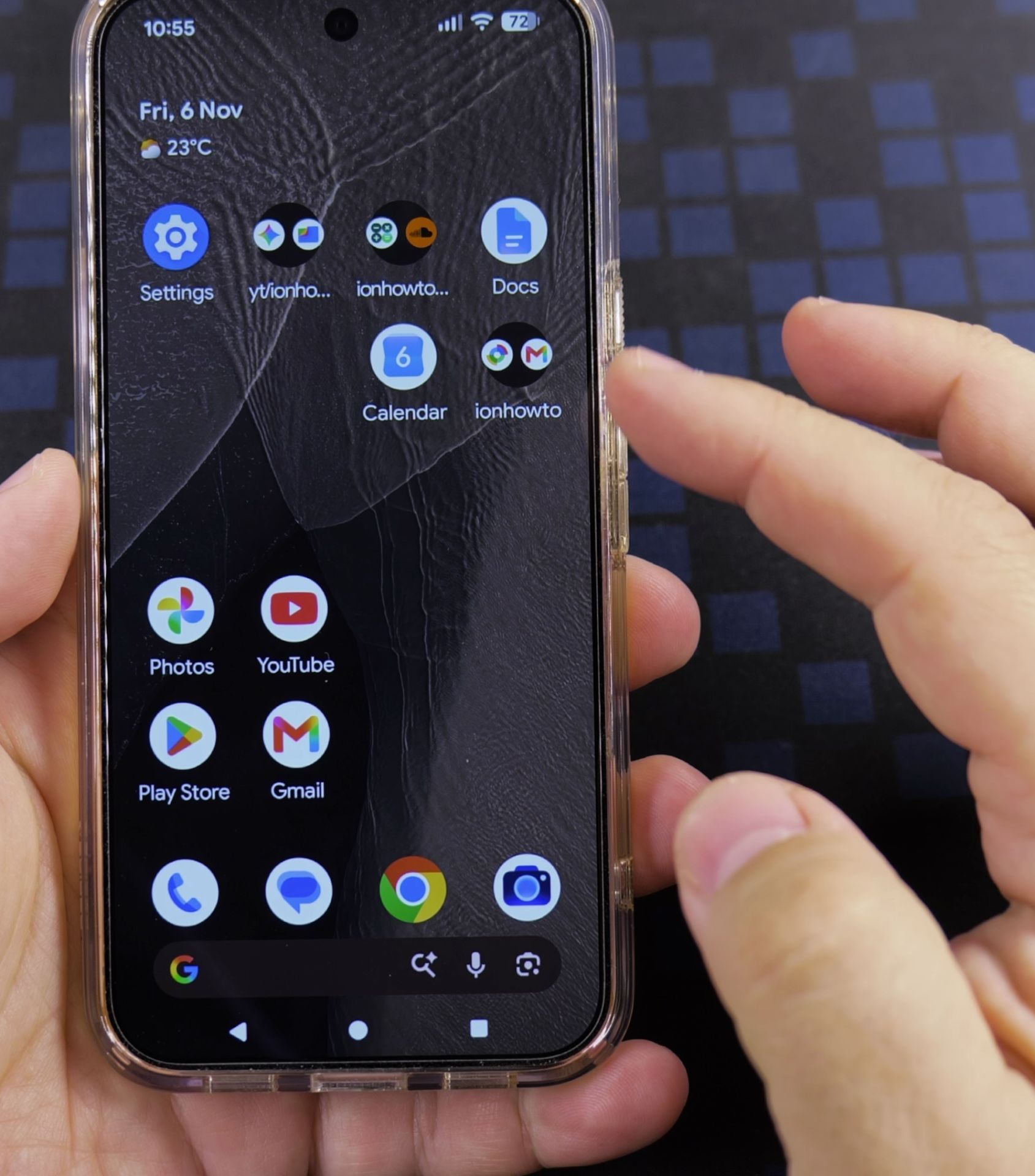
2. Open the recent apps switcher
Tap the square Recents button at the bottom-right corner of your screen. If you use swipe gestures instead of buttons, swipe up from the very bottom edge and hold halfway up.
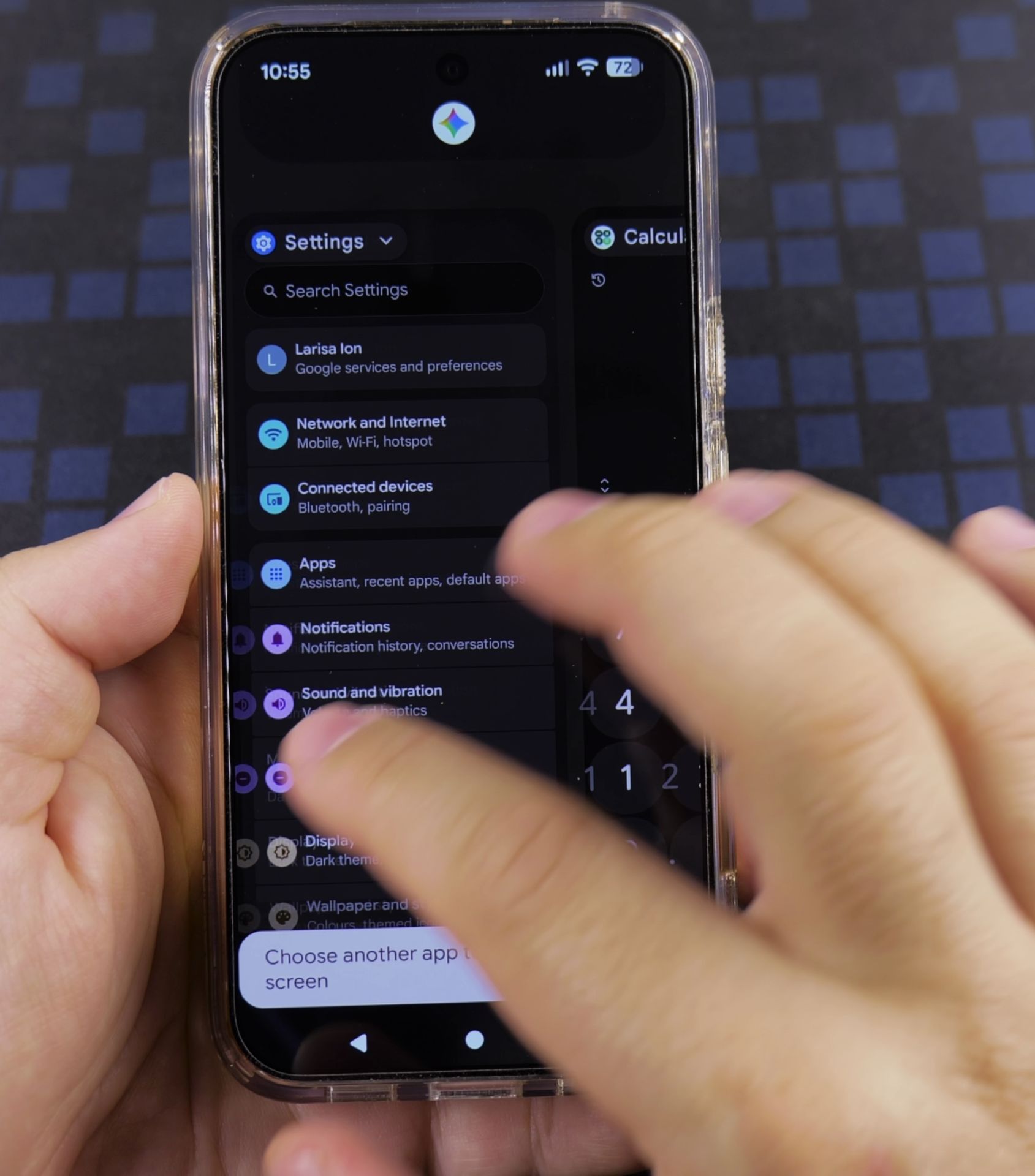
3. Tap the top app icon and choose Split screen
Touch the round app icon or title right above the top preview window. Tap Split screen in the popup menu to lock that first app onto the top half of your screen.
4. Select your second app and resize the split
Tap your second app below to place both windows on screen together. You can type or tap in either app, or drag the white horizontal divider line up and down to make one pane larger.
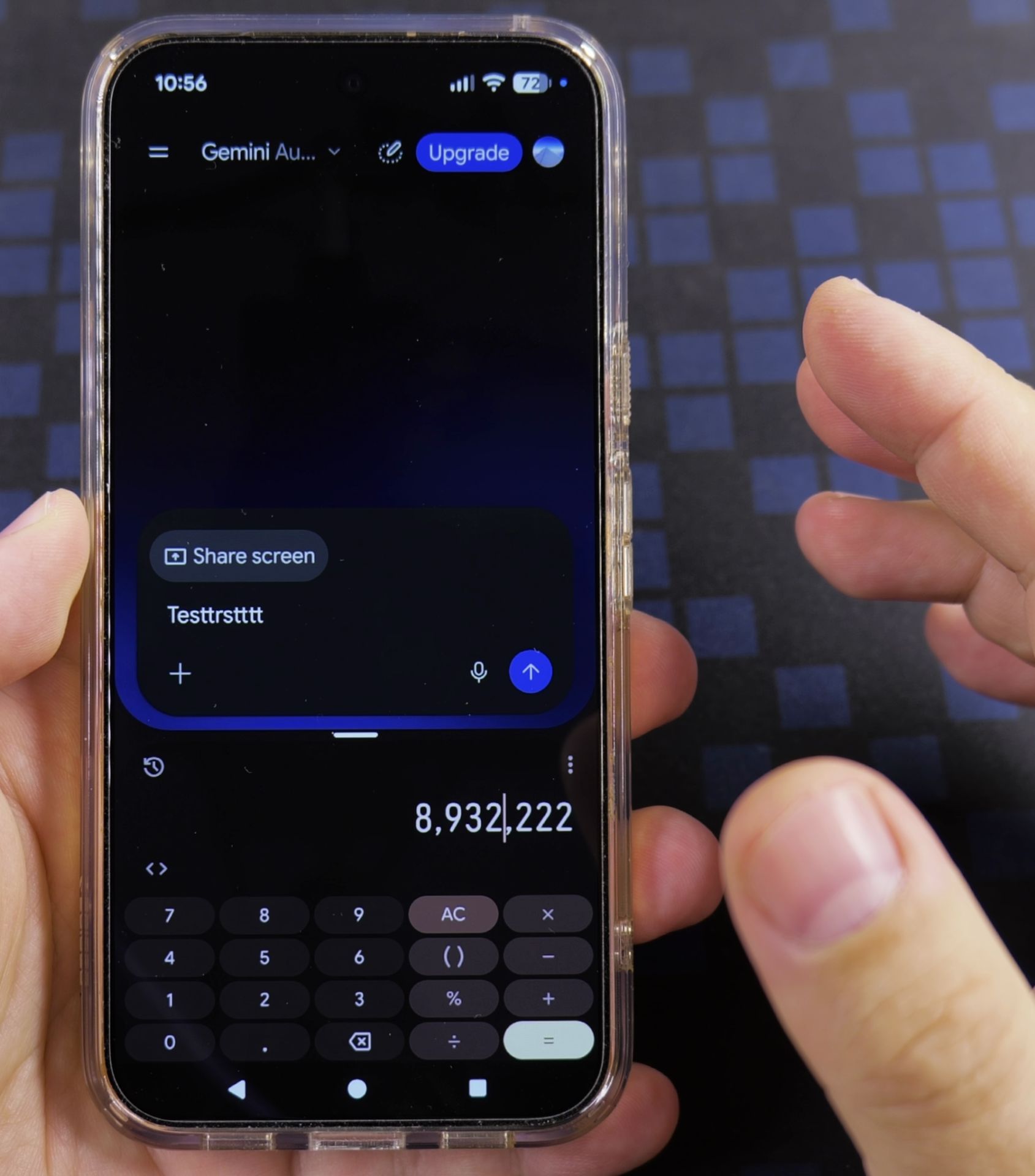
5. Save an app pair or close split screen
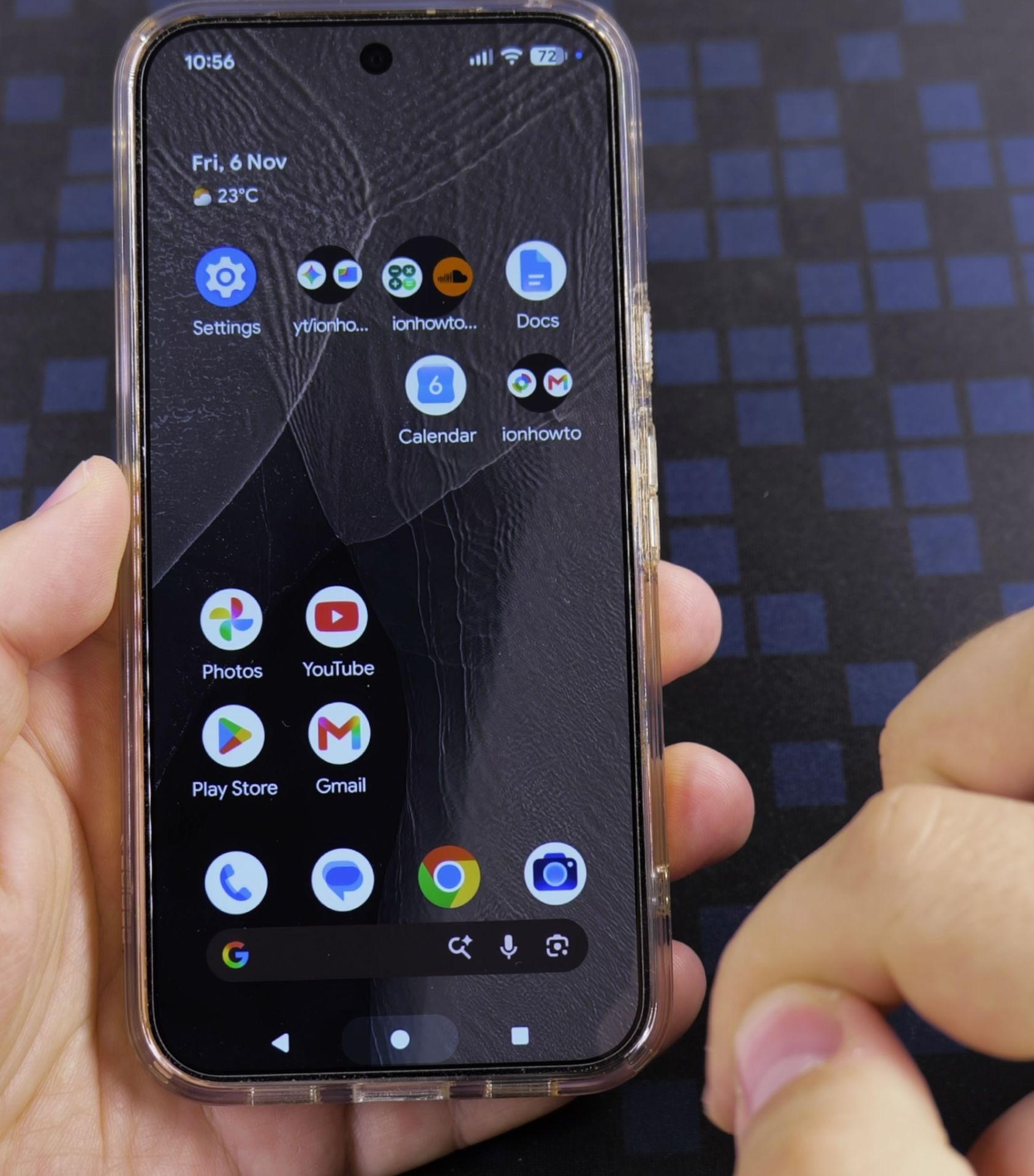
Tap the Recents button again if you want to save the two apps together as a home screen app pair. To return to one full-screen app, drag the center divider bar all the way to the top or bottom edge.

Helpful Tips
- These steps work similarly on Google Pixel phones and most modern Android devices, including Samsung Galaxy phones.
- If an app does not allow split screen, try a simpler pairing first – some games and banking apps stay full screen only.
Related Guides
- Add Apps to Samsung Android Home Screen – How to Add Apps to Home Screen on Samsung Android.
- Remove App From Android Home Screen – How to Remove an App from Your Home Screen on Android.
- Android Touch Screen Taps and Multi-Touch Gestures – How to Use Android Touch Screen Taps and Multi-Touch Gestures.
- Android & Mobile Guides – Browse more tutorials and practical guides in this section.
Leave a Reply Cancel reply