


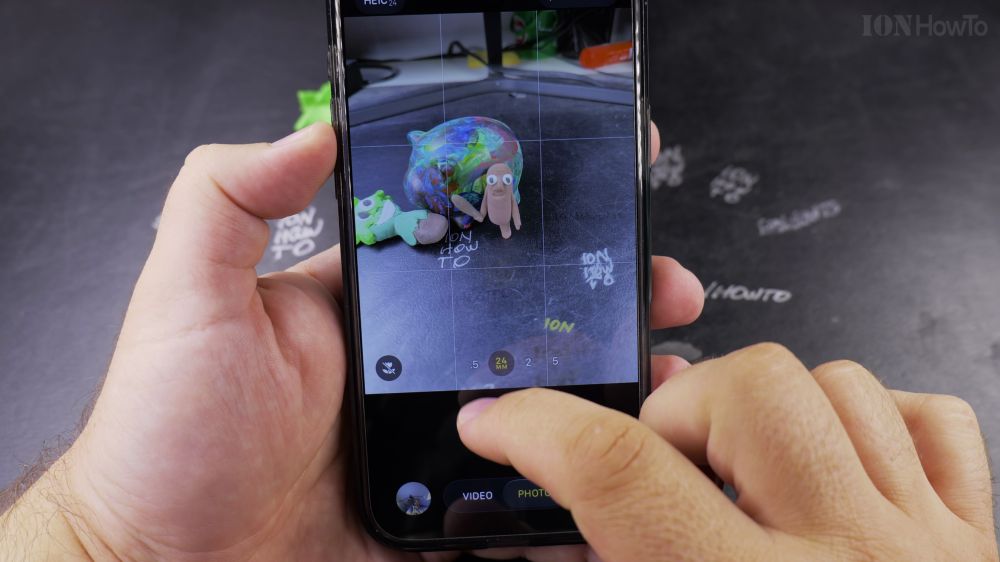
Getting the perfect framing for a wide landscape or distant wildlife is easy once you know how iPhone lens switching works. I’ll show you how to toggle between camera lenses and use the precision zoom dial on iPhone.

1. Open Camera
Open the **Camera** app on your iPhone.

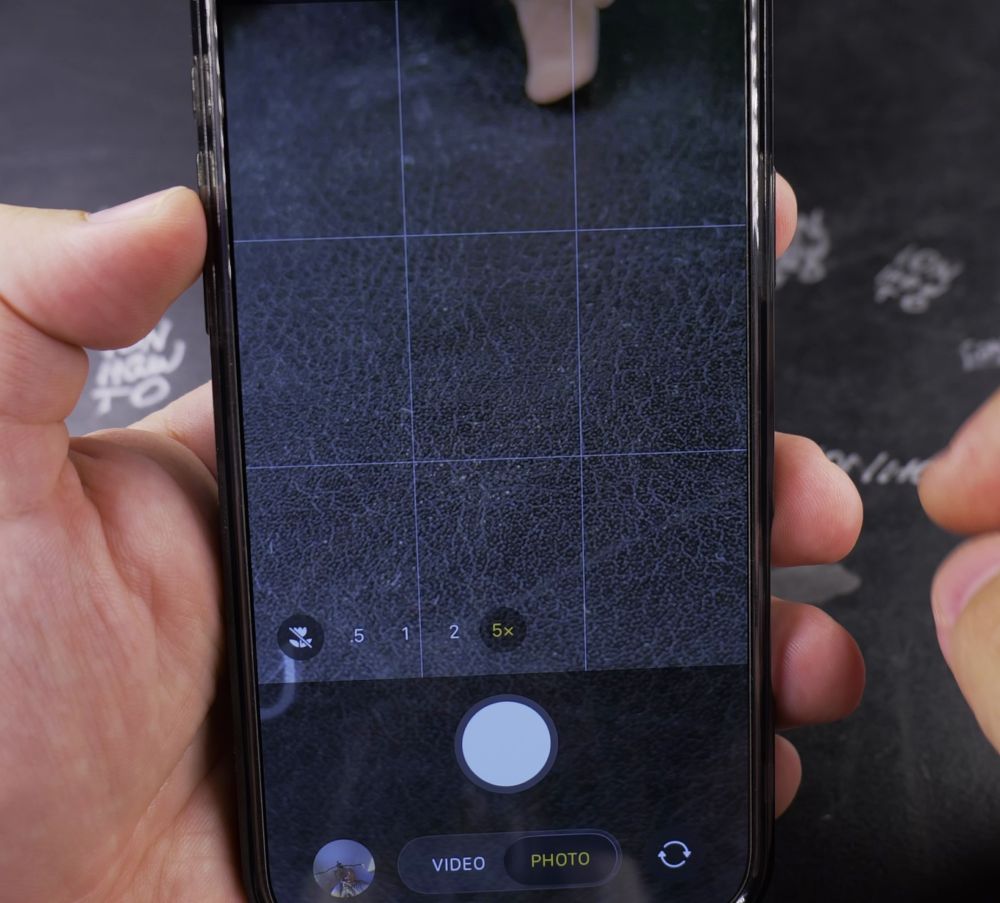
2. Tap Lens Presets
Tap the quick lens circles right above the shutter button: **0.5x** for ultra-wide, **1x** for main camera, **2x** for portraits, and **5x** for distant telephoto zoom.
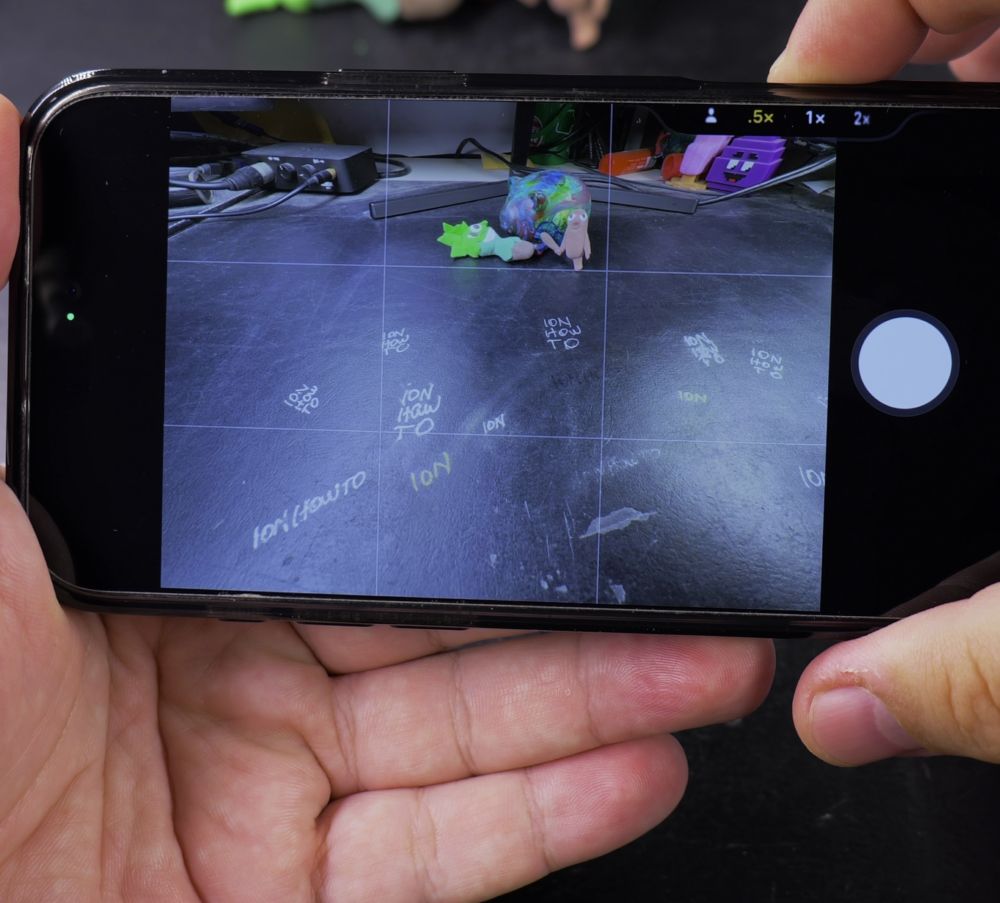
3. Use the Precision Zoom Dial
Press and hold any zoom circle, then slide your finger left or right along the wheel dial to smoothly fine-tune magnification.
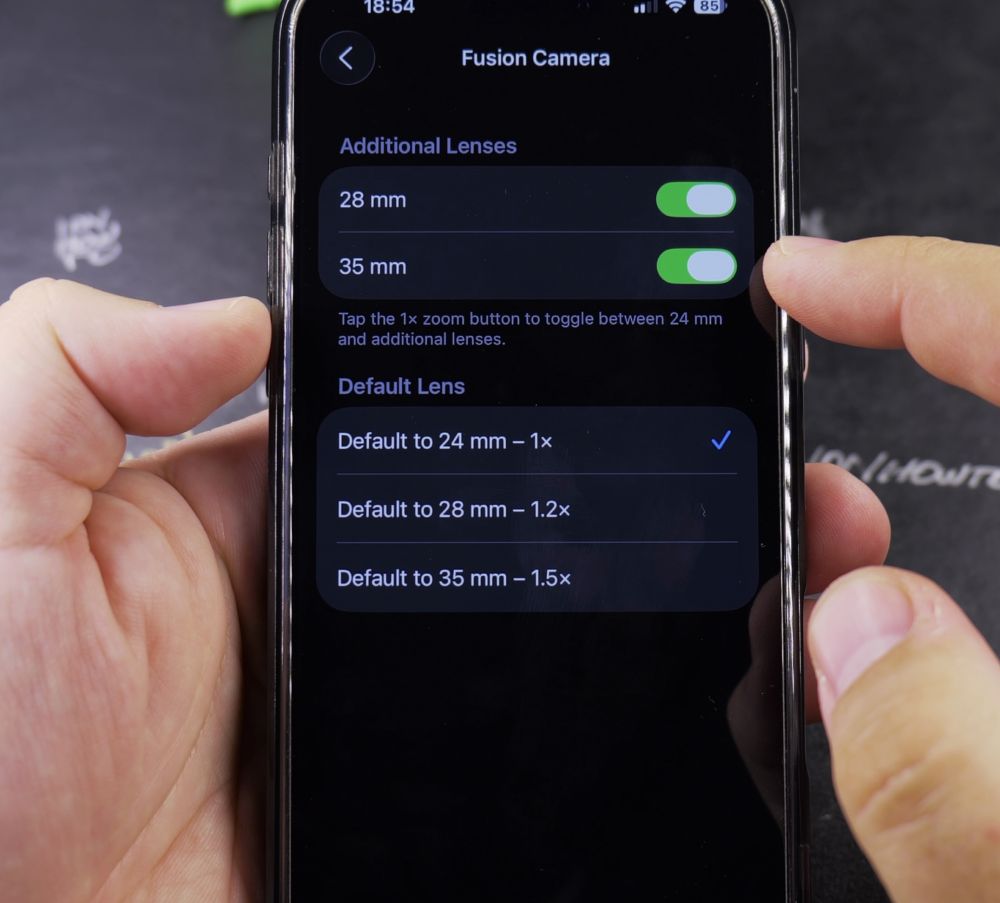
4. Tap 1x for Focal Lengths
Tapping the **1x** button repeatedly cycles through 24mm (1x), 28mm (1.2x), and 35mm (1.5x) equivalent focal lengths.
5. Snap Your Photo
Once your subject is nicely framed, tap the white shutter button to take a crisp photo.
Helpful Tips
For the highest image sharpness, stick to the physical optical presets (0.5x, 1x, 2x, 5x) rather than digital in-between zoom values. For more photography guides, check out our iPhone Guides collection.
Leave a Reply Cancel reply