


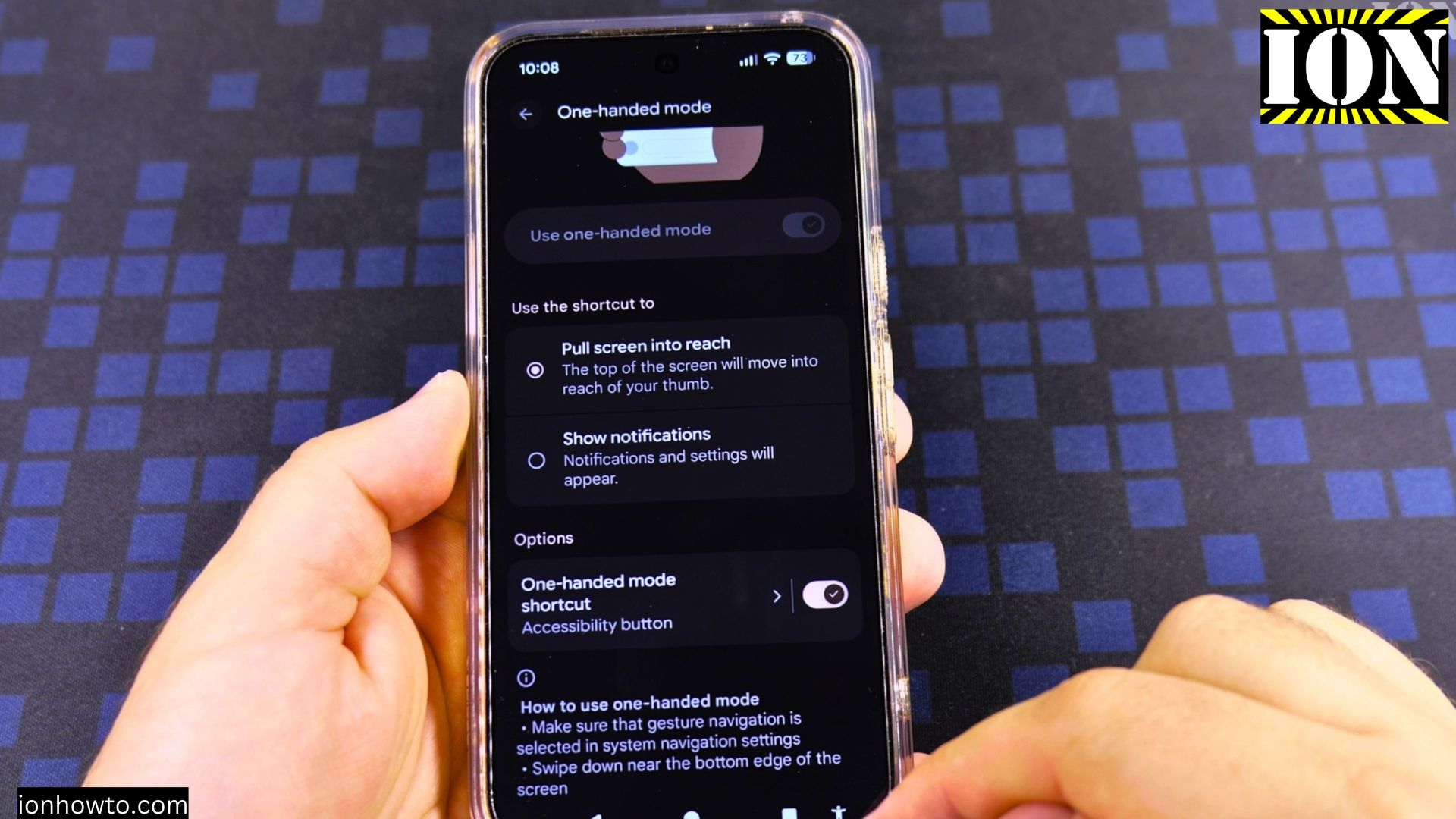
If the top half of your Pixel screen keeps sliding down by mistake, One-Handed mode or its bottom corner button is turned on. I’ll show you how to turn off One-Handed mode on your Google Pixel Android phone in just a few taps.

Quick Steps and Scenarios Overview
| What You Need to Do | Quick Jump |
|---|---|
| Exit the lowered screen if it is active now | Jump to Step 1 |
| Open Settings and go to System | Jump to Step 2 |
| Open the One-handed mode menu | Jump to Step 3 |
| Turn off the main switch and remove the bottom button | Jump to Step 4 |
| Test your navigation bar at the bottom | Jump to Step 5 |
Recommended Amazon Gear and Accessories
Disclosure: This article contains Amazon affiliate links. As an Amazon Associate, we earn from qualifying purchases at no extra cost to you.
- Phone Accessories
- Android Phone Case
- USB-C Charger
- USB-C Cable
- Wireless Charger Stand
- Wireless Car Charger
1. Exit the lowered screen if it is active now
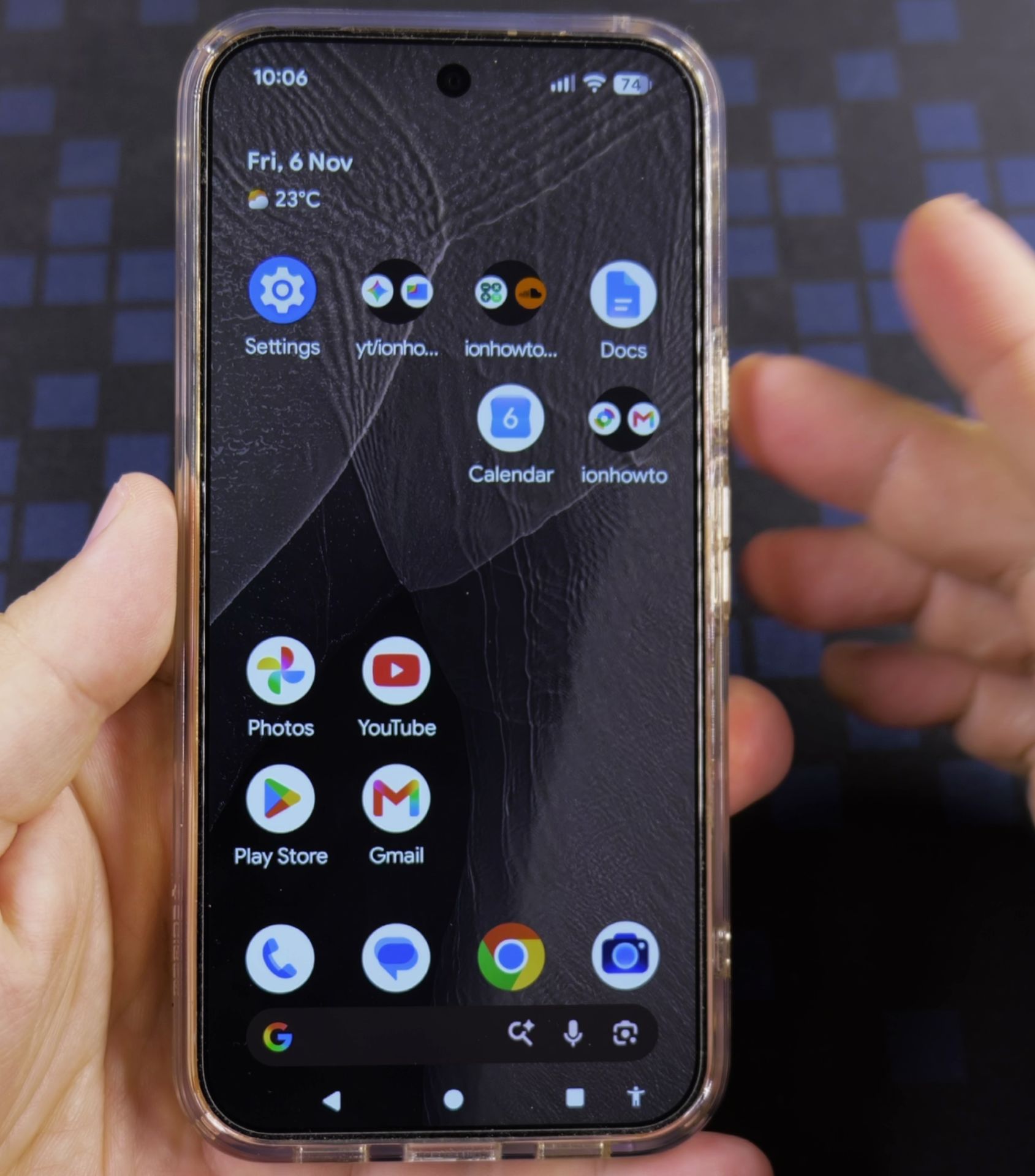
If your screen is already dropped halfway down, tap anywhere in the dark area at the top of the screen. You can also swipe up from the bottom edge or tap the small person icon in the bottom-right corner to bring everything back to full size.

2. Open Settings and go to System
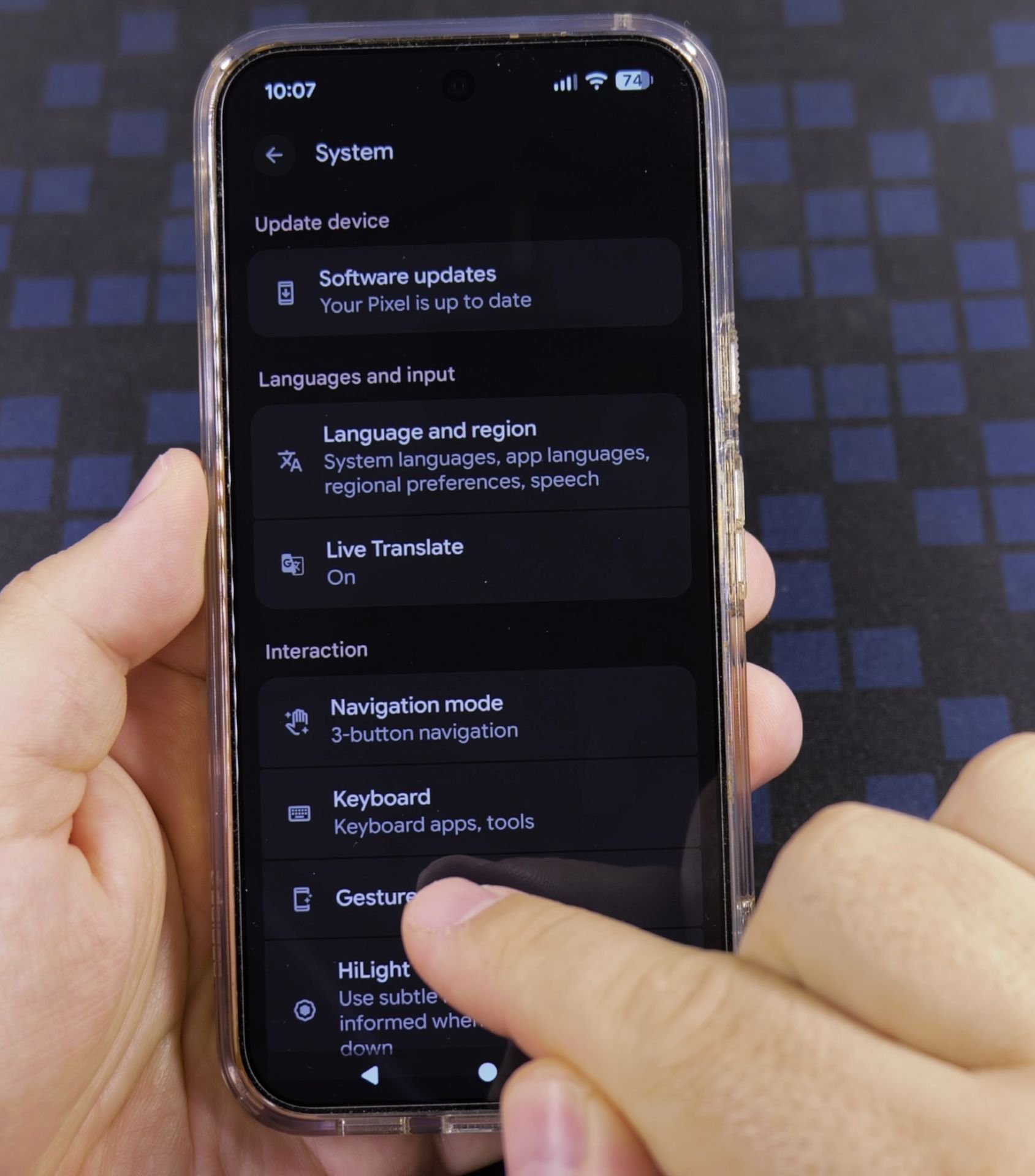
Tap the blue Settings gear icon on your home screen or inside your app list. Scroll down near the bottom and tap System, then tap Gestures in the Interaction section.
3. Open the One-handed mode menu
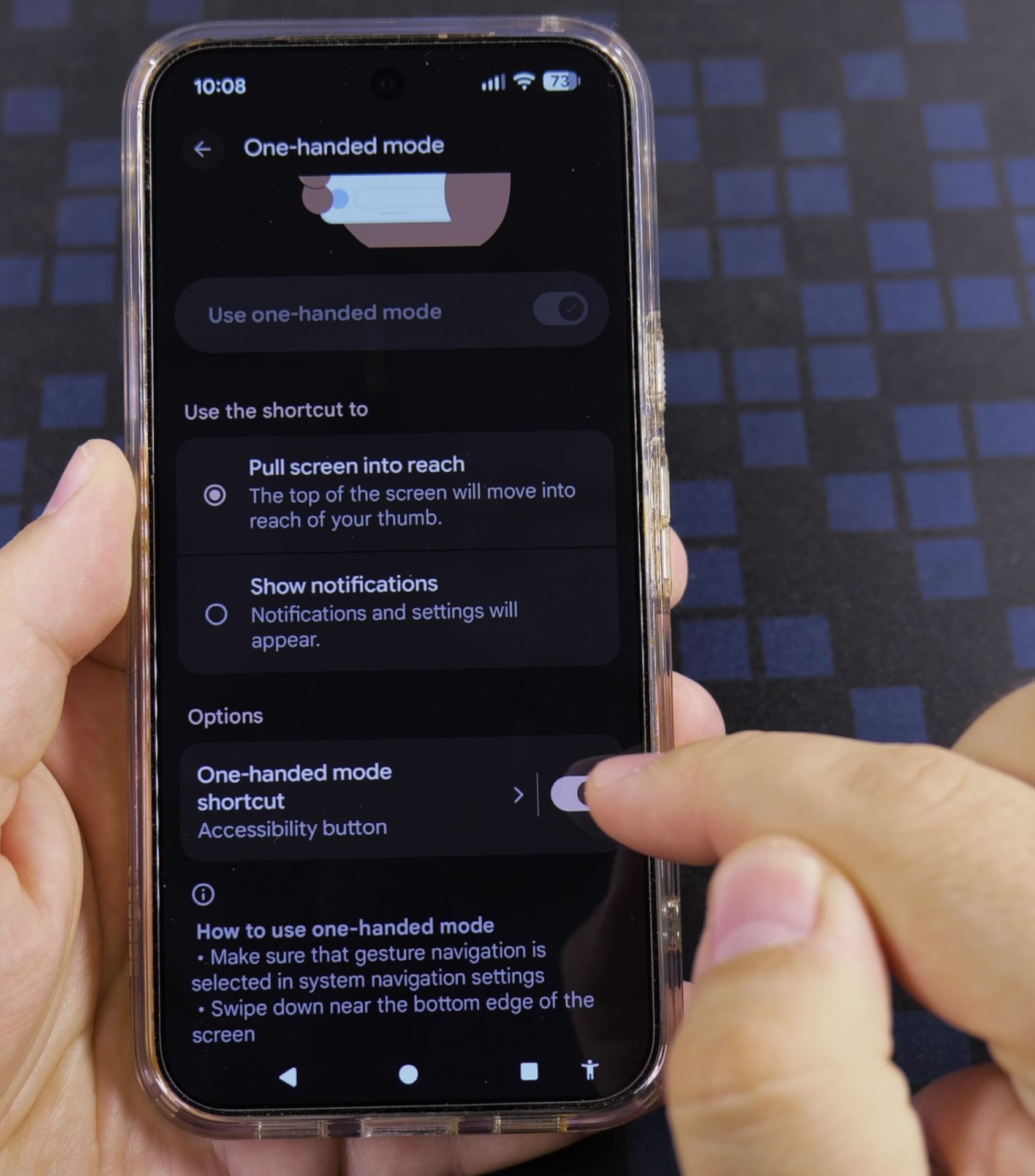
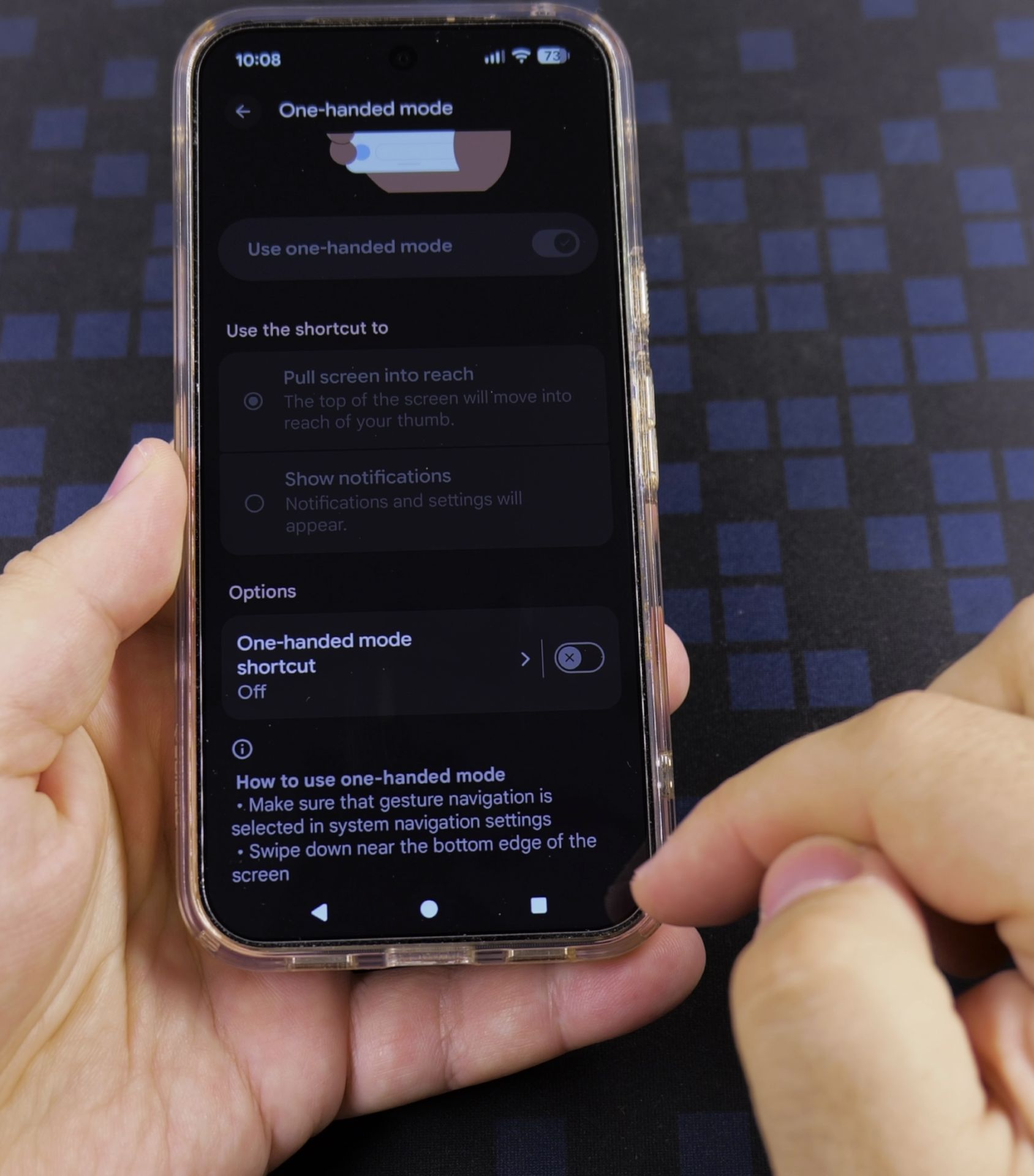
On the Gestures screen, find One-handed mode and tap it. You will see both the main Use one-handed mode switch and the One-handed mode shortcut option below it.
4. Turn off the main switch and remove the bottom button
Slide Use one-handed mode to Off if it is turned on. Then turn off the One-handed mode shortcut switch near the bottom so the small human-shaped accessibility icon disappears from your navigation bar.

5. Test your navigation bar at the bottom
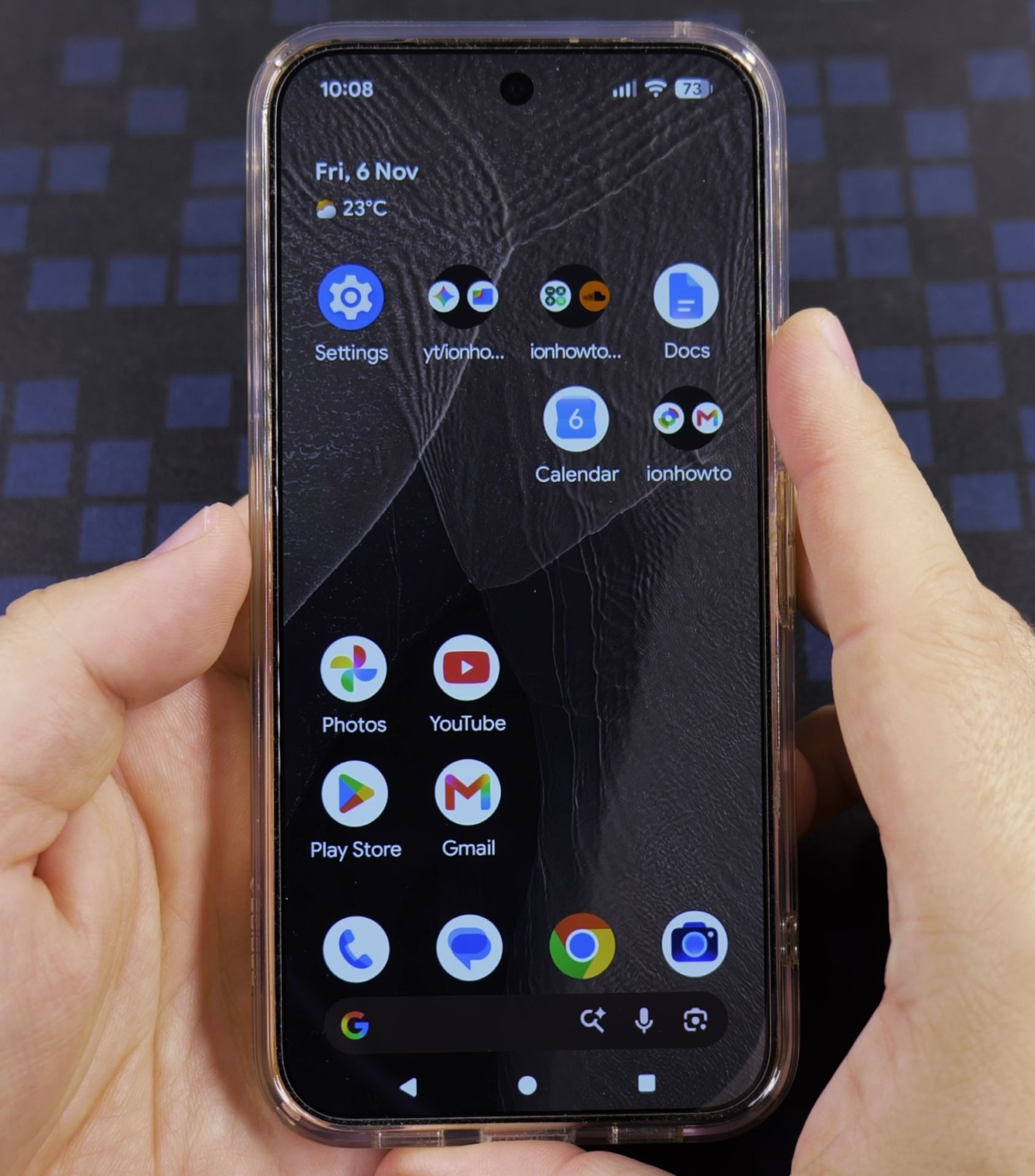
Look at the bottom-right corner next to the square button and confirm the extra accessibility icon is gone. Your screen will now stay full-sized during everyday use.
Helpful Tips
- Turning off One-handed mode shortcut removes the extra icon from the three-button navigation bar immediately without changing your Back, Home, or Recents buttons.
- You can turn One-Handed mode back on anytime from Settings, then System, then Gestures if you ever want single-thumb reach again.
Related Guides
- Remove Apps from Samsung Android Home Screen – How to Remove Apps from Home Screen on Samsung Android.
- Remove App From Android Home Screen – How to Remove an App from Your Home Screen on Android.
- Change Wallpaper on Android Lock Screen and Home Screen – How to Change Wallpaper on Android Lock Screen and Home Screen.
- Android & Mobile Guides – Browse more tutorials and practical guides in this section.
Leave a Reply Cancel reply