


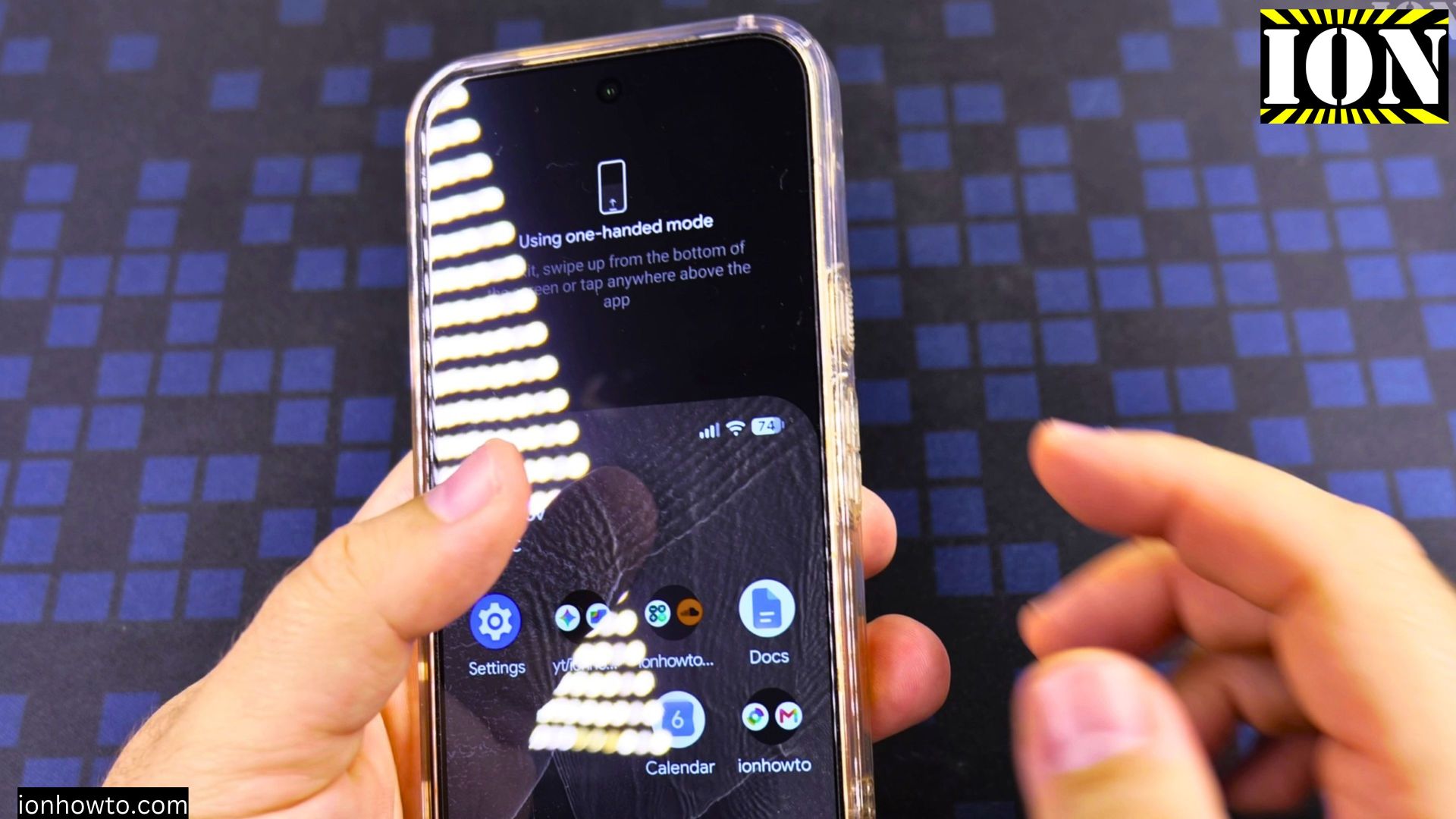
If tall phone screens are hard to reach with one thumb, One-Handed mode slides the top half of your display down within easy reach. I’ll show you how to turn it on in Android settings in just a few taps.
Quick Steps and Scenarios Overview
| What You Need to Do | Quick Jump |
|---|---|
| Open Settings on Your Google Pixel | Jump to Step 1 |
| Go to System and Gestures | Jump to Step 2 |
| Select One-Handed Mode | Jump to Step 3 |
| Choose Pull Screen Into Reach and Enable the Shortcut | Jump to Step 4 |
| Lower and Exit the Screen with One Tap | Jump to Step 5 |
Recommended Amazon Gear and Accessories
Disclosure: This article contains Amazon affiliate links. As an Amazon Associate, we earn from qualifying purchases at no extra cost to you.
- Phone Accessories
- Android Phone Case
- USB-C Charger
- USB-C Cable
- Wireless Charger Stand
- Wireless Car Charger
1. Open Settings on Your Google Pixel
Unlock your phone and swipe up on the home screen to see your apps. Tap the blue gear-shaped **Settings** app icon.

2. Go to System and Gestures
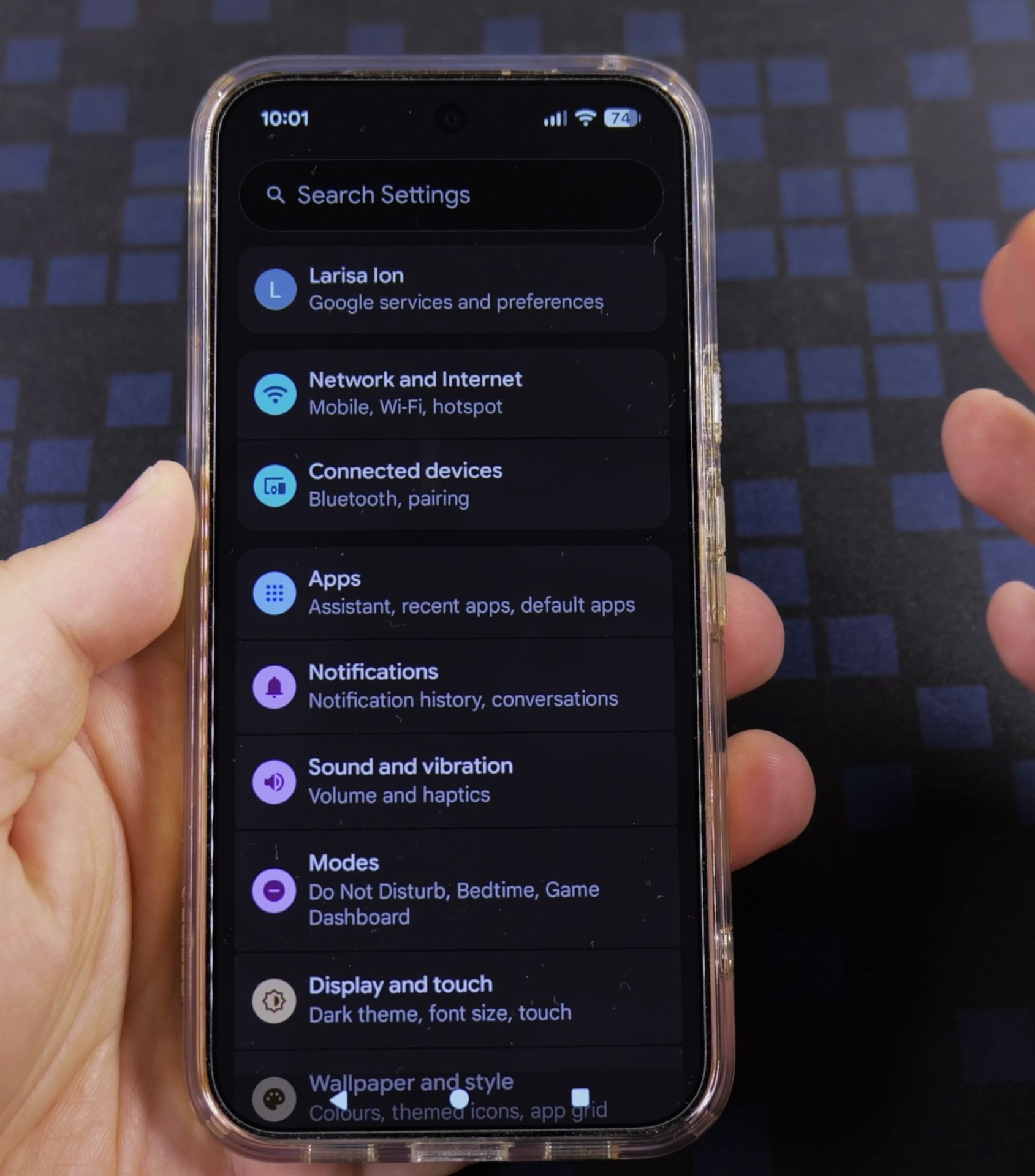
Scroll down near the bottom of the Settings list and tap **System**. Next, tap **Gestures** to see the motion controls on your phone.
3. Select One-Handed Mode
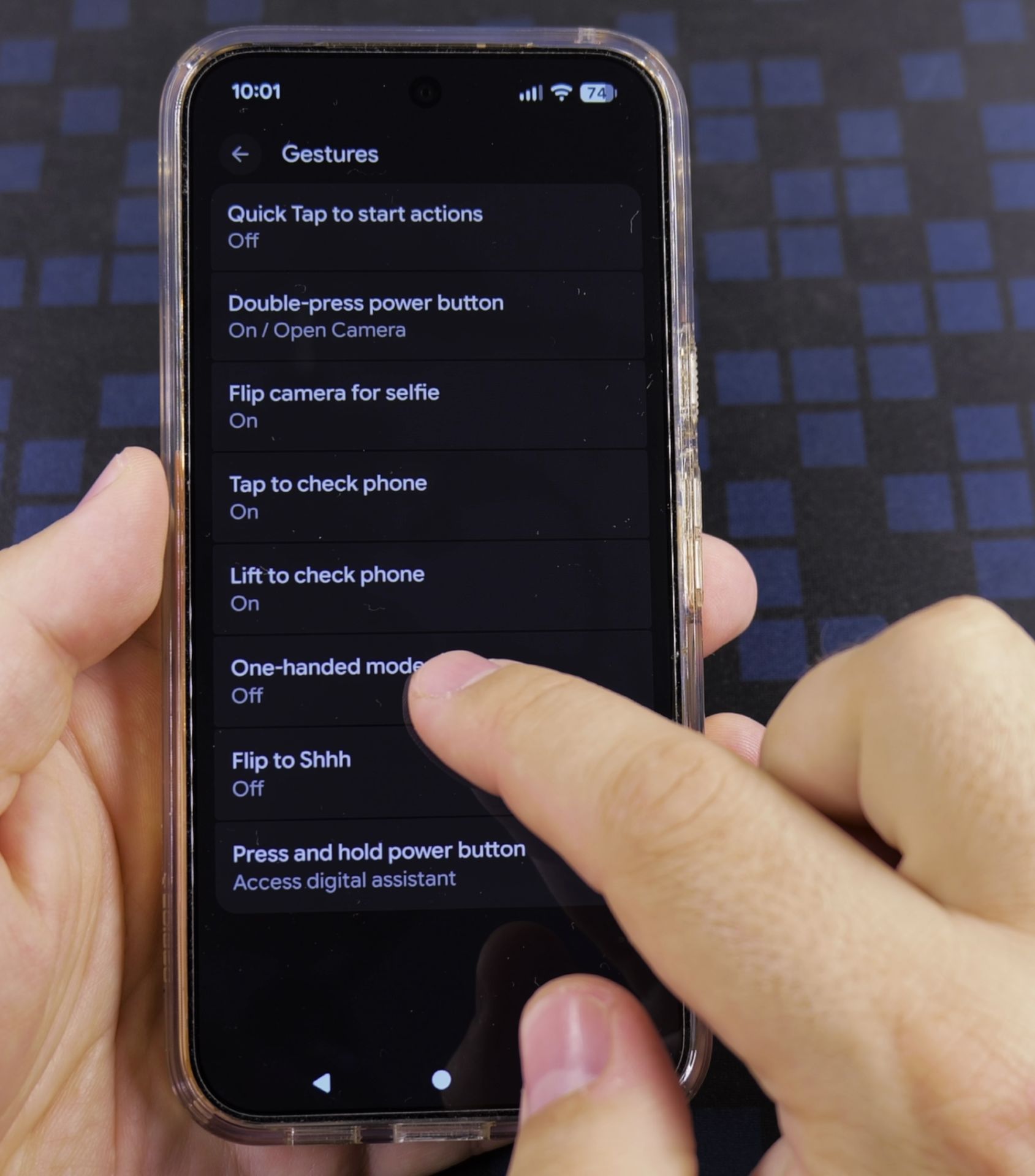
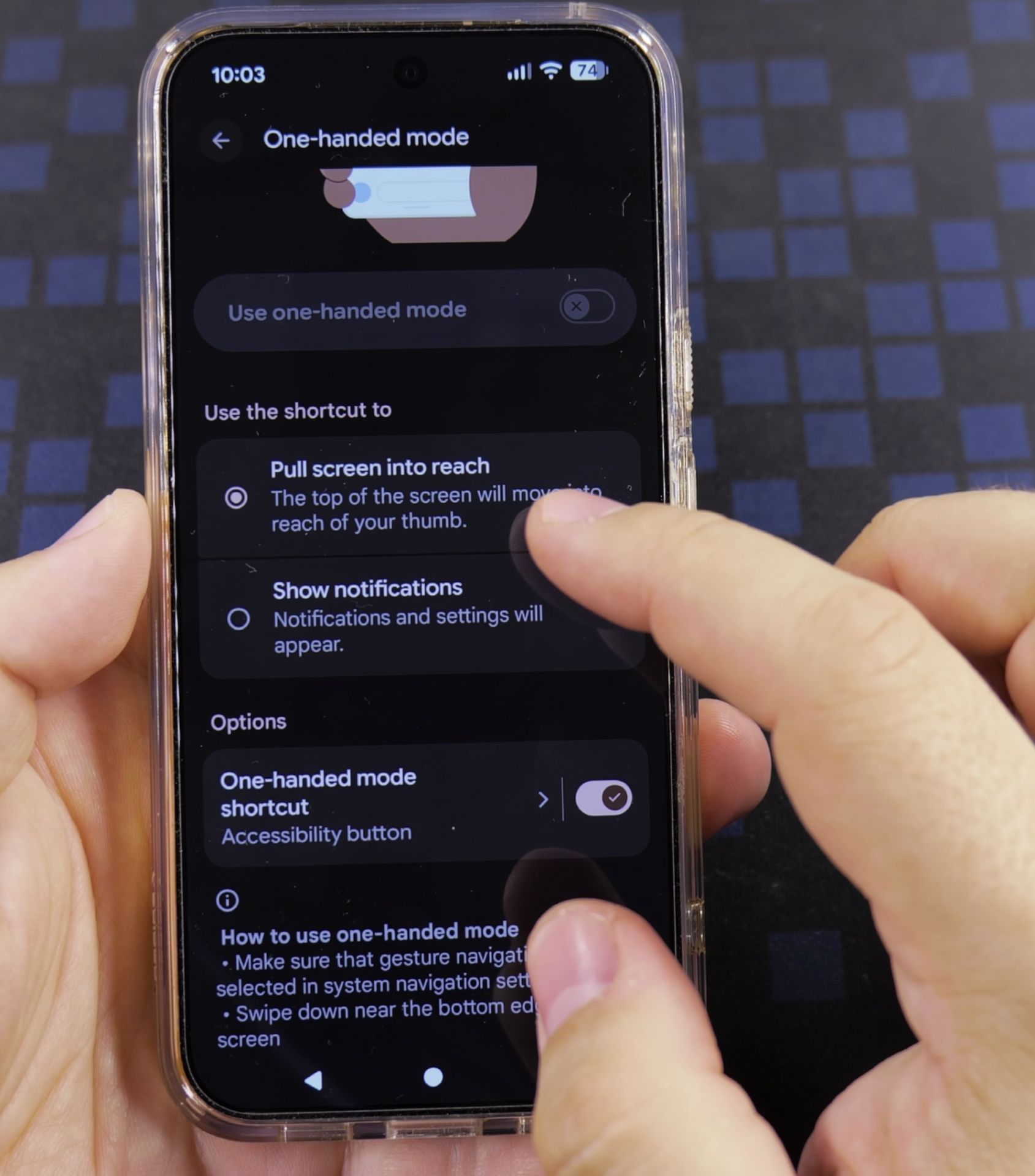
Tap **One-handed mode** in the Gestures list. A preview animation at the top shows how the screen drops down when you use it.
4. Choose Pull Screen Into Reach and Enable the Shortcut
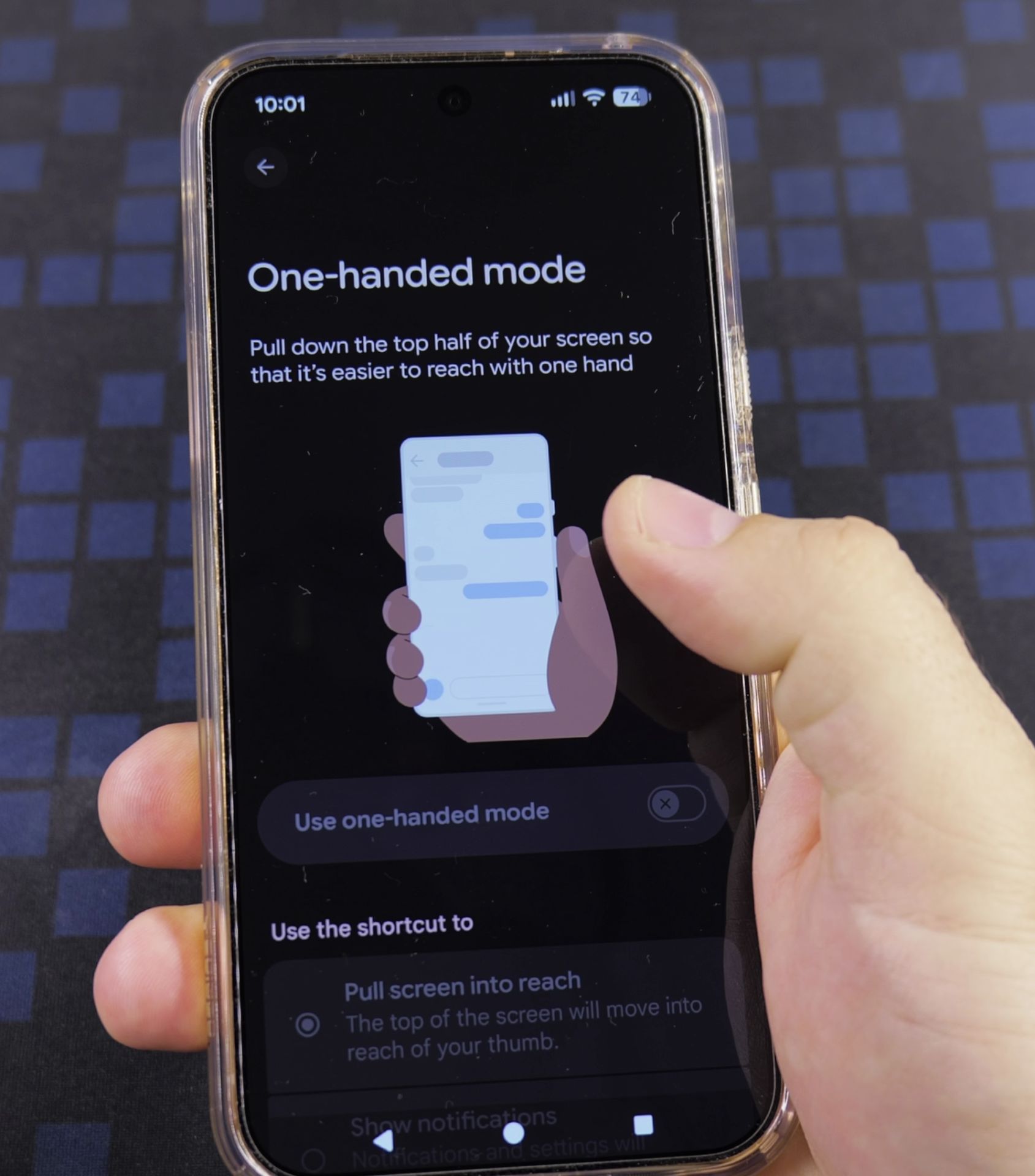
Select **Pull screen into reach** so top icons drop down instead of just opening notifications. Then turn **On** the **One-handed mode shortcut** toggle at the bottom to place the small Accessibility icon on your navigation bar.
5. Lower and Exit the Screen with One Tap
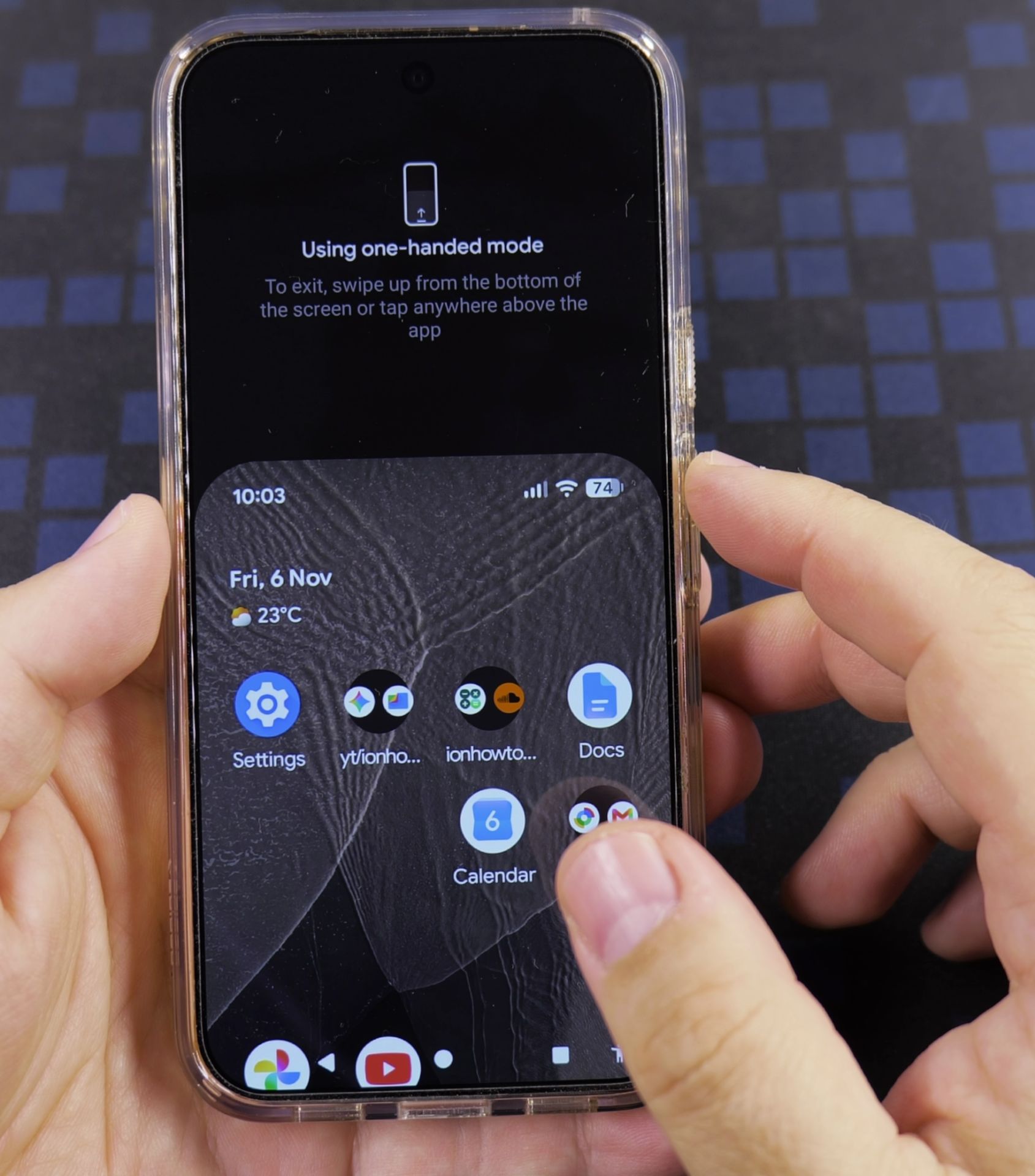
Tap the small **Accessibility** icon in the bottom-right corner whenever you want to reach apps at the top with one thumb. To return to full screen, tap that same Accessibility button again or tap the dark space above the lowered window.
Helpful Tips
- Using the on-screen Accessibility shortcut button is much more reliable than swiping up or down from the very bottom edge.
- You can return to **Settings** -> **System** -> **Gestures** -> **One-handed mode** anytime and switch to **Show notifications** if you prefer opening alerts one-handed.
Related Guides
- Remove Apps from Samsung Android Home Screen – How to Remove Apps from Home Screen on Samsung Android.
- Remove App From Android Home Screen – How to Remove an App from Your Home Screen on Android.
- Change Wallpaper on Android Lock Screen and Home Screen – How to Change Wallpaper on Android Lock Screen and Home Screen.
- Android & Mobile Guides – Browse more tutorials and practical guides in this section.
Leave a Reply Cancel reply