


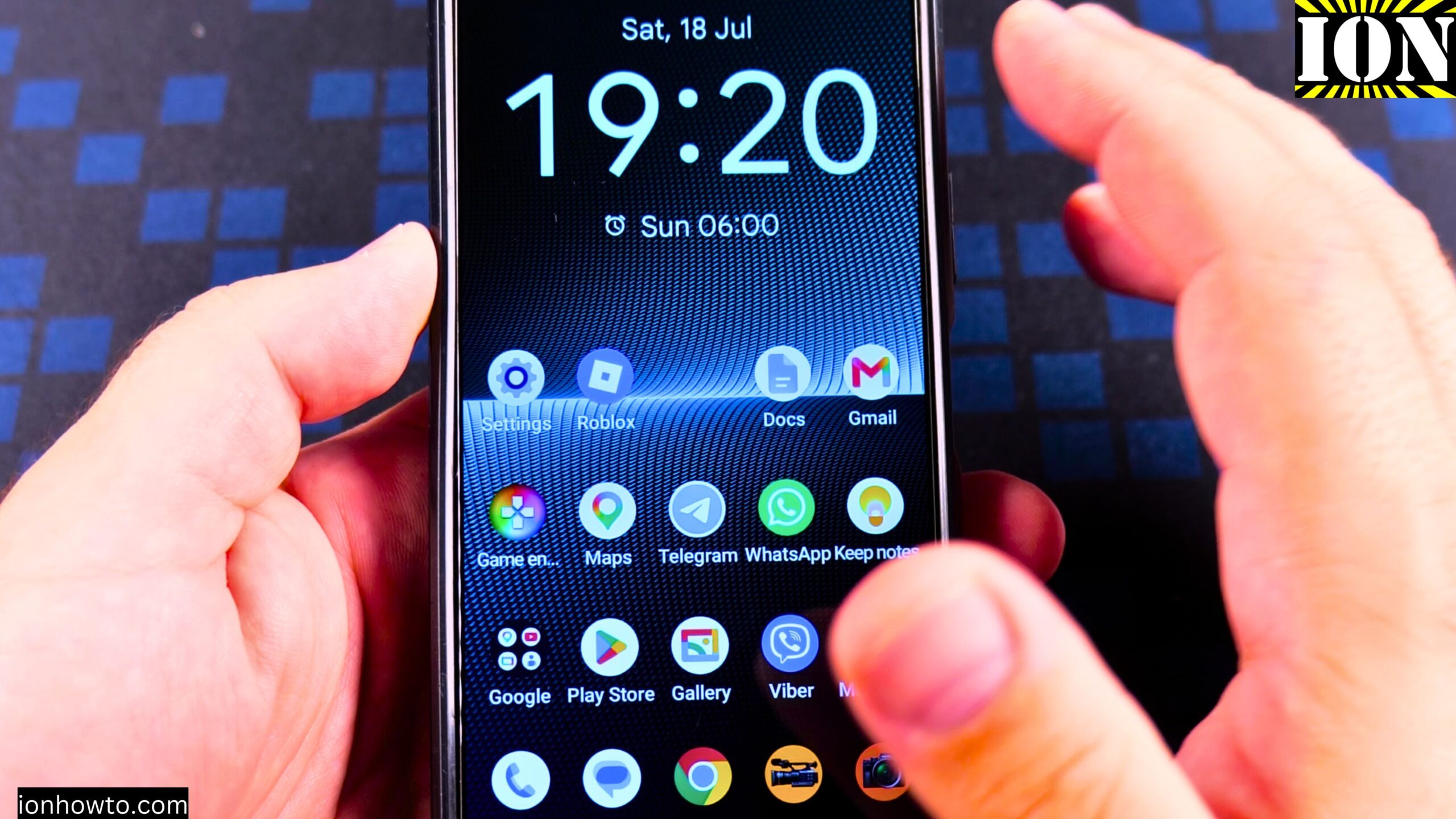
How to Use Android Touch Screen Taps and Multi-Touch Gestures.
I show you how to use the basic and advanced touch screen gestures on your Android phone. Learning these taps and multi-touch gestures helps you navigate your device more efficiently. I demonstrate the essential controls that work across most Android devices.
I’m showing you this on a Sony Xperia 1 V Global – EU Model XQ-DQ54 running Android 15.
How to Unlock Your Android Phone
Most of the time you unlock your Android phone with the fingerprint sensor. This can be on the screen or on the side of the phone. On the Sony Xperia 1 Mark 5, the power button and the fingerprint sensor are in one place. Older Android phones used to have the fingerprint sensor on the back, but that is not so common anymore.
If you don’t use the fingerprint, you can see the lock screen and swipe up. Then you enter your passcode and press next.
Basic Taps and Presses
Whenever you touch the screen of your Android phone, that is one touch. Here are the basic gestures:
- Single tap – Touch the screen once to open apps and select items.
- Double tap – Tap twice quickly. This helps a lot when you are editing text.
- Triple tap – Tap three times quickly. This also helps with text editing.
- Long press – Tap and hold on the screen. This opens a menu with more options.
Android Touch Screen Taps and Multi-Touch Gestures Video

How to Move Apps Around
- Long press on an app icon.
- Keep holding and drag it to move it around.
- Drop it where you want it on the home screen.
You can also move apps into folders or combine them. This is the easy way to arrange your home screen how you want it.
How to Swipe Through Photos and Pages
- Open the Gallery app and tap on a picture.
- Swipe from right to left to see the next picture.
- Swipe from left to right to see the previous picture.
It works just like pages in a book. When you get to the end, you cannot go further. You have to swipe back the other way.
How to Zoom In and Out with Pinch
- Place two fingers on the screen.
- Move them apart to zoom in.
- Move them together to zoom out.
- While zooming, you can also move your fingers around to pan the image.
This works in photos, maps, and web pages. It is really helpful to put something that interests you in the first view.
How to Zoom with One Finger
Some apps let you zoom with just one finger. It does not work on all apps, but here is how:
- Double tap and hold on the screen.
- Move your finger up or down to zoom in or out.
- Move your finger left or right and it still works.
With this method, you don’t have the option to pan the image around. But it is really convenient if you use your phone with one hand.
How to Use Gesture Navigation
Gesture navigation is enabled on this phone. I don’t use the three button navigation. Here is how it works:
- Swipe from below to the middle and stop there to switch between apps.
- Swipe up on an app to close it.
- Swipe from the bar at the bottom and stop halfway to see your recent apps.
- Go left and right to close the apps you don’t want.
- Use Clear all to close all the apps.
How to Go Back and Forward
- Swipe from the left or right edge of the screen to go back.
- Some apps also let you go forward with a similar gesture.
For example, if you open Settings and go to Network and internet, you can go back with the back gesture. If you go back again, it takes you back to the settings. If you go back again, it takes you to the screen before you tapped on settings.
How to Open Quick Settings and Notifications
- Swipe down from the top right to see quick settings.
- Swipe down from the middle or left to see notifications on some phones.
- On this phone, notifications and quick settings are combined.
- Swipe up to close this view.
In quick settings, you can quickly enable or turn off things like Wi-Fi with one button press.
How to Open the App Drawer
- Swipe up from below the screen to open the app drawer.
- You will see all the apps on your device, even the ones not on the home screen.
- You can search for apps here.
- Swipe down to close the app drawer.
A Note About Modern Touch Screens
You don’t have to press hard on the screen. Older displays used to require you to actually press on them. Modern displays detect if your finger is there without having to press it. It is just simple like this.
Quick Recap
- Single tap to open, double tap for text editing, long press for menus.
- Swipe left and right to move through photos and pages.
- Pinch with two fingers to zoom in and out.
- Double tap and hold to zoom with one finger.
- Swipe from the bottom to switch apps or close them.
- Swipe from the edge to go back.
- Swipe from the top for quick settings and notifications.
- Swipe up from the bottom to open the app drawer.
- Long press and drag to move apps around.
Related Guides and Helpful Resources
If you found this guide helpful, check out these related step-by-step tutorials and category resources on ION HowTo:
- How to Add a Picture to a Contact on Android: Personalize your contacts with custom profile photos for caller identification.
- How to Disable 2G on Android: Enhance network privacy and prevent insecure 2G connections.
- Turn Off Automatic Updates on Samsung Android: Manage app and firmware updates to save battery and mobile data.
- Android Tips and Tricks: Explore our full collection of tutorials and step-by-step articles in this category.
Leave a Reply Cancel reply