


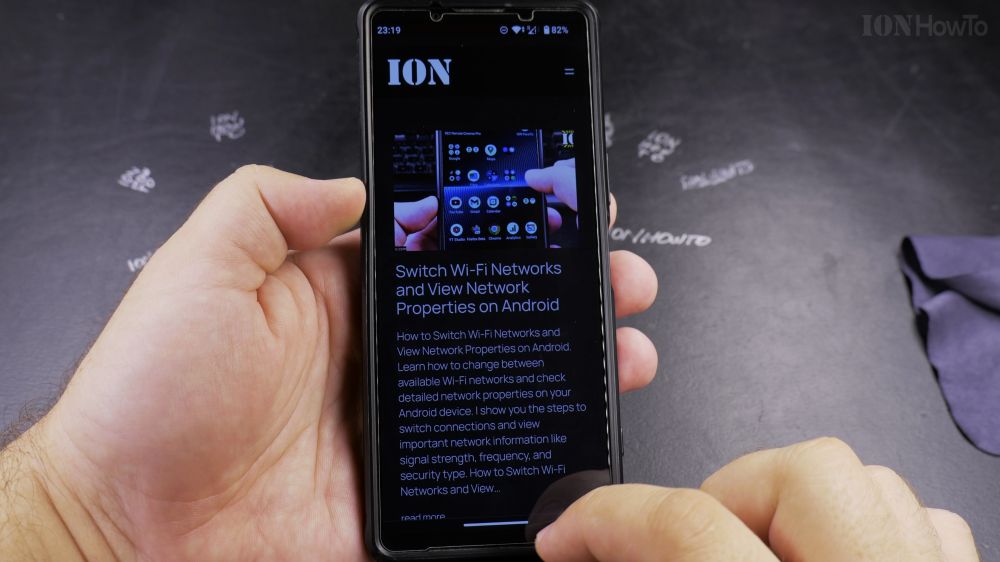
When you install a web app from Chrome, clicking regular browser links can suddenly force open unwanted app windows. I’ll show you how to uninstall website web apps and remove shortcuts from your Android home screen.

1. Locate the App Icon
Find the website shortcut icon on your Android home screen or in your app drawer.

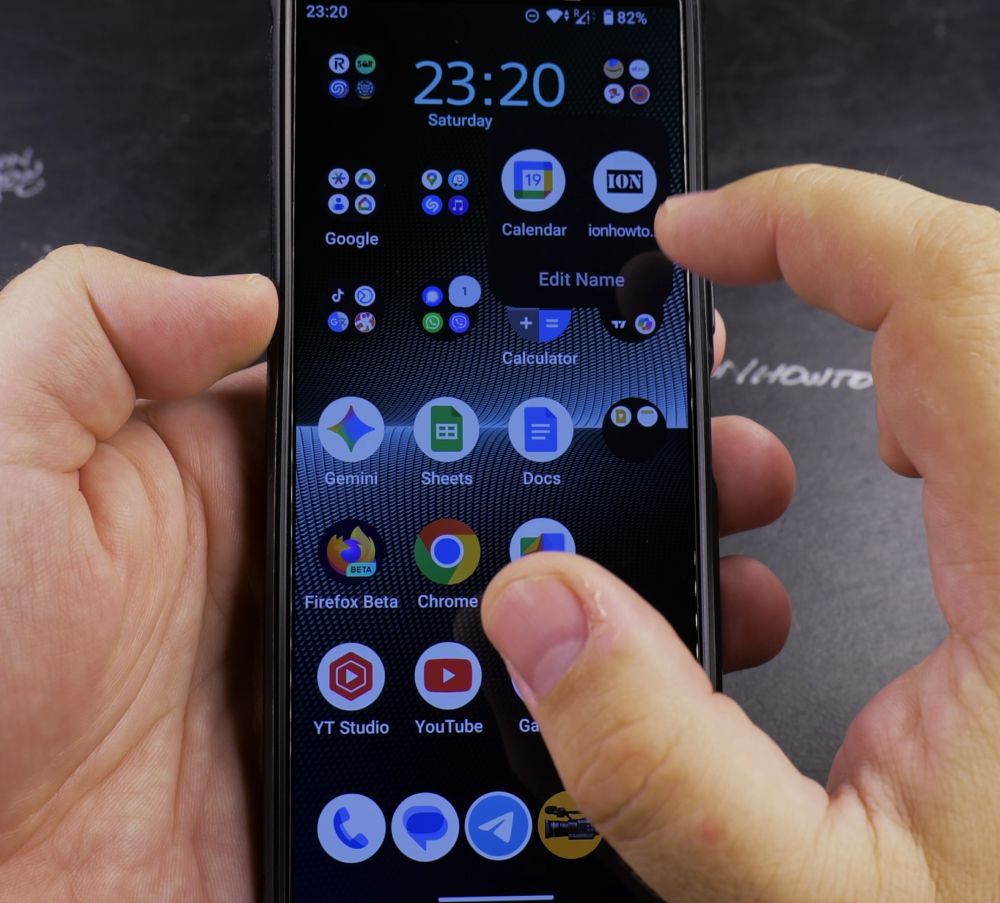
2. Long-Press the Icon
Press and hold your finger on the web app icon for one second until a popup menu appears.
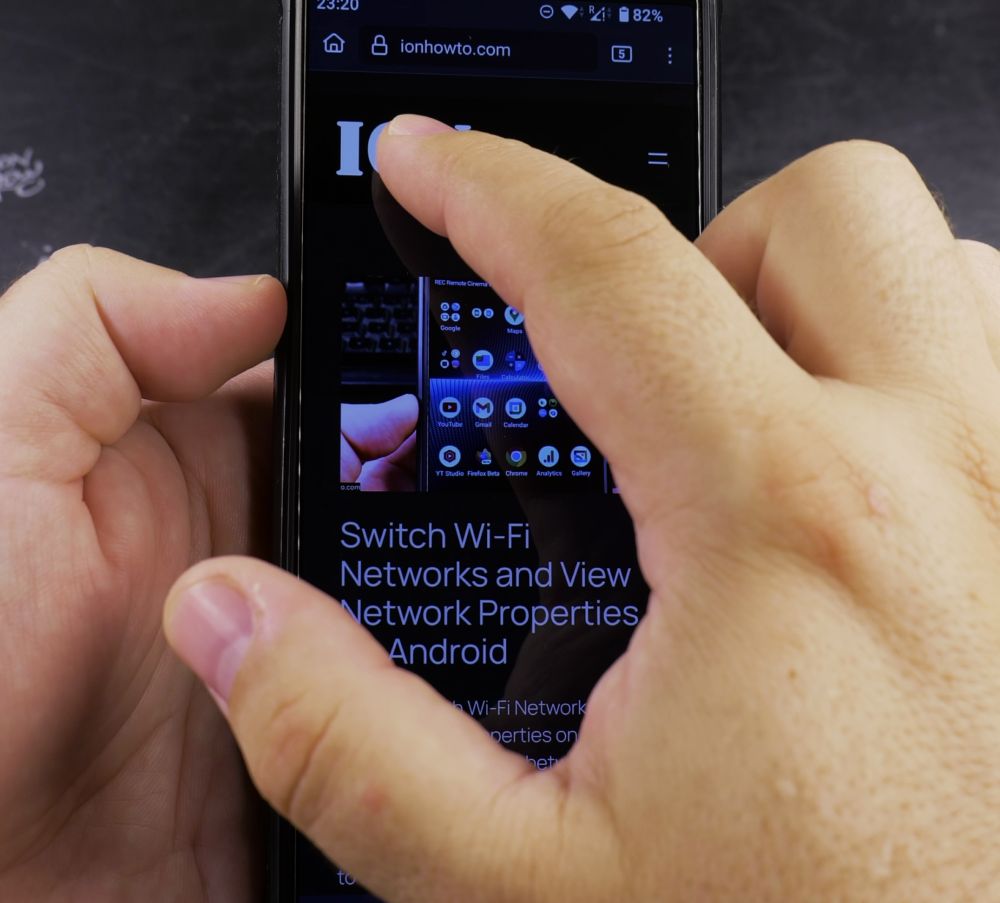
3. Tap App Info
Tap the small circular **i (App info)** button (or drag directly to **Uninstall** at the top).
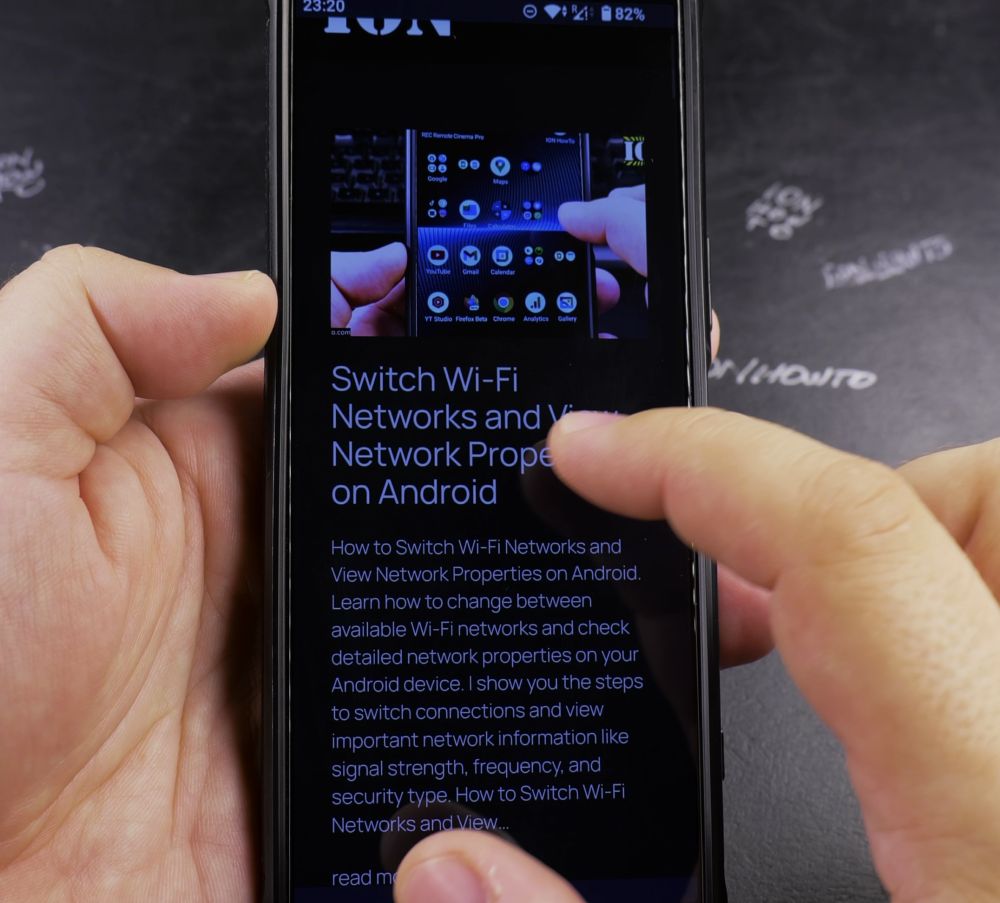
4. Tap Uninstall
Tap the **Uninstall** button (trash can icon).
5. Confirm Removal
Tap **OK** on the confirmation prompt to remove the web app and restore normal browser link opening.
Helpful Tips
Uninstalling a progressive web app does not delete your account or browsing history on that website; you can continue using the site normally in Chrome. For more Android guides, visit our Android Guides hub.
Leave a Reply Cancel reply