


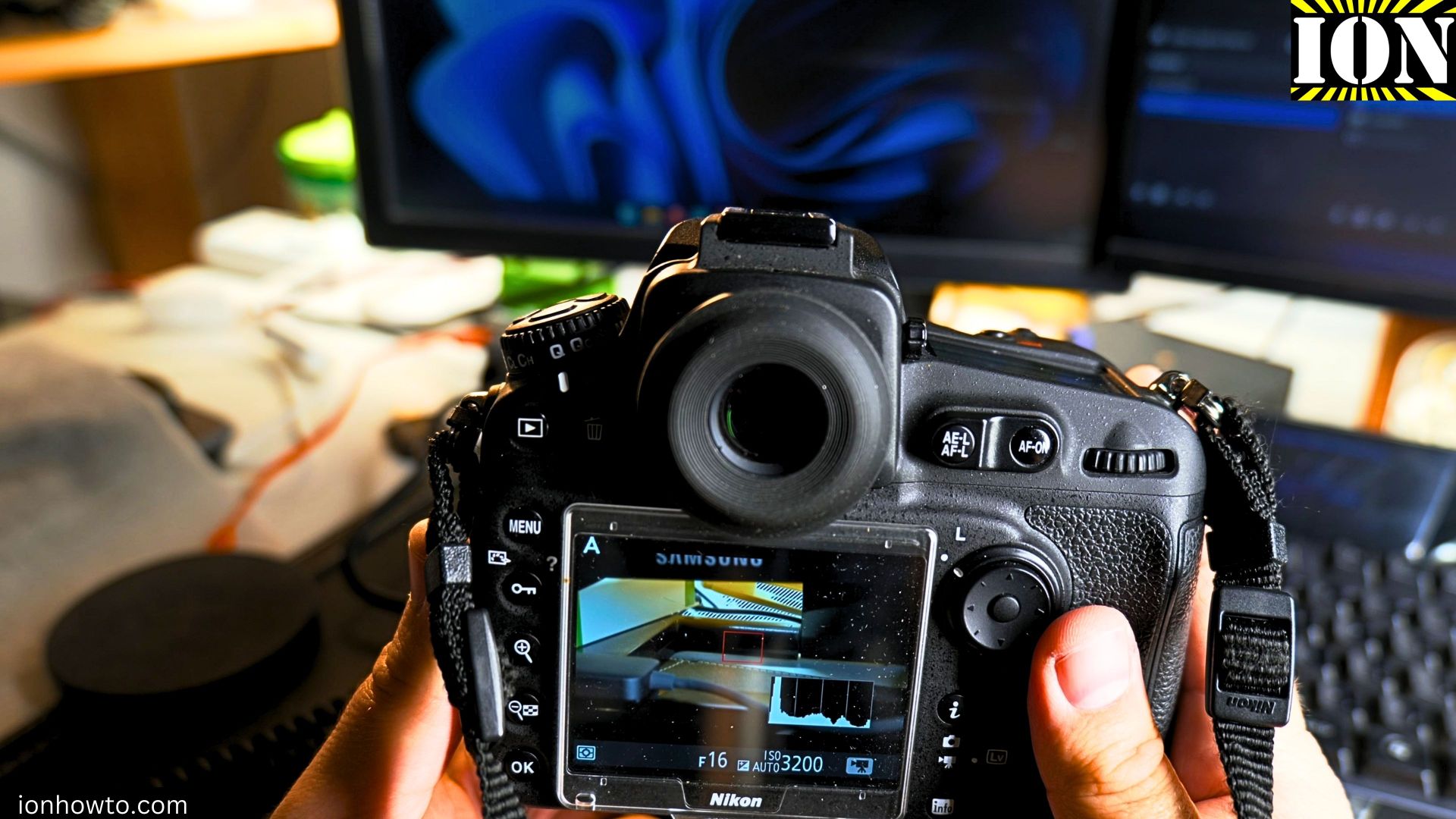
I’ll show you how to update the firmware on a Nikon D810, but these steps are similar for most Nikon DSLR cameras.
Why Update Your Camera’s Firmware?
Firmware updates often fix bugs, add new features, or improve existing ones. If you’re experiencing any issues with your camera, checking for a firmware update should be one of your first troubleshooting steps.

Quick Steps and Scenarios Overview
| What You Need to Do | Quick Jump |
|---|---|
| Why Update Your Camera's Firmware? | Jump to Step 1 |
| Step-by-Step Update | Jump to Step 2 |
| Important Warnings | Jump to Step 3 |
| Need a New Camera? | Jump to Step 5 |
| Final Tips | Jump to Step 6 |
| Nikon D810 – DK-17M magnifying eyepiece and DK-19 | Jump to Step 7 |
Before You Start
What you need:
Disclosure: This article contains Amazon affiliate links. As an Amazon Associate, we earn from qualifying purchases at no extra cost to you.
- A fully charged camera battery (this is important!)
- A formatted memory card
- Your camera’s USB cable
- A computer with internet access
Step-by-Step Update
- First, check your current firmware version:
- Turn on your camera
- Go to the Setup Menu
- Select “Firmware version”
- Note down the current version number
- Download the new firmware:
- Visit the Nikon Download Center at downloadcenter.nikonimglib.com
- Find your camera model (in this case, the D810)
- Download firmware version 1.14
- Save the file to your computer
- Prepare your memory card:
- Format the memory card in your camera
- Create a new folder called “NIKON” on the card
- Inside that folder, create another folder called “FIRMWARE”
- Copy the downloaded firmware file into the FIRMWARE folder
- Update your camera:
- Insert the prepared memory card into your camera
- Ensure your battery is fully charged
- Go to Setup Menu > Firmware update
- Follow the on-screen instructions
- Wait for the update to complete (don’t turn off the camera!)
Important Warnings
- Never turn off the camera during the update process
- Don’t remove the memory card while updating
- Don’t press any buttons until the update is complete
- Keep the battery fully charged
Recommended Camera Accessories
If you’re looking to upgrade your photography gear, here are some recommended accessories for your Nikon DSLR:
- Nikon DK-19 Eyepiece Check price on Amazon
- Nikon DK-17M Magnifying Eyepiece Check price on Amazon
- Professional Photography Filter Kit Check price on Amazon
- Camera Backpack Check price on Amazon
- Camera Tripod Check price on Amazon
Need a New Camera?
If you’re in the market for a new camera, consider these options:
- Nikon DSLR Cameras Check price on Amazon
- Nikon Mirrorless Cameras Check price on Amazon
Final Tips
The update process usually takes just a few minutes. If you run into any issues, check Nikon’s official support website or contact their customer service. Remember to always read the firmware update notes to understand what changes and improvements are included in the new version.
For specific firmware versions and detailed instructions for your camera model, visit the official Nikon Download Center at downloadcenter.nikonimglib.com.
Nikon D810 – DK-17M magnifying eyepiece and DK-19
Nikon D810 – DK-17M magnifying eyepiece and DK-19 rubber eyecup installation
How to install the magnifier eye piece DK-17M and
the large rubber eye cup DK-19 on a D810.

This installation can be done on any Nikon SLR or DSLR that has the round screw-in type viewfinder eye piece.
Supported cameras:
D4 series, D3 series, D2 series, D1 series, Df, D800 series, D700, F6, F5 and F4 series cameras and in the new D850, D500 and D5
Nikon EN-EL15a fake vs real battery
Bought this battery on eBay, the Nikon EN-EL15a battery.
What do you think? Is this battery a fake / counterfeit or is it real / genuine?
Confirmed fake. Check the comments.

Comparing the battery bought online with a EN-EL15 battery that is genuine.
To be sure, buy only from well known shops and distributors.
Elgato Cam Link 4k Connect Nikon DSLR Camera HDMI to OBS D810
Elgato Cam Link 4k HDMI Capture card dongle test with Nikon D810 camera HDMI output.

The Nikon D810 uses a mini HDMI usb connector. The Elgato Cam Link 4k connects HDMI full size to USB 3.0 gold plated connection and USB extension cable.
Elgato is a Corsair Memory brand so that’s interesting.
Helpful Tips
Check all labels, connections, and power ratings before starting so everything fits safely and securely. If any detail looks slightly different on your model, pause the embedded video above for a clear closeup view.
Related Guides
- How to Jump Start Car with Cordless Tool Battery in Emergency – If your car battery dies in a parking lot and you don't have jumper cables or another car nearby, an 18V cordless drill…
- How to Connect iPad to Ethernet Cable Using USB-C Hub – If your home Wi-Fi is spotty or drops out during video calls, plugging your iPad into a wired internet cable gives you…
- Connect Lightning Cable to USB C iPhone and iPad with Adapter – If you upgraded to a new iPhone or iPad with USB-C, you do not need to throw away your older Lightning cables.
- Camera Gear & Accessories – Browse more tutorials and practical guides in this section.
Leave a Reply Cancel reply