


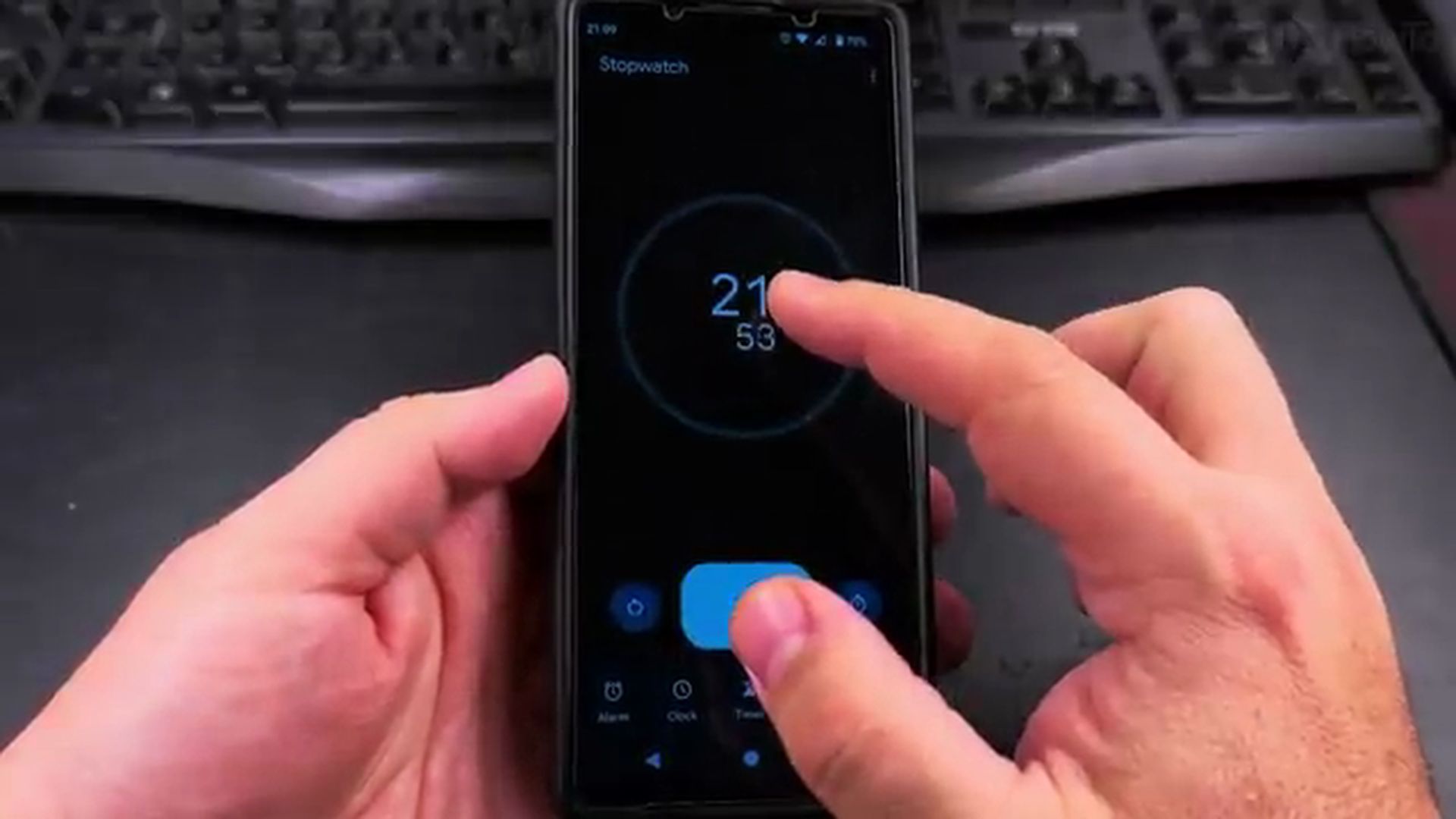
Tracking time accurately is essential whether you are boiling eggs in the kitchen, timing your morning walk, or tracking rest intervals during physical therapy exercises. While many people wear a physical wristwatch or digital chronograph, your Android smartphone already has a built-in stopwatch that is accurate right down to the hundredth of a second. In this tutorial, I will show you how to find, start, pause, and record lap splits using the stopwatch on your Android device.

Opening the Clock App on Android
The stopwatch tool is located directly inside the official Clock application that comes pre-installed on virtually every modern Android smartphone. This includes Google Pixel devices, Samsung Galaxy phones, Motorola handsets, and Sony Xperia smartphones running recent versions such as Android 14 and Android 15. If you are learning your way around Android tips and tricks, the Clock app is one of the most reliable everyday tools at your disposal.
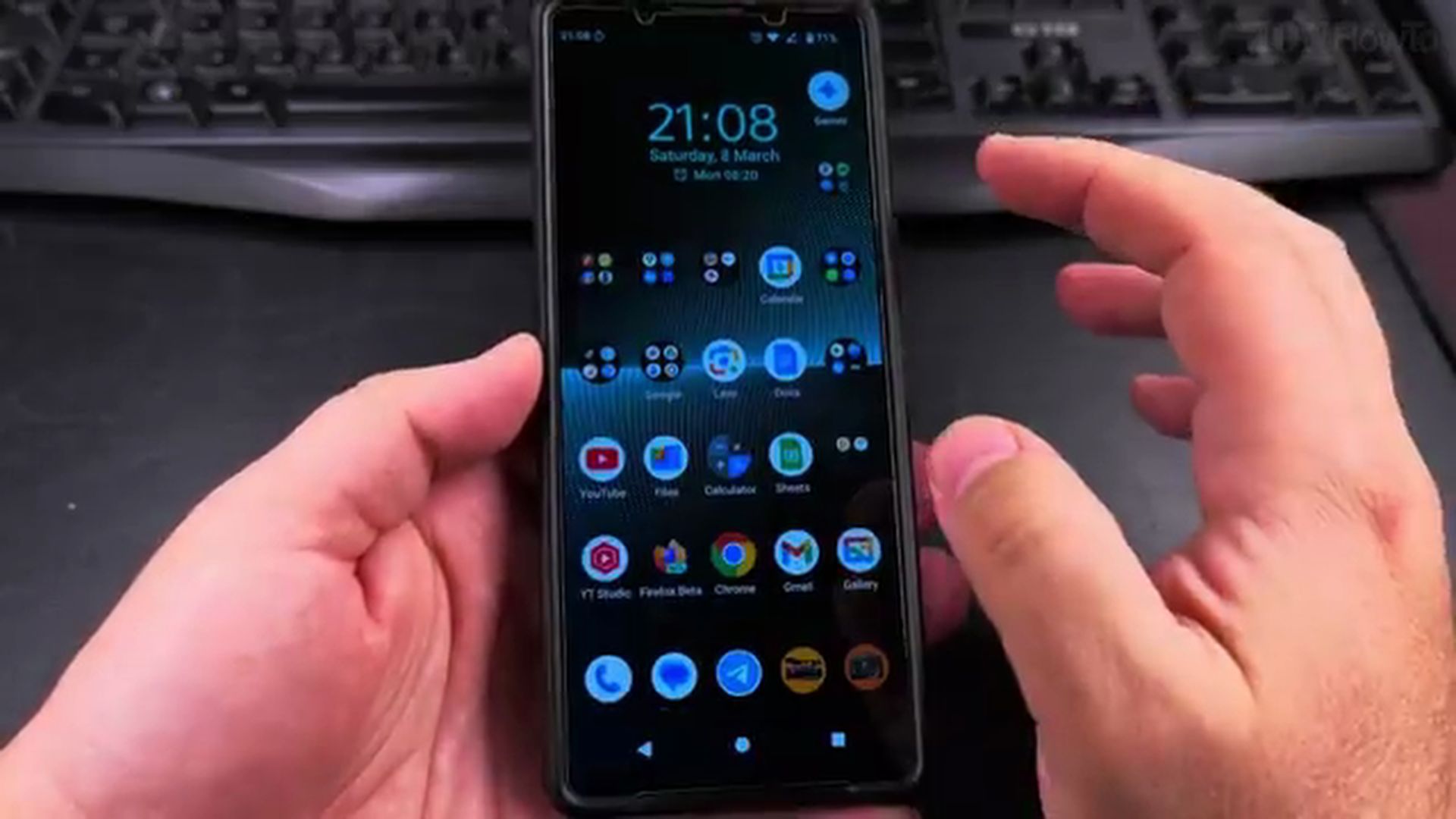
To begin, unlock your phone and swipe up from the bottom of your home screen to open the app drawer. Look for the app named Clock (it has a round blue or dark clock face icon). Tap the icon to launch the application. If you have customized your phone following our guide on customizing Android contacts and home screens, you can also keep the Clock app pinned right on your primary home screen for quick access.
Navigating to the Stopwatch Tab
When the Clock app opens, you will see a navigation bar at either the top or bottom of the screen with several tabs: Alarm, Clock, Timer, and Stopwatch.
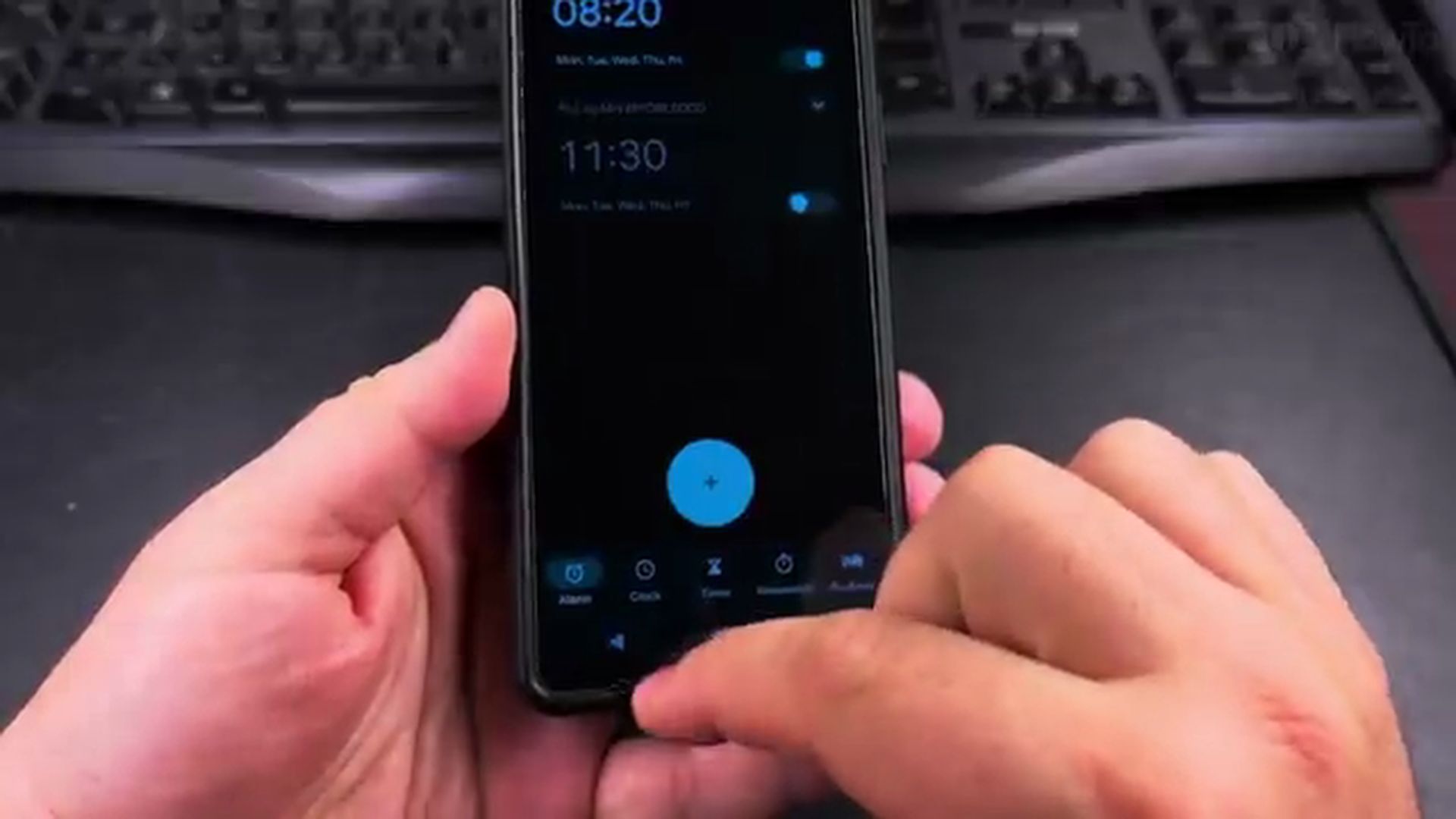
Tap on the Stopwatch tab. You will be greeted by a clean, large numerical display reading 00:00.00 (minutes, seconds, and hundredths of a second). The interface is stripped of clutter so you can clearly see the timer running even from several feet away on a table or kitchen counter.
Starting and Pausing the Stopwatch
Operating the stopwatch is completely intuitive and uses large, high-contrast touch buttons that are easy to press:
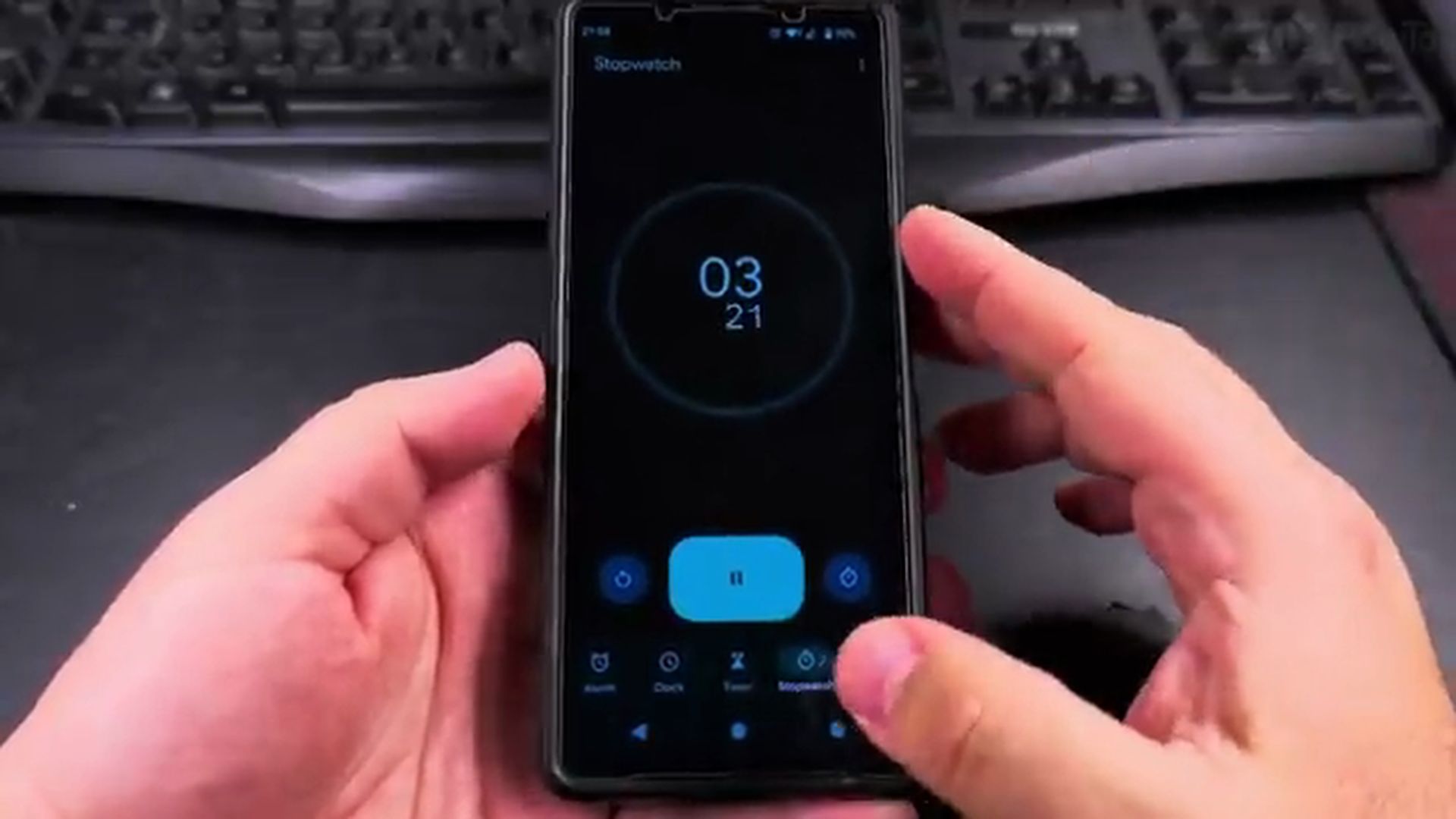
- Start: Tap the large circular Play button in the center. The timer begins counting up immediately in seconds and milliseconds.
- Pause: Tap the Pause button (two vertical bars) at any moment to temporarily halt the timer. While paused, the numbers gently blink to show that the timer is suspended.
- Resume: Tap the Play button again to pick up counting from the exact moment you paused.
- Reset: If you wish to clear your timing session back to zero, tap the circular Reset button.
Using the Lap Split Feature for Multiple Intervals
One of the most powerful features built into the Android stopwatch is the Lap function. When you are exercising, running laps around a track, or timing different steps of a DIY project, you often need to know how long an individual segment took without stopping the master clock.
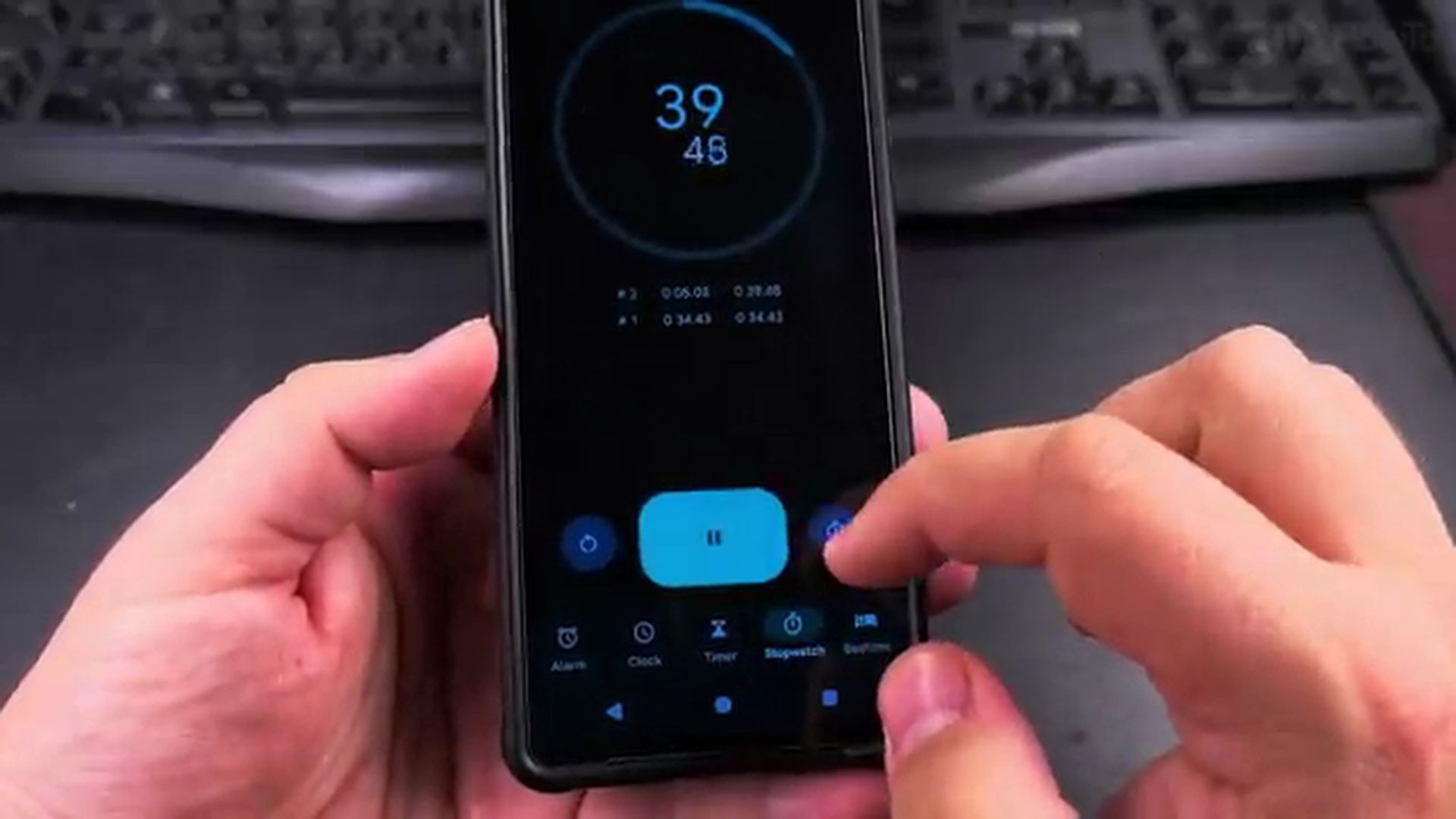
While the stopwatch is actively running, tap the Lap button. Each tap logs a split entry directly below the main clock face. The table displays two distinct measurements for every lap:
- Lap Duration: Exactly how many seconds and milliseconds elapsed during that specific interval.
- Overall Elapsed Time: The cumulative total time on the master clock when you pressed the button.
You can record dozens of consecutive laps. When you pause the stopwatch, you can scroll through your full interval history to compare your pace across each round. If you enjoy discovering practical built-in tools on your device, explore our collection of essential Android apps and our tutorial on disabling 2G on Android for stronger mobile security.
Helpful Tips for Everyday Use
Here are a few quick tips to get the most out of your Android stopwatch:
- Runs in the Background: You can switch to another app, check incoming text messages, or lock your phone screen, and the stopwatch will continue running accurately in the background without losing a single millisecond.
- Lock Screen and Notification Access: While active, a persistent stopwatch card appears in your notification shade and on your lock screen, allowing you to pause or record a lap without unlocking your phone.
- No Battery Drain: The native Clock app uses virtually zero processor power, so you can safely leave a stopwatch running for hours during long cooking or gardening sessions without worrying about battery drain.
Leave a Reply Cancel reply