


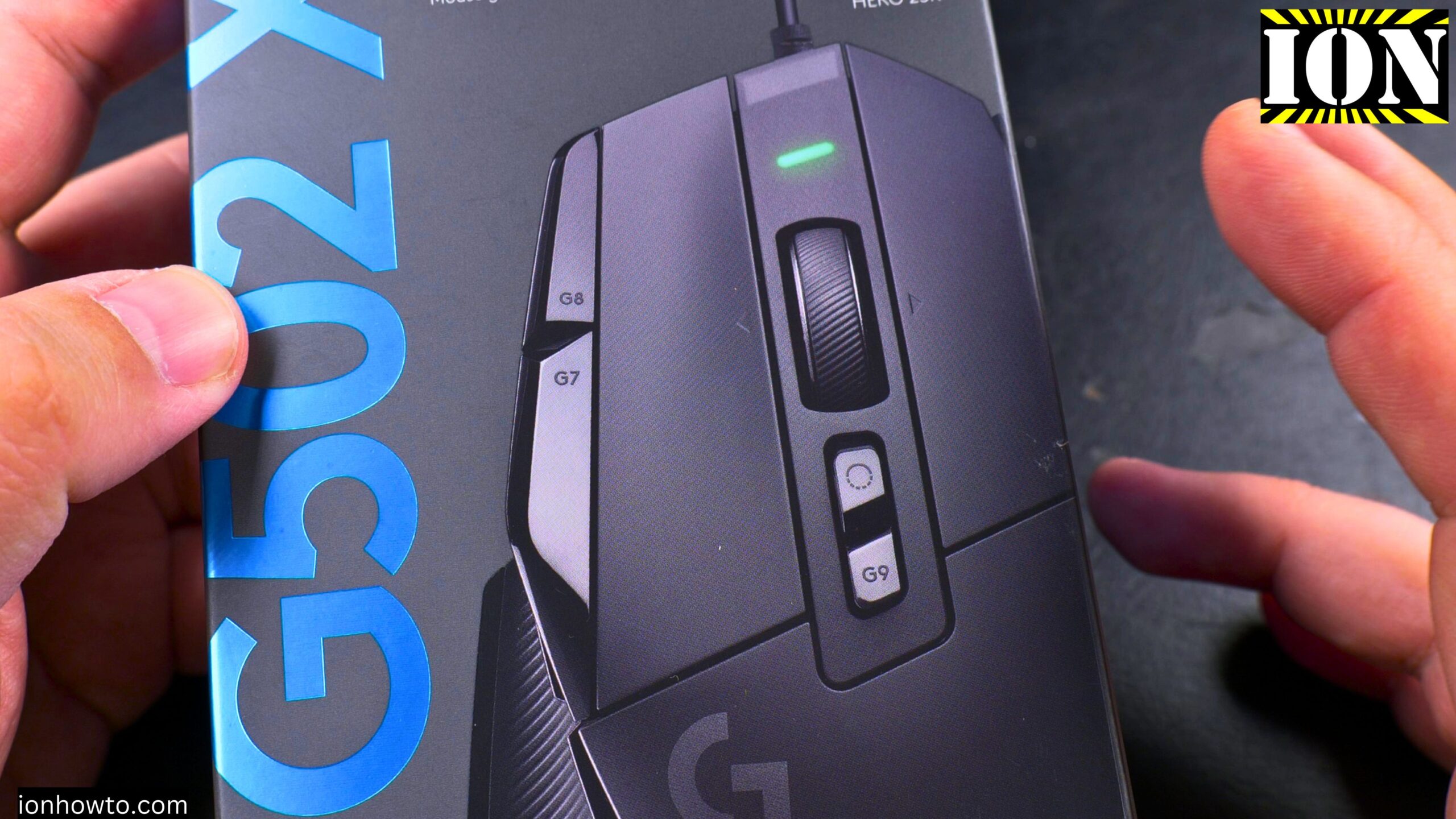
Logitech G502 X Wired Review – A Gaming Mouse for Video Editing.
Learn how a gaming mouse can work great for video editing and productivity. I needed a new mouse after my old Logitech G9 finally stopped working after many years. After looking at several options, I picked the Logitech G502 X wired version.
I was deciding between the Razer Basilisk V3 and the Logitech G502 X. I also looked at the Logitech G502 Hero and the Logitech G903 Lightspeed. The G903 was more expensive and I don’t really need a wireless mouse. The G502 X was on offer on Amazon, so I decided to try it.
Who is this review for?
This review is for people who want a gaming mouse but will actually use it mostly for:
- Video editing (DaVinci Resolve, Premiere Pro, etc.)
- Productivity apps
- General computer work
- Some gaming on the side
If you fit that description, keep reading or watching below.

First impressions and comfort
The mouse feels good in the hand right away. I use an unusual grip – something like a pincer claw grip or hybrid grip. The back of the mouse touches my palm, and I hold it with my pinky and ring finger. If you know the name of this grip, let me know.
The hump at the back fits really well against your hand. I was worried about the edge or the foot being uncomfortable, but it’s actually perfect. I got used to it within minutes.
Button layout – do you need all those buttons?
The G502 X has 13 programmable controls. Here’s the honest truth: I never used the extra buttons on my old G9, and I probably won’t use most of them on this mouse either. But here’s why that’s okay:
- They don’t get in the way. My thumb sits right below the side buttons without pressing them.
- The DPI shift button (the one near your thumb) is actually useful. You hold it down for temporary precision movement.
- The forward and back buttons for browsing are there if you want them. I might reassign these for video editing macros.
For video editing, having extra buttons you can program for macros could be great for automating repetitive tasks. I plan to try this in DaVinci Resolve.
The DPI shift button – surprisingly useful
This is one of my favorite features. There’s a button positioned where your thumb sits. When you press and hold it, it temporarily lowers your DPI for precise movements.
Why this matters:
- In games: Hold it down while sniping for more accuracy
- In video editing: Hold it down while dragging clip handles or making fine adjustments
- Let go and you’re back to normal speed
The button feels a bit strange sometimes, but the important thing is you won’t click it by accident. It requires a deliberate press.
Scroll wheel
The infinite scroll wheel is great. You can flick it to scroll through long timelines or documents really fast. Then click a button to switch back to normal stepped scrolling. I got used to this quickly and now I really like it.
Weight and feel
The mouse weighs 89 grams. My old G9 had optional weights inside to make it heavier. The G502 X is lighter and more stable when moving around. It feels responsive and easy to control.
The low-friction PTFE feet glide smoothly on most mouse pads. My current mouse pad is old and probably a fake Razer pad. I’ll likely upgrade that soon.
Wired vs wireless
This is the wired version. The cable is fixed – you cannot detach it. I prefer wired for a few reasons:
- No batteries to charge
- Lower latency
- Usually cheaper
If you want wireless, look at the G502 X Lightspeed version. But for me, wired is fine.
No RGB – is that a problem?
The G502 X does not have RGB lighting. The Logitech logo on top does not light up. For some people, this is a dealbreaker. For me, it’s fine. The mouse picks up a little blue reflection from my screen anyway. Plus, no RGB keeps the price lower and might save a tiny bit of power.
DPI and tracking specifications
- Sensor: HERO 25K
- Resolution: 100 to 25,600 DPI
- Zero smoothing, acceleration, or filtering
What this means in plain English: The sensor is very accurate. No weird software tricks messing with your movements. What you do with your hand is exactly what happens on screen.
The mouse comes with several DPI presets:
- White: 800 DPI
- Blue: 1,600 DPI
- Yellowish/green: 2,400 DPI
- Purple: 3,200 DPI (my preferred setting)
- You can cycle through them with the buttons behind the scroll wheel
Onboard memory profiles
The mouse has up to 5 onboard memory profiles. Two come by default. To use all five, you need the Logitech G HUB software. This lets you:
- Customize button assignments
- Record macros
- Save different setups for different apps or games
- Store them directly on the mouse
The best part: Once you save a profile to the mouse, it stays there. You can unplug the mouse, take it to another computer, and your settings are still there.
How I use it for video editing
I mostly edit in DaVinci Resolve. Here’s what I plan to set up:
- Reassign the forward/back buttons for timeline navigation
- Use the DPI shift for precise trimming
- Maybe set up macros for common actions
The mouse is responsive and accurate. For dragging clip handles or making fine adjustments, it works really well.
What about the switches failing?
Logitech mice have a mixed reputation for switch reliability. Some users report double-clicking issues after a while. Here’s my plan:
- If switches fail within warranty: Send it for repair or replacement
- If switches fail after warranty: Try to fix it myself
I hope this mouse lasts. It feels solid so far. Only time will tell.
Who should buy this mouse?
Buy the Logitech G502 X if:
- You want a wired mouse for productivity and video editing
- You like having extra buttons available (even if you don’t use them all)
- You want precise DPI control including a temporary shift button
- You don’t care about RGB lighting
- You prefer a lighter mouse (89g)
- You like the infinite scroll wheel
Look elsewhere if:
- You absolutely need RGB
- You want wireless (get the Lightspeed version instead)
- You have very small hands (try it in a store first)
- You hate having buttons near your thumb
What about the Razer Basilisk V3?
I considered the Razer Basilisk V3. I saw it in a shop. It looked good. But the G502 X was cheaper at the time. I honestly don’t know if Razer would have been a better choice. If you have experience with both, let me know in the comments.
Other mice I considered
- Logitech G502 Hero – The older model. More of a “”gamer”” look with strange shapes. I prefer the cleaner look of the G502 X.
- Logitech G903 Lightspeed – Wireless, more expensive. Can be used wired too. Probably great, but I didn’t need wireless.
- Logitech G9 – My old mouse. Lasted many years. Great while it worked.
Pros and cons summary
Pros:
- Comfortable shape, especially for claw or hybrid grips
- 89 grams – light but not too light
- DPI shift button is genuinely useful
- Infinite scroll wheel
- 13 programmable buttons
- 5 onboard memory profiles
- No RGB (if you prefer clean looks)
- HERO 25K sensor is very accurate
- Wired = no charging
Cons:
- No RGB (if you want lighting)
- Cable is not detachable
- Some buttons might be hard to reach depending on your grip
- DPI switch button feels a bit strange sometimes
- Logitech switch reliability is a question mark
- Might have more buttons than some people need
Final verdict
After using this mouse for a short time, I really like it. It feels right in my hand. I got used to it within minutes. The DPI shift button is more useful than I expected. The scroll wheel is great.
Was it a bad idea to buy this mouse? I don’t think so. So far, it feels like a great choice for video editing and productivity work.
Will the switches fail in two months? I hope not. But if they do, I’ll deal with it.
Would the Razer Basilisk V3 have been better? I don’t know. But I’m happy with this one.
If you have questions about the Logitech G502 X, let me know. And if you know the name of my weird mouse grip (pincer claw? hybrid? relaxed claw?), please comment and tell me.
Rating: Recommended for productivity users and video editors who want a precise, comfortable mouse with useful extra features. Even if you don’t use all the buttons, the core experience is solid.
Leave a Reply Cancel reply