


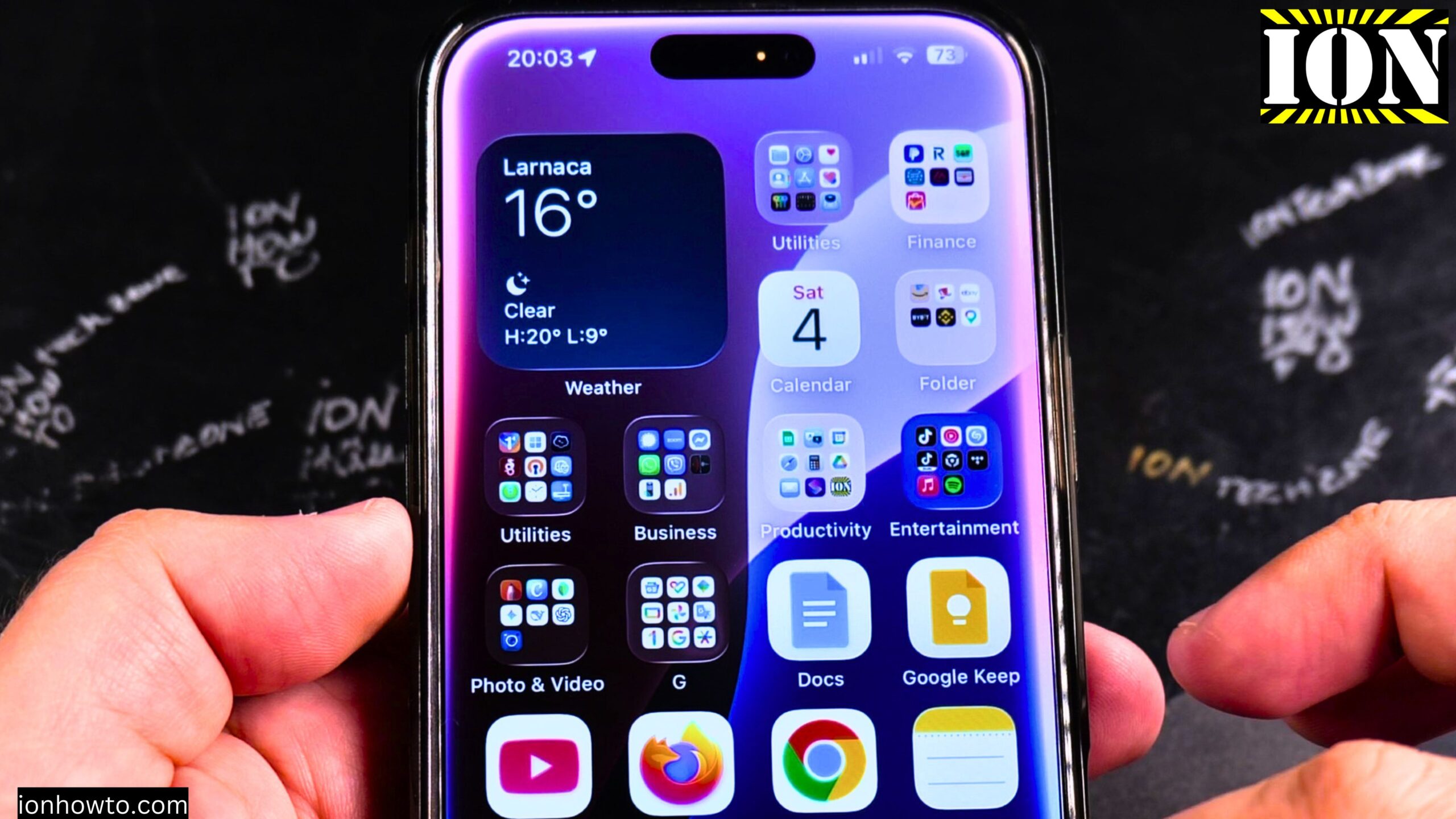
iPhone 16 Pro Max Reduce Motion & Change Animations.
Learn how to make your iPhone animations feel faster. If you’re coming from Android, you might miss the 0.5x animation speed option in Developer Options. iPhone doesn’t have that exact setting, but there is a way to reduce motion effects.
Amazon links
As an Amazon Associate I earn from qualifying purchases:
- iPhone Accessories
- iPhone Charger
- iPhone Cases
- iPhone Screen protector
- iPhone Magsafe
- iPhone Wallet
- iPhone Usb c cable
I’ll show you this on an iPhone 16 Pro Max running iOS 18.3.2.
Why iPhone animations feel different
On Android, you can go into Developer Options and change three animation settings from 1x to 0.5x (or even turn them off completely). This makes everything feel snappier.
On iPhone, there is no Developer Option for animation speed. Apple doesn’t let you adjust animation duration directly. But there is a setting called “”Reduce Motion”” that helps.
What Reduce Motion does
Reduce Motion changes how your iPhone animates when you:
- Open and close apps
- Switch between apps
- Open folders
- Go back to the home screen
Instead of zooming and parallax effects, the screen uses simpler cross-fade transitions. This can make your phone feel faster because the animations are less complex.
How to enable Reduce Motion
Step 1: Open the Settings app (gray gear icon)
Step 2: Tap on “”Accessibility””
Step 3: Tap on “”Motion”” (it’s in the Vision section)
Step 4: Turn ON “”Reduce Motion””
Step 5: You can also turn ON “”Prefer Cross-Fade Transitions”” (appears after you enable Reduce Motion)
What the settings do
Reduce Motion ON:
- Removes the parallax effect on your wallpaper (icons no longer move when you tilt the phone)
- Changes app opening/closing animations
- Reduces zooming effects
Prefer Cross-Fade Transitions ON:
- Changes the remaining animations to simple fade effects
- Makes transitions even simpler
- Only available after Reduce Motion is enabled
How it looks compared to Android
Here’s the honest truth: Even with Reduce Motion enabled, iPhone animations are not as fast as Android with 0.5x animation settings.
On Android with 0.5x:
- App opening is nearly instant
- Transitions are very quick
- No waiting for animations to finish
On iPhone with Reduce Motion:
- Animations are simpler but still have some duration
- Using cross-fade transitions helps
- It’s not as fast as Android, but it’s better than default
This is the best you can get on iOS for now. Hopefully Apple adds animation speed controls in the future.
Before and after demonstration
Standard animations (Reduce Motion OFF):
- Apps zoom in and out from their icon location
- Icons have parallax movement when you tilt the phone
- Folders expand with a zoom effect
- App switching has a scrolling card effect
With Reduce Motion ON:
- Apps fade in and out (cross-fade)
- No parallax icon movement
- Folders fade open
- App switching is simpler
Does Reduce Motion affect battery life?
Yes, but not by a huge amount. Reducing motion means your phone’s GPU does less work. No complex animations means slightly less processing power needed.
The battery savings are small. Most people won’t notice a difference. But every little bit helps.
When you might want Reduce Motion ON
For faster feel: If animations feel too slow to you, turning on Reduce Motion can make the phone feel snappier.
For motion sensitivity: Some people get dizzy or nauseous from zooming animations and parallax effects. Reduce Motion helps with this.
For older iPhones: On older devices with slower processors, reducing motion can make the interface feel more responsive.
When you might want to keep standard animations
You like the visual effects: Apple’s animations are smooth and polished. Many people enjoy them.
You don’t notice the difference: Some people don’t care either way.
You want the “”full”” iOS experience: Standard animations are part of what makes iOS feel like iOS.
How to turn off Reduce Motion
If you try it and don’t like it:
Step 1: Settings > Accessibility > Motion
Step 2: Turn OFF “”Reduce Motion””
Everything goes back to normal.
What you cannot change on iPhone
Unlike Android, you cannot:
- Set animation speed to 0.5x, 0.25x, or completely off
- Change individual animation types (window, transition, animator)
- Access Developer Options for animation settings
Apple keeps these settings locked down. Reduce Motion is the only option.
Comparison table
| Feature | Android (Developer Options) | iPhone (Reduce Motion) |
|---|---|---|
| Animation speed control | Yes (0.5x, 1x, 2x, off) | No |
| Turn off animations | Yes | No |
| Cross-fade transitions | No (but 0.5x makes them fast) | Yes |
| Parallax effect control | No | Yes (turned off) |
| App opening animation | Speed controlled | Changed to fade |
| Folder animations | Speed controlled | Changed to fade |
My opinion
If you’re coming from Android and miss the snappy feel of 0.5x animations, Reduce Motion is worth trying. It won’t give you the same speed, but it makes the phone feel less sluggish.
I personally leave Reduce Motion ON with Prefer Cross-Fade Transitions ON. It’s not as fast as Android, but it’s better than the default zooming animations.
Give it a try for a few days. If you don’t like it, you can always switch back.
Quick summary
To reduce animations on iPhone 16 Pro Max:
- Open Settings
- Tap Accessibility
- Tap Motion
- Turn ON Reduce Motion
- Turn ON Prefer Cross-Fade Transitions (optional)
What this does:
- Removes parallax wallpaper movement
- Changes app opening/closing to fade effects
- Simplifies folder and app switching animations
What this does NOT do:
- Make animations as fast as Android 0.5x
- Let you set custom animation speeds
- Turn off animations completely
This is the best iOS offers right now. Hopefully future versions give us more control like Android has.
Thanks for reading. Let me know in the comments – do you prefer reduced animations or the standard iOS motion effects?
Leave a Reply Cancel reply