


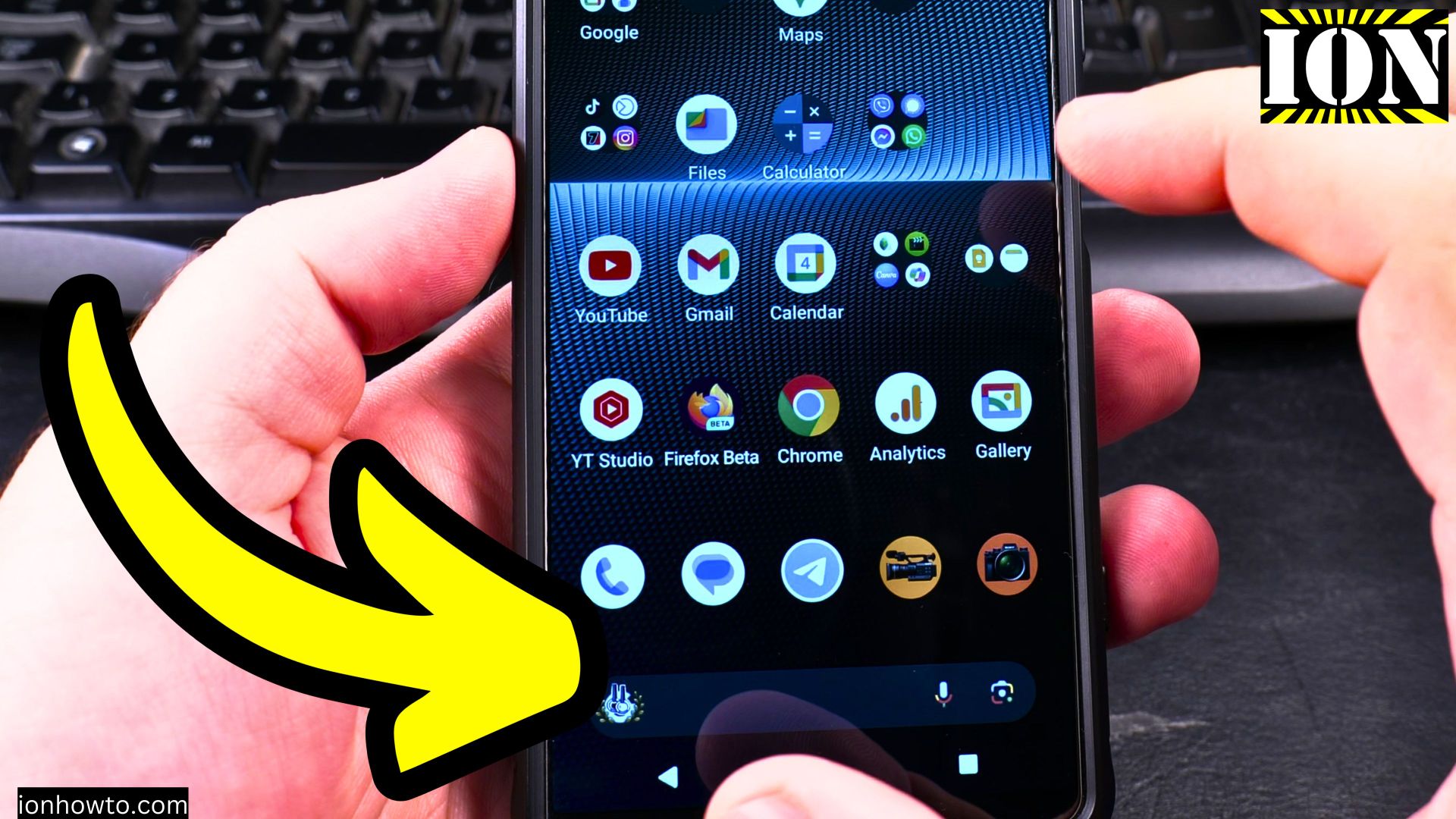
How to Remove Wallpaper on Android Lock Screen & Home Screen
Learn how to remove wallpaper from both your lock screen and home screen on Android devices. I’ll show you the steps to reset your wallpapers to default or set a plain background instead.
Amazon links
As an Amazon Associate I earn from qualifying purchases:
- Phone Accessories
- Screen protectors
- Phone Cases
- Mobile Tripods
- Usb-c charger
- Usb-c cable
- Docking stations
- Wireless car chargers
- Wireless charger stand
- SIM card removal tool
- SIM card holder
Android How to Remove Wallpaper on Lock Screen and Home Screen Video

Showing you on Sony Xperia 1 V Global – EU Model XQ-DQ54 Android 15.
If you want to change your current wallpaper but don’t know how to completely remove it, this guide will help.
I show you how to remove custom wallpapers from your lock screen and home screen separately. This works for most Android phones including Samsung, Google Pixel, and other brands. Learn how to access wallpaper settings and clear your current background image.
How to Remove Lock Screen Wallpaper on Android
Follow these steps to remove a custom lock screen wallpaper:
- Open Settings – Go to your phone’s Settings app.
- Find Wallpaper Settings – Look for “Wallpaper & style,” “Display,” or “Themes” depending on your device.
- Select Lock Screen – Tap on “Lock screen settings” or similar.
- Reset to Default – Choose “Default wallpaper” or a basic color option.
- Confirm Changes – Save your selection, and your lock screen will update.
How to Remove Home Screen Wallpaper on Android
To remove or change your home screen wallpaper:
- Long-Press Home Screen – Tap and hold an empty area on your home screen.
- Select Wallpaper Options – Choose “Wallpaper” or “Wallpaper & style.”
- Pick a Default or Solid Color – Select a basic wallpaper or solid color.
- Apply Changes – Confirm your choice, and your home screen will update.
How to Set a Solid Color or Black Background
If you prefer a plain background:
- Some phones have built-in solid color options under wallpaper settings.
- If your phone doesn’t offer this, take a black photo (cover the camera and snap a dark image) and set it as your wallpaper.
- A dark background saves battery on OLED/AMOLED screens, especially in dark mode.
Final Tips
- The exact steps may vary slightly depending on your Android version and phone brand.
- If you can’t find the right settings, check your manufacturer’s support page.
Let me know in the comments if you have questions about managing wallpapers on your specific Android device. Thanks for reading!
Leave a Reply Cancel reply