


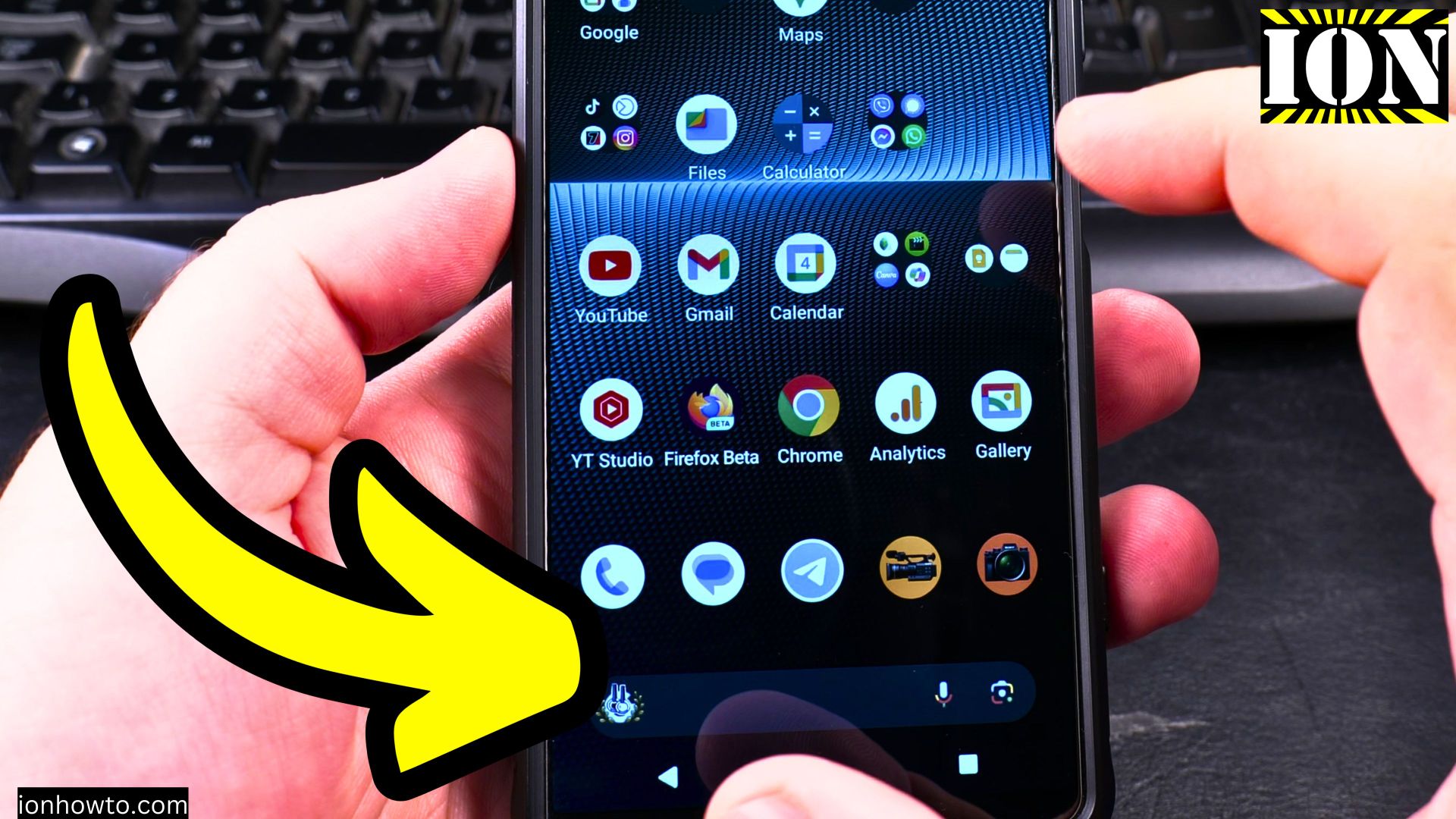
How to Remove and Replace SIM Card and microSD Memory Card on Sony Xperia.
Learn how to remove and replace the SIM card and microSD memory card on your Sony Xperia phone. This works on the Xperia 1 Mark 5, Mark 6, and most other Sony Xperia models. Other Android phones use a different method with a SIM ejector tool. I will show you both.
Amazon links
As an Amazon Associate I earn from qualifying purchases:
- Phone Accessories
- Screen protectors
- Phone Cases
- Mobile Tripods
- Usb-c charger
- Usb-c cable
- Docking stations
- Wireless car chargers
- Wireless charger stand
- SIM card removal tool
- SIM card holder
Sony Xperia Has a Tool-Less Design
Sony Xperia phones are different from most other Android phones. You do not need a SIM ejector tool, a pin, or a paperclip to open the card tray. The tray is designed so you can open it with just your fingernail. This makes it very easy to swap cards without hunting for a tool.
What You Need Before You Start

Before you remove or replace any cards, it is a good idea to power off your phone. This prevents any damage to the cards or your device.
You will also want to remove your phone case if you have one. This gives you clear access to the SIM card tray.
Where to Find the SIM Card Tray on Sony Xperia
On Sony Xperia phones, the SIM card tray is located on the lower side of the phone. Look at the bottom edge. You will see a small tray with a tiny gap around it.
How to Remove the SIM Card and microSD Card on Sony Xperia
Here are the steps:
- Power off your phone
- Remove any phone case
- Locate the SIM card tray on the lower side of the phone
- Use your fingernail to get into the small gap around the tray
- Gently pull the tray out. There is a rubber gasket that creates a seal, so it may take a little effort
- Once the tray is out, hold it from the top and bottom
- Remove the existing SIM card and microSD card from the tray if you are replacing them
How to Insert the New SIM Card and microSD Card
When putting cards into the tray, there is one important rule to remember:
- The pins on the SIM card and microSD card must face outward so they can make contact with the phone
Here is how to insert the cards:
- Place the SIM card into its slot on the tray. Press it in until it sits flush
- Place the microSD card into its slot on the tray. Press it in until it sits flush
- Make sure both cards are fully inserted and the tray is flat
- Slide the tray back into the phone
- Press until the tray is completely flush with the phone body
- Power on your phone
How to Check That Everything Works
After you power on your phone, check two things:
- Look at the signal bar. You should see mobile signal. This means the SIM card is working
- Go to Settings and look for storage or memory card options. Your microSD card should appear there
How This Is Different on Other Android Phones
Most other Android phones use a different system. They require a SIM ejector tool or a small paperclip. Here is how that works:
- Locate the SIM card tray on the side of your phone. It has a small hole next to it
- Insert the SIM ejector tool or a straightened paperclip into the small hole
- Push gently. The tray will pop out
- Remove the tray and change the cards
- Push the tray back in until it clicks
If your phone is not a Sony Xperia, check which method it uses. Most Samsung, Google Pixel, and other Android phones use the ejector tool method.
A Note About the Rubber Gasket
Sony Xperia phones have a rubber gasket around the SIM card tray. This helps make the phone water resistant. When you pull the tray out, it may feel stiff because of this gasket. That is normal. When you put the tray back in, make sure it is pressed all the way so the seal works properly.
Final Thoughts
Changing your SIM card or microSD card on a Sony Xperia phone is very easy because you do not need any tools. Just use your fingernail to pull out the tray. On other Android phones, you will need a SIM ejector tool or a paperclip. Either way, the process takes less than a minute. Just remember to power off your phone first and make sure the cards are inserted with the pins facing outward.
Thanks for reading. I hope this helps you get your cards swapped out quickly.
Leave a Reply Cancel reply