


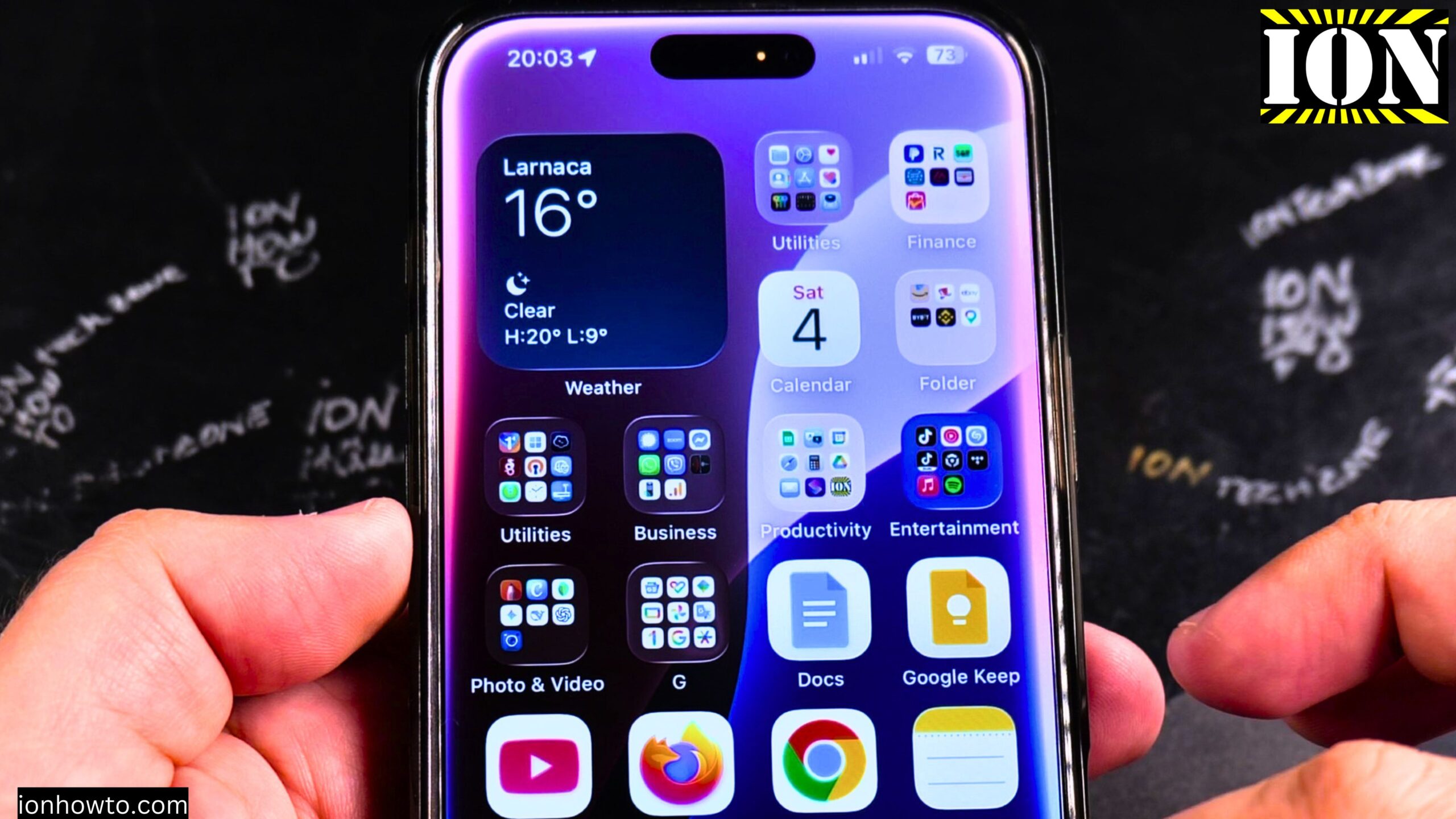
How to Turn Off 5G and Use Only 4G on iPhone Step by Step.
Learn how to switch your iPhone from 5G to 4G LTE in just a few taps. If you’re dealing with fast battery drain or weak 5G coverage in your area, turning off 5G can help.
I’ll show you the steps to change your cellular data settings. I’m using iOS 26 Beta on an iPhone 16 Pro Max, but this works on iPhone 12 and newer models running iOS 14 or later.
Why You Might Want to Turn Off 5G

Here are the most common reasons to switch to 4G only:
- Battery life – 5G uses more power than 4G, especially in areas with weak signals
- Unstable connections – If 5G coverage is spotty where you live, your phone may keep switching between 5G and 4G
- Slow performance – A weak 5G signal can actually be slower than a strong 4G connection
- Data usage – Some people find they use more data on 5G (though this depends on what you do)
Step-by-Step: Turn Off 5G and Use Only 4G
Follow these steps to force your iPhone to use 4G LTE instead of 5G:
- Open Settings
- Tap Cellular (or “Mobile Service” depending on your region)
- Tap Cellular Data Options
- Tap Voice & Data
- Select 4G (or “LTE” on some iOS versions)
That’s it. Your iPhone will now only connect to 4G networks and will ignore 5G signals.
How to Check That You’re on 4G
After changing the setting:
- Turn off Wi-Fi (optional – to see your cellular connection)
- Look at the status bar at the top of your screen
- You should see 4G or LTE instead of 5G
You can also go back to Settings > Cellular – your current network type is shown there.
Understanding Your iPhone’s Cellular Options
In the Voice & Data menu, you’ll usually see three options:
5G Auto (default)
- Uses 5G only when it improves performance
- Switches to 4G when 5G would drain too much battery
- Best for most people most of the time
5G On
- Uses 5G whenever available
- Never switches to 4G to save battery
- Gives maximum speed but uses more power
4G (or LTE)
- Never uses 5G at all
- Only connects to 4G networks
- Best battery life of the three options
Which iPhone Models Support This?
This setting works on all 5G-capable iPhones:
- iPhone 12 series (all models)
- iPhone 13 series (all models)
- iPhone 14 series (all models)
- iPhone 15 series (all models)
- iPhone 16 series (all models)
- iPhone SE (3rd generation)
If you have an iPhone 11 or older, your phone doesn’t have 5G at all – it’s always on 4G/LTE.
Will This Work on Any Carrier?
Most carriers support the 4G-only option, but some may hide or restrict it. Here’s what to know:
- T-Mobile, AT&T, Verizon – all support this setting on unlocked iPhones
- Carrier-locked phones – some carriers may remove the 4G option. If you don’t see “4G” or “LTE” in the Voice & Data menu, your carrier has disabled the choice.
- International carriers – most allow this setting, but a few may not
If you can’t find the 4G option, your iPhone is stuck on whatever your carrier allows.
Does Turning Off 5G Save Battery?
Yes, usually. Here’s why:
- 5G radios use more power than 4G radios
- In areas with weak 5G, your phone works harder to stay connected, draining the battery even faster
- 4G signals often travel farther and through walls better, so your phone doesn’t have to work as hard
The battery savings are most noticeable if you live or work in an area with poor 5G coverage.
Will Calls and Texts Still Work on 4G?
Yes. Calls, texts, and data all work normally on 4G. You won’t lose any functionality. 4G is mature and reliable. The only thing you lose is access to 5G speeds – but a good 4G connection is still plenty fast for almost everything.
How to Switch Back to 5G
If you move to an area with good 5G coverage or want to try 5G again:
- Go to Settings > Cellular > Cellular Data Options > Voice & Data
- Select 5G Auto or 5G On
- Your phone will start using 5G again
Step-by-Step Summary
- Settings > Cellular
- Cellular Data Options
- Voice & Data
- Select 4G (or LTE)
- Your phone now uses 4G only
Final Tips
- Turning off 5G can improve battery life, especially in weak coverage areas
- 4G is still fast enough for streaming, browsing, and most apps
- You can switch back to 5G anytime
- Some carriers may hide the 4G option – if you don’t see it, your carrier controls the setting
- Works on iPhone 12 and newer
If you have questions about 5G settings on your specific iPhone model or carrier, let me know in the comments. Thanks for reading.
Leave a Reply Cancel reply