


USB-A to USB-C Adapter Ugreen Unboxing.
In this video, I am unboxing the Ugreen USB-C to USB-A adapter. Or is it USB-A to USB-C? Ugreen calls them the same thing and only the product code is different. Either way, these adapters let you connect USB devices to USB-C ports and vice versa.
I bought these with my own money from Amazon. This is not a sponsored video.
What do these adapters do?
USB Type-A is the old big rectangular connector you have seen for years. USB Type-C is the newer small oval connector that is reversible (you can plug it in either way).
These adapters let you:
- Plug a USB-A device (like an old flash drive) into a USB-C port (like on a modern phone or laptop)
- Plug a USB-C device into a USB-A port (like on an older computer)
The two adapters are basically opposites of each other. One converts A to C. The other converts C to A.

Specifications
- Speed: USB 3.2 Gen 2
- Maximum data transfer: 10 Gbps
- Maximum charging: 18W
The 10 Gbps speed is great for fast data transfers. However, the 18W charging limit means these adapters will not work for fast charging. If you need to charge a phone or laptop quickly, these are not the right adapters. They are made for high speed data transfer, not fast charging.
What is in the box
Each adapter comes in its own small plastic bag. The box includes the adapters plus some paperwork. The paperwork is mostly disclaimers in multiple languages, not useful instructions.
The adapters feel solid. They have metal casings and look well made. I already had some cheap adapters from eBay that were really slow. Those were USB 2.0 and only good for charging. These Ugreen adapters should be much faster if they deliver the claimed USB 3.2 speed.
How to identify USB 3.0 adapters by looking at the pins
Here is a simple way to check if your USB adapter or cable supports USB 3.0 speeds.
Look inside the USB-A connector (the big rectangular end). You will see pins.
- USB 2.0: 4 pins total (only the front row)
- USB 3.0 and above: 9 pins total (the same 4 pins as USB 2.0, plus an additional row of 5 pins further back)
If you look closely at these Ugreen adapters, you can see the extra pins at the back. That means they support USB 3.0 speeds.
What affects transfer speed
Even if your adapter supports USB 3.2, the actual speed may be slower depending on:
- The device you are connecting (old flash drives are slow)
- The cable you are using (must also support high speed)
- The port on your computer (must be USB 3.0 or higher)
- Adapter and device compatibility
Troubleshooting slow speeds
If you are using an adapter and the transfer speed drops to USB 2.0, try these fixes:
Flip the USB-C connector. Some adapters work better with the USB-C plug in one orientation versus the other. Just unplug it, flip it over, and plug it back in.
Remove USB extensions. If you are using a USB extension cable, take it out. Plug the adapter directly into your device.
Check your cable. Not all USB-C cables support high speeds. Some cheap cables are USB 2.0 only.
Testing with Samsung T7 Shield
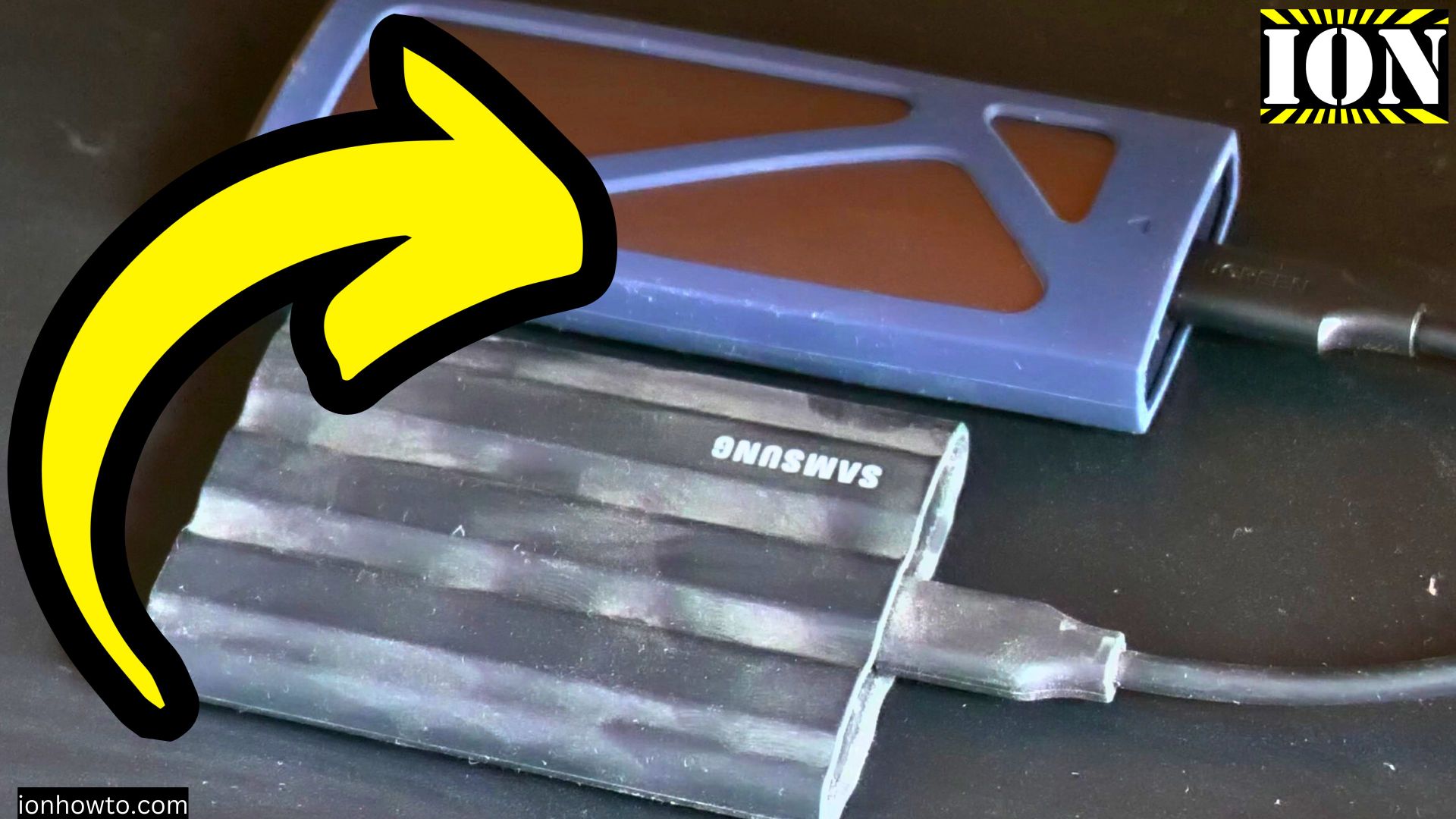
I have a Samsung T7 Shield external SSD. It has 2TB capacity and supports 10 Gbps transfer speed. It came with both a USB-C to USB-C cable and a USB-C to USB-A cable (both USB 3.2 Gen 2).
I plan to test these adapters with the T7 Shield on both Android and iPhone. This will show if they actually deliver the claimed speed.
Who should buy these
Buy these adapters if you:
- Need to connect USB-A devices to a USB-C phone or laptop
- Need to connect USB-C devices to an older computer with USB-A ports
- Want fast data transfer speeds (10 Gbps)
- Do not care about fast charging (18W max)
Do not buy these if you:
- Need fast charging (these only do 18W)
- Only need USB 2.0 speeds (cheaper adapters exist)
- Never use both types of USB ports
Quick summary
What these adapters do:
- Convert USB-A to USB-C or USB-C to USB-A
- Allow older devices to work with newer ports
Speed:
- USB 3.2 Gen 2
- Up to 10 Gbps data transfer
- Maximum 18W charging (not for fast charging)
How to check if an adapter is USB 3.0:
- Look inside the USB-A connector
- USB 2.0 has 4 pins
- USB 3.0 has 9 pins (4 front + 5 back)
If speeds are slow:
- Try flipping the USB-C connector
- Remove any USB extension cables
- Check that your cable also supports high speed
Thanks for reading. These adapters seem well made and should work well for data transfer. I will test them properly in future videos.
Leave a Reply Cancel reply