


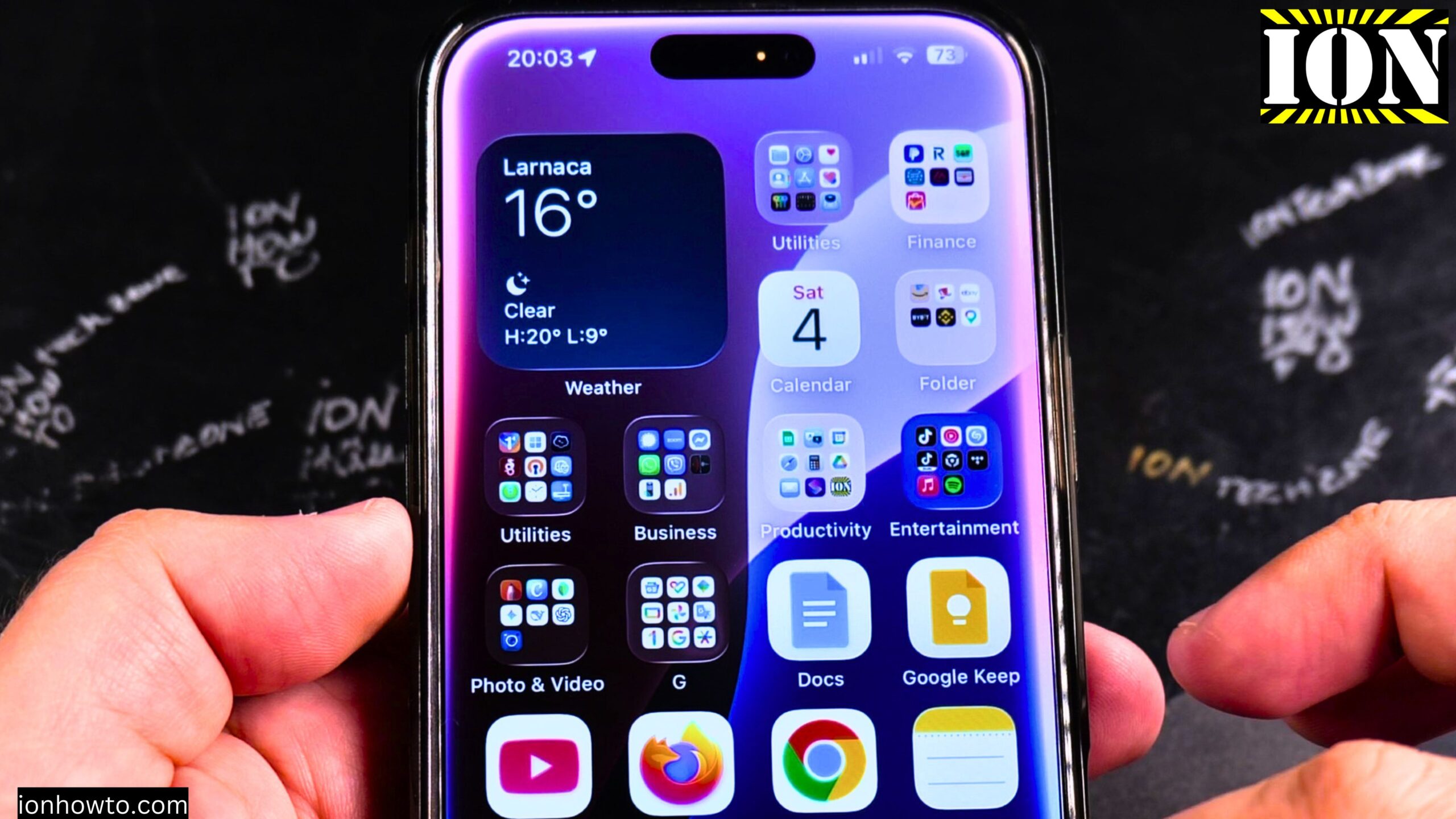
How to Customize iPhone 16 Pro Max Home Screen Widgets, Apps, Folders & More.
Amazon links
As an Amazon Associate I earn from qualifying purchases:
- iPhone Accessories
- iPhone Charger
- iPhone Cases
- iPhone Screen protector
- iPhone Magsafe
- iPhone Wallet
- iPhone Usb c cable
Learn how to customize your iPhone 16 Pro Max home screen. I will show you how to add widgets, group apps into folders, create widget stacks, and organize everything just the way you like it.
This guide is demonstrated on an iPhone 16 Pro Max running iOS 18.3.2.
The basics of home screen customization
Before we get into specific steps, here is what you need to know. To move or change anything on your home screen, you first need to enter “”jiggle mode.”” This is when all the icons start shaking.

How to enter jiggle mode: Long press (press and hold) on an empty area of your home screen. Or long press on any app or widget until a menu appears, then tap “”Edit Home Screen.””
Once the icons are jiggling, you can move, delete, and customize everything.
How to add widgets
Widgets show you information at a glance without opening an app. Think weather, calendar events, battery levels, or photos.
Step 1: Enter jiggle mode (long press on an empty area of the home screen)
Step 2: Tap the plus icon (+) in the top left corner of the screen (or tap “”Edit”” then “”Add Widget”” on some iOS versions)
Step 3: Scroll through the list of apps that offer widgets
Step 4: Tap on an app to see its available widget sizes
Step 5: Swipe left or right to see different widget sizes and styles
Step 6: Tap “”Add Widget”” when you find one you like
Step 7: Drag the widget to where you want it on your home screen
Step 8: Tap “”Done”” in the top right corner when finished
How to resize widgets
Some widgets come in different sizes. You can change a widget from small to medium to large.
Step 1: Enter jiggle mode (long press on an empty area)
Step 2: Long press on the widget you want to resize
Step 3: Tap on the size option you want (small, medium, or large)
If you do not see size options, that widget is fixed size and cannot be changed.
How to create widget stacks
A stack is a group of widgets in the same space. You can swipe up or down on a stack to switch between widgets. This saves space on your home screen.
Method 1 – Create a new stack:
- Enter jiggle mode
- Drag one widget on top of another widget
- They will form a stack
- Tap “”Done”” when finished
Method 2 – Add to an existing stack:
- Enter jiggle mode
- Drag a widget onto an existing stack
- Let go when the stack highlights
- The new widget is added to the stack
How to use a stack:
- Swipe up or down on the stack to cycle through widgets
- The stack automatically rotates through widgets based on time and your usage
How to edit a widget stack
Step 1: Enter jiggle mode
Step 2: Long press on the stack
Step 3: Tap “”Edit Stack””
Step 4: From here you can:
- Drag the three lines (?) next to a widget to reorder it
- Swipe left on a widget to remove it from the stack
- Tap the plus icon to add more widgets
Step 5: Tap “”Done”” when finished
How to turn an app icon into a widget
On iOS 18, some apps let you convert their app icon into a widget. The widget shows live information but still opens the app when tapped.
Step 1: Enter jiggle mode
Step 2: Long press on an app icon
Step 3: Look for an option like “”Convert to Widget”” or similar size options
Step 4: Choose the widget size you want
The app icon turns into a widget that shows information. You can always long press and convert it back.
How to create folders
Folders let you group similar apps together. This keeps your home screen clean and organized.
Step 1: Enter jiggle mode
Step 2: Press and hold on an app icon until it lifts up
Step 3: Drag that app on top of another app you want to group it with
Step 4: Let go when the second app highlights
Step 5: A new folder is created
Step 6: Tap on the folder to rename it
Step 7: Type a new name (like “”Social”” or “”Utilities””)
Step 8: Tap outside the folder to save
Troubleshooting: If dragging one app onto another does not create a folder, try letting go of the app in the center of the other app. Sometimes the positioning needs to be precise. Let go and try again, maybe changing the position slightly.
How to add apps to an existing folder
Step 1: Enter jiggle mode
Step 2: Press and hold on the app you want to move
Step 3: Drag it onto the folder
Step 4: Let go when the folder opens up
How to remove an app from a folder
Step 1: Enter jiggle mode
Step 2: Tap on the folder to open it
Step 3: Press and hold on the app you want to remove
Step 4: Drag it out of the folder onto the home screen
Step 5: Let go
How to remove a widget
Step 1: Enter jiggle mode
Step 2: Tap the minus icon (-) in the top left corner of the widget
Step 3: Tap “”Remove Widget””
Step 4: Tap “”Done”” when finished
How to delete or remove an app from the home screen
When you remove an app, you have two choices: delete it completely or just remove it from the home screen.
Step 1: Enter jiggle mode
Step 2: Tap the minus icon (-) on the app icon
Step 3: Choose:
- Delete App – Removes the app from your iPhone completely
- Remove from Home Screen – Keeps the app in your App Library but removes the icon from your home screen
How to rearrange apps and widgets
Step 1: Enter jiggle mode
Step 2: Press and hold on an app or widget until it lifts up
Step 3: Drag it to a new position on the screen
Step 4: Let go
Step 5: Tap “”Done”” when finished
You can move apps to different pages by dragging them to the left or right edge of the screen.
How to add a new home screen page
Step 1: Enter jiggle mode
Step 2: Drag an app or widget to the right edge of the screen
Step 3: Hold it there until a new page appears
Step 4: Let go
The new page is created automatically.
How to hide or reorder home screen pages
Step 1: Enter jiggle mode
Step 2: Tap the dots at the bottom of the screen (shows how many pages you have)
Step 3: You will see all your home screen pages as thumbnails
From here you can:
- Uncheck a page to hide it (apps are not deleted, just hidden)
- Drag pages left or right to reorder them
- Tap “”Done”” when finished
Hidden pages are not deleted. You can come back here and check them again to show them.
How to move apps to the App Library only
If you want a clean home screen but still want to keep your apps:
Step 1: Enter jiggle mode
Step 2: Tap the minus icon (-) on the app
Step 3: Tap “”Remove from Home Screen””
The app moves to your App Library (swipe left past your last home screen page). You can still find and open it there.
Quick summary
To enter jiggle mode (editing mode):
- Long press on an empty area of the home screen
- Or long press on an app and tap “”Edit Home Screen””
To add a widget:
- Enter jiggle mode
- Tap the plus icon (+)
- Find and select a widget
- Tap “”Add Widget””
- Drag it where you want it
To create a folder:
- Enter jiggle mode
- Drag one app on top of another app
- Release when the second app highlights
- Tap the folder to rename it
To create a widget stack:
- Enter jiggle mode
- Drag one widget on top of another widget
- They form a stack
To remove a widget:
- Enter jiggle mode
- Tap the minus icon (-) on the widget
- Tap “”Remove Widget””
To delete or remove an app:
- Enter jiggle mode
- Tap the minus icon (-) on the app
- Choose “”Delete App”” or “”Remove from Home Screen””
To rearrange everything:
- Enter jiggle mode
- Drag any app or widget to a new spot
- Tap “”Done”” when finished
Thanks for reading. Now you can make your iPhone home screen look exactly how you want it. Play around with different widget sizes, stacks, and folder arrangements until it feels right for you.
Leave a Reply Cancel reply