
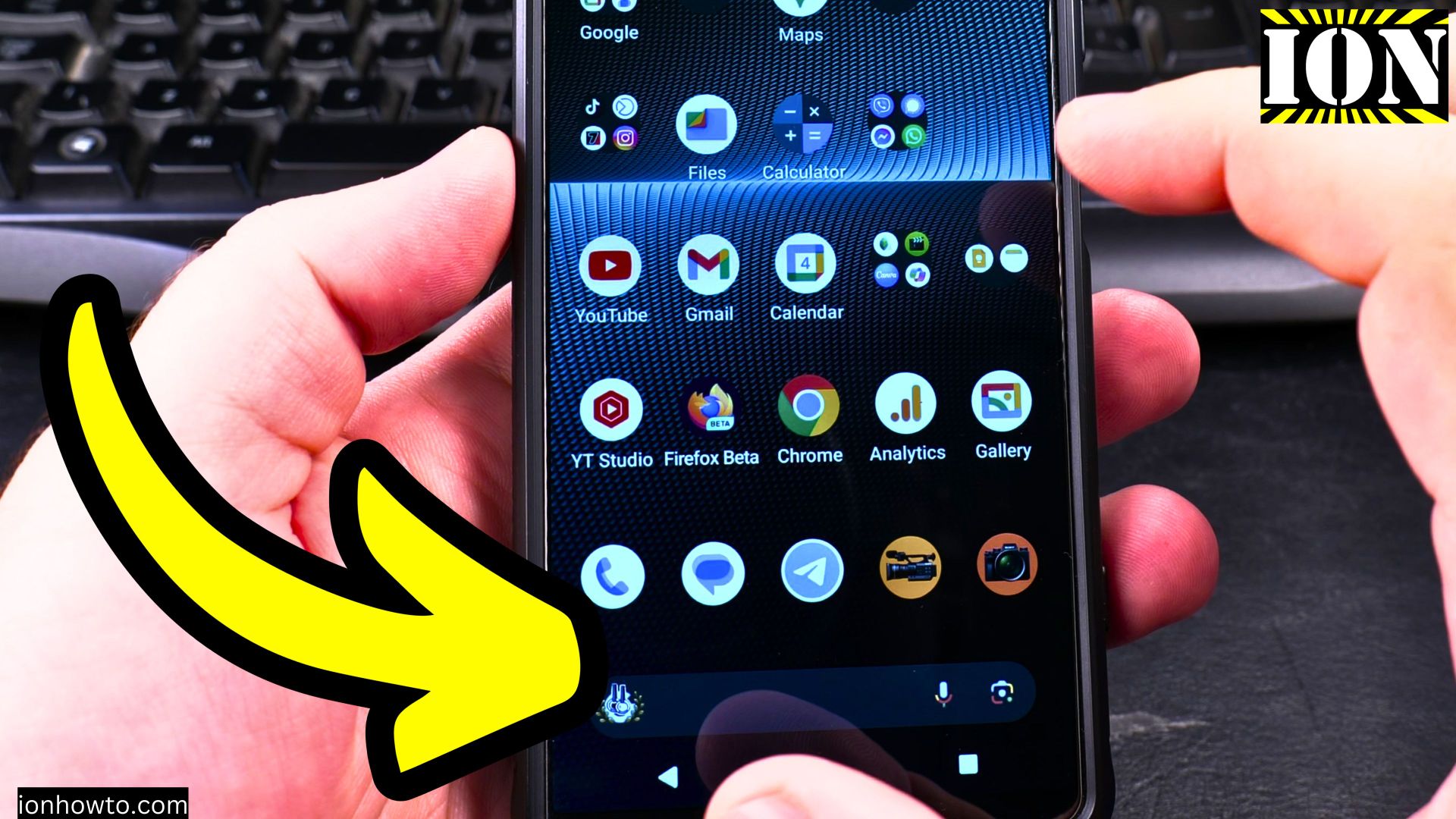
How to Add a Folder on Android to Organize Apps and Files.
Learn how to add a folder on your Android device to keep your home screen tidy and find your apps faster. Creating folders helps you group similar apps together, free up space on your home screen, and make your phone easier to use every day.
Amazon links
As an Amazon Associate I earn from qualifying purchases:
- Phone Accessories
- Screen protectors
- Phone Cases
- Mobile Tripods
- Usb-c charger
- Usb-c cable
- Docking stations
- Wireless car chargers
- Wireless charger stand
- SIM card removal tool
- SIM card holder
This guide works for most Android phones. The example here uses Android 15 on a Sony Xperia 1V, but the steps are nearly the same on older Android versions and even on iPhones with iOS.
Why Create Folders on Your Android Phone
Folders help you in a few simple ways:
· They keep your home screen clean by grouping similar apps together
· You can find your most-used apps more quickly
· You free up space on your home screen to add more apps
· You can organize files in your file manager, like documents, photos, and videos
If you organize your apps into categories like social media, productivity, and entertainment, you will save time and effort when using your device.
How to Create a Folder on Your Home Screen
The process is very simple. You just drag one app on top of another. Here is how to do it step by step:
Step 1: Decide which two apps you want to put in the same folder. For example, you might want to group Calculator and Google Sheets together.
Step 2: Press and hold your finger on the first app icon. A small menu might pop up, but keep holding.
Step 3: While still holding, drag that app icon on top of the second app icon.
Step 4: Release your finger. A new folder will appear containing both apps.
Step 5: To open the folder and see the apps inside, just tap on it.
That is all there is to it. You can add more apps to the same folder by dragging them onto the folder icon.
How to Rename a Folder
When you create a folder, your phone gives it a default name like “Folder” or a name based on the apps inside. You can change this to something that makes sense to you.
Step 1: Tap on the folder to open it.
Step 2: Look for the name field at the top of the folder.
Step 3: Tap on the name.
Step 4: Type your new name, such as “Work Tools” or “Social Media.”
Step 5: Tap outside the folder or press the back button to save it.
How to Remove an App from a Folder
If you want to take an app out of a folder, follow these steps:
Step 1: Tap on the folder to open it.
Step 2: Press and hold the app you want to remove.
Step 3: Drag it outside of the folder area and onto an empty spot on your home screen.
Step 4: Release your finger. The app will now be on its own.
If you remove all but one app from a folder, the folder will disappear automatically. The remaining app will stay on your home screen.
A Few Tips
Sometimes when you try to drag an app, it might not work on the first try. This is normal. Just long press again and try dragging once more. It usually works as expected on the second attempt.
You can also organize your files by creating folders in your file manager app. Look for an option to create a new folder, name it (like “Photos” or “Work Documents”), and then move your files inside.
Other Ways to Stay Organized
I show you how to create folders for apps, but there are other ways to keep your phone organized too:
· Use widgets on your home screen for quick access to information
· Change app icons to make certain apps easier to spot
· Use sorting options in your file manager to arrange files by name, date, or size
Organizing your apps and files into folders improves how quickly you can open what you need. Your most-used apps will always be easy to find, which saves you time every day.


Leave a Reply