
Learn how to turn on touch sounds so your phone makes a noise when you tap the screen. If you like getting feedback while using your phone, this guide will show you the steps to enable touch sounds for a more interactive experience.
Amazon links
As an Amazon Associate I earn from qualifying purchases:
- Phone Cases
- Mobile Tripods
- Usb-c charger
- Usb-c cable
- Docking stations
- Wireless car chargers
- Wireless charger stand
- SIM card removal tool
- SIM card holder
The phone used in this example is a Sony Xperia 1V running Android 14. But the steps are similar on most Android devices like Samsung, Google Pixel, OnePlus, and others.
Quick Steps and Scenarios Overview
| What You Need to Do | Quick Jump |
|---|---|
| How to Turn On Touch Sounds | Jump to Step 1 |
| How to Check If Touch Sounds Are Working | Jump to Step 2 |
| Other Sound Settings You Can Adjust | Jump to Step 3 |
| A Quick Tip | Jump to Step 4 |
Touch sounds can be helpful because they let you know your taps are being registered. Many people find the sound satisfying and reassuring, especially when typing or opening apps. It adds an extra layer of feedback that makes using your phone feel more responsive.
How to Turn On Touch Sounds
Follow these steps to enable tapping touch sounds on your Android device:
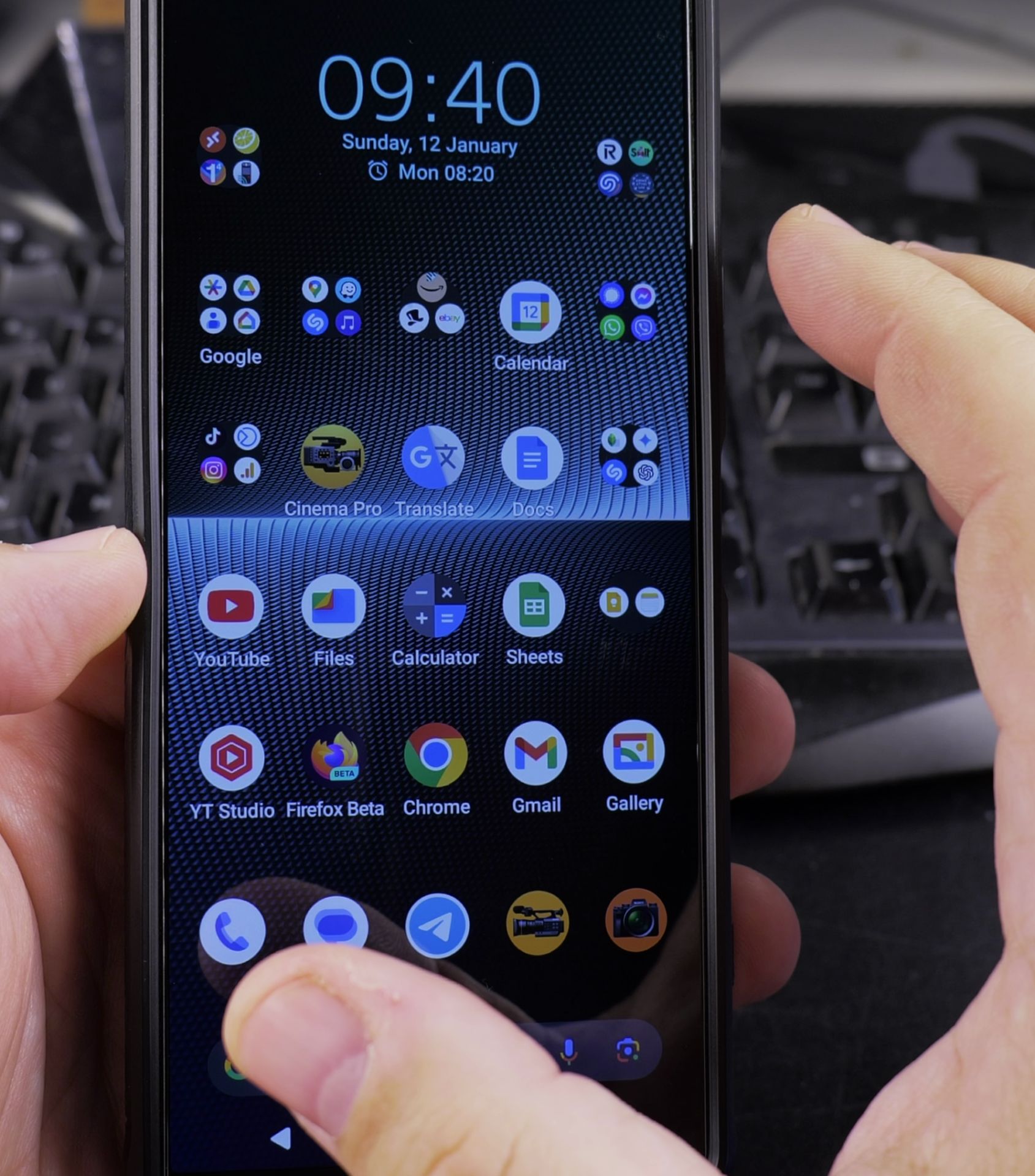
Step 1: Open the Settings app on your phone.
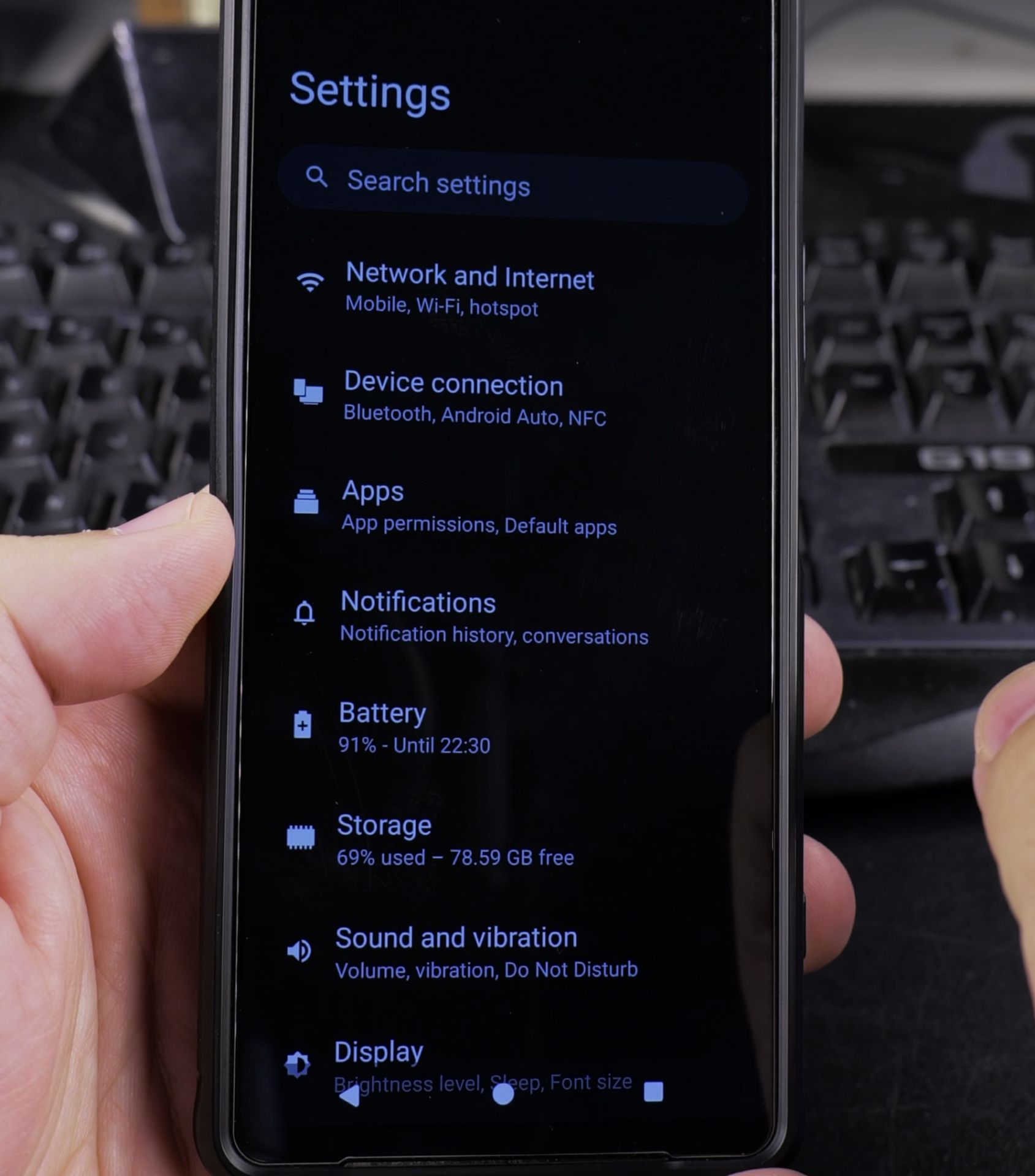
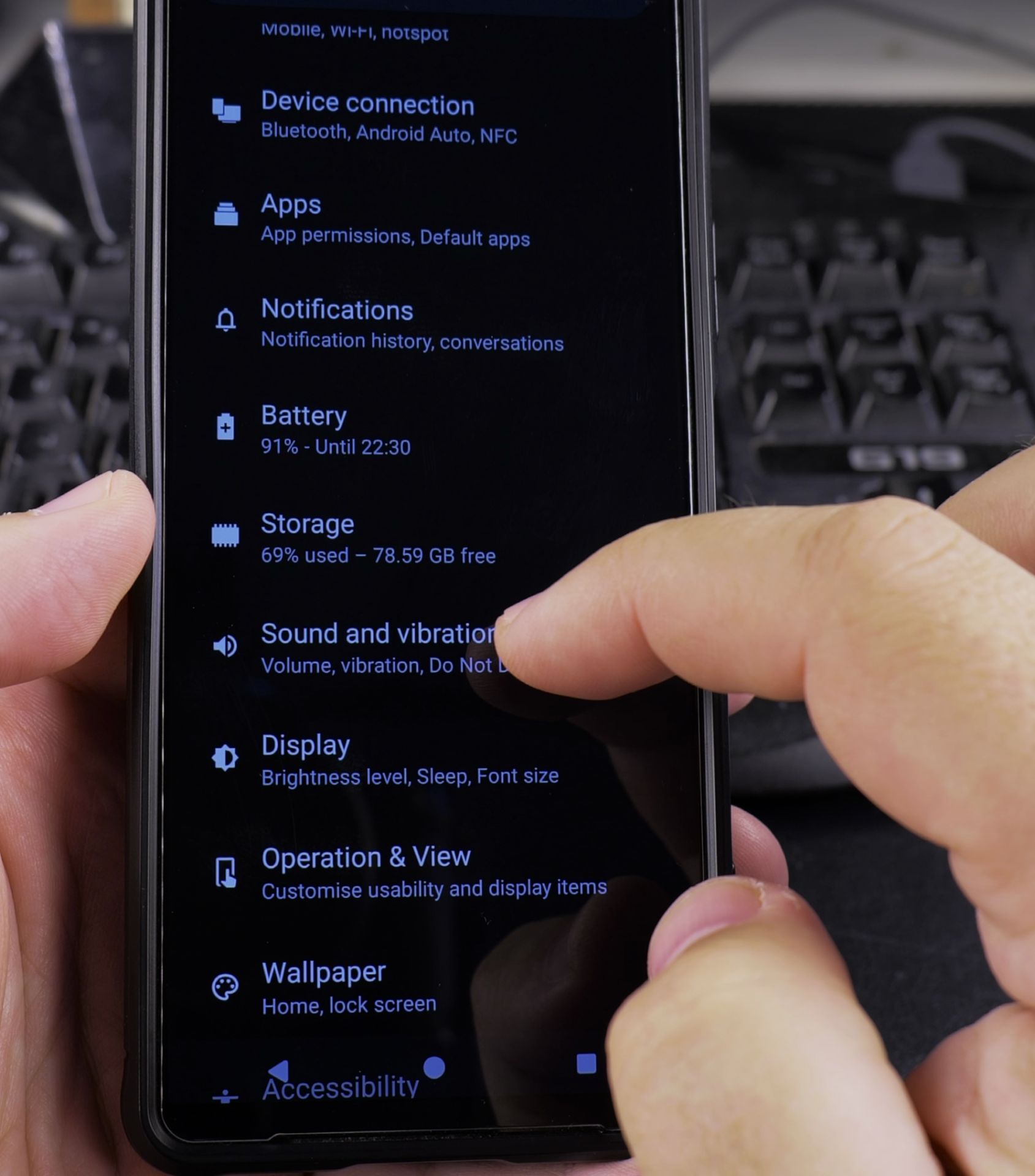
Step 2: Search for “sound and vibration” or look for the Sound section directly.
Step 3: Scroll all the way down to the bottom of the Sound and Vibration page.
Step 4: Look for a toggle or switch labeled “Touch sounds.” On some phones, it might have a slightly different name, but it will usually include the word “touch.”
Step 5: Turn the toggle on.
That’s it. Now when you tap on apps or navigate around your home screen, you should hear a soft sound each time you touch the screen.
How to Check If Touch Sounds Are Working
Make sure your phone is not on silent or vibrate only mode. Press the volume down button to check your sound settings. If the phone is on silent, you won’t hear the touch sounds even with the feature enabled. Turn the volume up a bit and try tapping an app to test it.
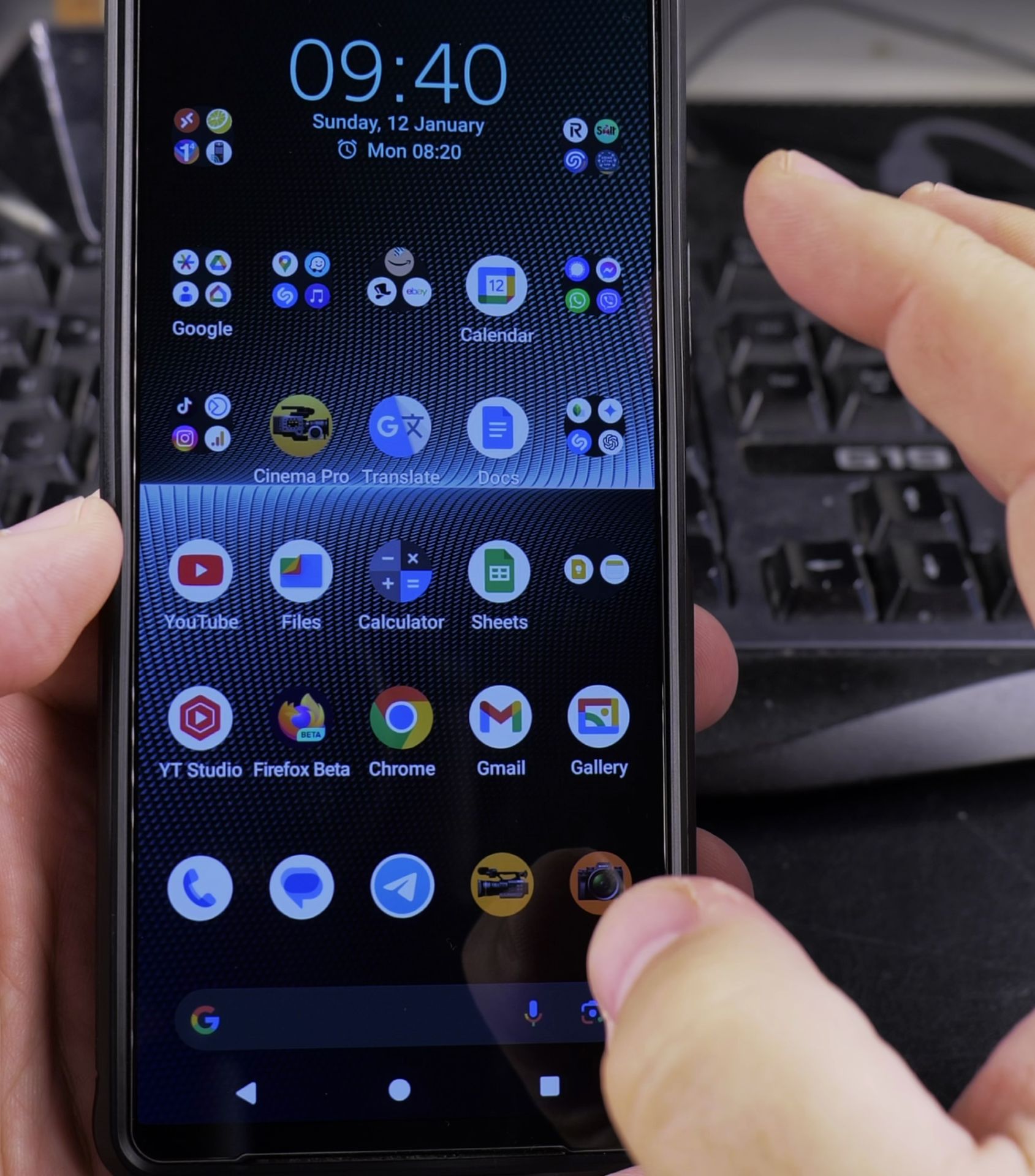
Other Sound Settings You Can Adjust
Learn how to adjust other audio settings on your Android device:
· Notification sounds – Change the sound your phone makes for texts and alerts
· System sounds – Adjust sounds for charging, locking the screen, or using the dial pad
· Media volume – Control music and video playback volume separately from system sounds
These settings are usually found in the same Sound and Vibration section of your Settings app.
A Quick Tip
If you enable touch sounds and still don’t hear anything, check that your ringer volume isn’t turned all the way down. Touch sounds follow the same volume level as your ringtone and notifications, not your media volume.
Helpful Tips
Take your time and check the screen carefully after each tap so you can confirm the setting changed as expected. If an option appears in a slightly different spot on your device, watch the embedded video above for a closer look.
Related Guides
- Android Touch Screen Taps and Multi-Touch Gestures – How to Use Android Touch Screen Taps and Multi-Touch Gestures.
- Add Apps to Samsung Android Home Screen – How to Add Apps to Home Screen on Samsung Android.
- Remove App From Android Home Screen – How to Remove an App from Your Home Screen on Android.
- Android & Mobile Guides – Browse more tutorials and practical guides in this section.


Leave a Reply