
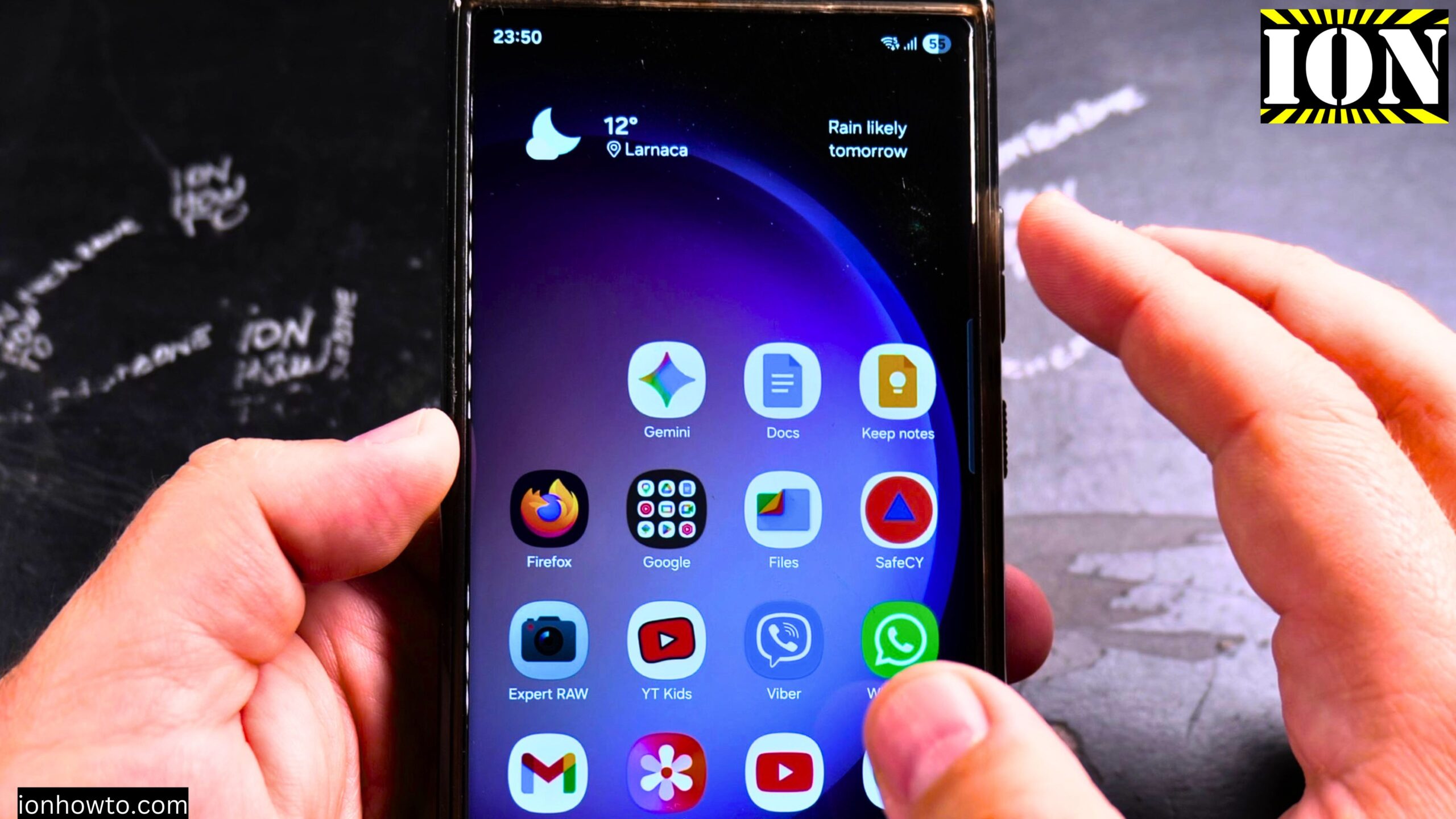
How to Remove Apps from Home Screen on Samsung Android.
I show you how to remove apps from the home screen on your Samsung Android phone. This is a simple process for cleaning up your home screen and organizing your apps.
I’m showing you this on a Samsung S23 Ultra running Android 15 with OneUI 7.0.
Remove vs Uninstall: What Is the Difference
When you long press an app icon on your home screen, you will see two options that sound similar but do very different things:
- Remove – This only takes the icon off your home screen. The app stays installed on your phone. You can still find it in the app drawer and use it anytime.
- Uninstall – This completely removes the app from your phone. It frees up storage space, but the app is gone until you download it again.
So if you just want a cleaner home screen, use Remove. If you want the app gone for good, use Uninstall.
How to Remove Apps from Samsung Android Home Screen Video
How to Remove an App from the Home Screen
- Long press on the app icon you want to remove.
- You will see options appear.
- Tap Remove.
- The icon is now gone from your home screen.
The app is still installed. You can find it in your app drawer.
How to Move an App to Another Screen Instead
If you don’t want to remove the app completely from your home screen, you can just move it to a different page.
- Long press on the app icon.
- Keep holding and drag it to the edge of the screen.
- The screen will slide to the next page.
- Drop the icon where you want it.
This frees up space on your main home screen without removing the app.
How to Uninstall an App Completely
If you want to remove the app from your phone entirely:
- Long press on the app icon.
- Tap Uninstall.
- Confirm when asked.
The app is now removed from your phone completely.
How to Find an App After Removing It from the Home Screen
- Swipe up from the bottom of the screen to open the app drawer.
- Search for the app by name.
- You will find it there. Tap it to open it.
The app works just like before. Only the home screen shortcut is gone.
How to Add an App Back to the Home Screen
If you change your mind later, you can add the app back.
- Open the app drawer.
- Find the app.
- Long press on the app icon.
- Choose Add to home screen.
The app is now back on your home screen.
Quick Recap
- Long press an app icon to see your options.
- Remove takes the icon off the home screen but keeps the app installed.
- Uninstall deletes the app from your phone completely.
- You can move apps to another home screen page instead of removing them.
- To add an app back, open the app drawer, long press the icon, and choose Add to home screen.
Related Guides and Helpful Resources
If you found this guide helpful, check out these related step-by-step tutorials and category resources on ION HowTo:
- How to Add a Picture to a Contact on Android: Personalize your contacts with custom profile photos for caller identification.
- How to Disable 2G on Android: Enhance network privacy and prevent insecure 2G connections.
- Turn Off Automatic Updates on Samsung Android: Manage app and firmware updates to save battery and mobile data.
- Android Tips and Tricks: Explore our full collection of tutorials and step-by-step articles in this category.


Leave a Reply