

When you record a fast-moving moment on your Google Pixel 11 Pro XL, the best shot is often hiding inside a video clip. I will show you how to pause any video on Android 17 and save a sharp still photo directly to your gallery in seconds.
Quick Steps
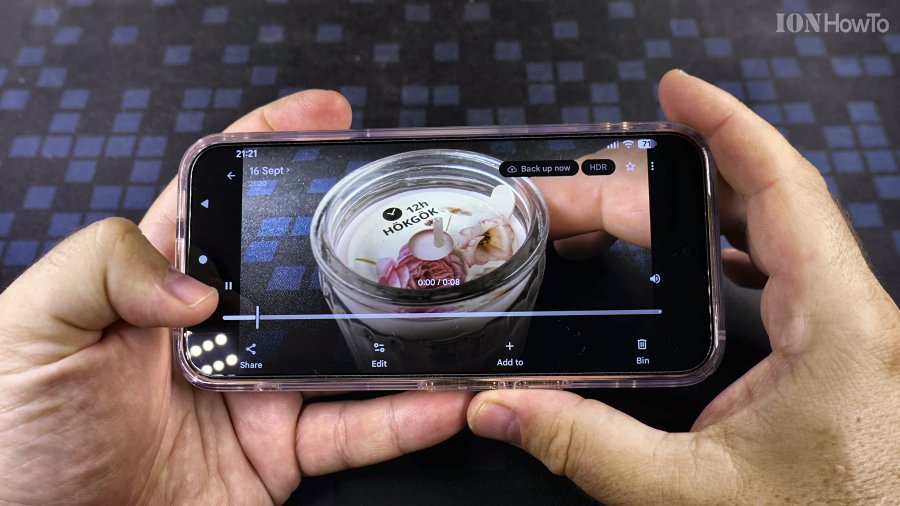
Step 1: Open your video in Google Photos
Launch the Photos app on your Pixel 11 Pro XL and tap the video clip that has the moment you want to keep.
Step 2: Tap Edit at the bottom
Tap the Edit button below the video player to open the Android 17 video editing timeline.
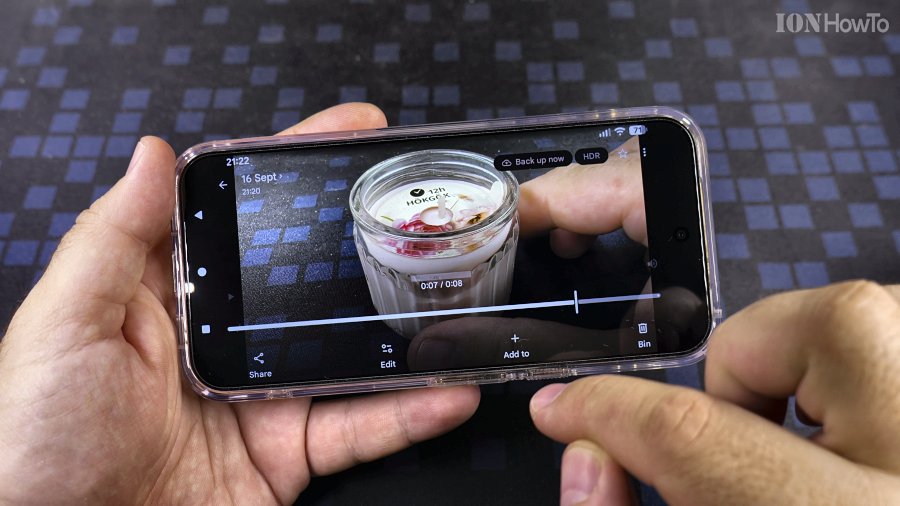
Step 3: Scrub to the exact frame
Drag the white timeline bar left or right slowly until the exact moment you want to capture appears clearly on screen.
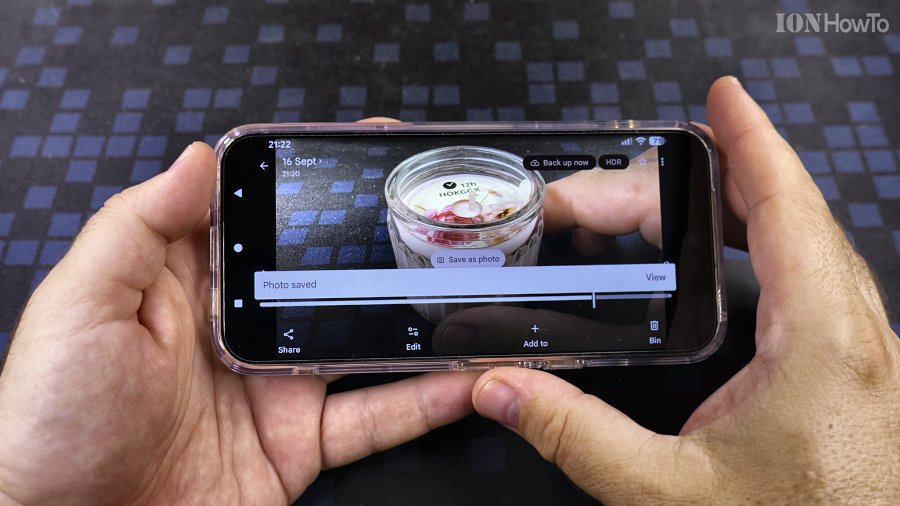
Step 4: Tap Export frame
Tap Export frame below the timeline to save that single still picture as a new photo alongside your original video.
Helpful Tips
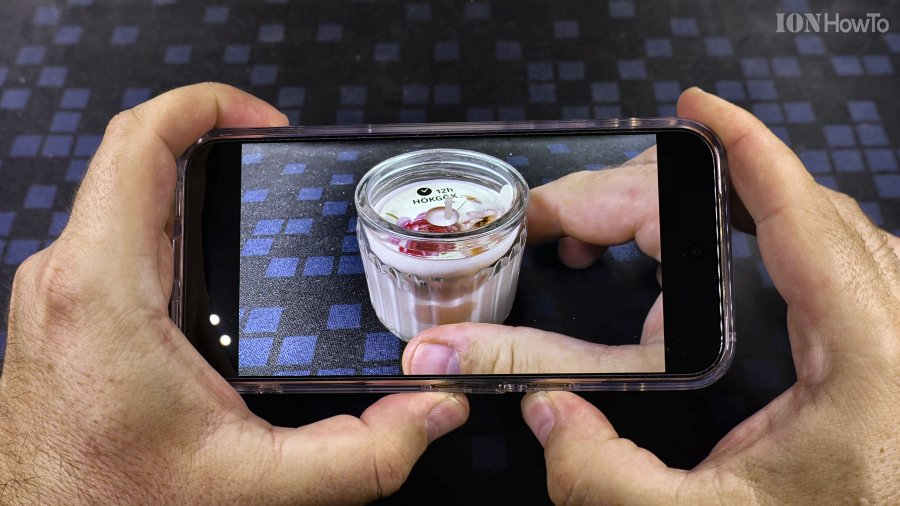
- Pause the video and nudge the timeline bar gently for sharper results without motion blur.
- Your original video stays untouched, and the saved frame appears right next to it in Google Photos.
Related Guides
Explore more step-by-step tech tutorials on IONHowTo.


Leave a Reply