


How to Add a Payment Card to Google Wallet on Android.
In this guide I show you how to add a payment card to Google Wallet on your Android device. Google Wallet allows you to make contactless payments in stores, online, and in apps using your phone instead of your physical card.
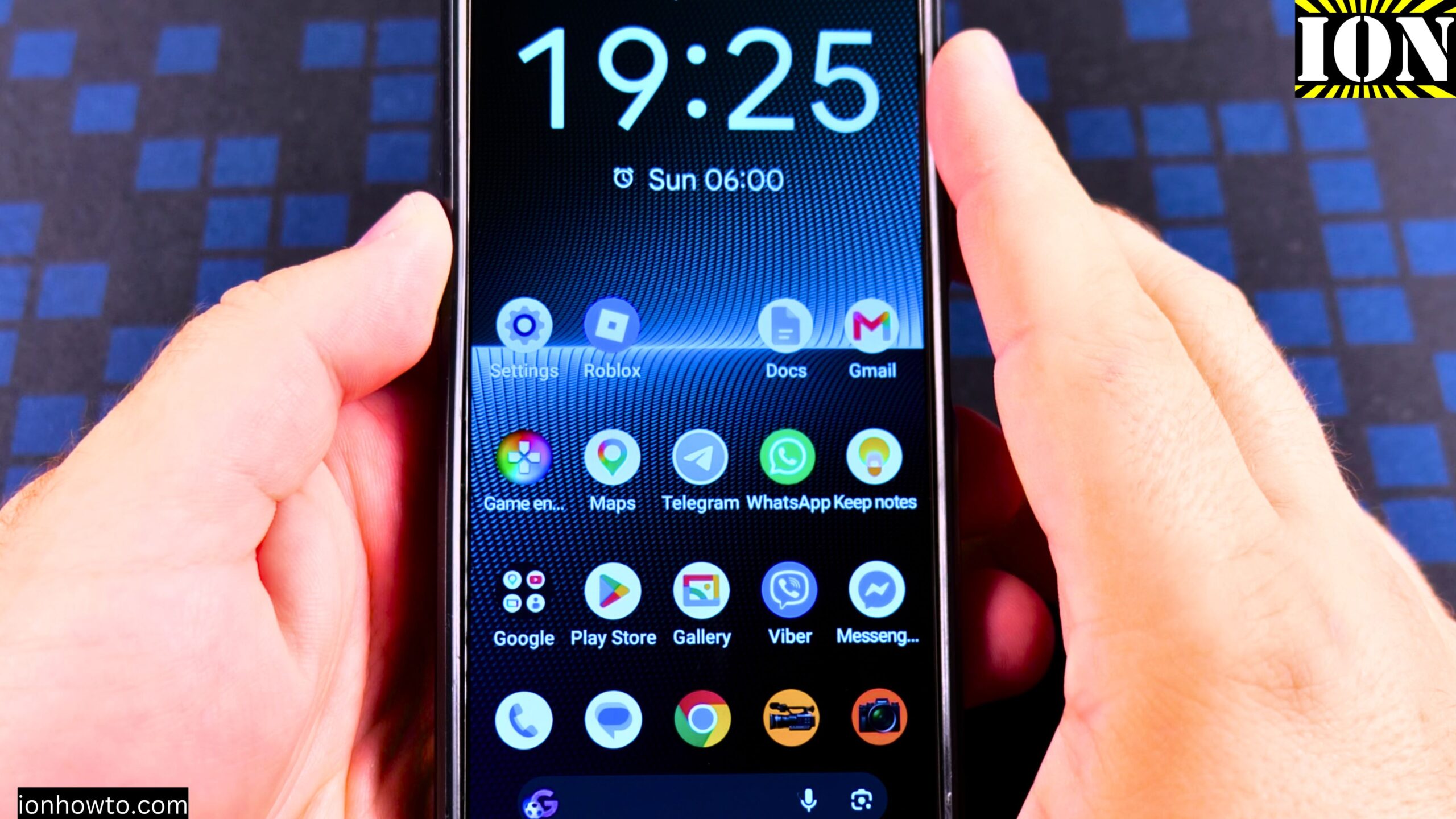
I’m showing you this on a Sony Xperia 1 V Global – EU Model XQ-DQ54 running Android 15.
Before You Start: Check Your Card
Before you add the card to Google Wallet, make sure the card is not expired. If the card is expired, you cannot use it at all. So the first thing to check is that the card is still valid.
What Is Google Wallet
Wallet is the new name for the Google Pay app. You can use it to store your payment cards and pay contactless with your phone.
Android How to Add Payment Card to Google Wallet Google Pay Video

The Easiest Way: Add the Card from Your Bank App
The easiest way to add a payment card is to use the app of your card provider or bank. I will show you this with the Revolut app, but it works with most apps.
- Open your bank or card provider app. For me, this is the Revolut app.
- Find the area where it shows your cards. In Revolut, I tap on Cards.
- Tap on the card you want to add.
- Look for a button that says Add to Google Pay. Most bank apps and card providers have an option like this under the card.
- Tap Add to Google Pay.
- You will be taken to a screen that says Add payment card. Tap Add to wallet.
- Agree to the terms. One of them is the address.
- Press Continue.
- The app will check the card eligibility. Some cards don’t work in all areas. It depends on the settings on your device, the regional setting for the country, and the card issuer.
- Accept the terms.
- You will see Card added to wallet and is ready to pay contactless.
How to Add a Card Directly in Google Wallet
You can also add a card from inside the Google Wallet app.
- Open the Google Wallet app.
- Tap the button to add a new card.
- Choose to add a payment card.
- You can add a card that is already saved in your Google account. You will see a list of the cards saved in your Google account.
- If the card is not there, you can enter the card details manually or use your camera to scan the card information.
How to Set a Default Payment Card
If you have more than one card in your wallet, you can choose which one is the default.
- Open Google Wallet.
- Scroll through your cards and tap on the card you want to set as default.
- Tap the menu.
- Choose Make default for contactless payments.
The card will now show as default for contactless payments and is ready to use.
How to Manage Your Cards
After a card is added, you can manage your payment methods. You can edit your card information or remove a card if you no longer need it.
Security Features to Know About
Your actual card numbers are never shared with merchants when you make payments. This is one of the security features that protect your payment information.
What to Do If Your Card Is Not Supported
Your bank must support Google Wallet for your card to be added successfully. If your card is not supported, or if you get an error during setup, it may be because:
- The card is expired.
- The card issuer does not support Google Wallet.
- The regional settings on your phone do not match the card’s country.
- The card is not made to work in all areas.
Quick Recap
- Check that your card is not expired before you start.
- The easiest way is to add the card from your bank app using the Add to Google Pay button.
- You can also add a card directly in the Google Wallet app.
- To set a default card, tap the card and choose Make default for contactless payments.
- Your real card number is never shared with merchants.
- Your bank must support Google Wallet for the card to work.
Related Guides and Helpful Resources
If you found this guide helpful, check out these related step-by-step tutorials and category resources on ION HowTo:
- How to Add a Picture to a Contact on Android: Personalize your contacts with custom profile photos for caller identification.
- How to Disable 2G on Android: Enhance network privacy and prevent insecure 2G connections.
- Turn Off Automatic Updates on Samsung Android: Manage app and firmware updates to save battery and mobile data.
- Android Tips and Tricks: Explore our full collection of tutorials and step-by-step articles in this category.
Leave a Reply Cancel reply