


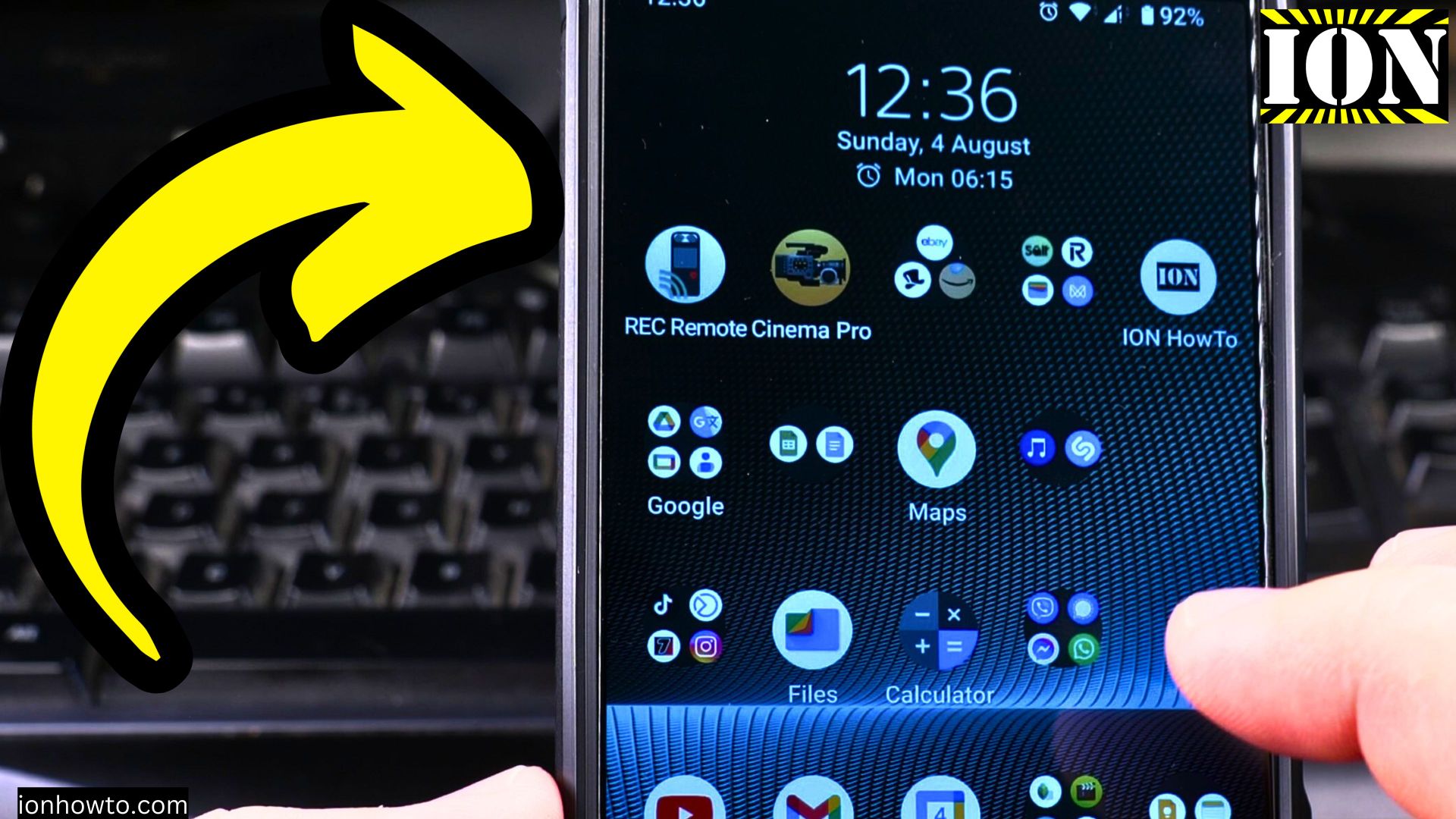
Learn how to add a Google account to your Android phone or tablet. This works on most Android devices including Sony Xperia, Google Pixel, and other brands. You can add one account or even a second Google account to the same phone.
Amazon links
As an Amazon Associate I earn from qualifying purchases:
- Phone Cases
- Mobile Tripods
- Usb-c charger
- Usb-c cable
- Docking stations
- Wireless car chargers
- Wireless charger stand
- SIM card removal tool
- SIM card holder
What You Need Before You Start
Before adding a Google account to your Android device, make sure you have:
- Your Google account email address (something@gmail.com)
- Your Google account password
- Access to your phone if you have a fingerprint, PIN, or pattern set up
If you do not have a Google account yet, you need to create one first. The process to create a new Google account is simple and works the same as it has for years.
Steps to Add a Google Account

Quick Steps and Scenarios Overview
| What You Need to Do | Quick Jump |
|---|---|
| Steps to Add a Google Account | Jump to Step 1 |
| After You Add the Account | Jump to Step 2 |
| Adding a Second Google Account | Jump to Step 3 |
Here is how to add an existing Google account to your Android phone:
- Open the Settings app on your Android device
- Scroll down and tap on Google. This section is where Google account settings live
- On the Google page, tap the menu icon or look for the option to manage accounts
- Tap on Add another account
- Verify your identity using your fingerprint, PIN, or pattern if your phone has one
- Enter your Google account email address and tap Next
- Enter your password and tap Next
- If you have two-factor authentication set up, enter the Google Authenticator code or the verification code sent to your phone
- Review and agree to the terms and conditions
- Follow any remaining on-screen prompts to complete the setup
What If You Use Two-Factor Authentication
Many Google accounts now use two-factor authentication for better security. This means that after entering your password, you will need to provide a second form of verification. This could be:
- A code from the Google Authenticator app
- A verification code sent to your phone by SMS
- A notification sent to another device where you are already signed in
This extra step helps make sure that you are the real owner of the account and not someone trying to steal it.
After You Add the Account
Once the account is added, you can use it right away on your phone. The following Google services will work with the new account:

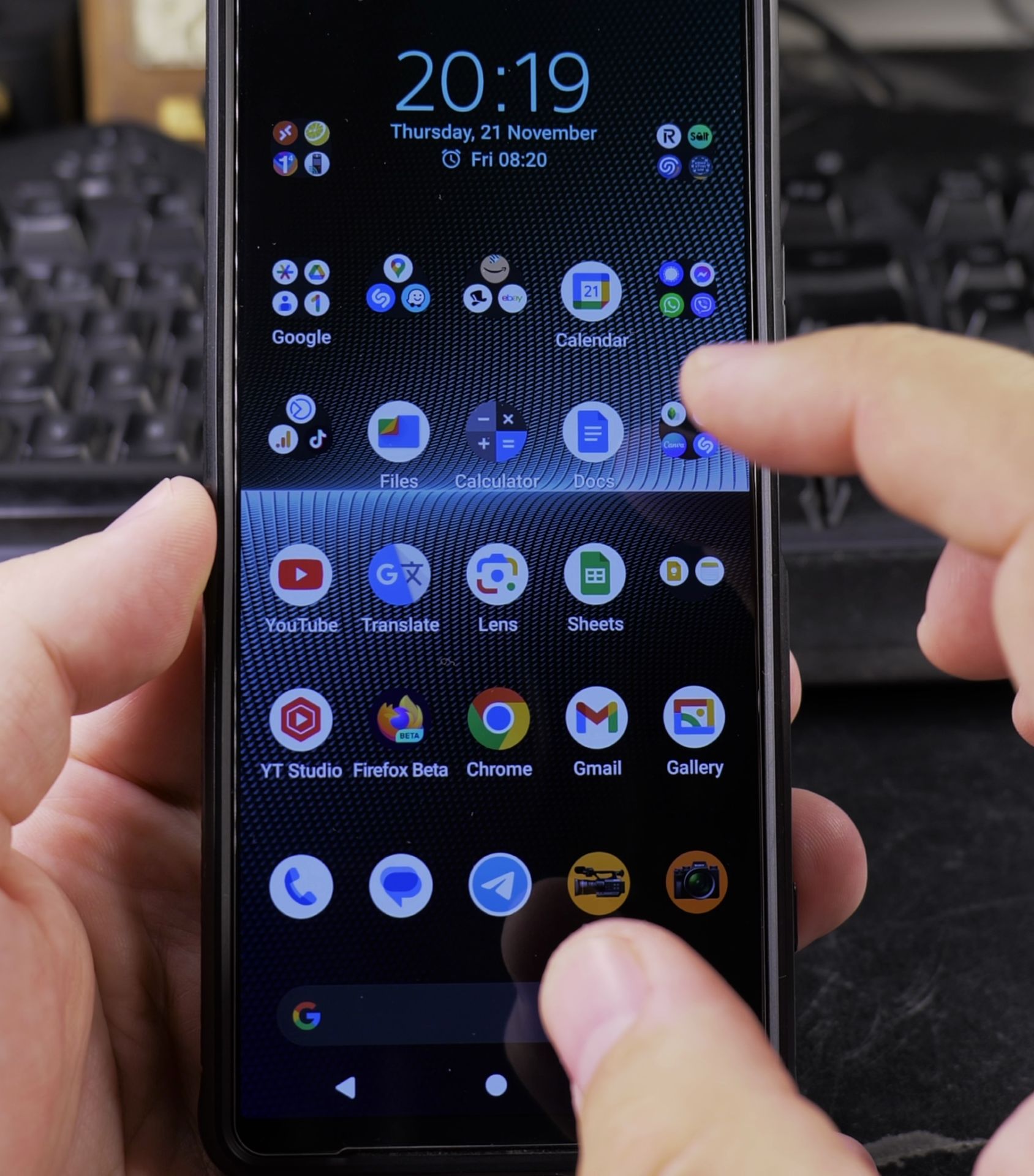
- Gmail
- Google Drive
- YouTube
- Google Photos
- And any other Google apps on your phone
You may be asked if you want to restore apps or data from this account. If you are setting up a new phone, you can choose to restore. If you are just adding a second account to an existing phone, you can skip this step.
Adding a Second Google Account
You can add multiple Google accounts to the same Android phone. This is useful if you have a personal account and a work account. Just follow the same steps again. Each new account will appear in your Google settings, and you can switch between them inside Google apps.
A Note About Privacy
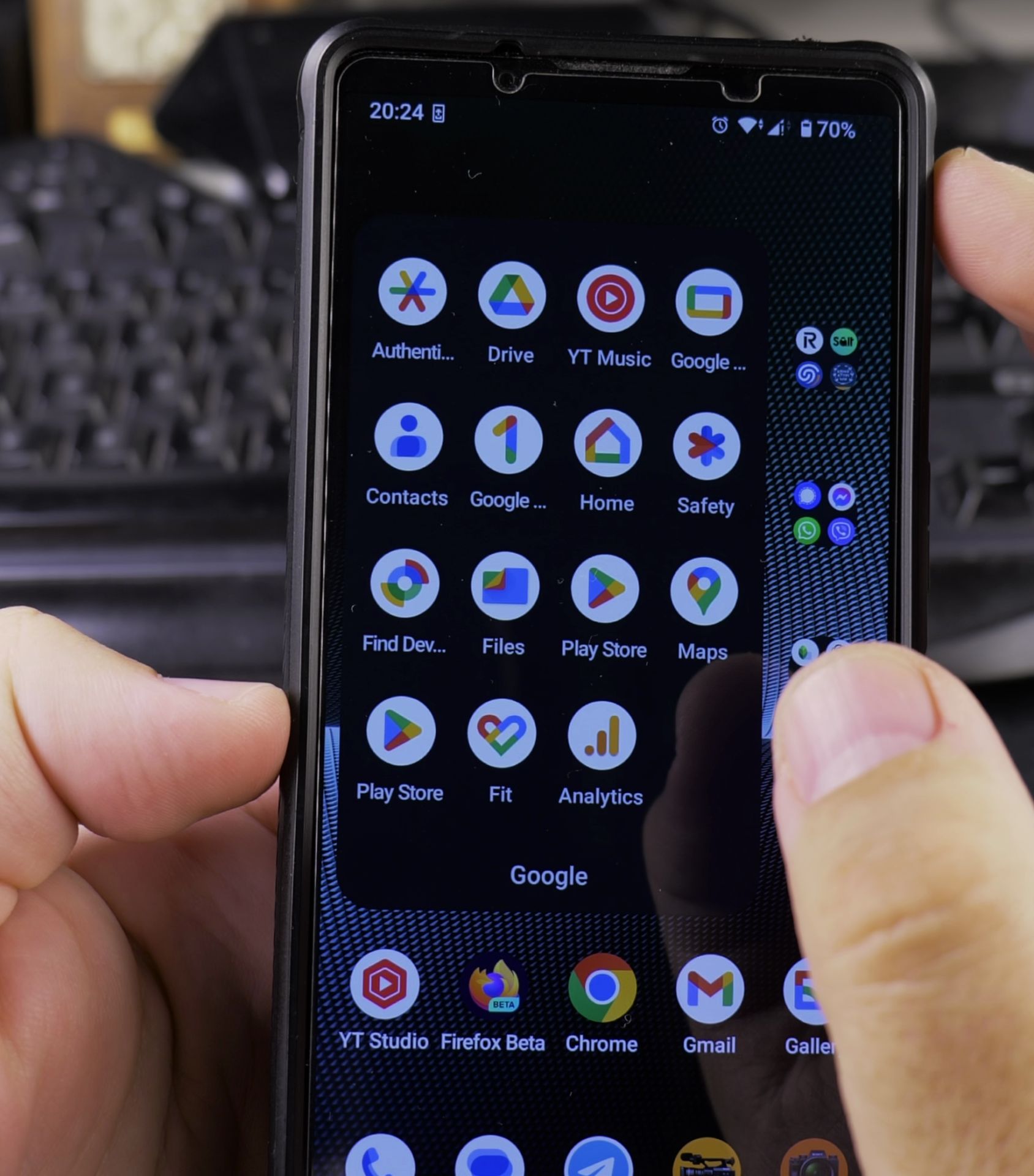
When I recorded this demonstration, I had to blur out my phone number and email address on screen for privacy. You should also be careful about showing your login information when sharing your screen or making videos.
Final Thoughts
Adding a Google account to your Android phone is a quick and simple process. It takes just a minute or two. Once added, you will have access to all Google services on your device. This works the same on Android phones and tablets, no matter which brand you use.
Thanks for reading. I hope this helps you get your Google account set up on your Android device.
Helpful Tips
Take your time and check the screen carefully after each tap so you can confirm the setting changed as expected. If an option appears in a slightly different spot on your device, watch the embedded video above for a closer look.
Related Guides
- How to Change Google Gemini Voice on Samsung Galaxy Android – If you don't like the default voice of your Google Gemini assistant, you can choose from a range of friendly and natural…
- How to Fix Roblox Error 317 and Error 319 and Google Wallet NFC via Android Google Play Security Updates – If you get kicked out of Roblox Rivals or other Roblox games with 'Error Code: 319 (Roblox was not able to verify the…
- How to Setup Google Pixel 11 Pro XL: Transfer Settings from iPhone or Android Guide – Setting up a new flagship phone is exciting, and Google modern transfer assistant makes moving from an iPhone or older…
- Android & Mobile Guides – Browse more tutorials and practical guides in this section.
Leave a Reply Cancel reply