


Private Space is an operating-system-level secure profile in modern Android that lets you isolate sensitive banking applications, private photos, and personal documents behind a separate lock code. In this guide, I’ll show you how to enable and configure Private Space on your Android phone.

Open Android Settings and Tap Security & Privacy
Unlock your Android device and open the Settings app. Scroll down and tap Security & privacy (or Privacy depending on your manufacturer skin).
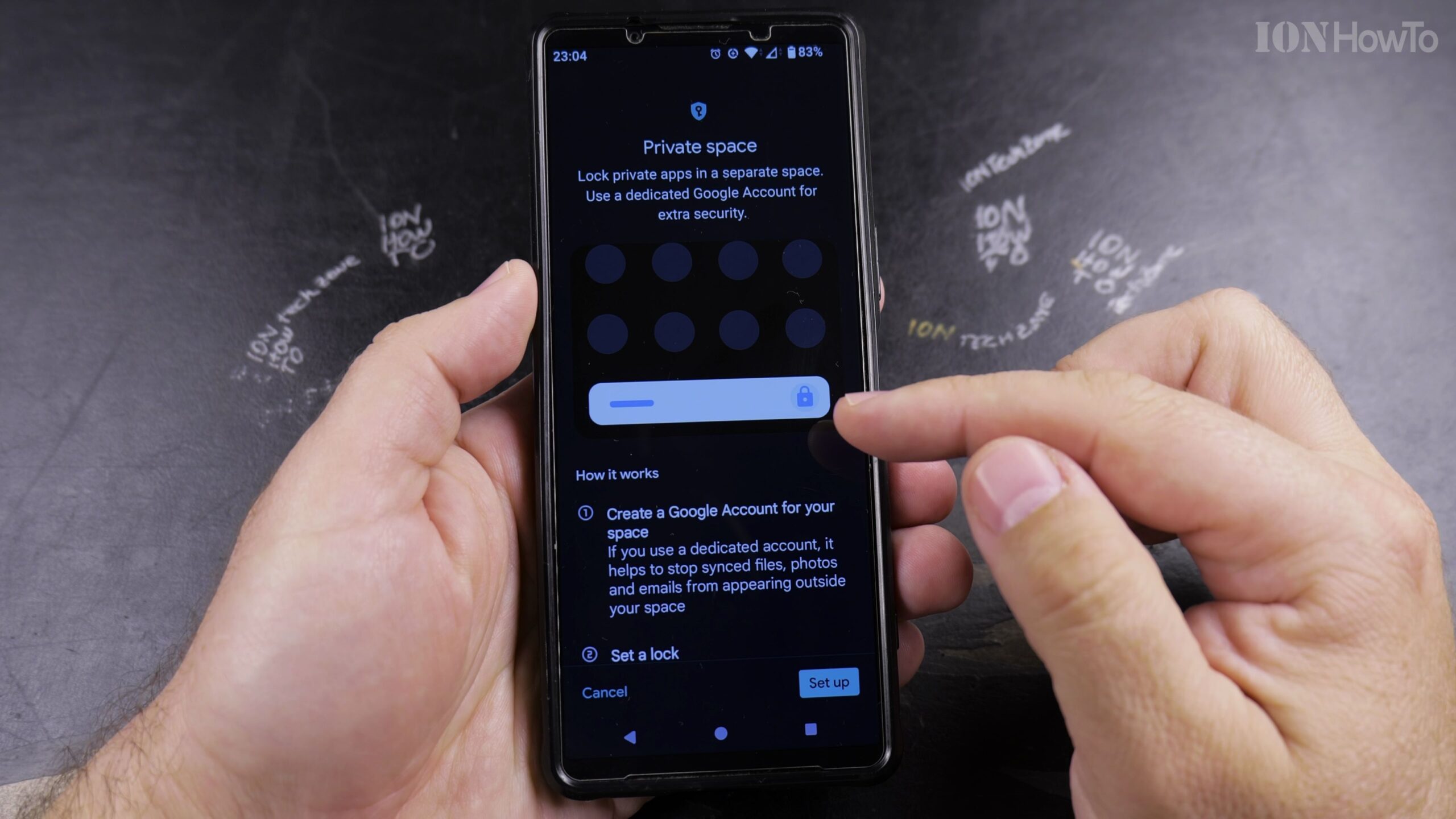
Select Private Space Under Personal Security
Scroll down within the privacy menu to find Private Space. Tap it to launch the setup assistant, which explains how apps and notifications inside the space are hidden when locked.
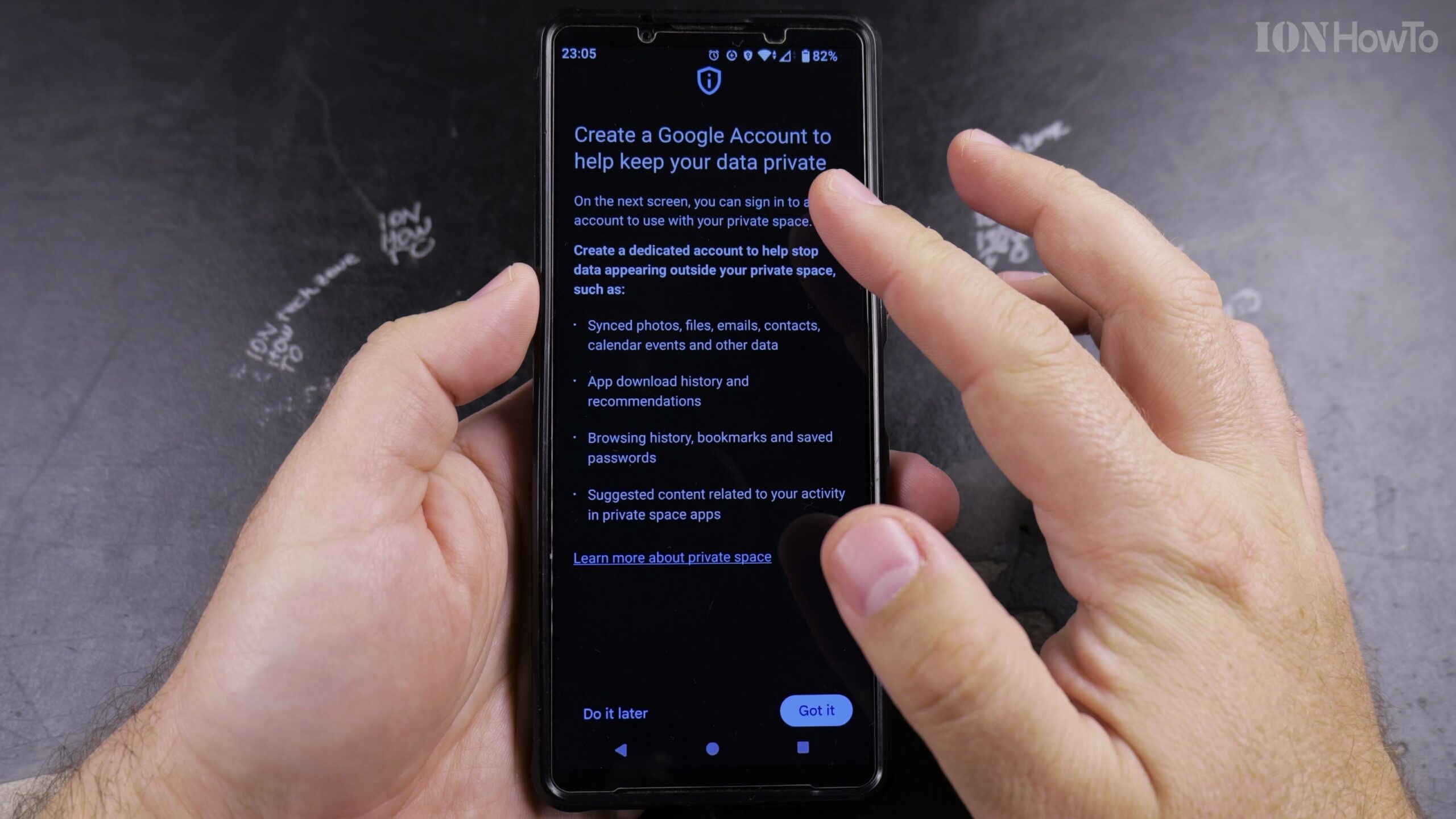
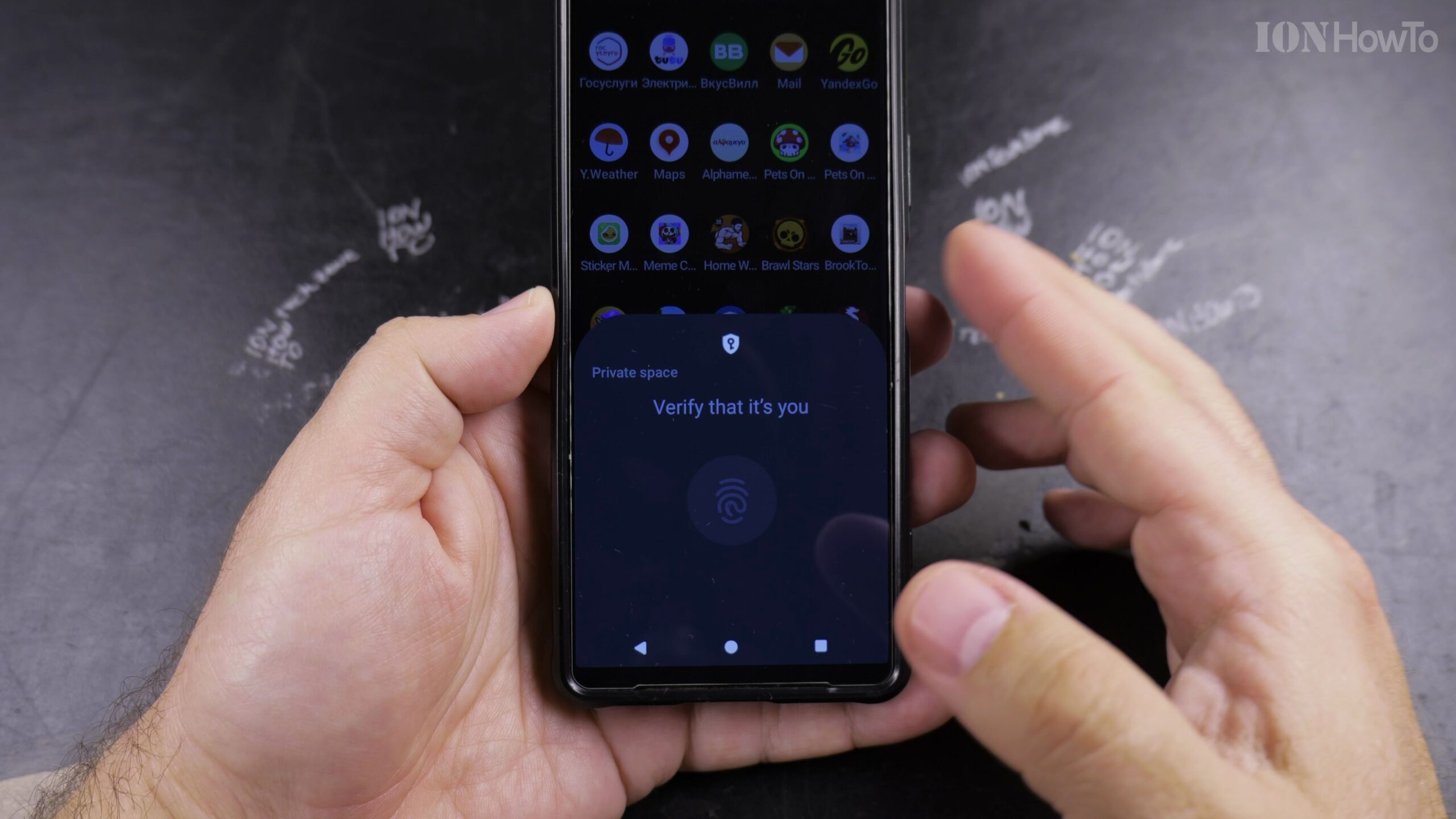
Authenticate with Your Device Screen Lock and Tap Set Up
Tap Set up or Got it. Authenticate using your current fingerprint or screen lock PIN to confirm that you are the device owner initiating the feature.
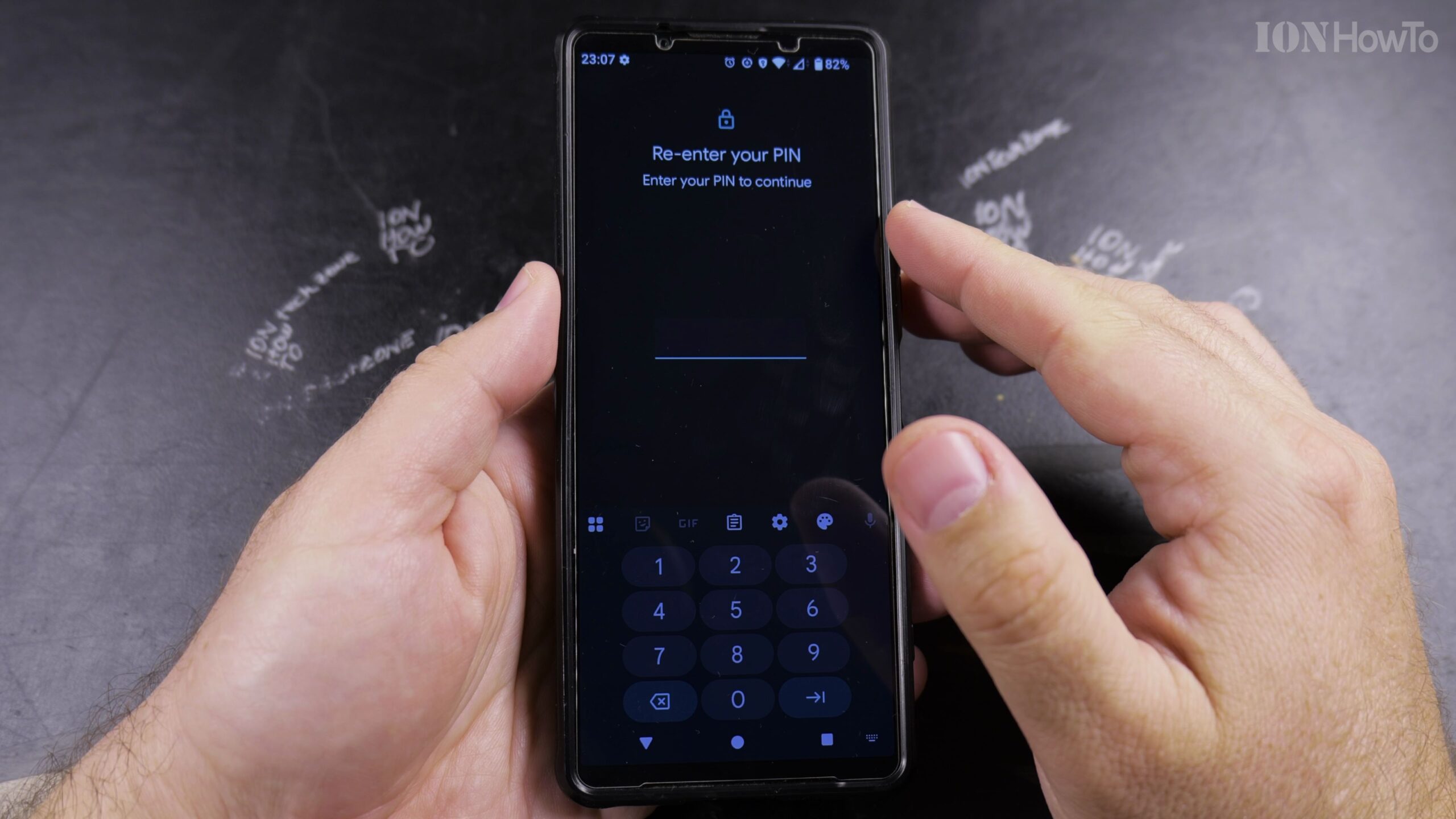
Choose a Dedicated Lock PIN or Use Device Screen Lock
You can choose to unlock Private Space using your main device screen lock or create a completely separate, dedicated PIN so that anyone who knows your phone PIN still cannot access Private Space.
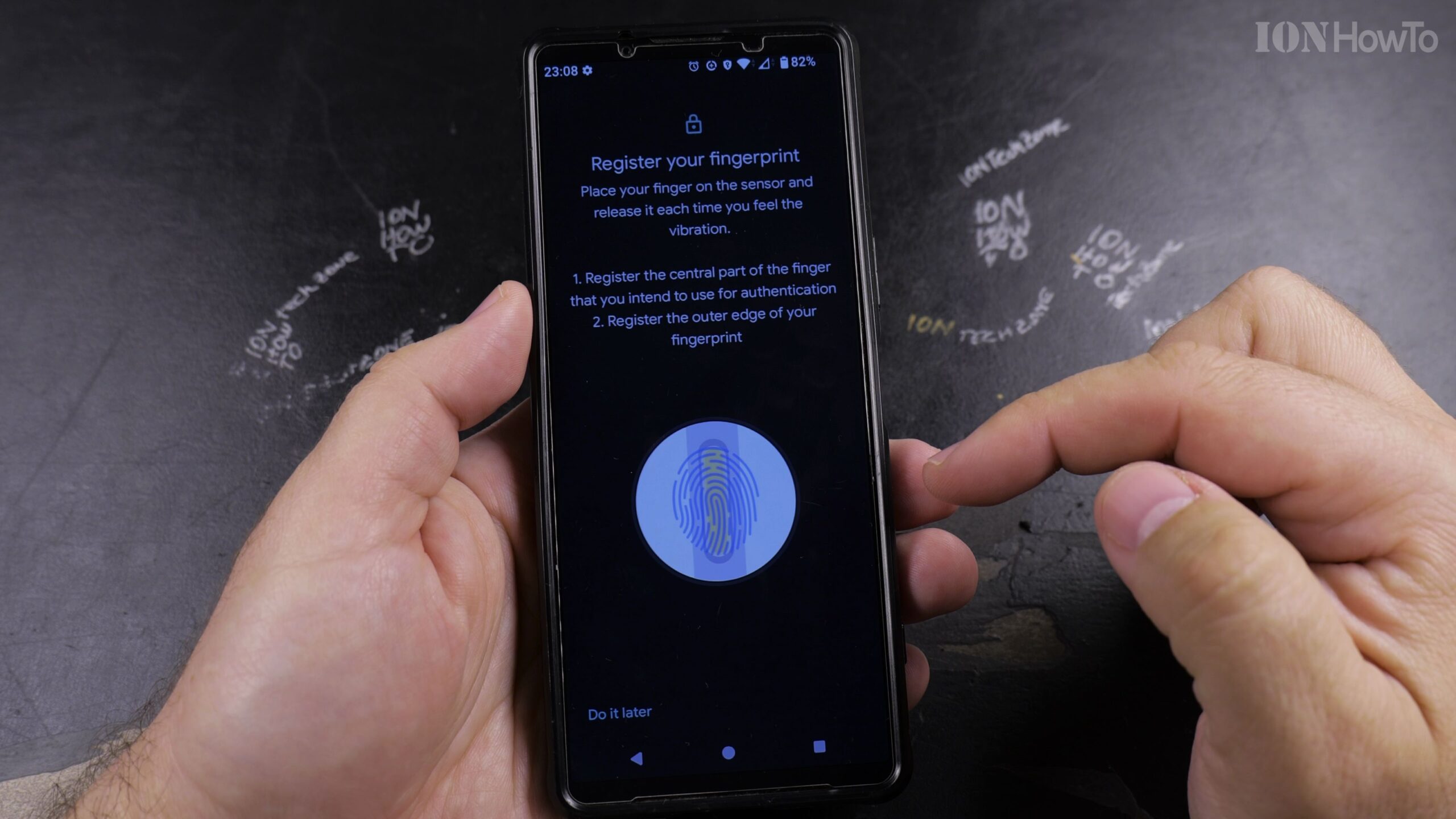
Access Your Private Space at the Bottom of the App Drawer
Open your app drawer and scroll all the way to the bottom. Tap the Private Space banner, authenticate with your lock code, and begin installing secure apps from a private Google account.
Helpful Tips and Related Guides
You can also toggle Hide Private Space when locked in Settings so the banner completely disappears from your app drawer until you type ‘Private Space’ in the search bar. Discover more in our Android Tips section, check our guide on Changing Your Device Name on Android, or browse our Android category.
Leave a Reply Cancel reply