


When your credit card expires or you want to switch Apple Music billing to Apple Pay or a different bank card, you can easily manage payment methods from your Apple Account. Here is how to update your billing card and ensure your subscription remains active.

1. Open Settings and Tap Your Apple Account Name at the Top
Launch the Settings app on your iPhone or iPad. Tap on your name and profile picture at the very top of the screen to access your Apple Account.
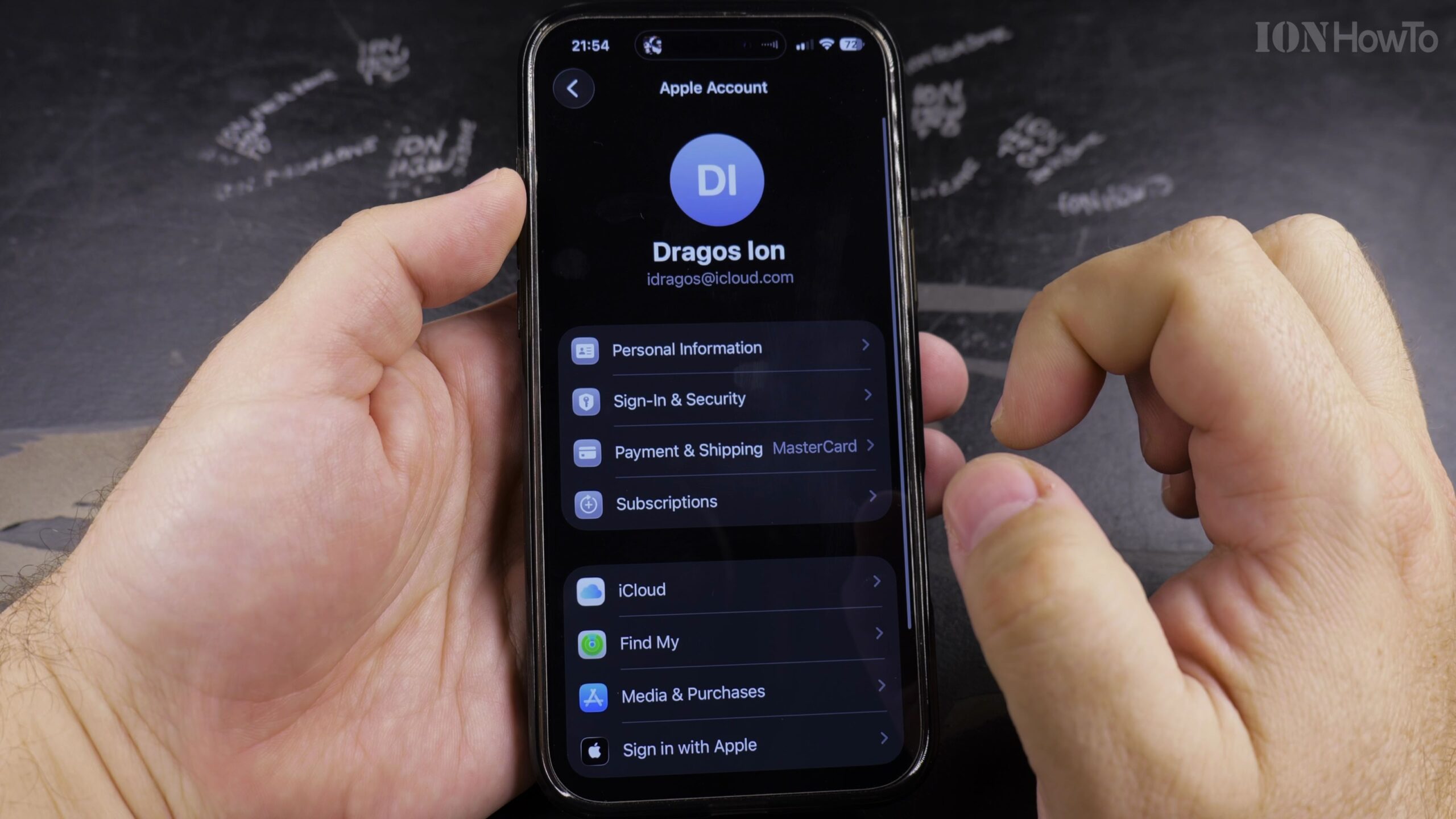
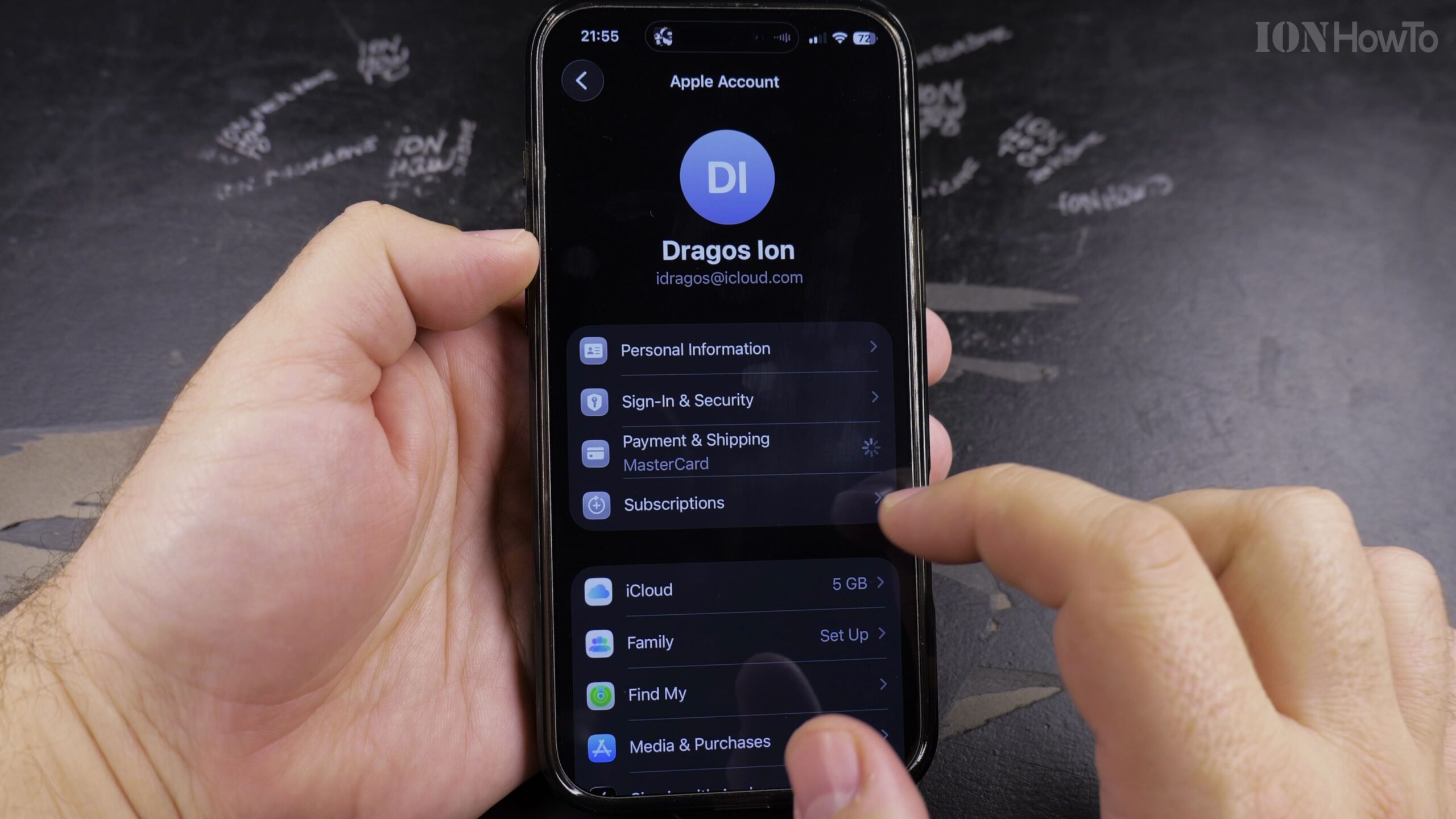
2. Tap Payment & Shipping to View Current Billing Cards
Select ‘Payment & Shipping’ from the menu. You will be prompted to authenticate using Face ID, Touch ID, or your passcode for security.
3. Tap Add Payment Method to Add a New Card or Apple Pay
Tap ‘Add Payment Method’. You can choose to enter a new credit or debit card, link your PayPal account, or select Apple Pay.
4. Enter Card Details or Verify Billing Information
Type in your 16-digit card number, expiration date, CVV security code, and billing address, then tap Done in the top-right corner to save.
5. Move the New Payment Method to the Top of the List
Tap Edit in the top corner and drag the three-line handle next to your new card to the top position so Apple Music bills your preferred payment method first.
Helpful Tips and Related Guides
Keeping a secondary backup payment method registered prevents sudden subscription lapses if your primary bank card is renewed. Check out our guide on Setting Default Cards in Apple Pay, visit our Apple Music category, or view our iPhone Guides.
Leave a Reply Cancel reply