


Moving your music collection from Apple Music to Spotify no longer requires recreating playlists by hand song by song. In this walkthrough, I’ll show you how to transfer your complete Apple Music library, curated playlists, and favorite songs directly into Spotify.

1. Choose a Trusted Transfer Tool Like SongShift or Soundiiz
Download a playlist migration app like SongShift from the iOS App Store or visit a web-based migration platform like Soundiiz in Safari.
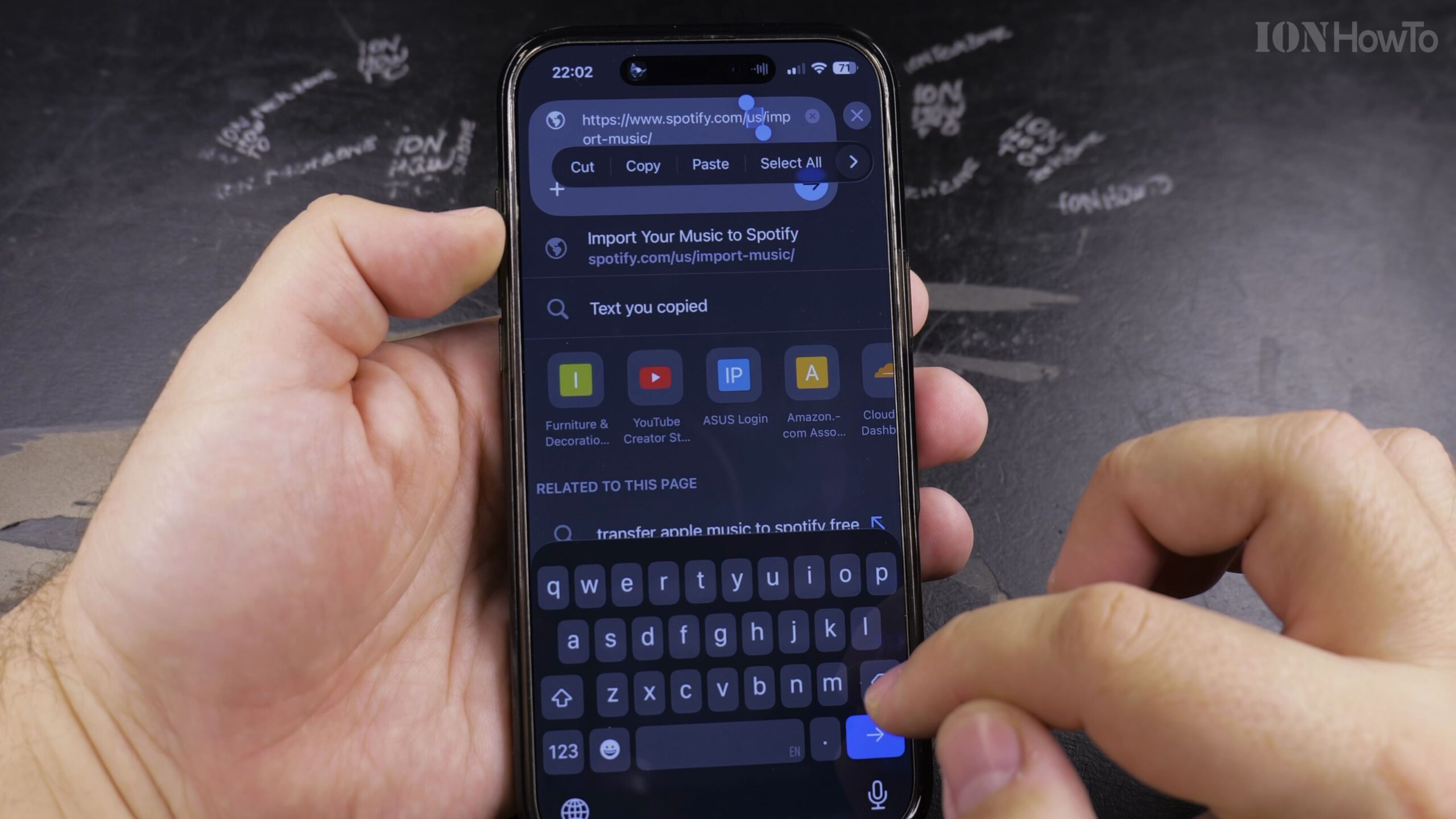
2. Connect and Authorize Your Apple Music Account
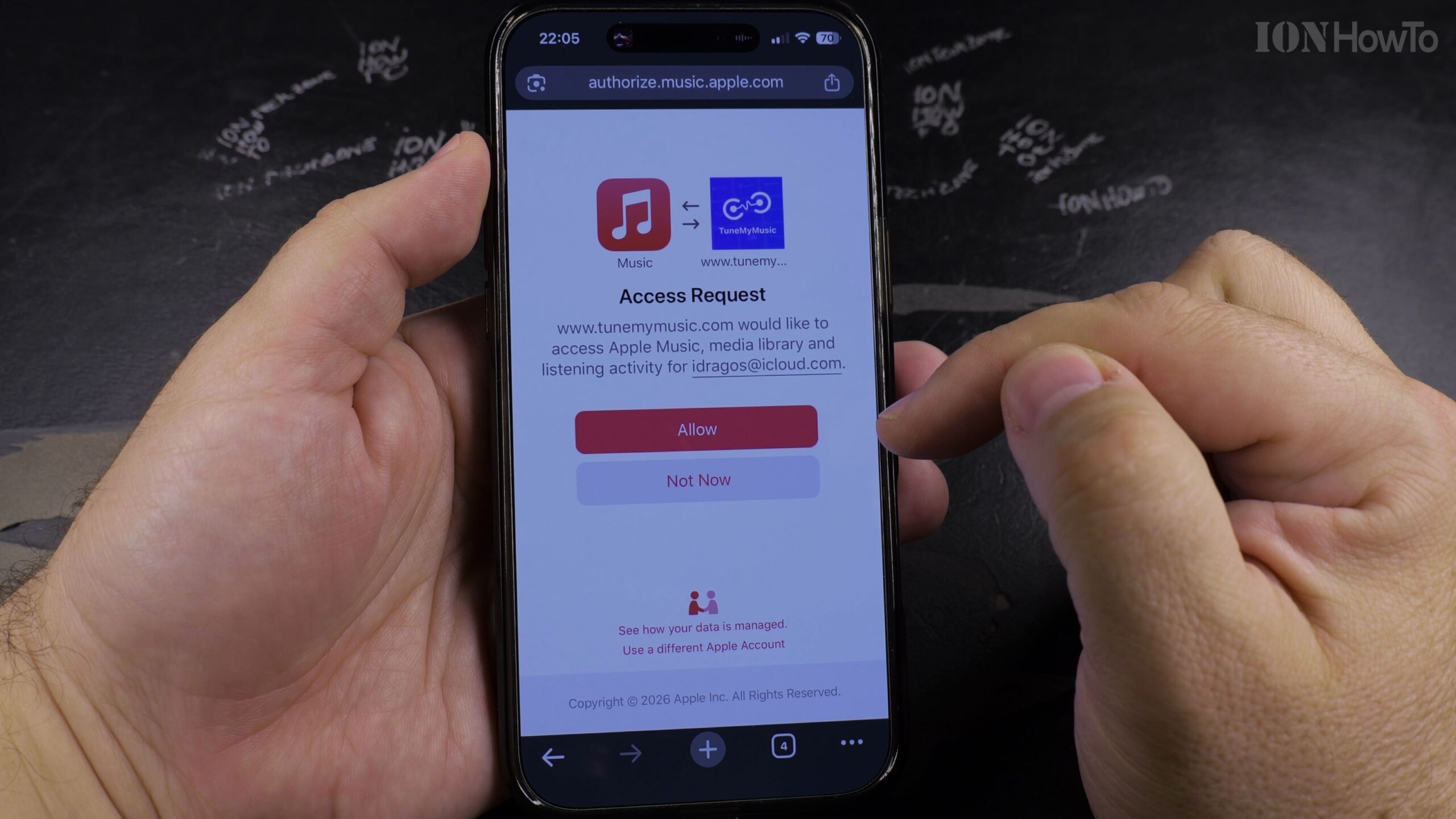
Tap Add Source and select Apple Music. Authenticate with your Apple ID and grant the app permission to read your music library and created playlists.

3. Connect and Authorize Your Spotify Destination Account
Tap Add Destination and select Spotify. Log in to your Spotify account and authorize the transfer tool to create playlists and save tracks to your library.
4. Select the Playlists and Favorite Songs You Want to Transfer
Review your list of playlists and albums. Check the boxes next to each playlist you wish to migrate and select your preferred matching accuracy settings.
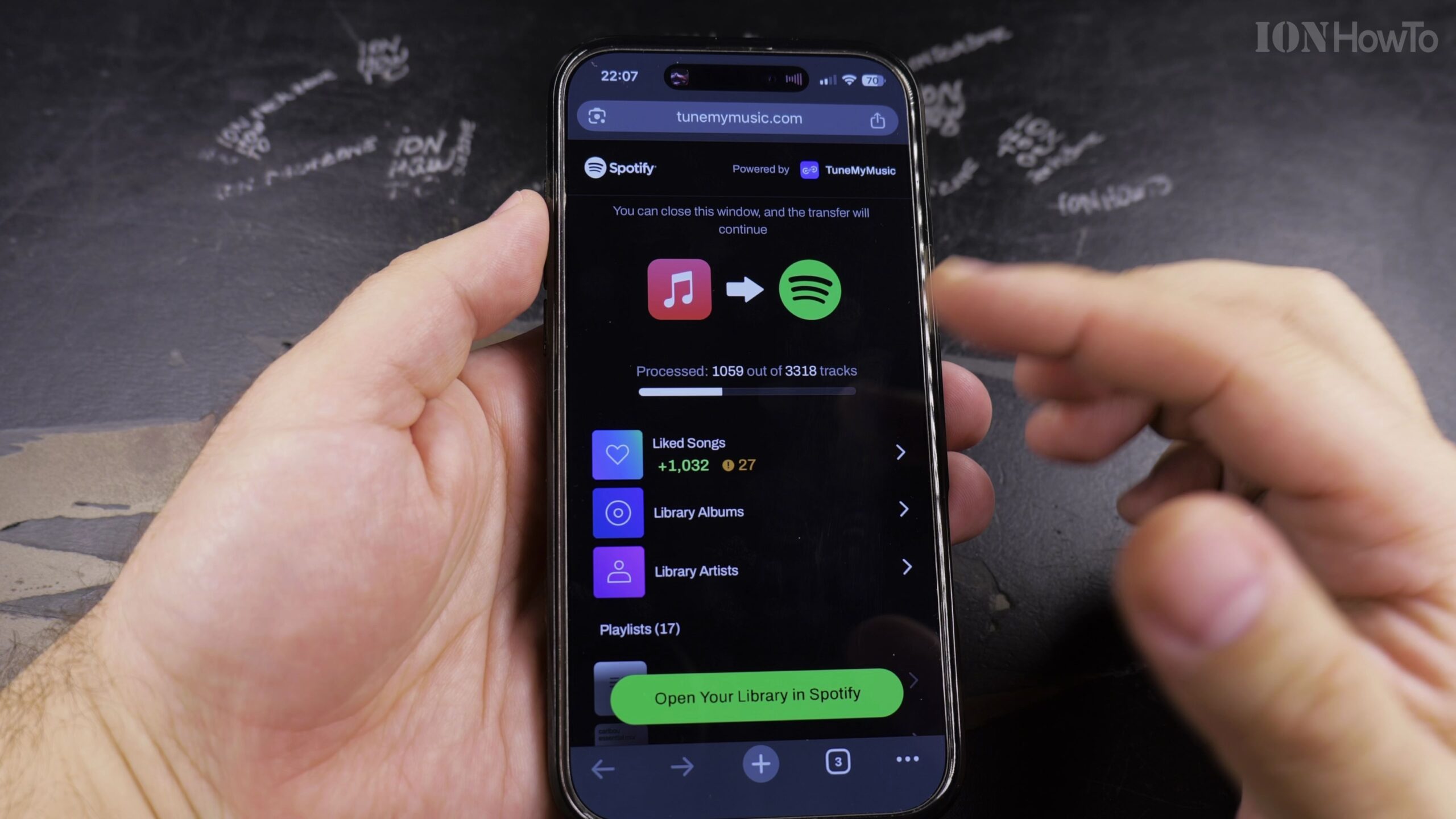
5. Run the Shift and Verify Your Songs in Spotify
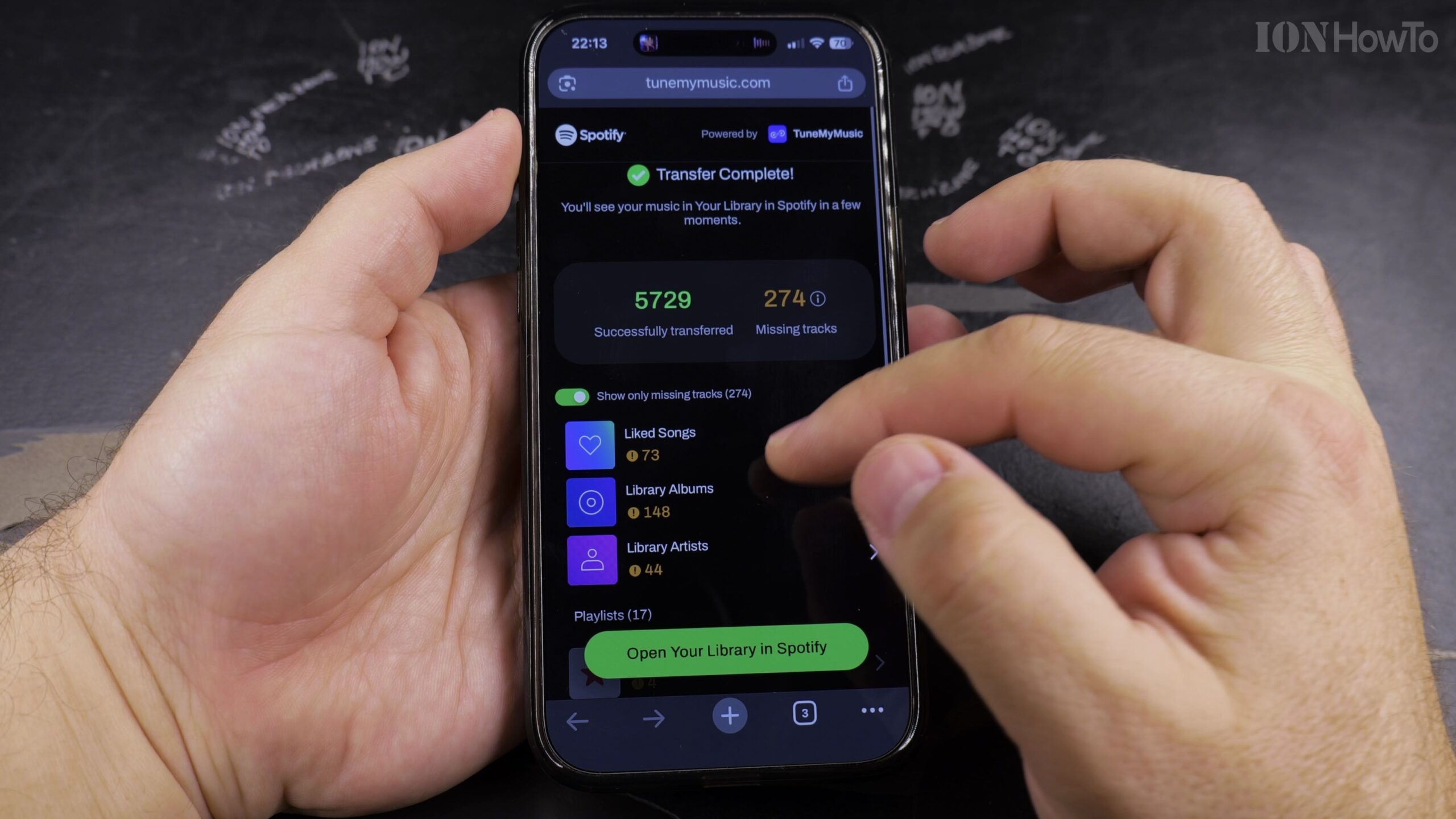
Tap Process Shift. Once the transfer engine matches and imports the songs, open Spotify and verify that all your playlists are populated and ready to stream.
Helpful Tips and Related Guides
Both streaming platforms support extensive third-party migration tools; read more about Spotify on Wikipedia and its global music catalog specifications.
Double-check any songs flagged as unmatched to manually pick alternative live versions or remastered album tracks. For more helpful streaming guides, visit our Apple Music section, check our tutorial on Finding Playlists in Apple Music, or explore How-To guides.
Leave a Reply Cancel reply