


If you host gatherings or dislike having silence when an album or playlist finishes, Apple Music’s AutoPlay mode keeps similar songs playing indefinitely. Here is how to enable the infinity AutoPlay feature on iPhone and iPad.

1. Open Apple Music and Play Any Song or Playlist
Open Apple Music and start playing a song, album, or curated playlist.
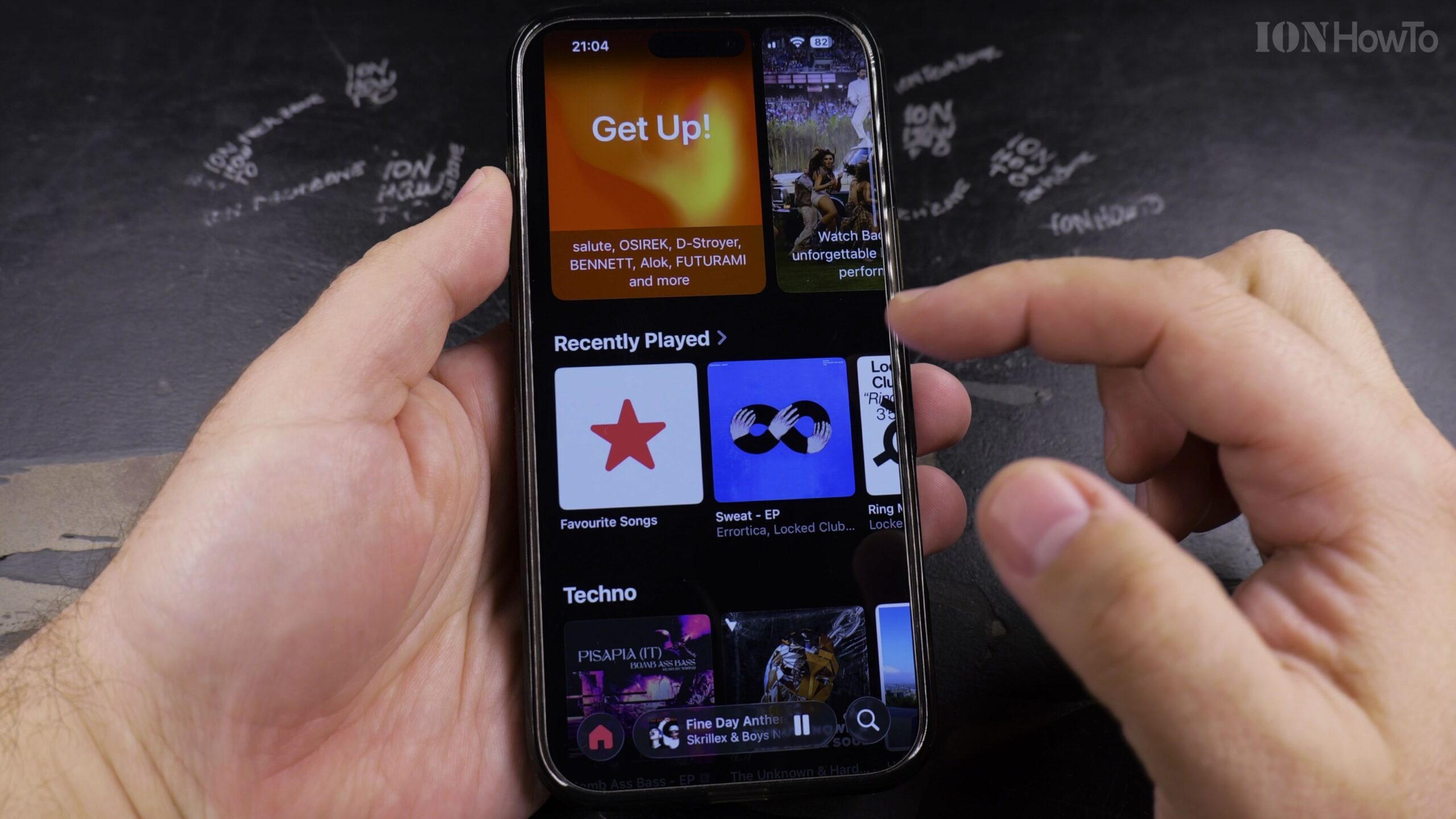
2. Tap the Mini-Player to Open the Full Now Playing Screen
Tap the active playback bar at the bottom of the screen to open the full-screen music player.
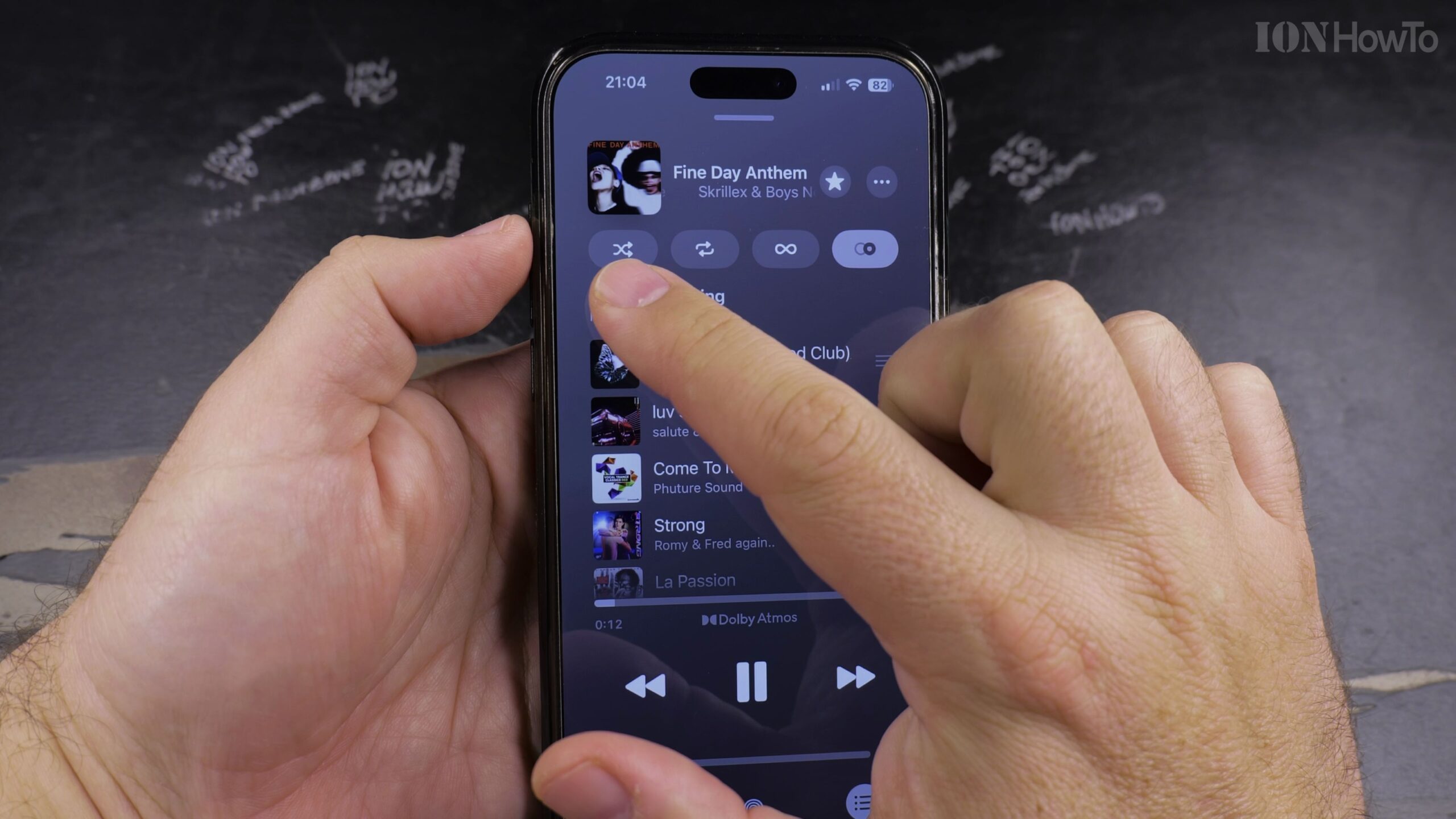
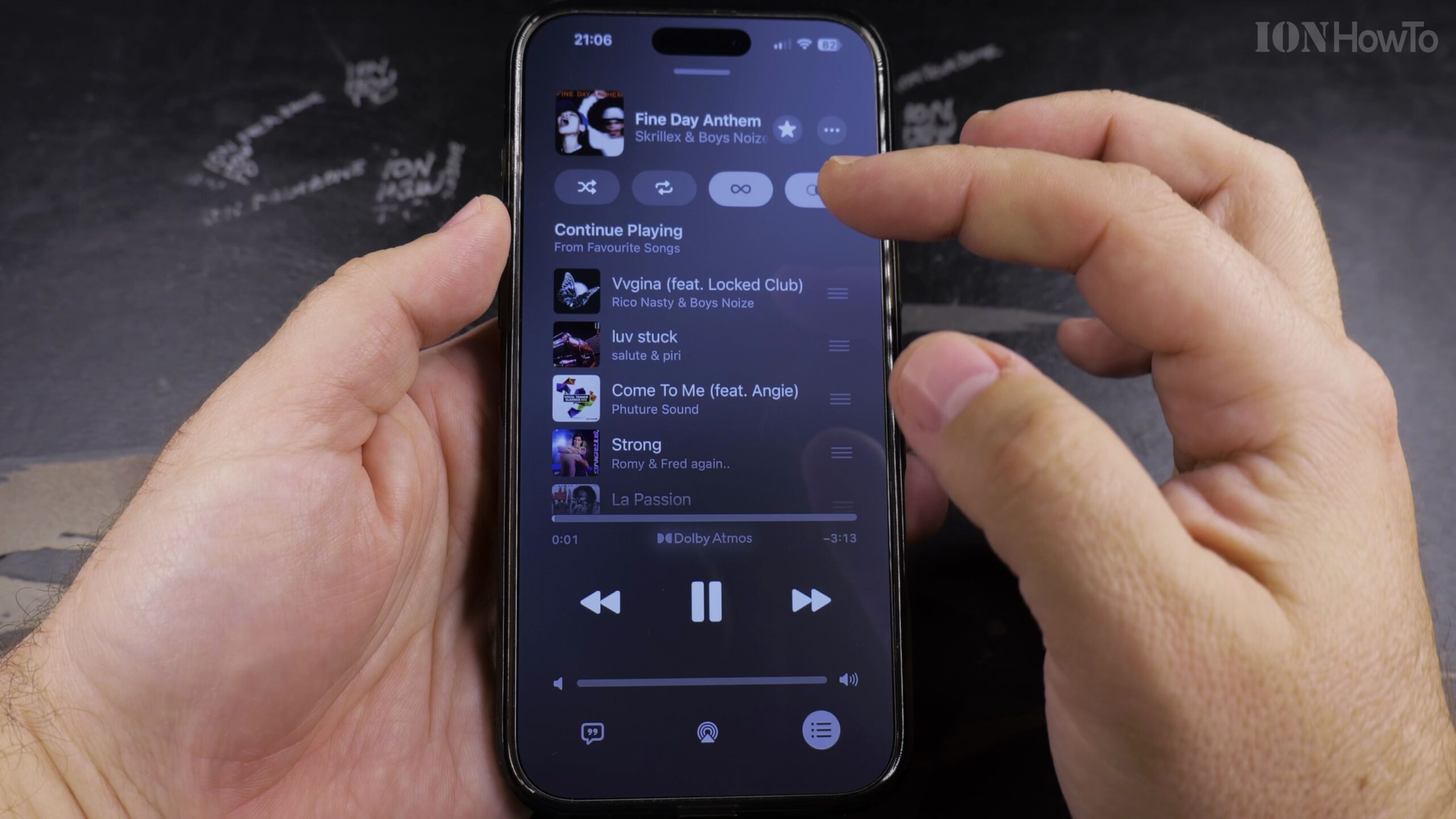
3. Open the Playing Next Queue Panel
Tap the three-line list icon in the lower-right corner to open your upcoming song queue.
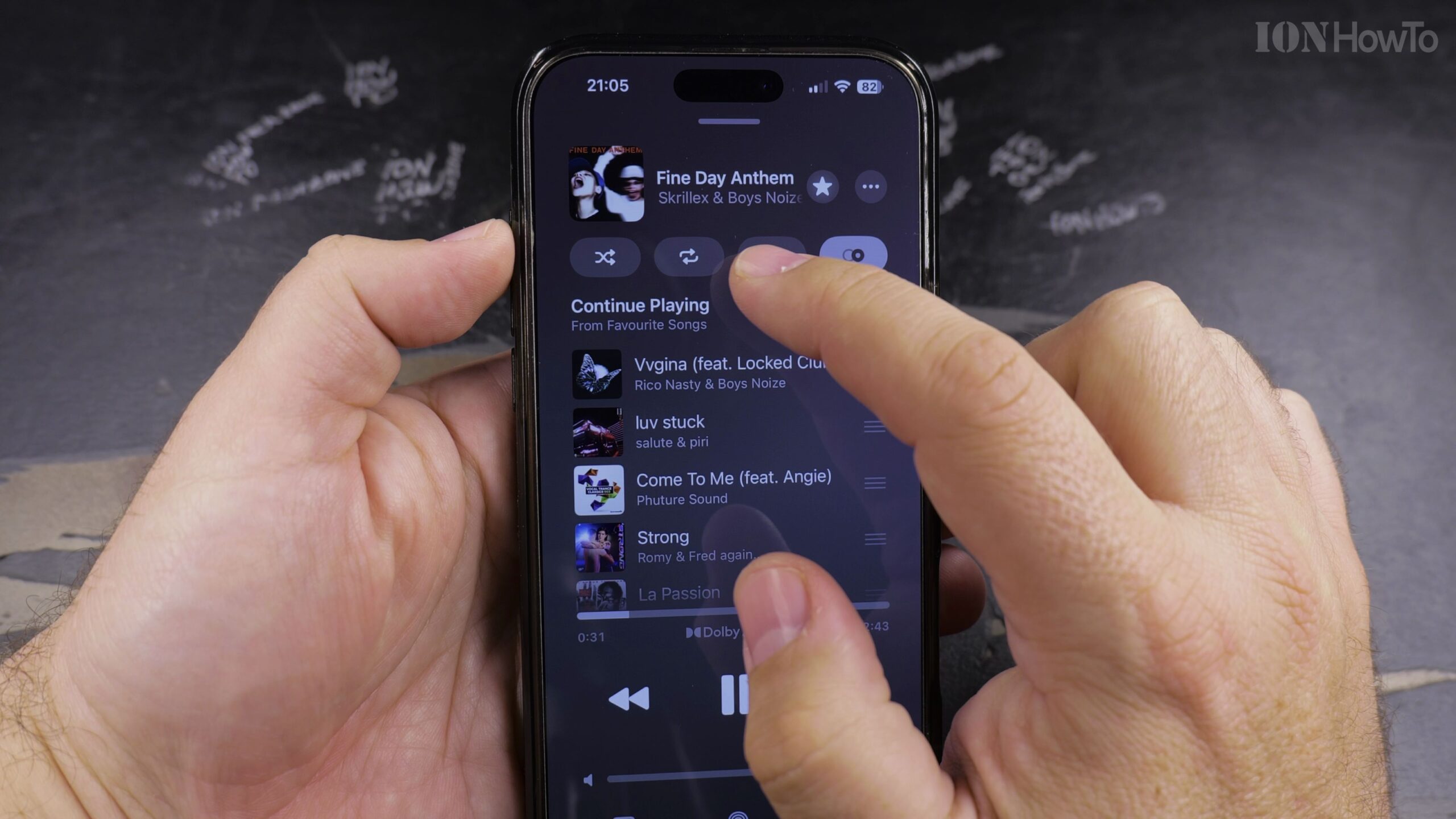
4. Tap the Infinity Symbol (∞) to Turn On AutoPlay
Locate the infinity icon (∞) next to the Playing Next header. Tap it so it highlights in pink or your system accent color.
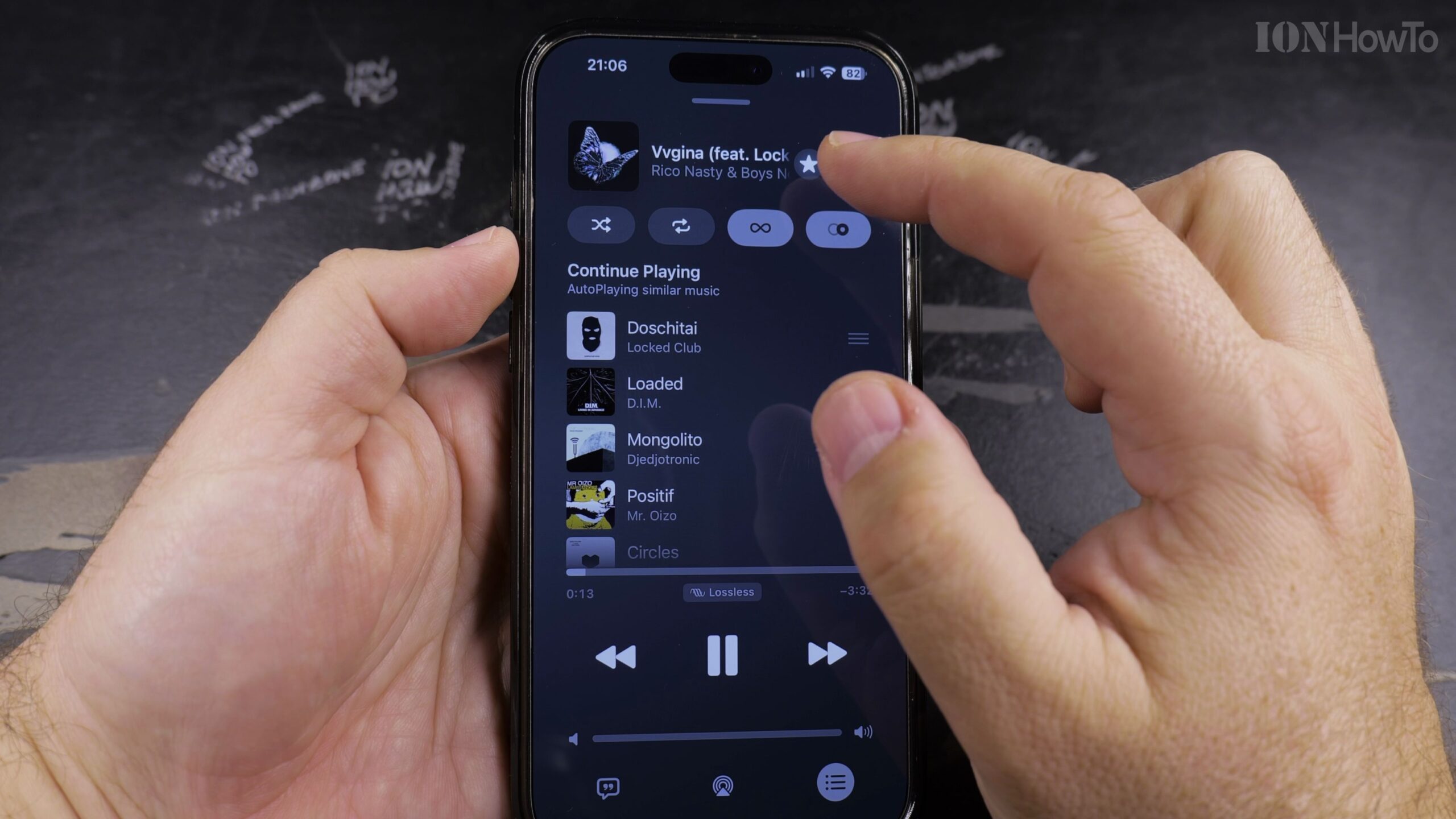
5. Review the Auto-Generated Similar Songs in Your Queue
Scroll down past your playlist tracks to see the endless list of dynamically recommended songs Apple Music has queued up.
Helpful Tips and Related Guides
AutoPlay learns from your listening history and skipped tracks, improving its music suggestions the more you use Apple Music. For more audio guides, explore our Apple Music category, check out our tutorial on Finding Playlists in Apple Music, and visit How-To guides.
Leave a Reply Cancel reply