


When you download large multi-hour playlists for traveling, they can quietly consume several gigabytes of local iPhone storage. In this guide, I’ll show you how to un-download a complete playlist while keeping all tracks saved in your cloud library.

1. Open Apple Music and Go to the Library Tab
Launch Apple Music and tap the Library icon located in the bottom navigation toolbar.
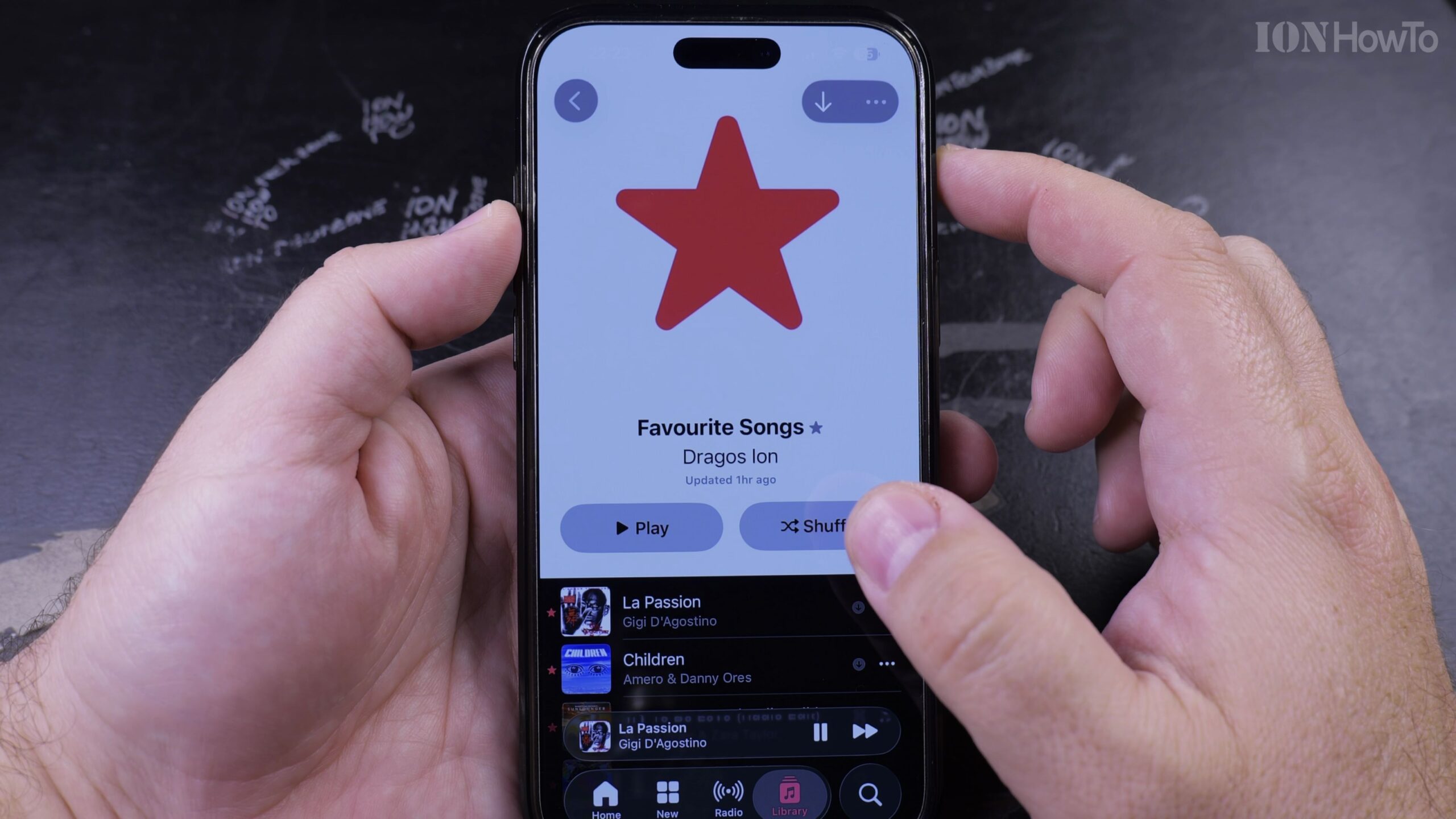
2. Tap Downloaded and Select Playlists
Tap the ‘Downloaded’ category to see only the content taking up local physical storage on your device, then tap Playlists.
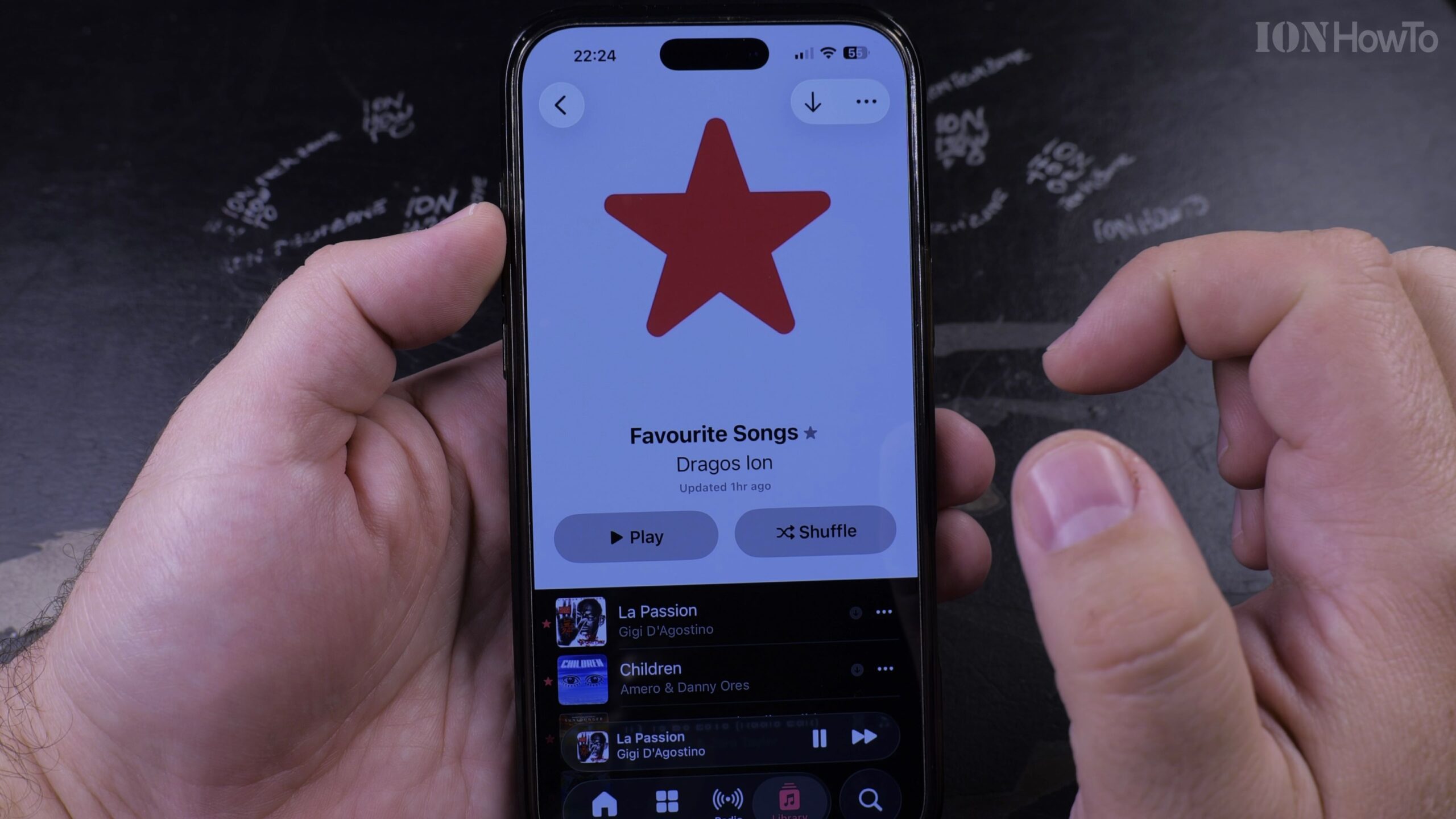
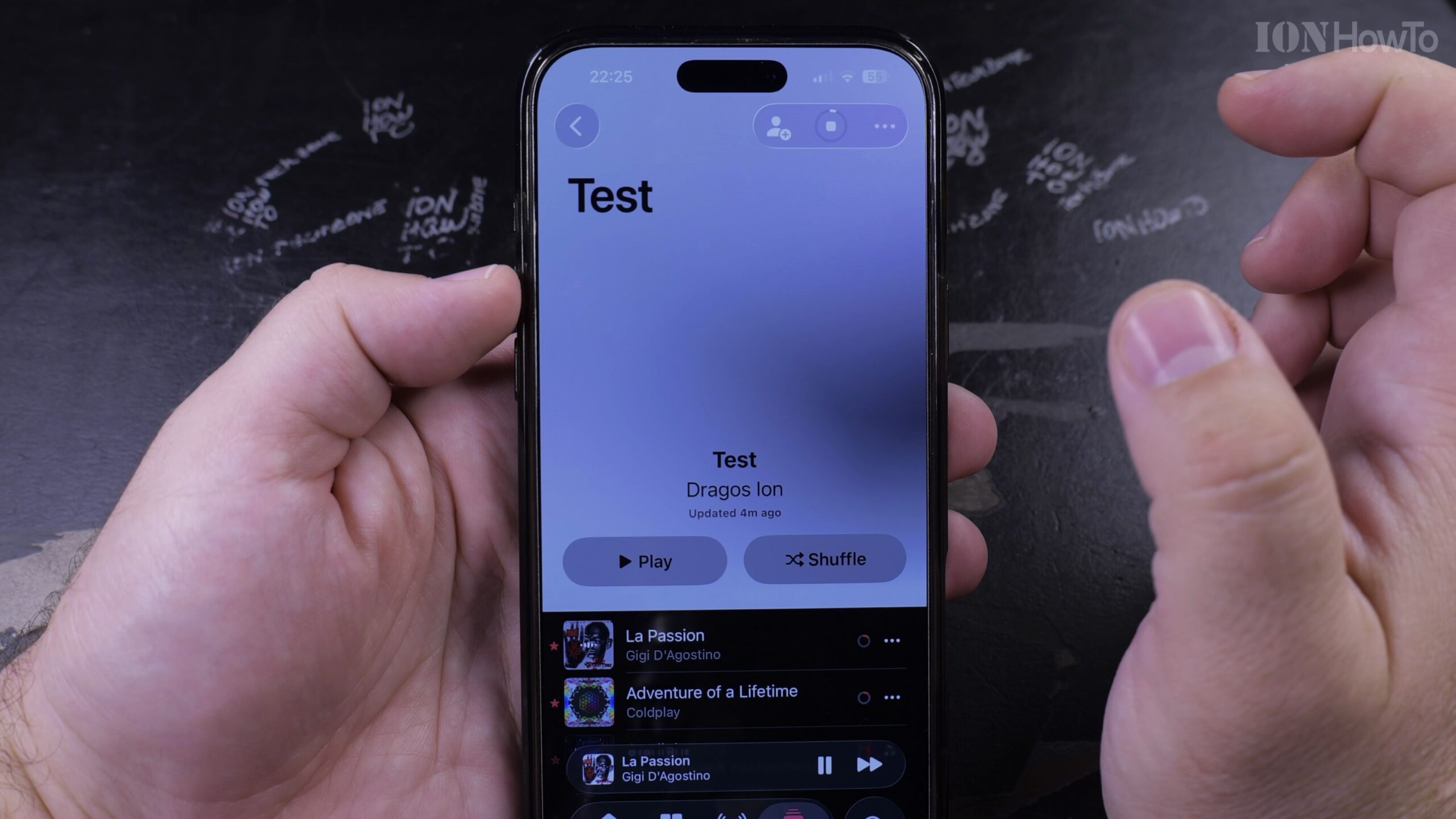
3. Open the Downloaded Playlist You Want to Remove
Select the downloaded playlist you want to un-download to open its details and track list.
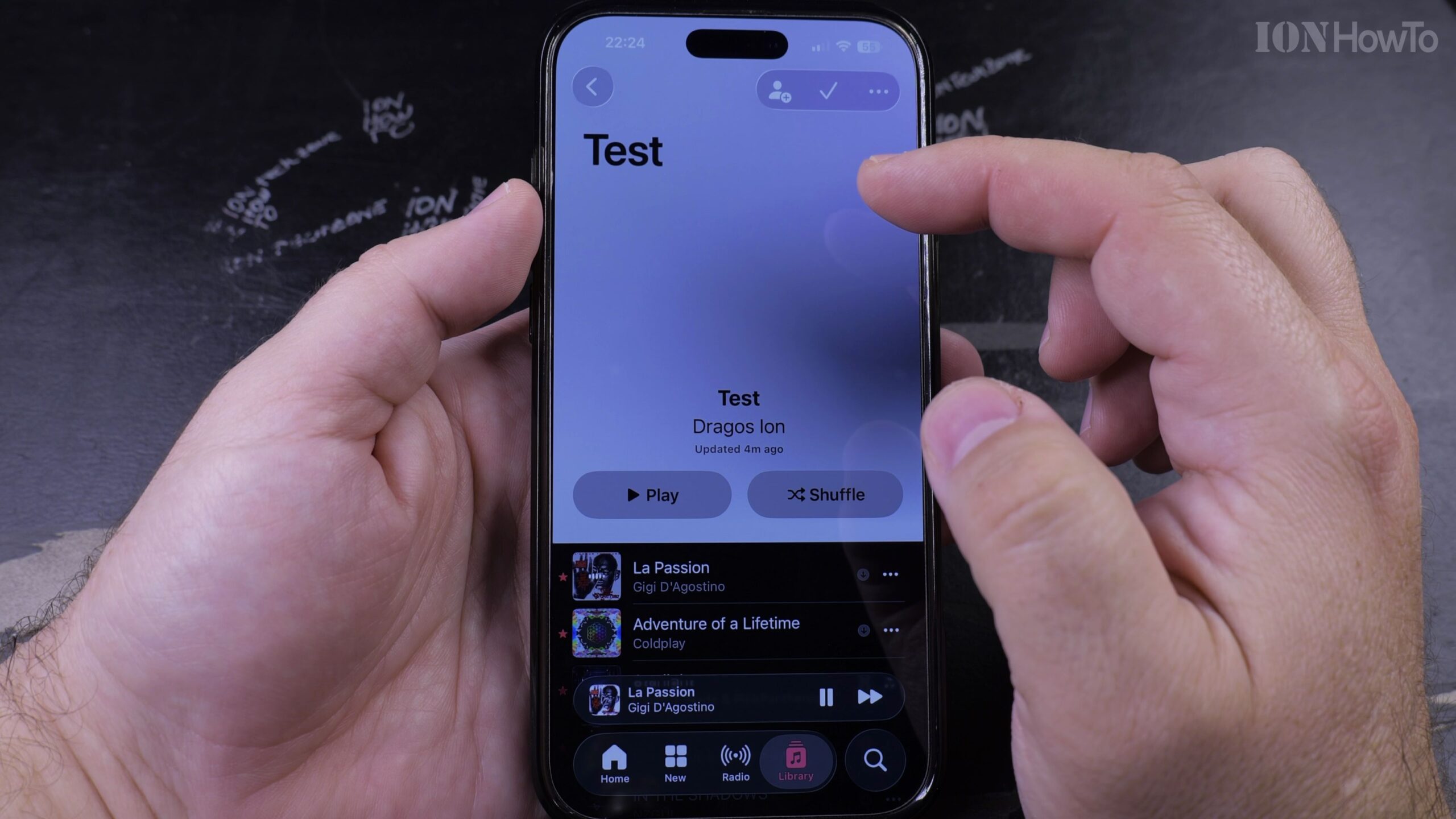
4. Tap the Three Dots Menu and Select Remove
Tap the circular three-dot menu icon in the upper-right corner. In the action menu, tap ‘Remove’.
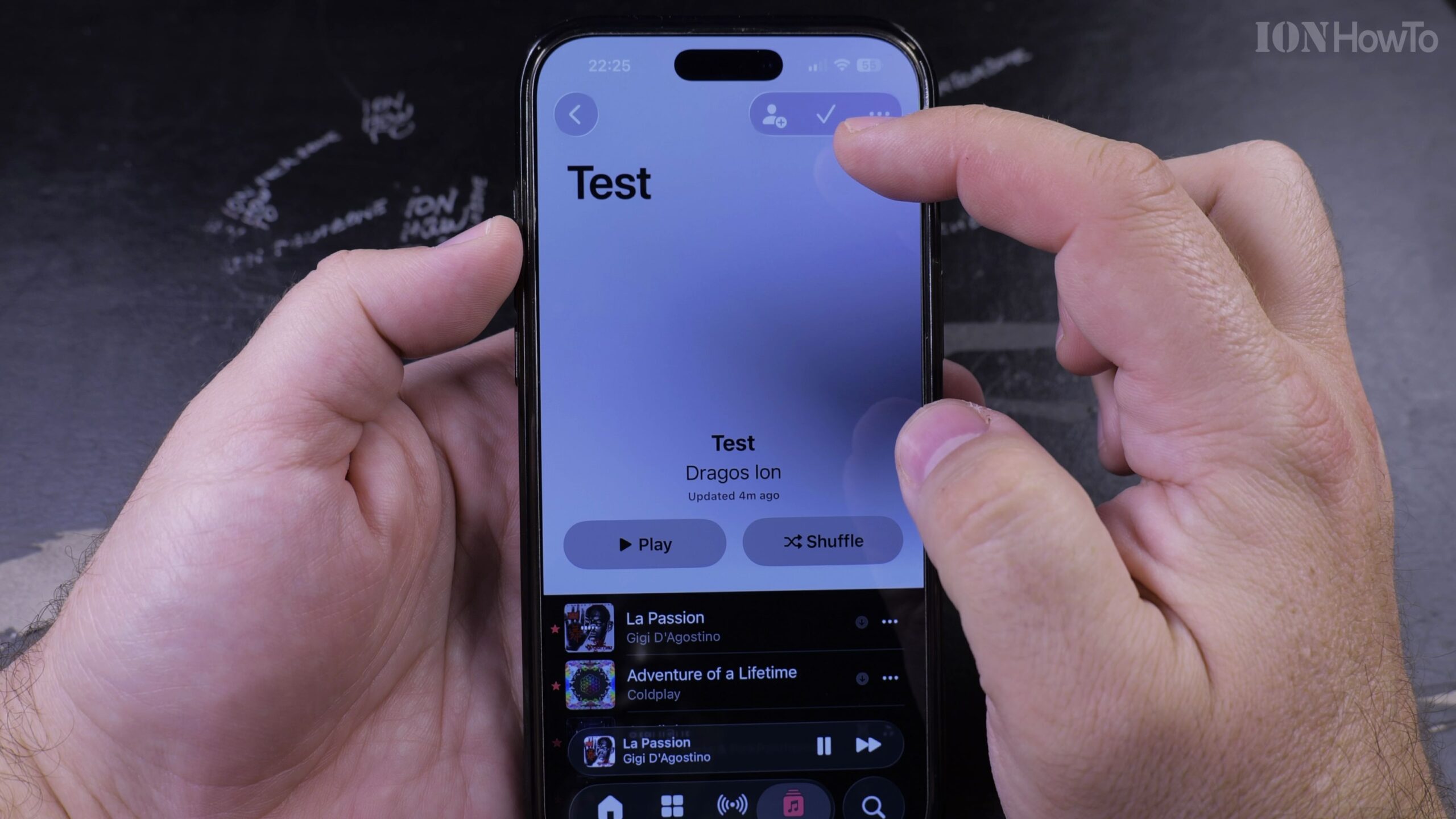
5. Tap Remove Download to Free Up Device Space
Choose ‘Remove Download’. The offline audio files are instantly deleted from your phone while your playlist remains intact in your iCloud library.
Helpful Tips and Related Guides
Ensure you do not select ‘Delete from Library’, as that will remove the playlist completely from your Apple Account. Explore more tips in our Apple Music & Audio category, check our guide on Finding Playlists in Apple Music, or browse iPhone Guides.
Leave a Reply Cancel reply