


If you want clearer spoken vocals for podcasts, punchier bass for workout tracks, or an acoustic balance for classical instruments, iOS includes 23 built-in equalizer profiles. Here is how to configure and customize Apple Music EQ presets on your iPhone.

1. Open Settings on Your iPhone or iPad
Open the Settings app from your Home Screen or App Library.
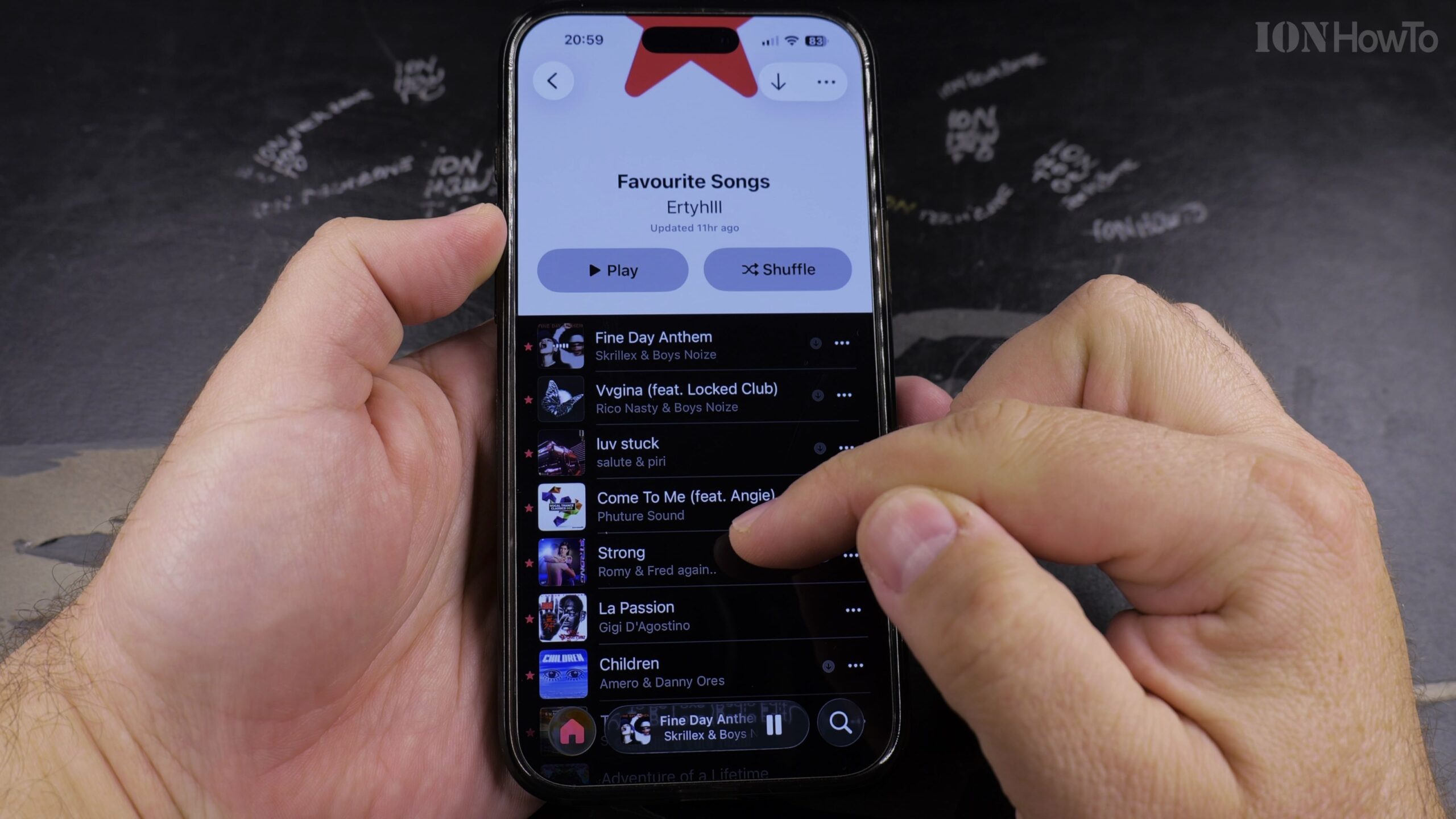
2. Scroll Down to the Music Section and Tap It
Scroll down past the core system utilities until you see the Music app entry. Tap to open its configuration settings.
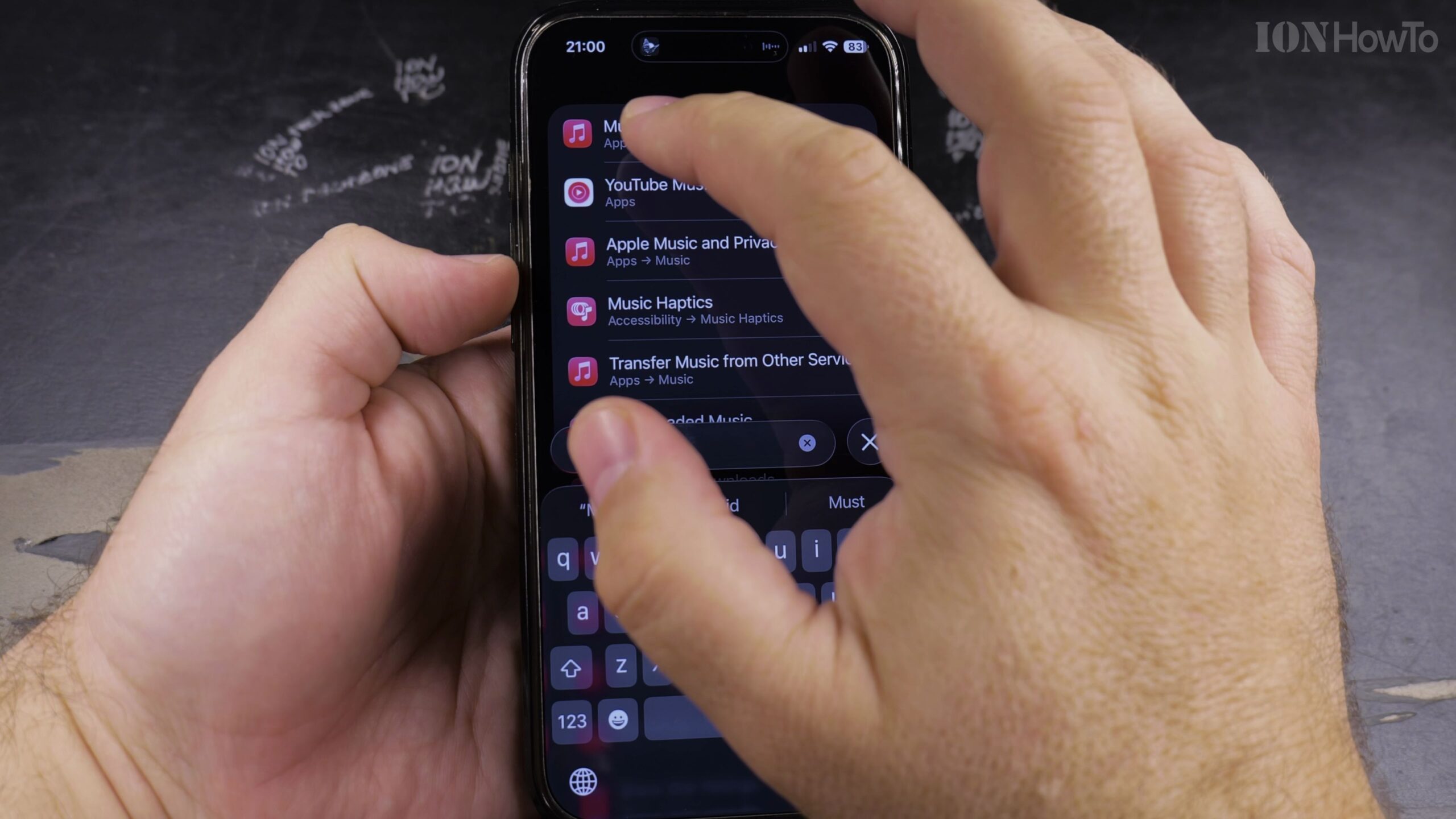
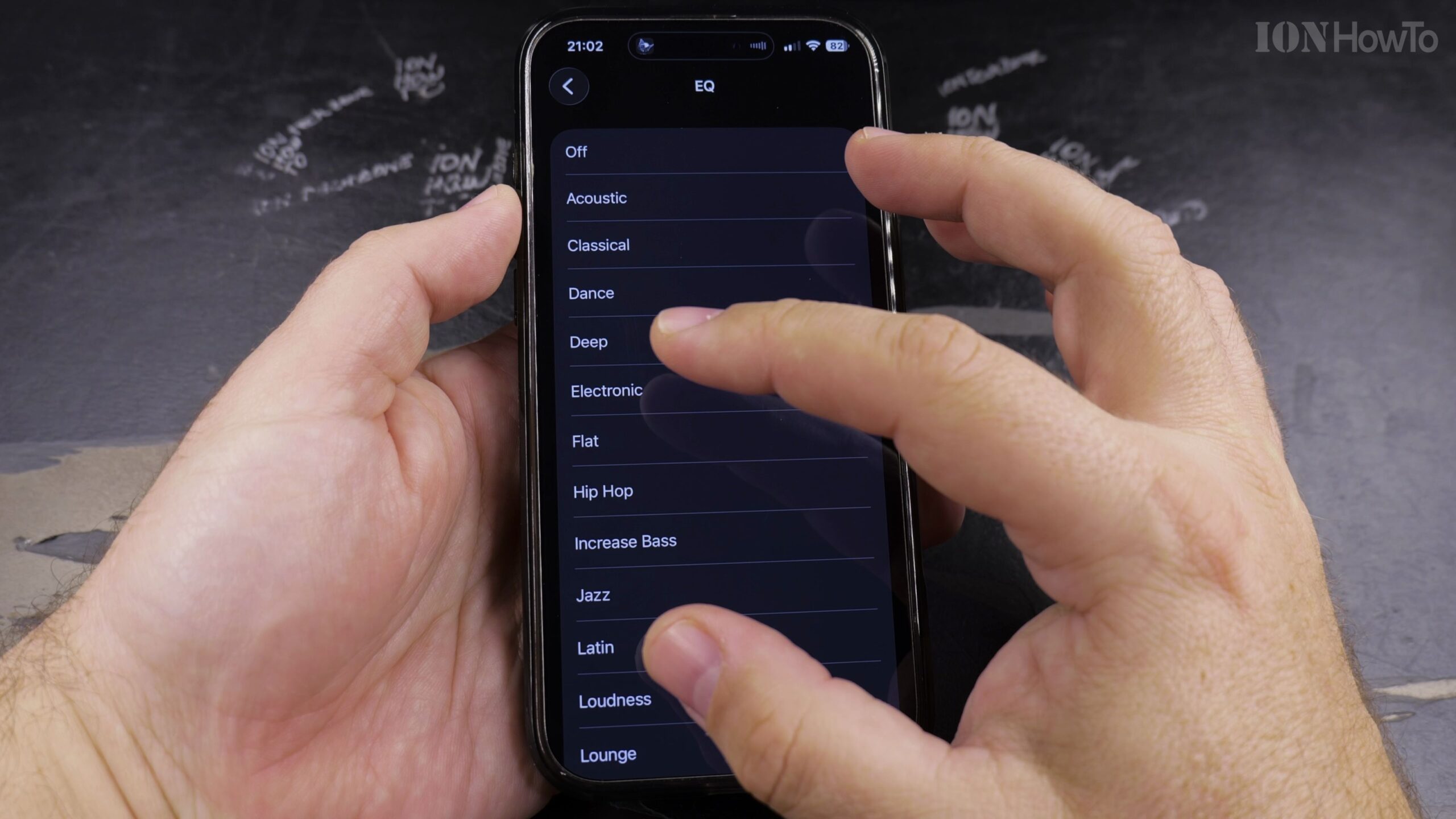
3. Tap EQ Under the Audio Settings Header
Locate the Audio section and tap ‘EQ’ to open the list of hardware-accelerated sound curves.

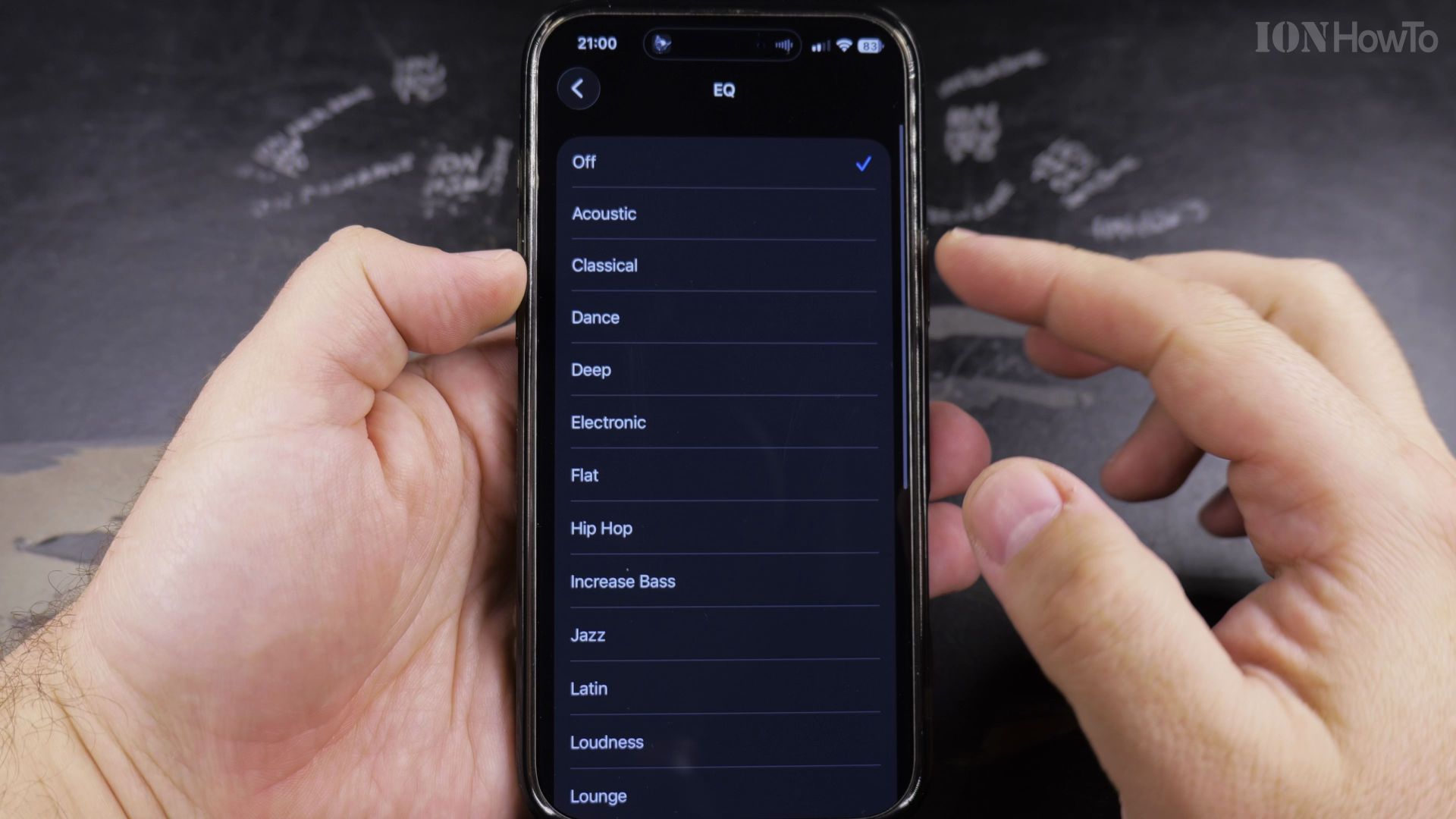
4. Browse and Select Your Preferred Preset
Select from presets like Acoustic, Bass Booster, Classical, Electronic, Hip-Hop, Rock, or Vocal Booster based on your listening preferences.
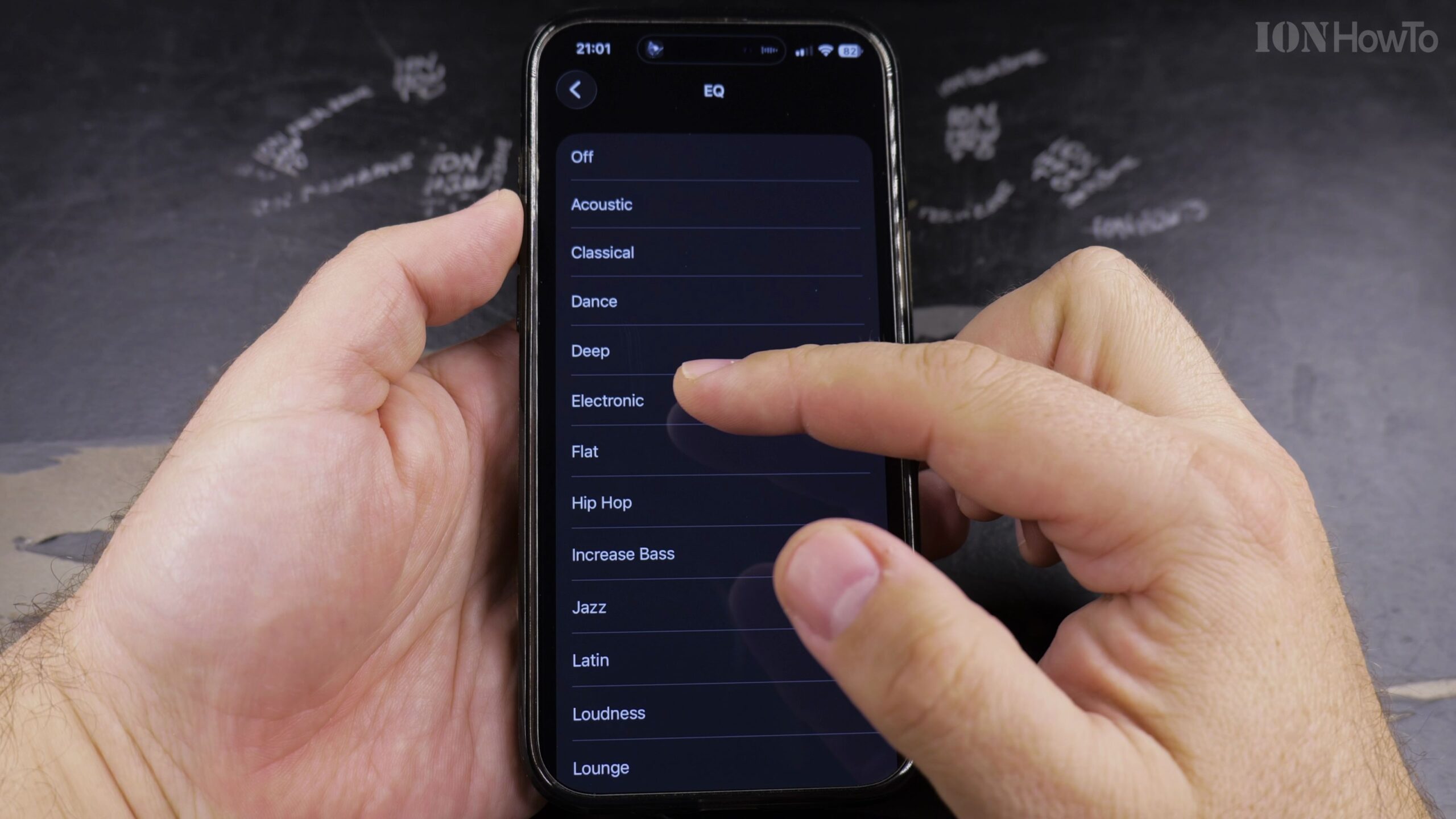
5. Test Audio Live in Apple Music to Compare Sound Profiles
Start playback in Apple Music and toggle between different presets in Settings to hear the immediate tonal shifts in frequency balance.
Helpful Tips and Related Guides
Setting EQ to ‘Off’ provides the most accurate reproduction of the sound engineer’s original studio master. Discover more tutorials in our Apple Music section, check our tutorial on Finding Playlists in Apple Music, or browse Apple Guides.
Leave a Reply Cancel reply