


Apple Music’s AutoPlay feature automatically queues up similar songs when your chosen album or playlist finishes. If you prefer playback to stop when your music ends, here is how to easily turn off the AutoPlay infinity mode.

1. Open Apple Music and Expand the Now Playing Player
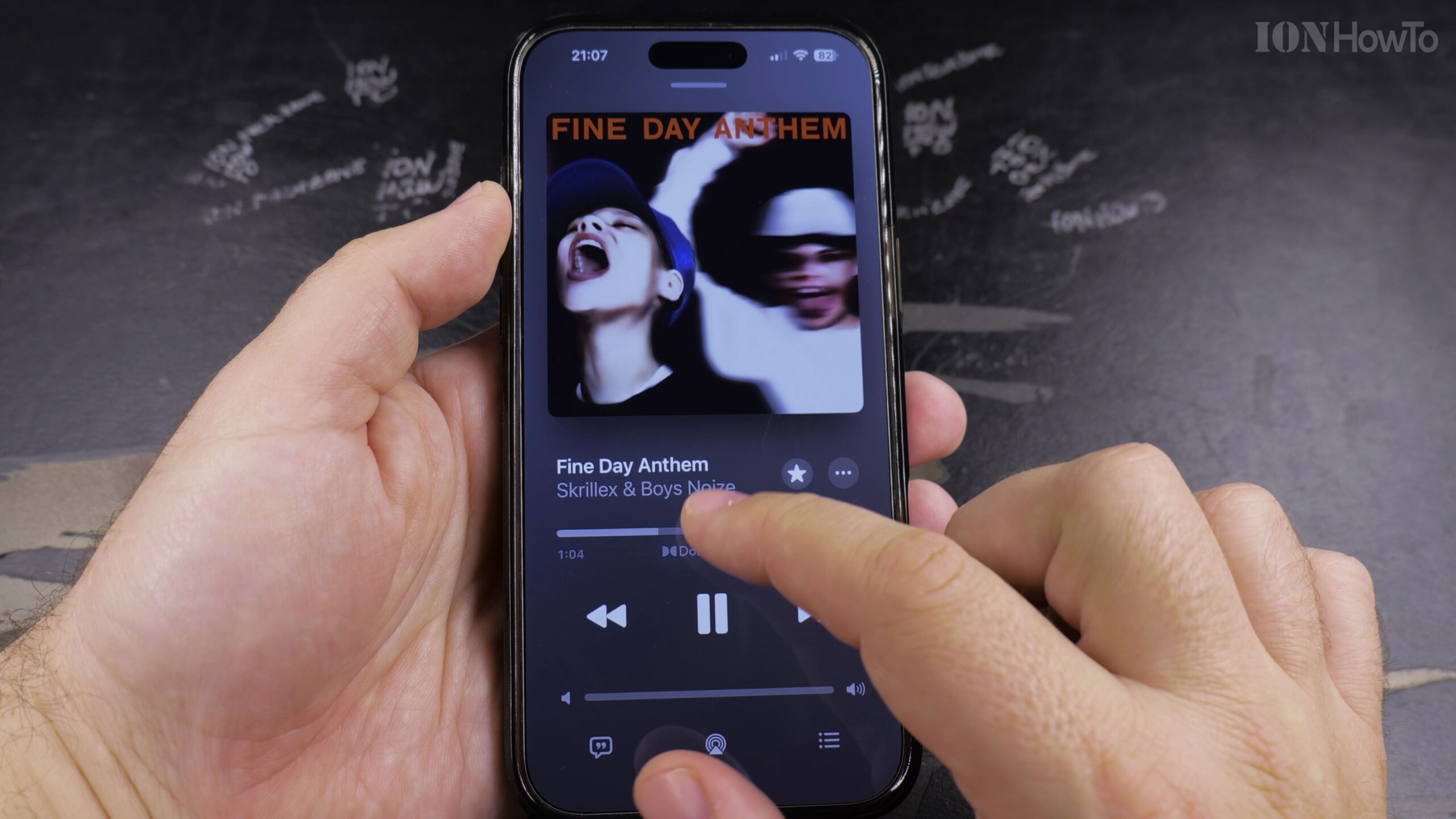
Launch Apple Music and tap the mini-player at the bottom of the screen to expand it to full-screen mode.
2. Tap the Up Next (Playing Next) Queue Icon
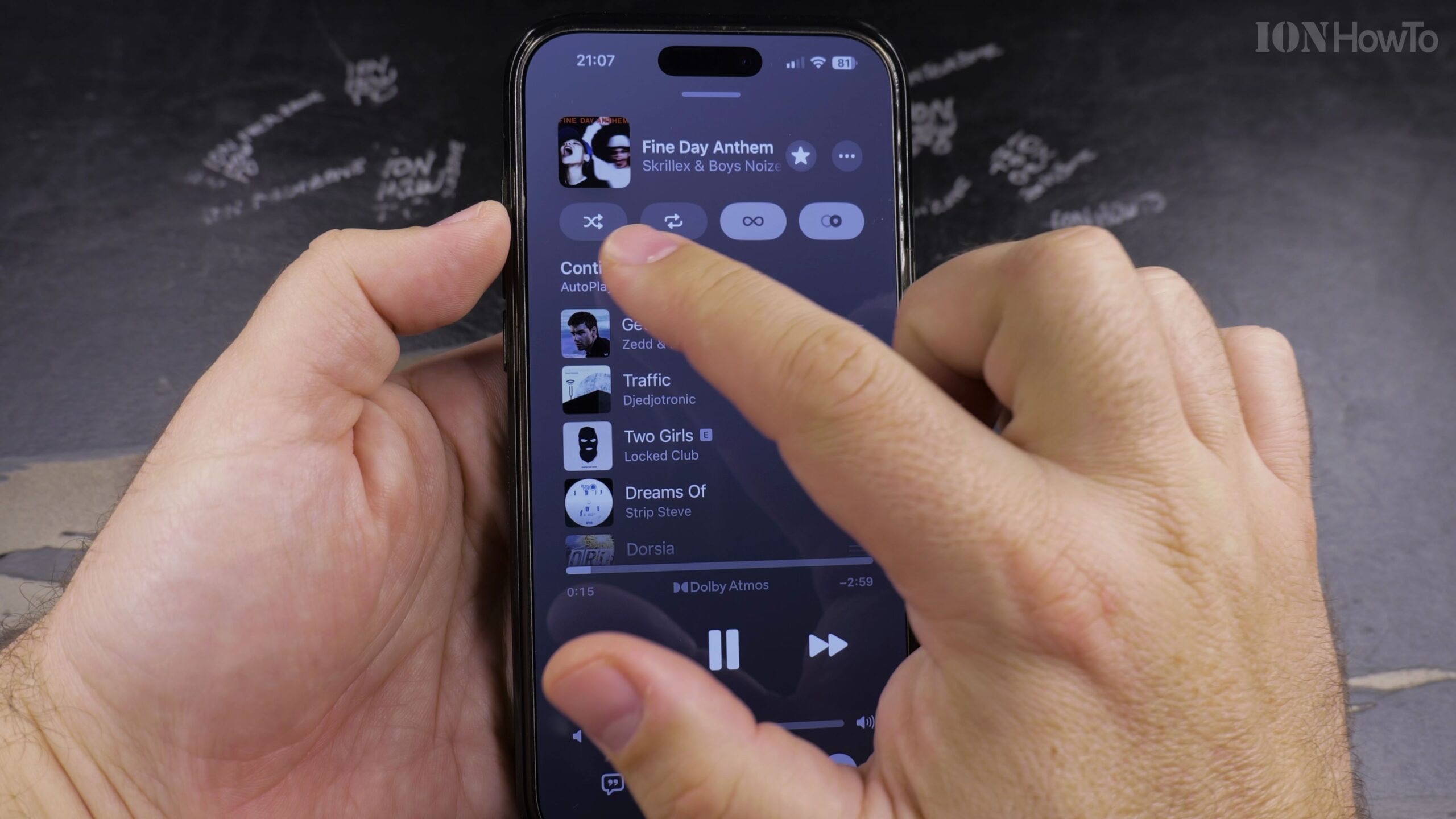
In the bottom-right corner of the player screen, tap the three-line queue icon (or bulleted list symbol) to reveal the upcoming tracks queue.
3. Locate the AutoPlay Infinity Symbol (∞)
At the top right of the Playing Next queue panel, find the infinity symbol (∞) icon. When active, it is highlighted in pink or accent color.

4. Tap the Infinity Symbol to Deactivate AutoPlay
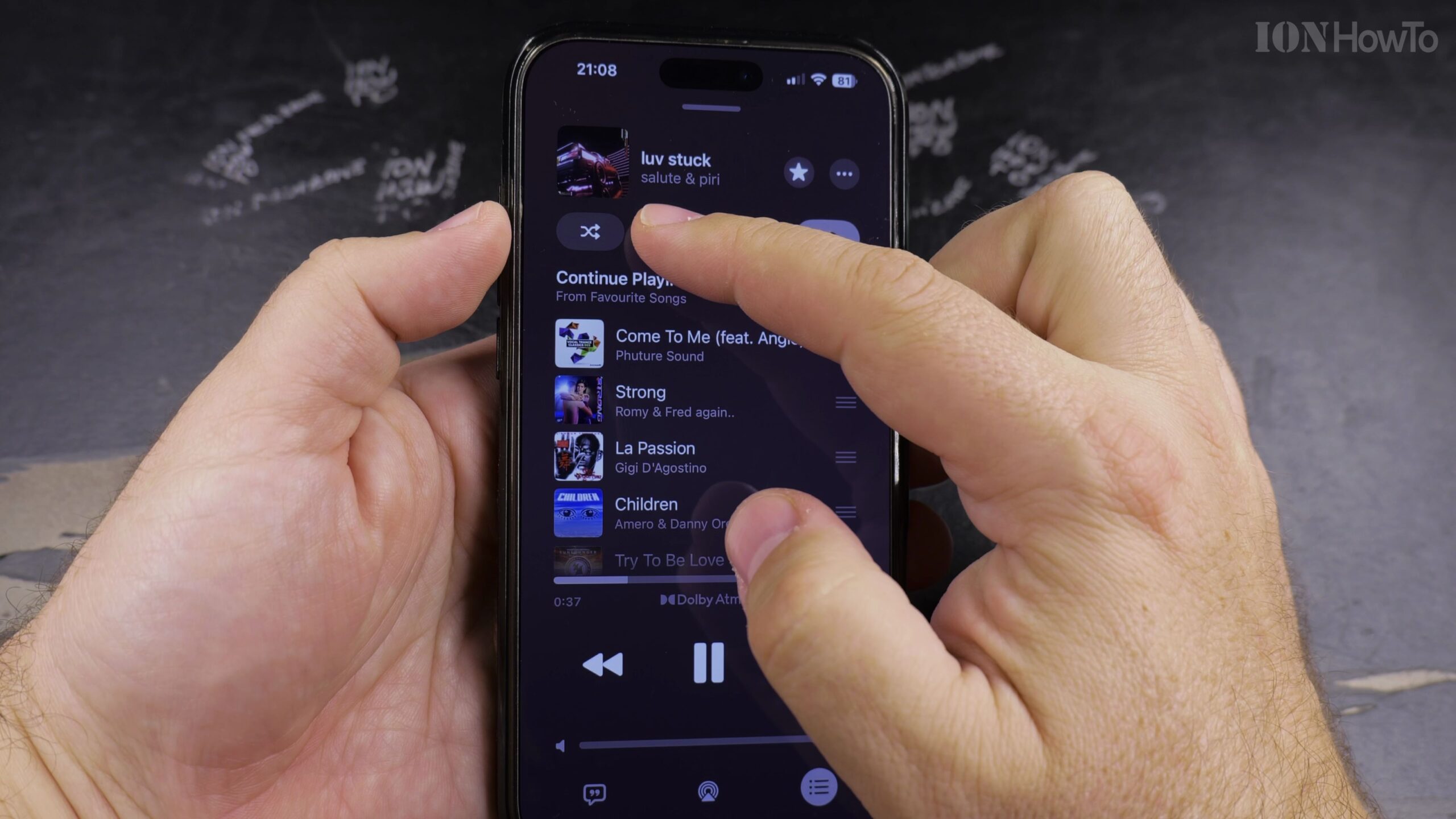
Tap the infinity symbol once so the highlight disappears and the icon becomes greyed out. This disengages continuous playback.
5. Verify That Playback Stops at the End of the Queue
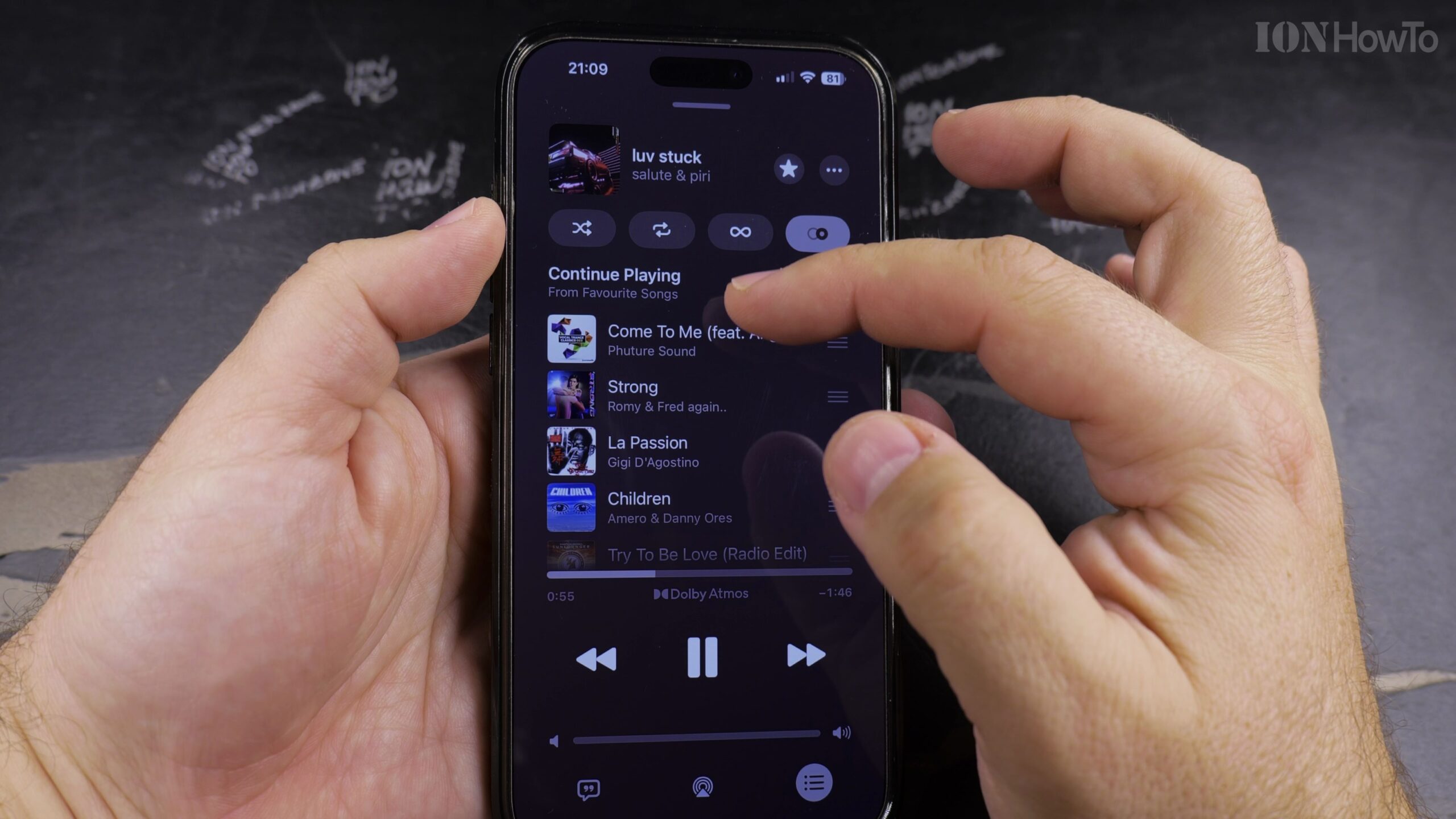
Review your Playing Next list. When the last song on your current album or playlist finishes, Apple Music will stop playback cleanly.
Helpful Tips and Related Guides
You can re-enable AutoPlay at any time simply by tapping the infinity symbol again whenever you want infinite discovery. For more helpful tips, check our Apple Music & Audio category, explore our guide on Finding Playlists in Apple Music, or visit iPhone Guides.
Leave a Reply Cancel reply