


The Google Pixel 11 Pro XL features state-of-the-art camera hardware, but default factory settings compress images to 12.5 megapixels and limit video recording to save storage. Adjusting your settings unlocks high-resolution 50MP capture and cinema-grade 4K 60fps video.

Why Default Camera Settings Need Adjustment
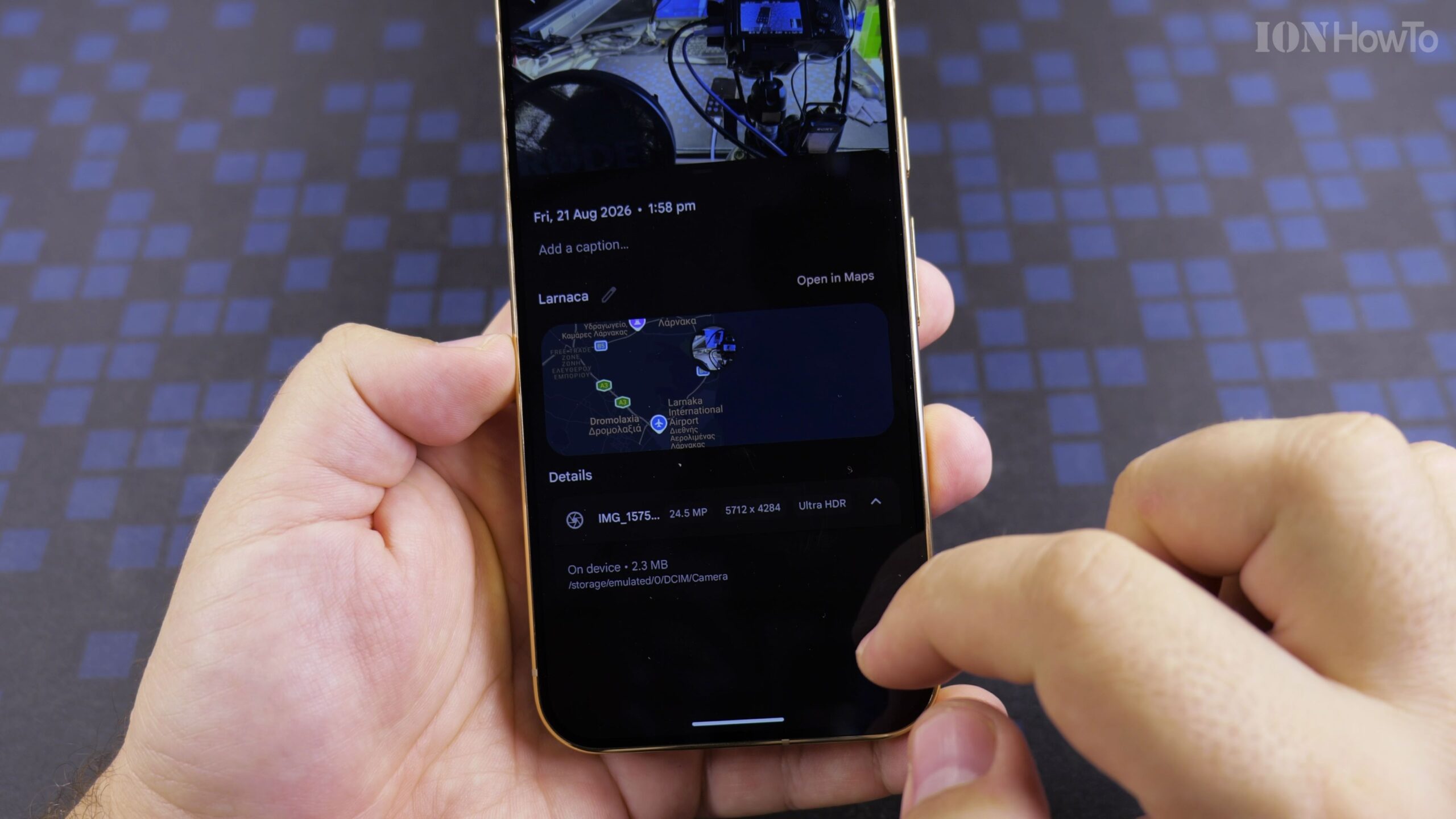
The Google Pixel 11 Pro XL features state-of-the-art camera hardware, but default factory settings compress images to 12.5 megapixels and limit video recording to save storage. Adjusting your settings unlocks high-resolution 50MP capture and cinema-grade 4K 60fps video.
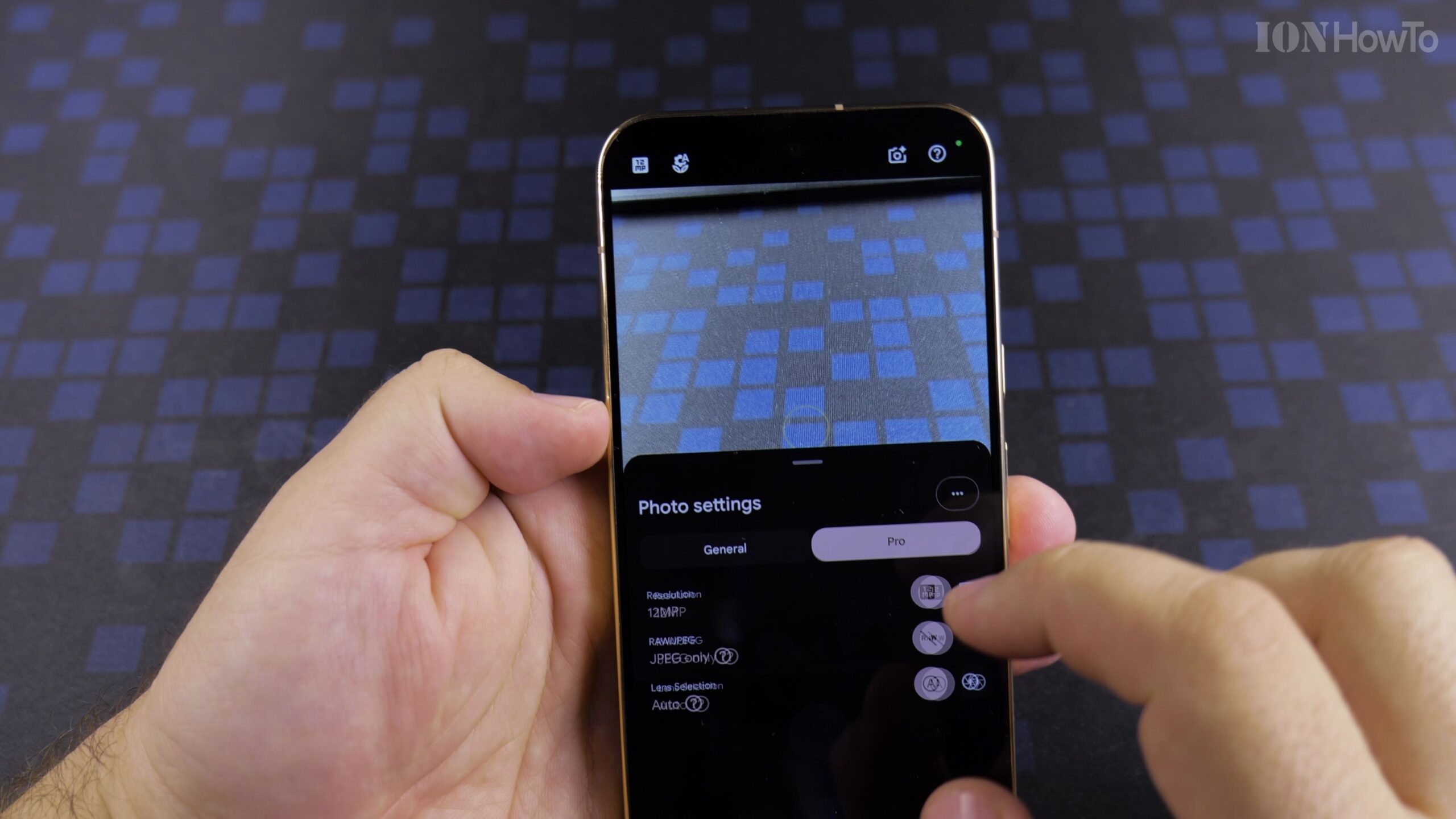
Step 1: Open GCam and Access Quick Settings
Launch the Camera app and swipe down on the viewfinder to open the settings popover. Tap More Settings (the gear icon) in the bottom-right corner to access full camera preferences.
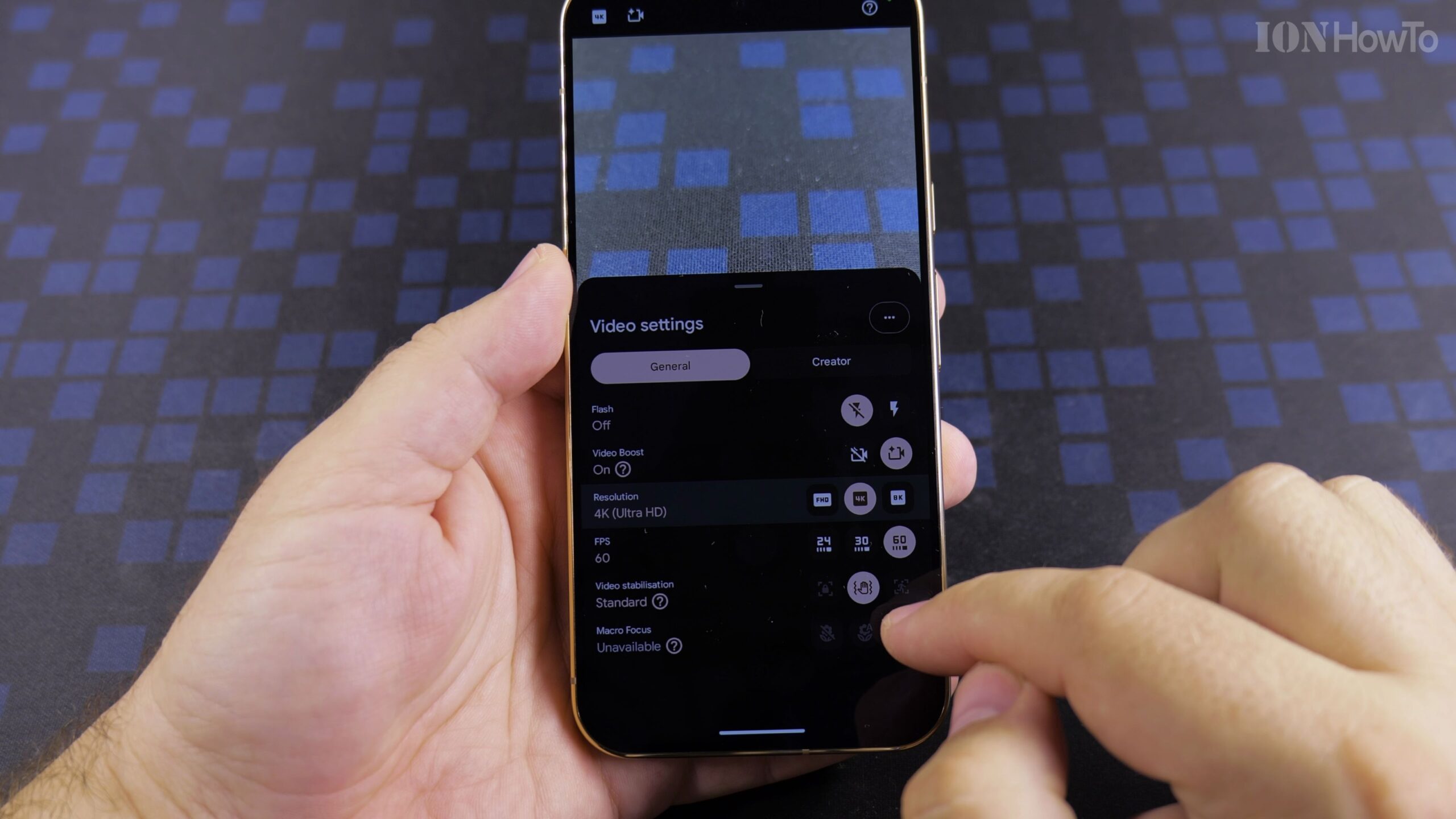
Step 2: Enable High-Resolution 50MP and RAW Capture
Navigate to Photo Settings > Resolution and switch from Standard to High-Res. If you enjoy editing photos, turn on RAW+JPEG capture under Advanced so you retain full dynamic range sensor data.
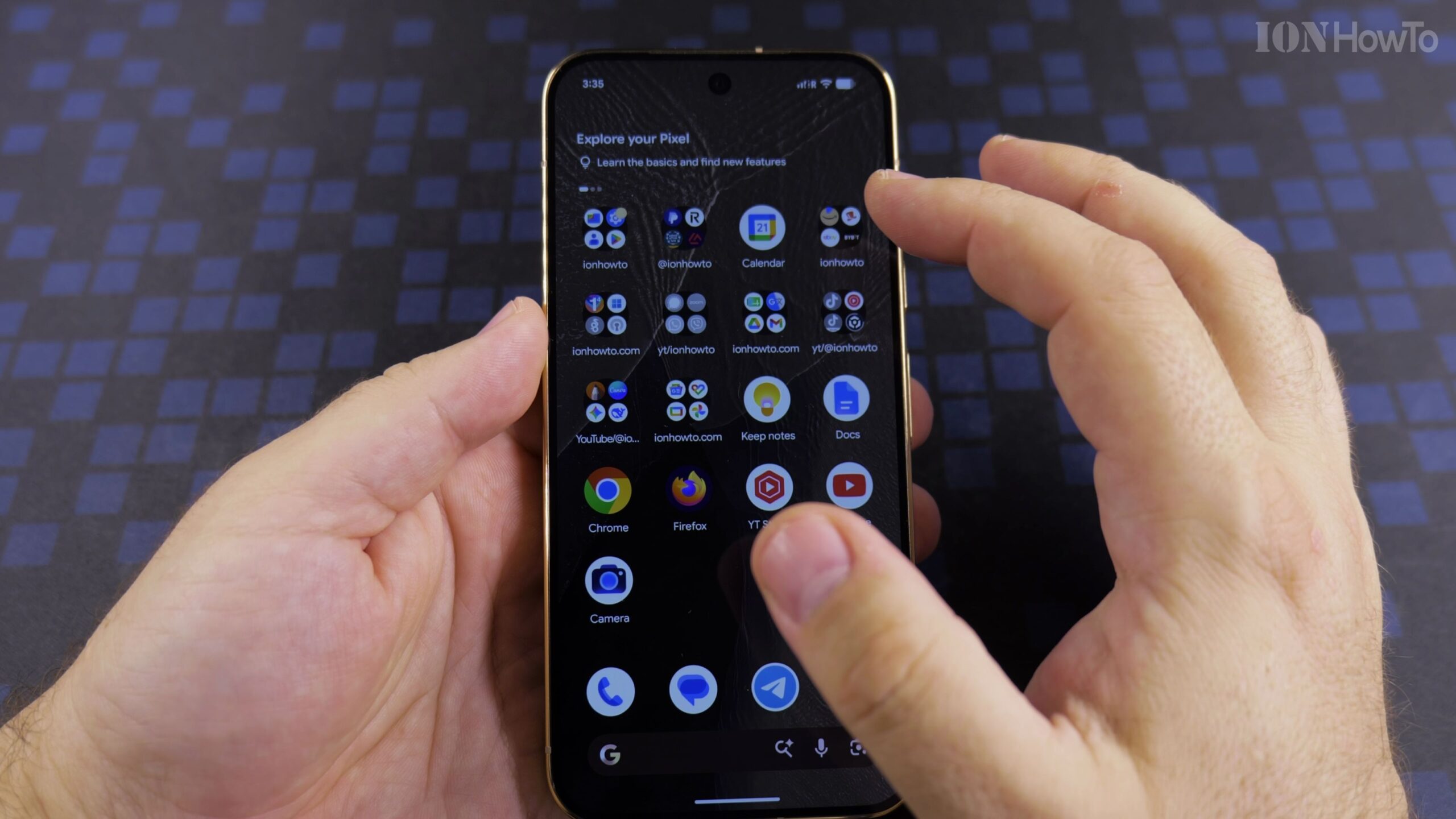
Step 3: Optimize Video for 4K 60FPS 10-Bit HDR
Switch to the Video tab. Set the video resolution to 4K and select 60 frames per second. Toggle 10-bit HDR video on for richer color depth and realistic contrast on modern displays.
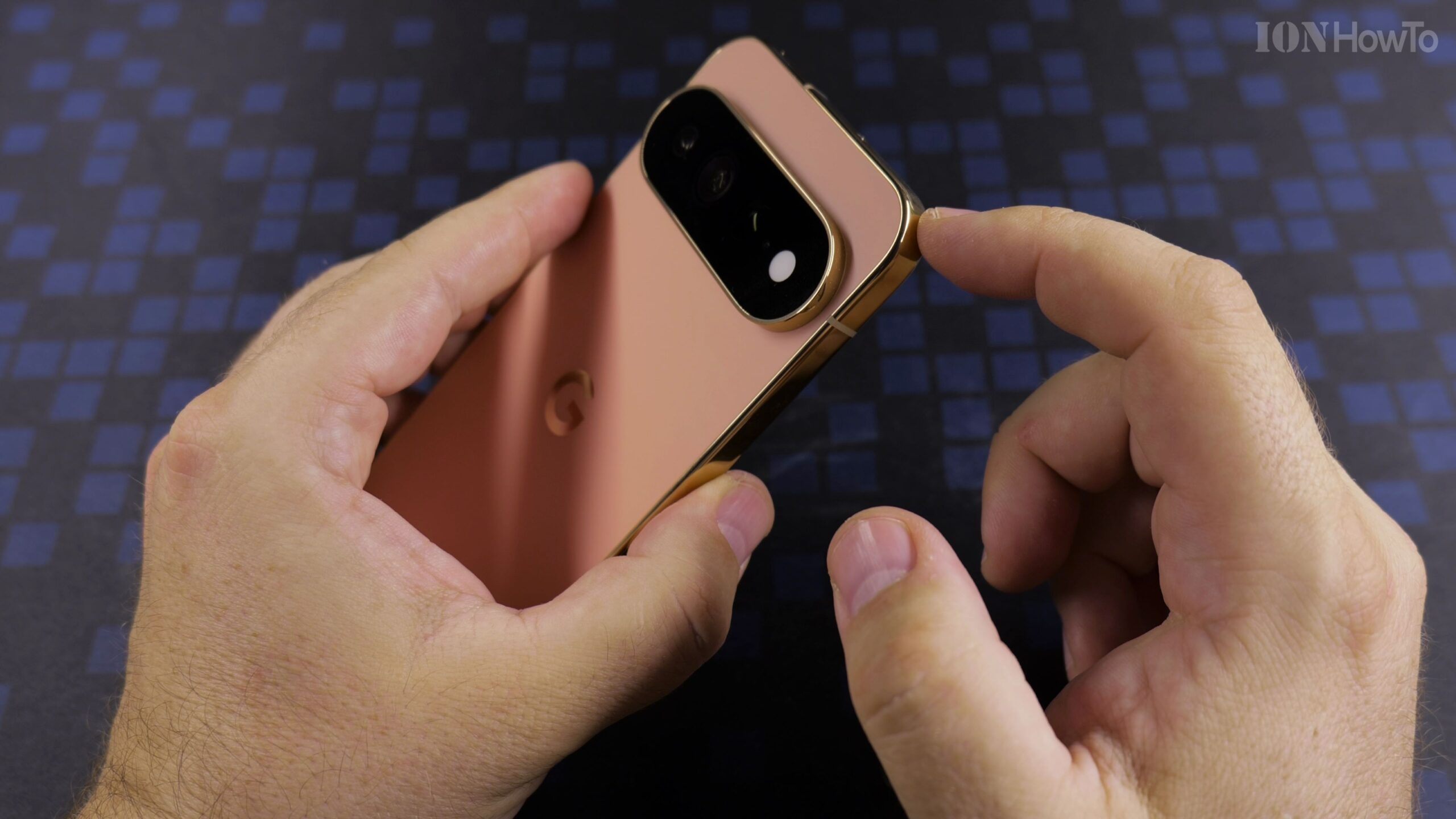
Step 4: Turn On Essential Shooting Aids
Under Composition, enable the 3×3 Grid to help align the rule of thirds. Also ensure Dirty Lens Warning is turned on, alerting you if fingerprint grease threatens image clarity.
Helpful Tips and Related Tutorials
For more practical tutorials and setup guides, discover how to enable Google Gemini AI assistant on Pixel, explore how to increase contrast on Android, or browse our complete collection of Android tips.
Leave a Reply Cancel reply