


Over time, your web browser accumulates megabytes of tracking cookies, temporary scripts, and search records. Clearing this data frees up mobile storage space, resolves website loading glitches, and keeps your private searches confidential.

Why Clearing Safari History Protects Your Privacy
Over time, your web browser accumulates megabytes of tracking cookies, temporary scripts, and search records. Clearing this data frees up mobile storage space, resolves website loading glitches, and keeps your private searches confidential.
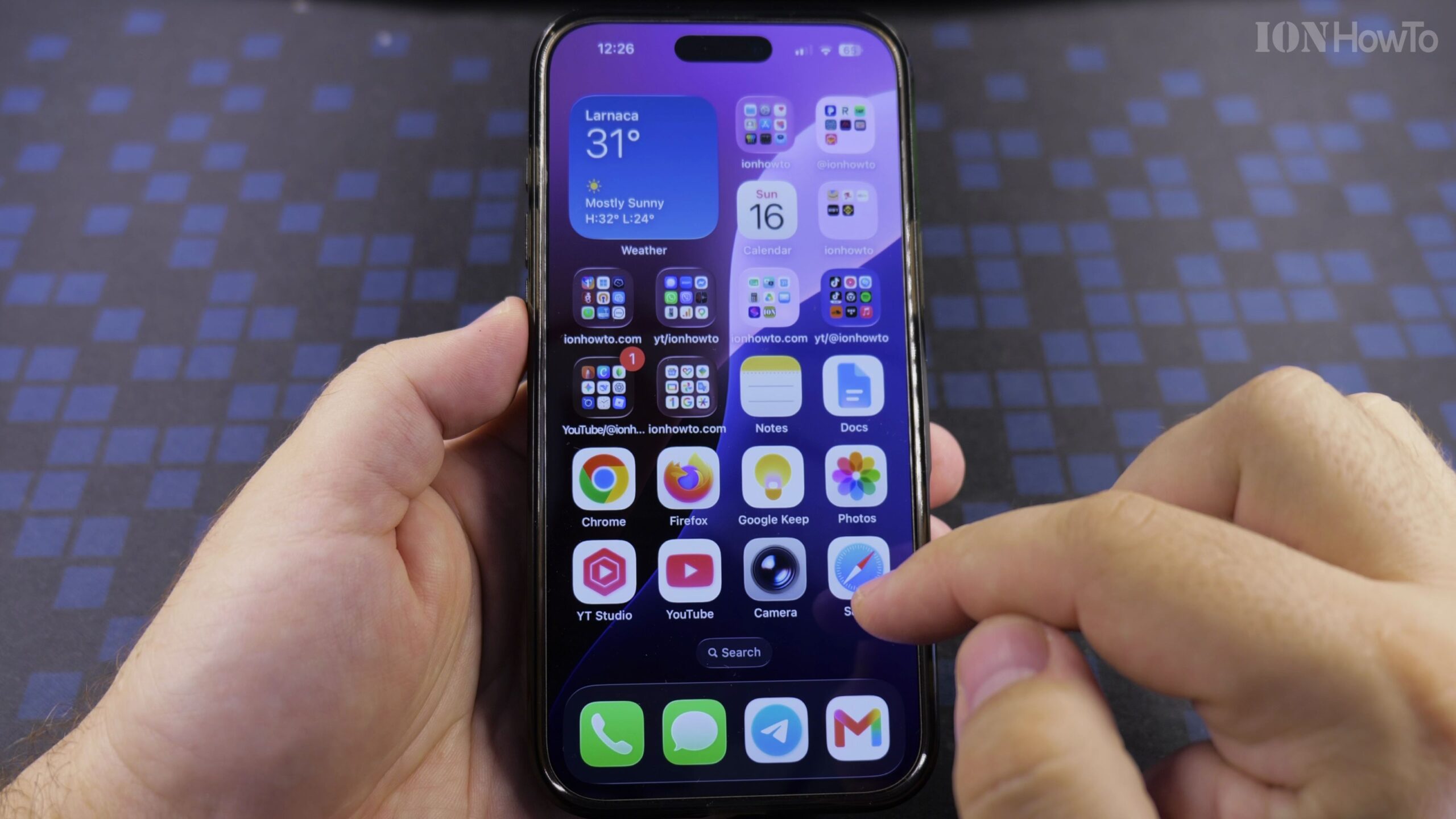
Method 1: Clear History Directly Within Safari
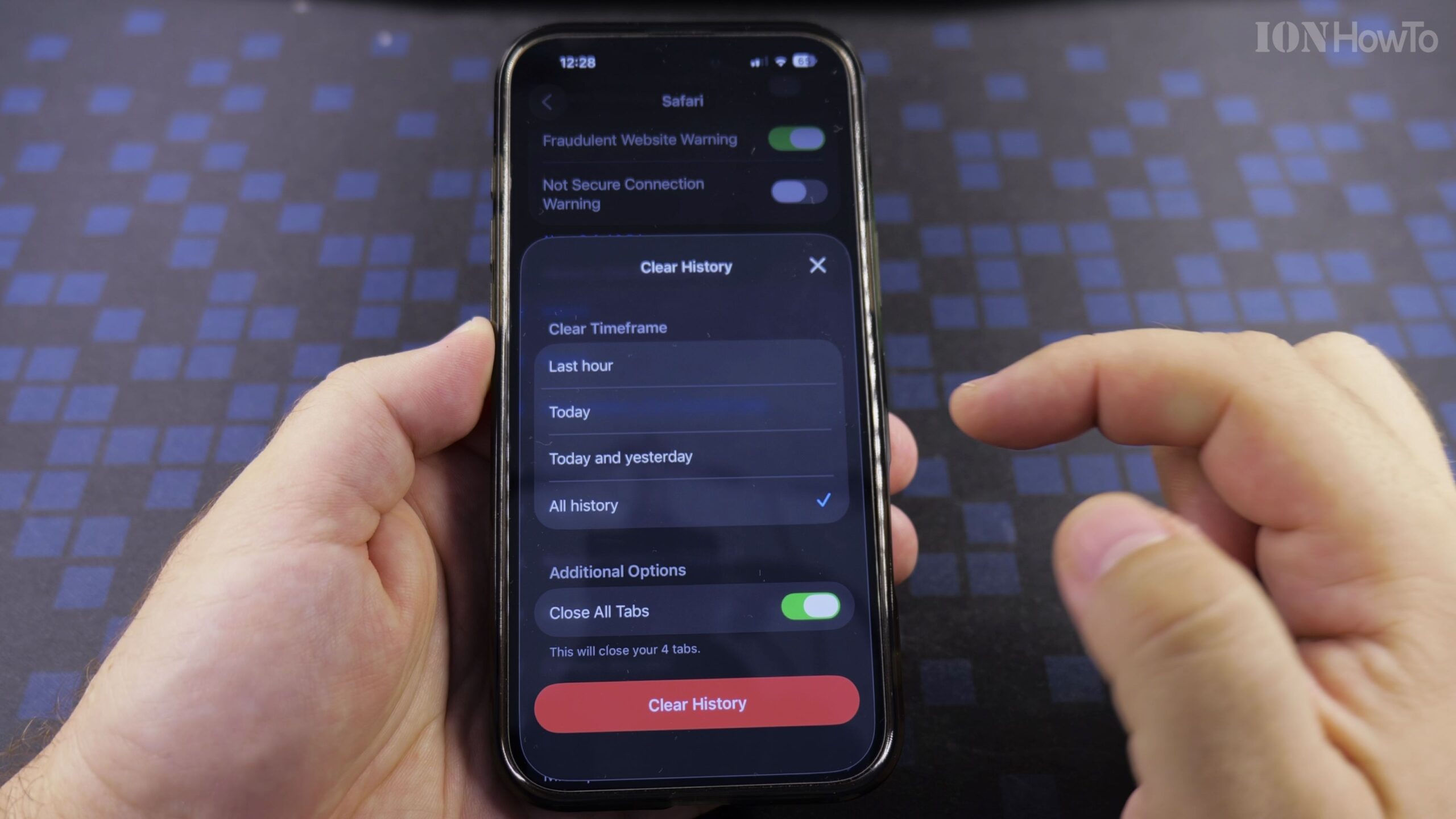
Open Safari on your iPhone. Tap the Book icon along the bottom toolbar, then tap the Clock icon representing History. Tap the Clear button in the lower-right corner and choose your preferred timeframe (such as All History).
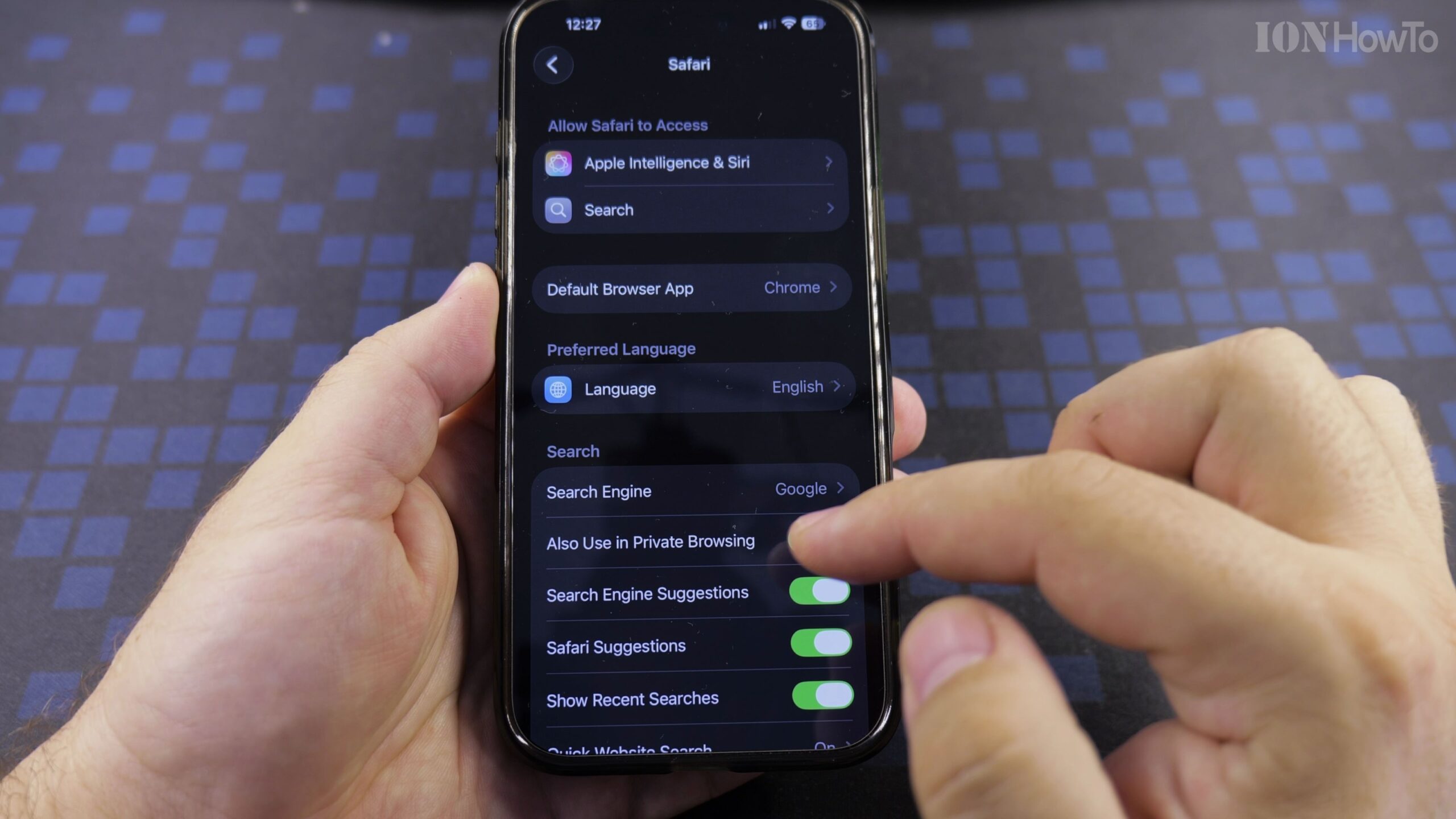
Method 2: Clear History and Data via iOS Settings
If you prefer a complete clean sweep of both history and website data, open the Settings app on your iPhone. Scroll down to Safari, tap Clear History and Website Data, and confirm your choice.
Important Notes on iCloud Syncing
If you use iCloud Safari synchronization, clearing history on your iPhone automatically removes the same history logs from your iPad and Mac for seamless privacy protection.
Helpful Tips and Related Tutorials
For more practical tutorials and setup guides, discover how to how to convert light sockets with IKEA adapters, explore Apple iPhone tips and tutorials, or browse our complete collection of Apple gear guides.
Leave a Reply Cancel reply