



Learn how to randomize your Wi-Fi MAC address on Samsung Android phones to improve your privacy on public networks. I’ll show you the steps to change this setting on your Galaxy device.
Amazon links
As an Amazon Associate I earn from qualifying purchases:
- Phone Cases
- Mobile Tripods
- Usb-c charger
- Usb-c cable
- Docking stations
- Wireless car chargers
- Wireless charger stand
- SIM card removal tool
- SIM card holder

Quick Steps and Scenarios Overview
| What You Need to Do | Quick Jump |
|---|---|
| How to Randomize Your MAC Address | Jump to Step 1 |
| How to Check Your Current MAC Address | Jump to Step 2 |
| Stay in the Wi-Fi advanced settings | Jump to Step 1 |
| Tap "View more" under your connected network | Jump to Step 2 |
| Scroll down to see the current MAC | Jump to Step 3 |
| Important Notes | Jump to Step 3 |
Demonstrated on Samsung Galaxy S23 Ultra 512GB running Android 14 with OneUI 6.1

Phone: Sony Xperia 1V Android 15 version.
What is a MAC Address and Why Change It?
Your device’s MAC address is like a unique ID for network connections. Randomizing it helps:
- Prevent tracking across different Wi-Fi networks
- Avoid targeted advertising based on your device ID
- Solve connection issues on some networks
- Maintain privacy in public spaces
How to Randomize Your MAC Address
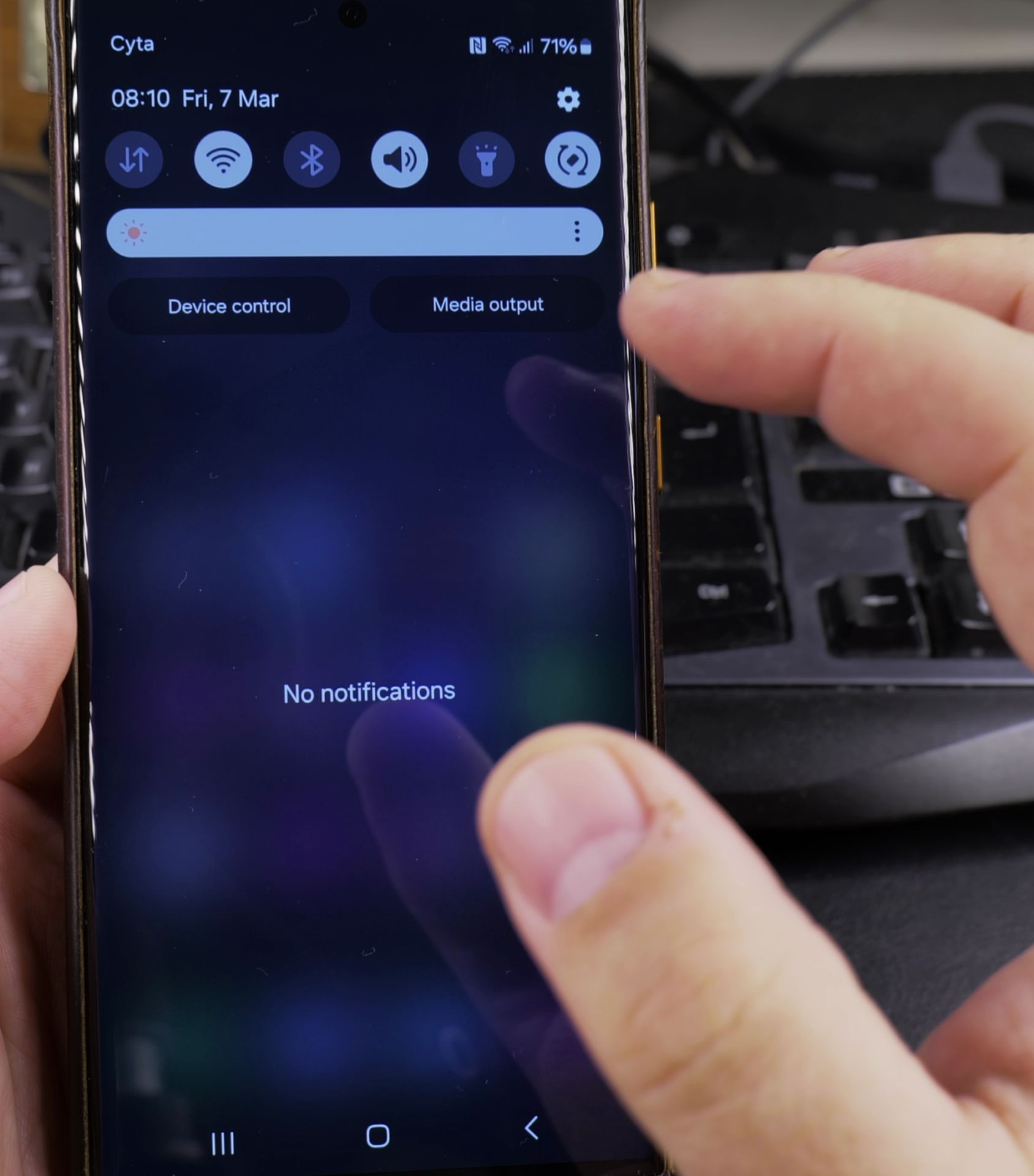
Step 1: Open Wi-Fi Settings
- Swipe down from the top of your screen
- Tap and hold the Wi-Fi icon
- This opens advanced Wi-Fi settings
Step 2: Find MAC Address Settings
- Tap the three-dot menu in the top-right corner
- Select “Advanced” from the dropdown menu
- Choose “Privacy” from the advanced options
Step 3: Change MAC Address Setting
- Look for “MAC address type”
- Select “Randomized MAC”
- Your phone will now use a different MAC address for each network
How to Check Your Current MAC Address
1. Stay in the Wi-Fi advanced settings
Stay in the Wi-Fi advanced settings.

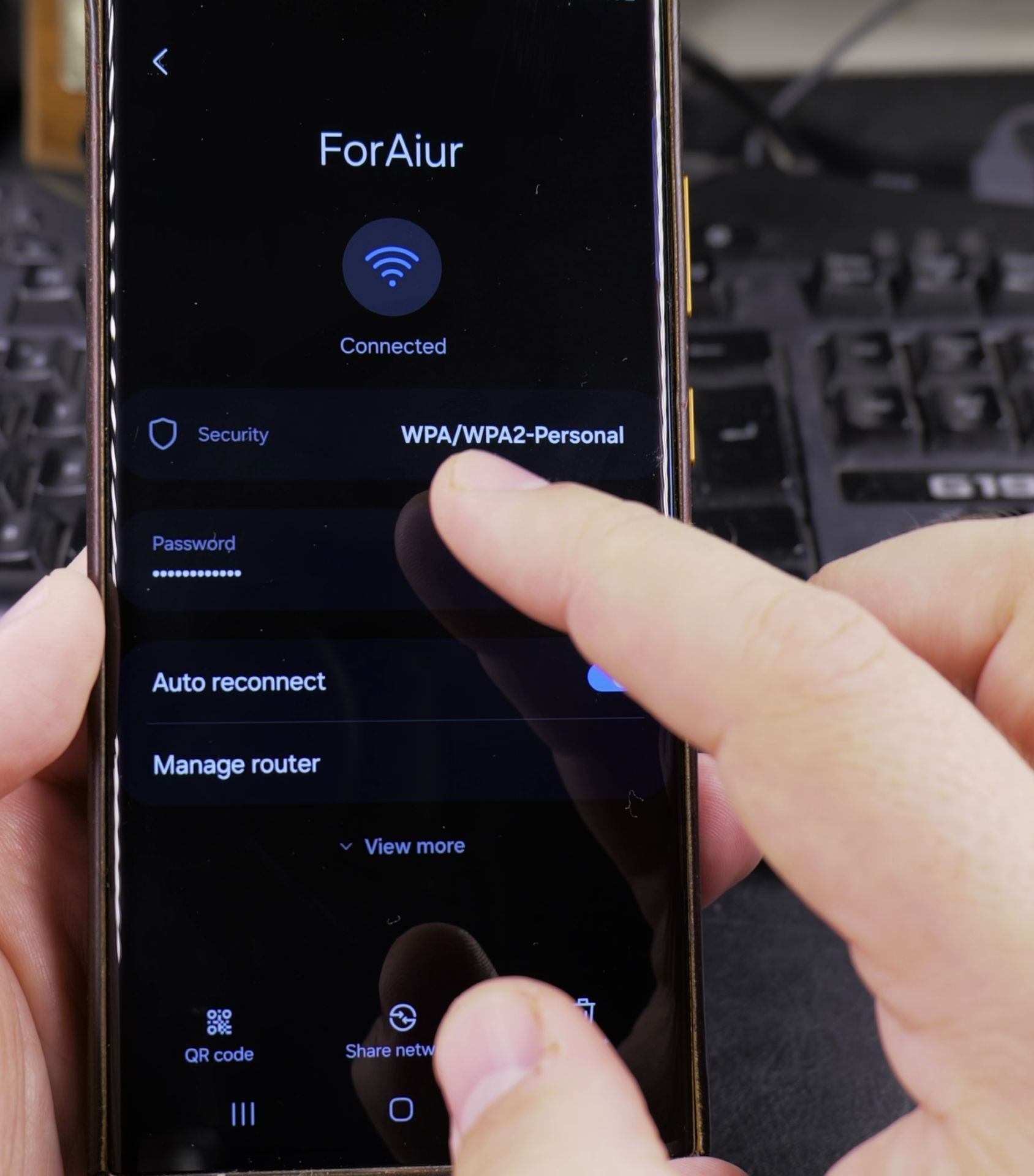
2. Tap “View more” under your connected network
Tap “View more” under your connected network.
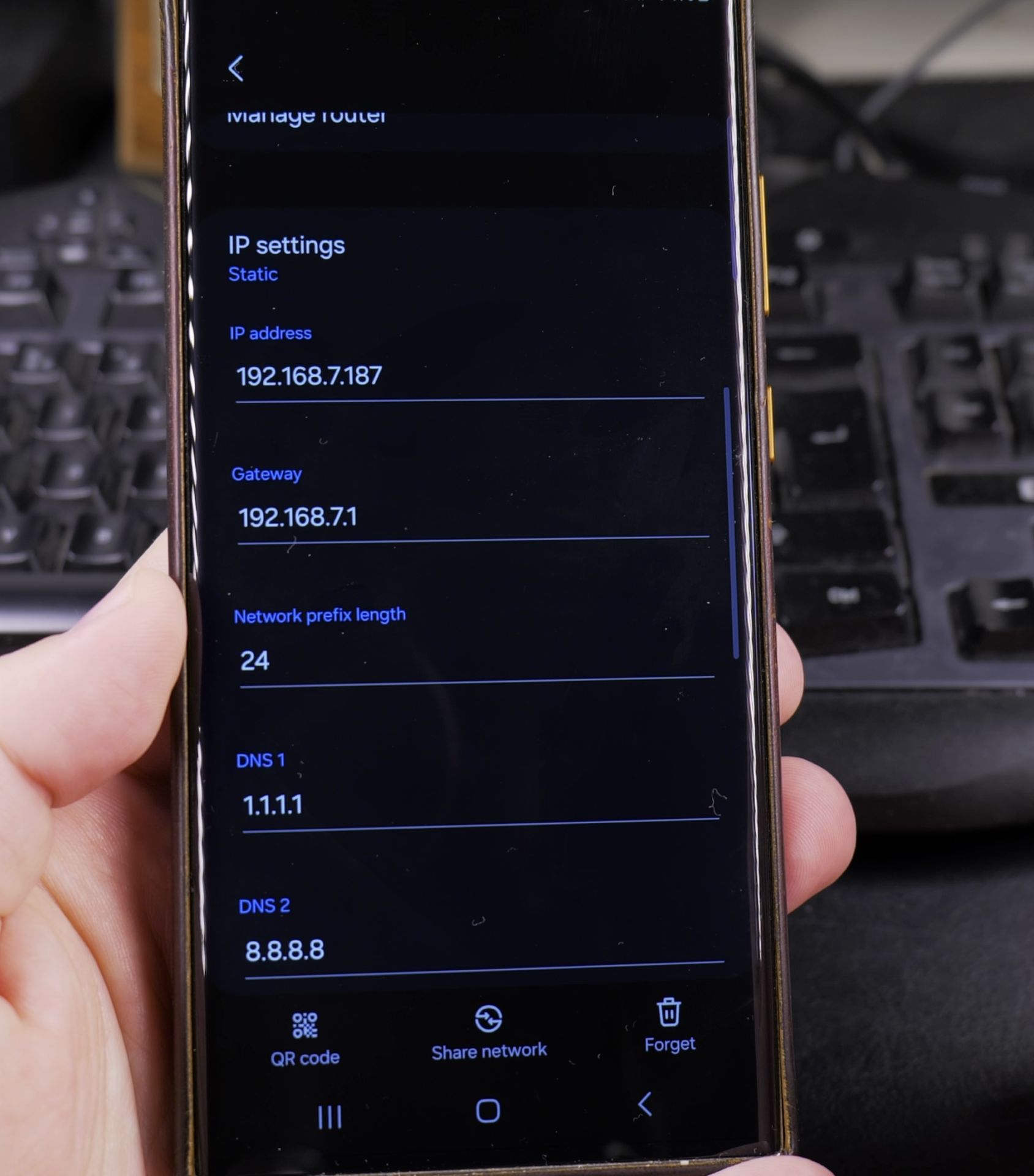
3. Scroll down to see the current MAC
Scroll down to see the current MAC address being used.
Important Notes
- Some networks may require device-specific MAC addresses
- The change only affects Wi-Fi connections (not mobile data)
- Your phone will remember this setting for each network
- Not all Android versions or carriers support this feature
Troubleshooting
If you don’t see the option:
- Make sure you’re running Android 10 or later
- Check for OneUI updates in Settings > Software update
- Some carriers may disable this feature
- Try resetting network settings if options are missing
Final Thoughts
Randomizing your MAC address is an easy way to boost your privacy, especially when using public Wi-Fi networks. While it’s not a complete privacy solution, it helps prevent simple tracking methods.
Remember that this setting is network-specific, so you’ll need to set it up for each new Wi-Fi connection if you want consistent privacy protection.
Have questions about MAC address settings on your specific Samsung model? Let me know in the comments!
Helpful Tips
Take your time and check the screen carefully after each tap so you can confirm the setting changed as expected. If an option appears in a slightly different spot on your device, watch the embedded video above for a closer look.
Related Guides
- How to Access Network Share on Samsung Galaxy Android Phone – If you have movies, photos, or documents on your home computer or network drive, you can open them right from your phone.
- How to Long Press on a Samsung Android Phone to Open Hidden Menus and Shortcuts – Learning how to long press – also called touch and hold – on a Samsung Galaxy Android smartphone unlocks dozens of helpful…
- Turn Off Automatic Updates on Samsung Android – How to Turn Off Automatic Updates on Samsung Android Devices.
- Samsung Android Guides – Browse more tutorials and practical guides in this section.
Leave a Reply Cancel reply