


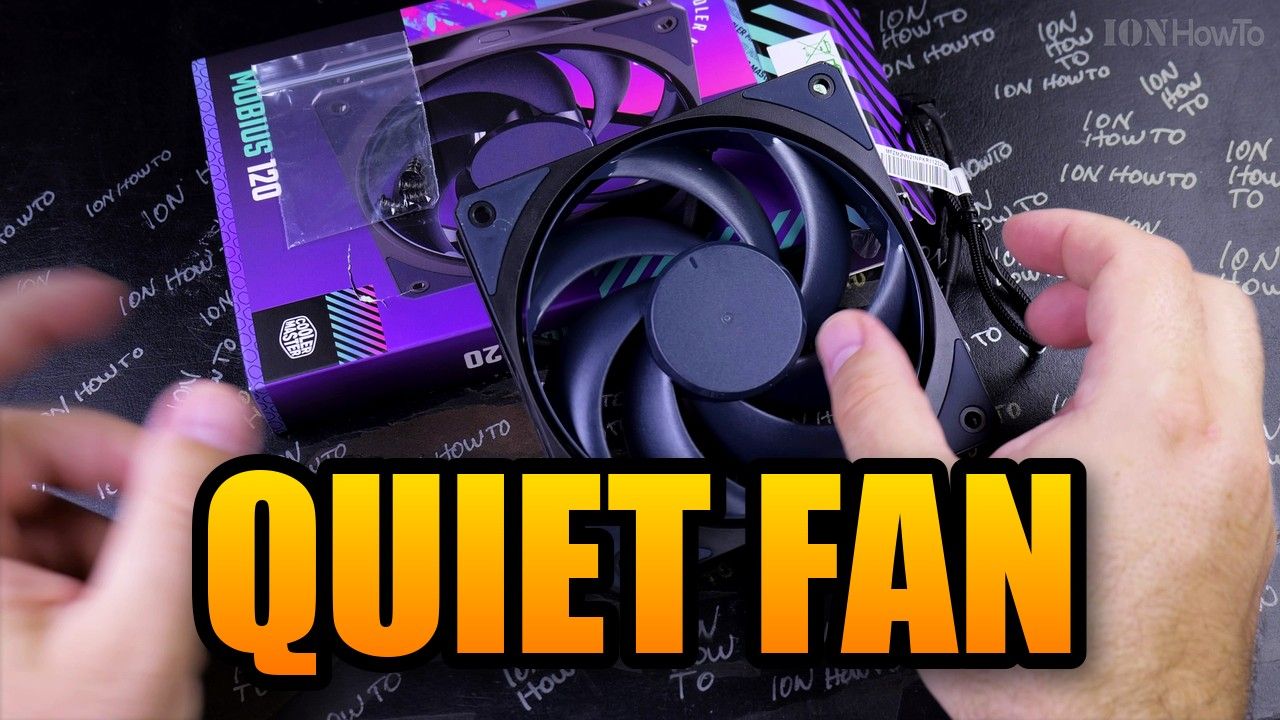
I unbox the Cooler Master Mobius 120, a 120mm case fan. I show you the specs on the box, what comes inside, and what to check before you install it.

Pick your step
- At a glance
- Check how many fans are in the box
- Read the airflow and noise numbers
- Check the size and thickness
- Open the box and look at the fan
- Find the screws and the rubber corners
- Check the cable and the connector
- If it does not work as expected
At a glance
- What it is: Cooler Master Mobius 120, a 120mm PC case fan.
- Specs on the box: 63 CFM airflow and 22 dBA noise, 120 x 26 mm.
- In the box: one fan and case screws. It is a single fan, not a pack of two.
- Good to know: 4-pin cable for speed control, rubber corners, and no RGB lighting.
What you need
- The Cooler Master Mobius 120 fan.
- A PC case with a 120mm fan mount.
- A free 4-pin fan header on the motherboard, or a fan hub.
- A screwdriver for the case screws.
1. Check how many fans are in the box
I thought this was a pack of two, but the box holds one fan. Check the listing carefully when you order.
Why it matters: Many fans are sold in packs, so it is easy to order the wrong amount.
What you should see: One fan inside the box.
2. Read the airflow and noise numbers
The box lists 63 CFM of airflow and 22 dBA of noise. 22 dBA is a decent noise level, and I have seen quieter fans at 18 dBA with less airflow.
Why it matters: Airflow tells you how much air it moves. dBA tells you how loud it is.
What you should see: The specifications panel on the back of the box.
3. Check the size and thickness
The fan is 120 by 26 millimeters. It looks a little thicker than some fans, so check the space in your case.
Why it matters: A thicker fan can bump into a radiator or a graphics card.
What you should see: The size printed on the box and on the fan label.
4. Open the box and look at the fan
The fan is packed well. It feels bulky and solid, and the blades look like they can move a lot of air.
Why it matters: Look for damage before you install it, especially on the corners and blades.
What you should see: A dark fan with smooth blades and no cracks.
5. Find the screws and the rubber corners
The fan comes with case screws. It also has rubber on the corners where it touches the case.
Why it matters: Rubber corners help reduce vibration noise.
What you should see: A small bag of screws and soft pads on each corner.
6. Check the cable and the connector
The cable is long enough, though not very long. It has a 4-pin connector, so your PC can control the speed.
Why it matters: A 4-pin fan can slow down when your PC is cool, which keeps it quiet.
What you should see: A 4-pin plug at the end of the cable, held with a cable tie.
If it does not work as expected
- The fan runs at full speed all the time: check that it is on a 4-pin header and that fan control is on in the BIOS.
- The cable does not reach: use a fan extension cable or a fan hub.
- The fan rattles: check that all four screws are tight and the rubber corners sit flat.
- It does not spin: some fans stop at low temperatures on purpose. Check the BIOS fan settings.
Helpful Tips
- Note the airflow arrows on the fan before you mount it.
- Front fans usually pull air in, and rear fans push it out.
- Keep the cables tidy so they do not touch the blades.
- Compare CFM and dBA together, because more airflow often means more noise.
Questions people ask
How much airflow does the Cooler Master Mobius 120 have?
The box lists 63 CFM.
How loud is it?
The box lists 22 dBA.
Does it have RGB lighting?
I did not see any RGB on mine.
Is it a single fan or a pack?
My box had one fan.
Related Guides
- How to Connect iPad to Ethernet Cable Using USB-C Hub – If your home Wi-Fi is spotty or drops out during video calls, plugging your iPad into a wired internet cable gives you…
- Pull New Ethernet Cable Using Old Cable in Conduit – How to Pull New Ethernet Cable Using Old Cable in Conduit: Upgrade Cat5E to Cat6A.
- Check if Your USB Cable Has USB3.0 Pins – How to Check if Your USB Cable Has 3.0 Pins.
- Computer Build & PC Hardware – Browse more tutorials and practical guides in this section.
Leave a Reply Cancel reply