


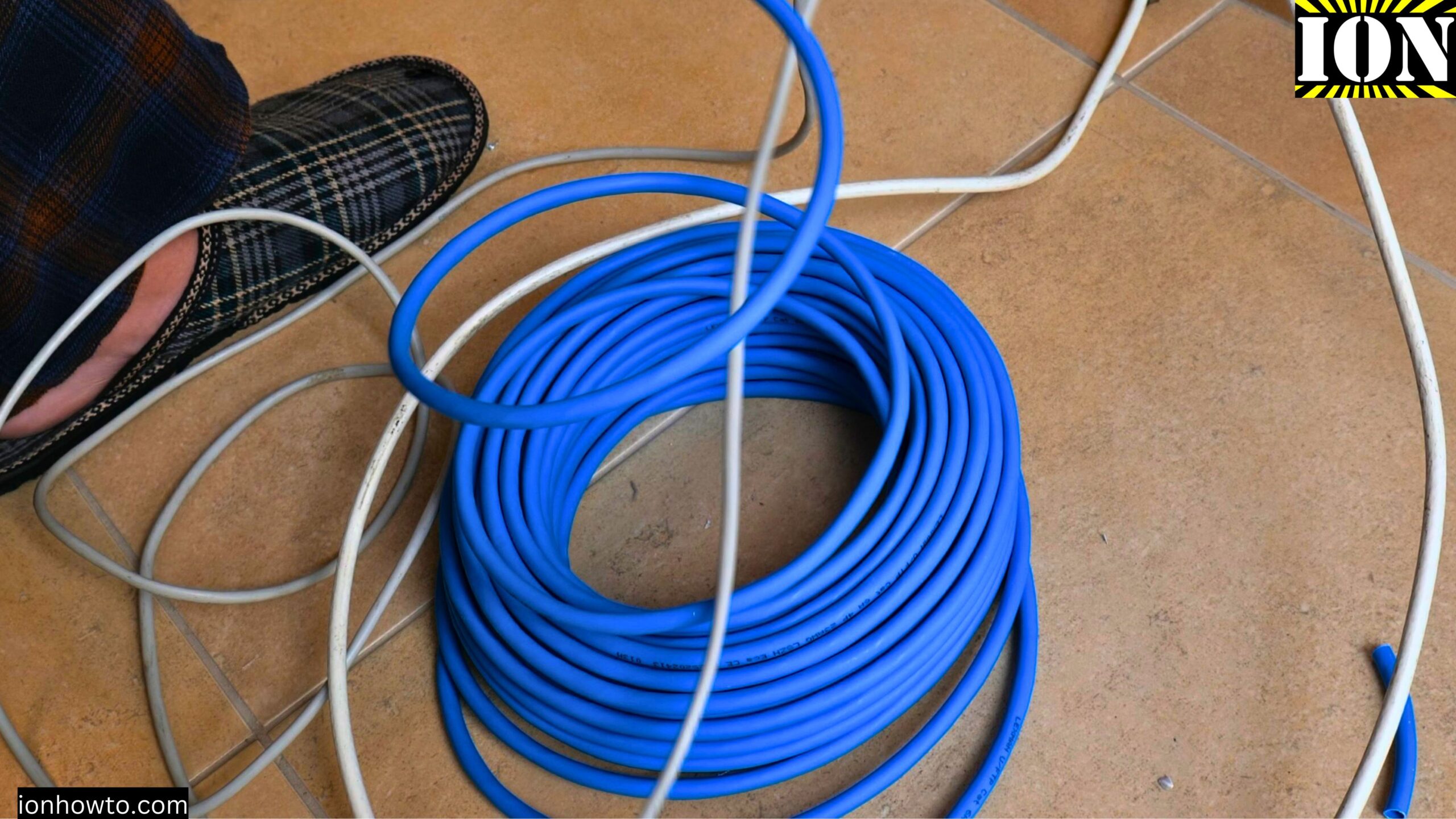
How to Pull New Ethernet Cable Using Old Cable in Conduit: Upgrade Cat5E to Cat6A.
Learn how to replace your old Ethernet cable with a new one by using the old cable as a pull line. This works great when you already have a cable running through a wall conduit and want to upgrade from Cat5E to Cat6A or even Cat7.
Why Use the Old Cable to Pull the New One
If you already have a cable in the wall, you do not need to fish a wire puller snake through the conduit. Instead, you can tie the new Cat6A Ethernet cable to the old cable and pull the old cable out of the wall conduit while pulling the new upgraded cable into the wall at the same time.
This is a really easy way to upgrade your Ethernet cables in the conduit to Cat6A or Cat7 Ethernet cables.
If the old cable breaks as you pull it, you can use a wire snake to feed a new wire.
What You Need Before You Start
- New Cat6A or Cat7 Ethernet cable
- Electrical tape
- Wire lubricant (or mild soap and water, or wax)
- A helper (ideally)
- Keystone jacks for Cat6A or Cat6 (not old-style jacks)
- Crimping tools if you are terminating the cables yourself
Pull New Ethernet Cable using Old Cable in Conduit Upgrade Cat5E to Cat6A Video

Step 1: Know Where the Cable Goes
Before you start, make sure you know where the cable goes to the other side. You need to make sure where the other side of this conduit is.
The new wires are thicker too. Most of the time, unless you are pulling fiber optic cable through the conduit, the new cable will be much thicker. So you have to be careful that you do not pull too hard.
Step 2: Prepare the Old and New Cables
Remove some of the insulation, some of the jacket, of the new cable and the old cable, both of them.
Make some kind of loop with the wires. The idea is to not make this too large. This should not be too large. That is why you remove the insulation. If you want it to be even smaller, you can remove some of the wires, some of the Ethernet wires. But it is better to keep them all together so they are not getting moved around.
Step 3: Secure the Connection
Put some electrical tape just to make it all secured so they do not come apart. They do not unravel themselves.
Step 4: Use Lubricant If Needed
If you feel like the new cable is feeding harder into the conduit, you can use wire lubricant to make the wire slide easier through the pipe tubing in the wall.
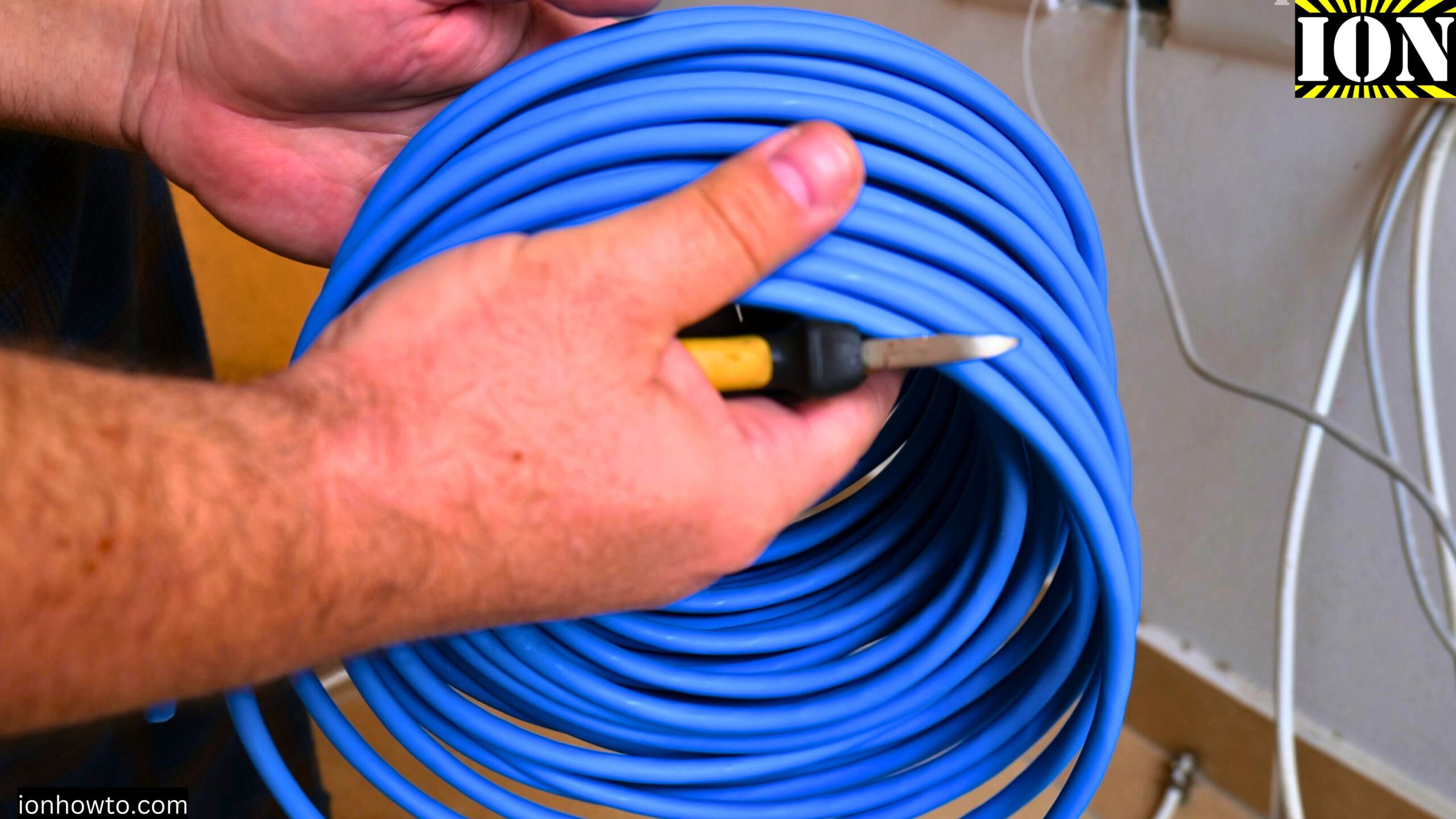
For wire lubricant you can use lubricant made for wires specifically or you can use some DIY lubricant using mild soap or wax.
A thick solution of mild soap and a bit of water works well before when pulling cables through the walls. The dried soap can help the cable slide through conduit even after many years.
Step 5: Work With Two People
Ideally when you pull the Ethernet cable through the conduit you have 2 people doing it. One pulls the cable and a second person to feed the new cable into the conduit and make sure it does not get tangled.
If the cable is really hard to move through conduit like rigid Cat6A or Cat7 Ethernet cables, you can have one person pull the line or old cable while a second person pushes slightly the cable into the conduit. This helps the cable move easier especially when there are sharp corners or 90 degrees bent conduit tubing.
Step 6: Pull Slowly and Steadily
As you see it comes out pretty easily but you have to pull the cable slowly without too much force and without trying to make the cable go through the conduit too fast.
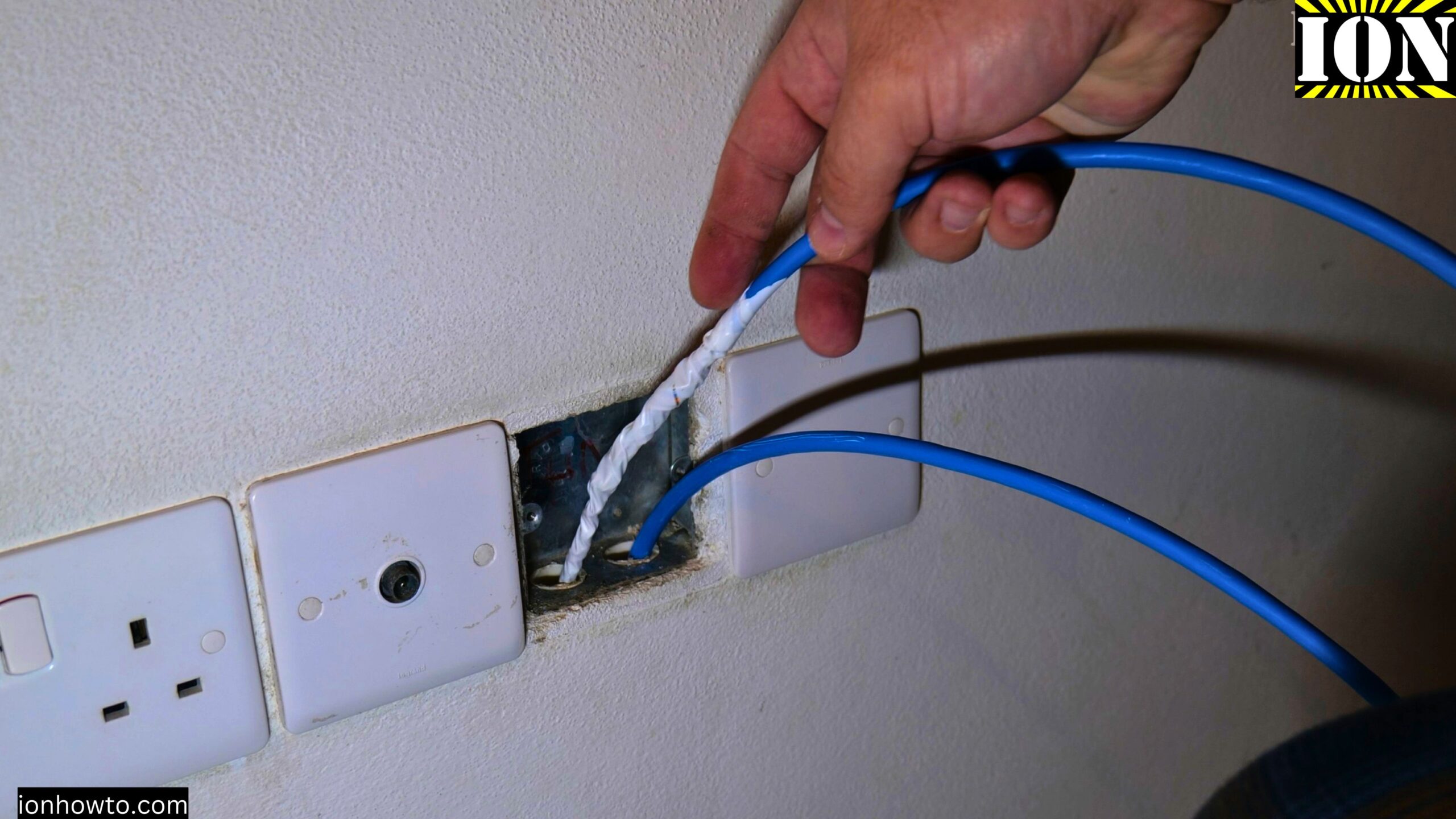
If you notice the loop gets small, pull it slowly. Do not rush it.
Step 7: Watch Out for Other Cables
If you have other cables in the conduit, like a fiber optic cable, you have to be extra careful not to damage that.
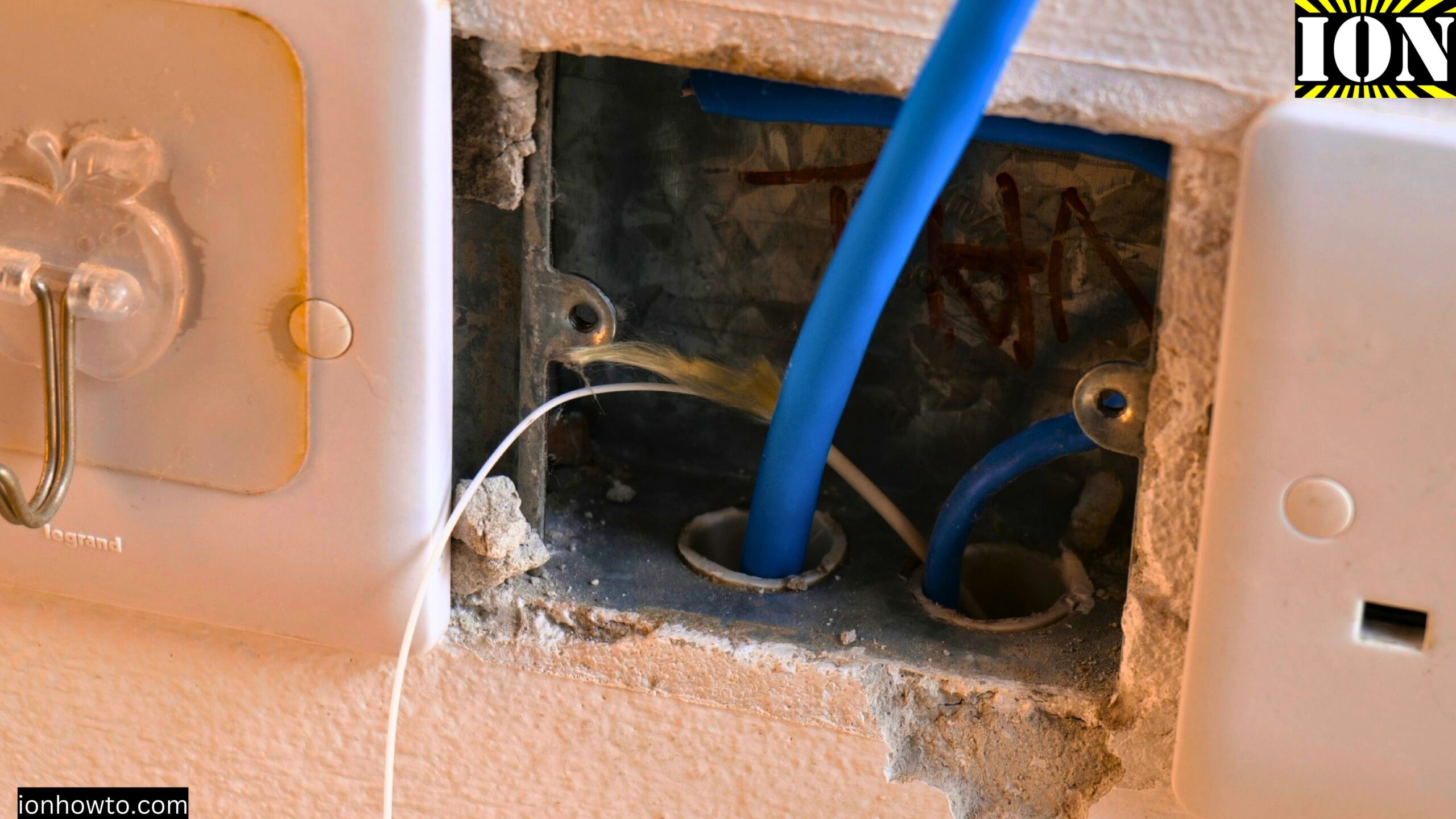
Step 8: Terminate the New Cable
After the cable comes out, you have a few choices. Do not use old-style jacks connectors for the wall. Use Cat6A or Cat6 keystone jacks instead.
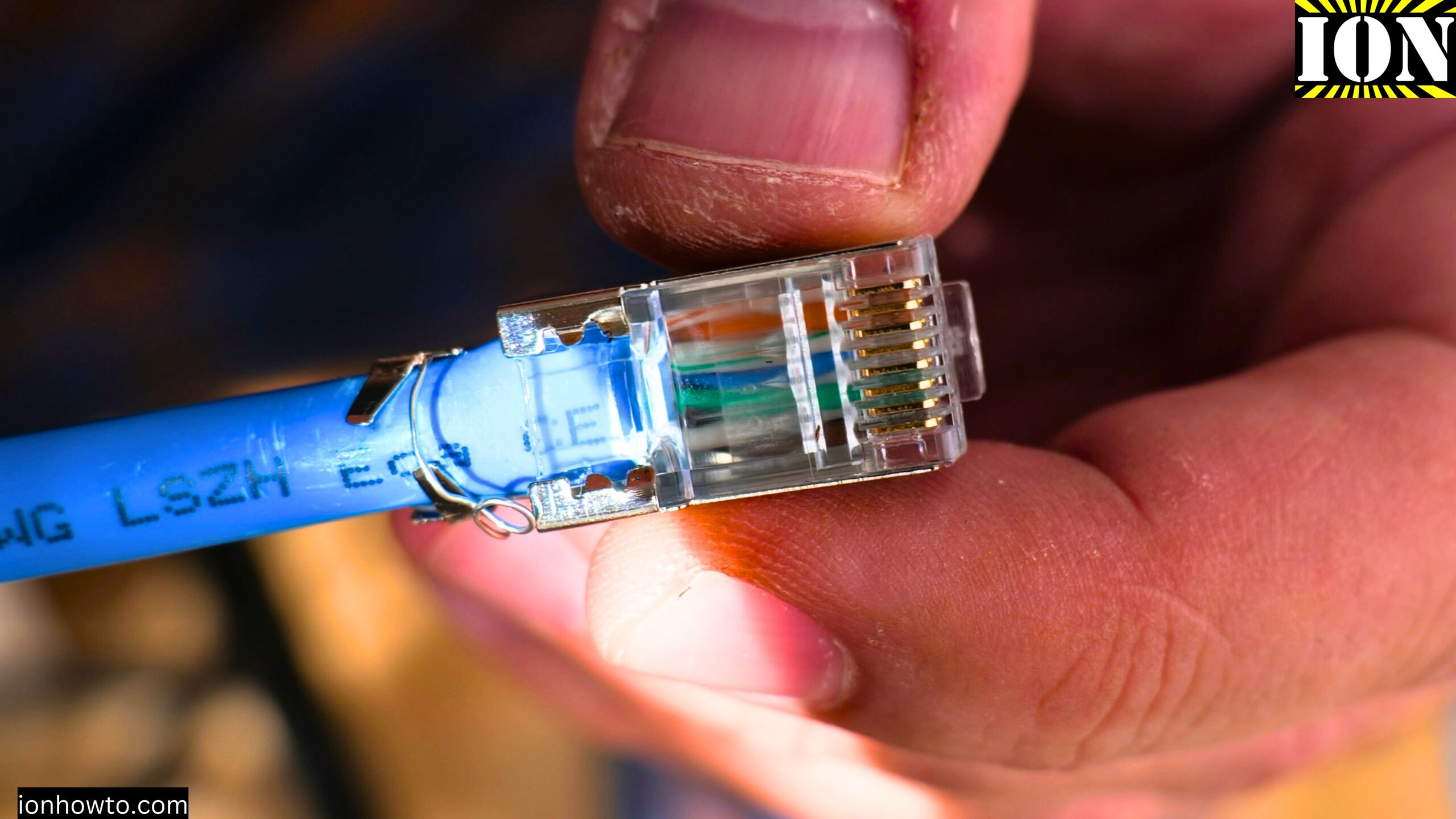
Crimping Ethernet cables at home means you need to test new Cat6A Ethernet cables RJ45 crimping to make sure all the twisted pairs connections are good and the ground is connected between Ethernet devices.
Test the cable wire pairs continuity with a special Ethernet Cable Tester.
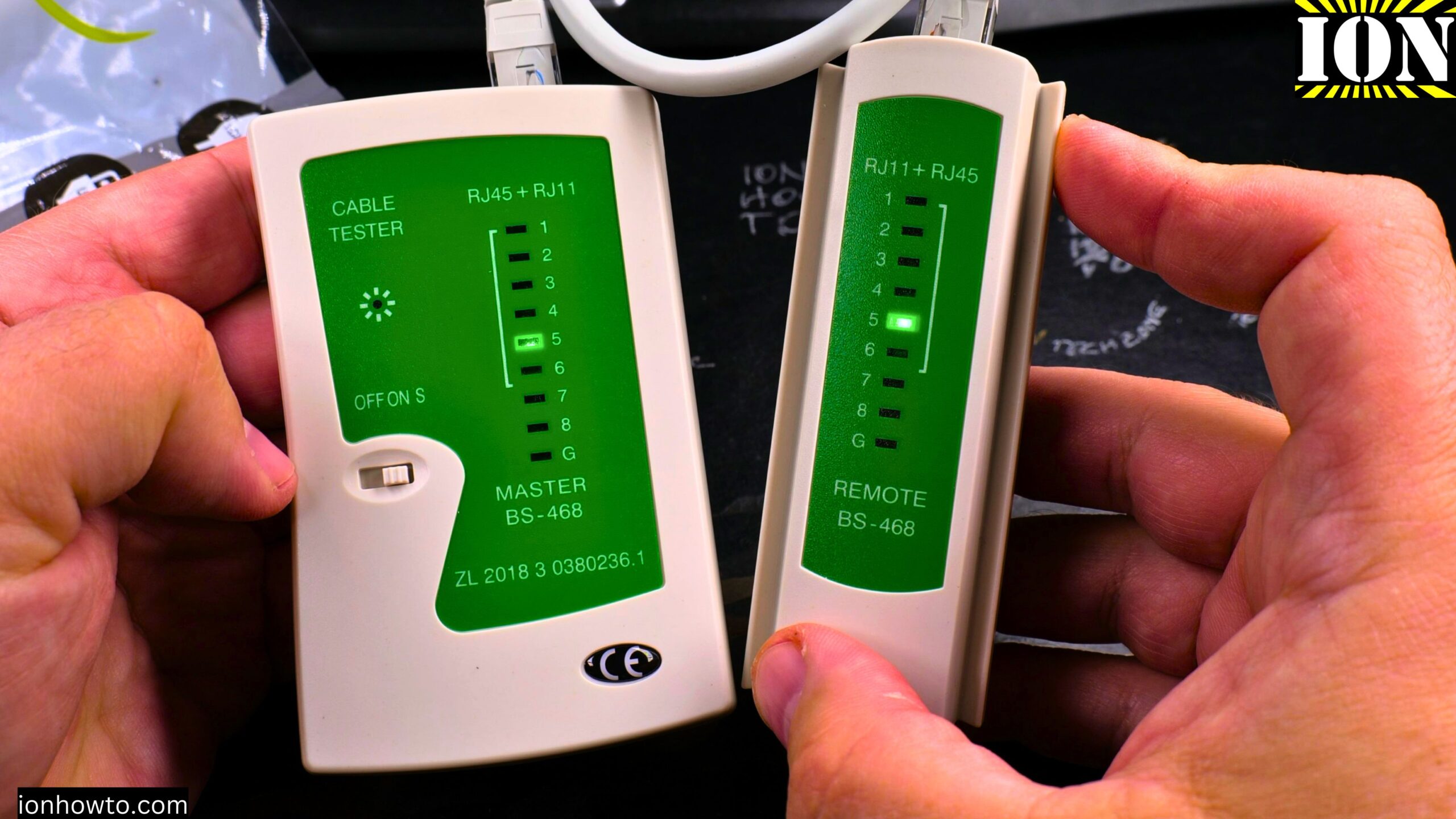
For Cat6A Ground should also work. For Cat6 Cable the ground will not show because there is no ground wire between the Cat6 Ethernet terminals.
Speed Tests: Cat5E vs Cat6A
A few speed tests were done to compare Wi-Fi 6 vs Wi-Fi 7 6Ghz MLO on 2.5G Cat5E vs Cat6A LAN Speed Test.
LAN Speed Wi-Fi to Cat5E 2.5G Ethernet Cable was tested using iPerf with Wi-Fi 6 vs Wi-Fi 7 6Ghz MLO. The Cat5E cable can run 2.5G Ethernet without problems.
Wi-Fi 7 and Ethernet 2.5Gb via Cat5E cable was checked. The Cat5E cable can even run 10Gb Ethernet on short distances unofficially.
The router used now supports 3 Wi-Fi bands 2.4Ghz, 5Ghz and 6Ghz and 1 Wan/Lan 10Gb Ethernet and multiple 2.5Gb Ethernet ports.
LAN Ethernet to WiFi 7 speed was tested before upgrading Ethernet cables from Cat5E to Cat6A. There is also an older Huawei router acting as a Wi-Fi access point but the speed is nowhere near the Wi-Fi 7 MLO speed on the ASUS RT-BE92U and iPad Pro M5 combination even without upgrading the Cat5E Ethernet cables.
Final Thoughts
You can also use a special wire puller that you can fish through the conduit and then pull the wire back with it. But if you have an old wire already there, you can simply use that to pull the new wire. I hope this helps you.
Related Guides and Helpful Resources
If you found this guide helpful, check out these related step-by-step tutorials and category resources on ION HowTo:
- IKEA Rundhult 100W USB-C Cable Review: Hands-on testing and durability evaluation of IKEA’s braided 100W cord.
- IKEA USB-C Cables Compared: 100W Rundhult vs 60W Lillhult: Understand differences between 100W fast power delivery and standard 60W cords.
- IKEA NIMH AA and AAA Battery Chargers Comparison: Detailed comparison between IKEA Tsjugo, Litosfar, and Stenkol chargers.
- USB-C Tech & Fast Charging: Explore our full collection of tutorials and step-by-step articles in this category.
Leave a Reply Cancel reply