


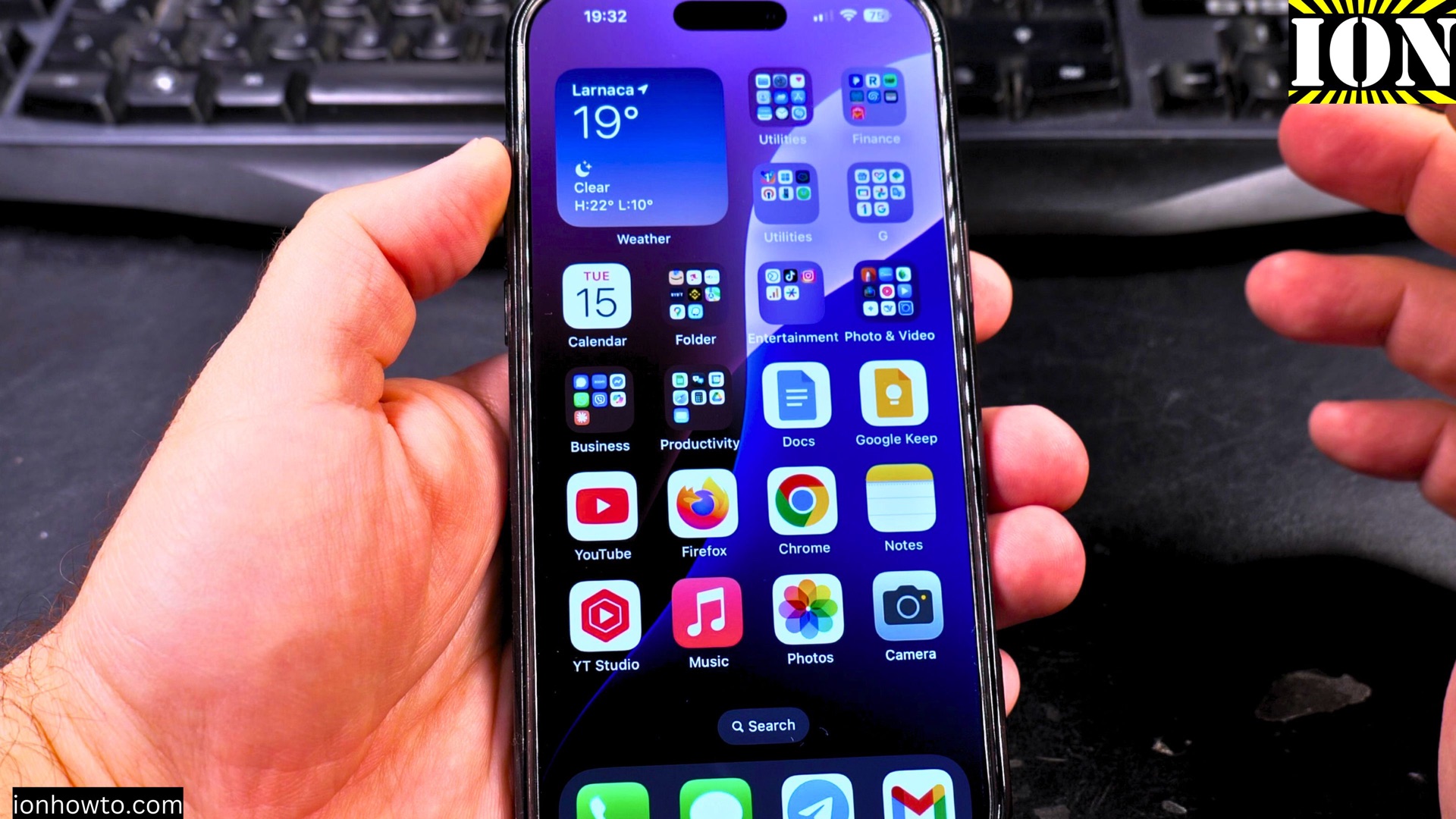
How to Enable Auto Dubbing and Change Languages on YouTube.
Learn how to turn on auto dubbing and switch translation languages in the YouTube app. I’ll show you the steps to enable audio translations on both iPhone and Android devices, so you can watch videos in your preferred language.
Amazon links
As an Amazon Associate I earn from qualifying purchases:
- Phone Cases
- Mobile Tripods
- Usb-c charger
- Usb-c cable
- Docking stations
- Wireless car chargers
- Wireless charger stand
- SIM card removal tool
- SIM card holder
Enable Auto Dubbing and Change Languages on YouTube Video.

Quick Steps and Scenarios Overview
| What You Need to Do | Quick Jump |
|---|---|
| How to Enable Auto Dubbing on YouTube | Jump to Step 1 |
| Open the YouTube app on your iPhone | Jump to Step 1 |
| Play a video that supports auto dubbing | Jump to Step 2 |
| Tap the screen to reveal the player | Jump to Step 3 |
| Tap the Settings icon (gear symbol) | Jump to Step 4 |
| Select "Audio track" from the menu | Jump to Step 5 |
How to Enable Auto Dubbing on YouTube
1. Open the YouTube app on your iPhone
Open the YouTube app on your iPhone or Android device.

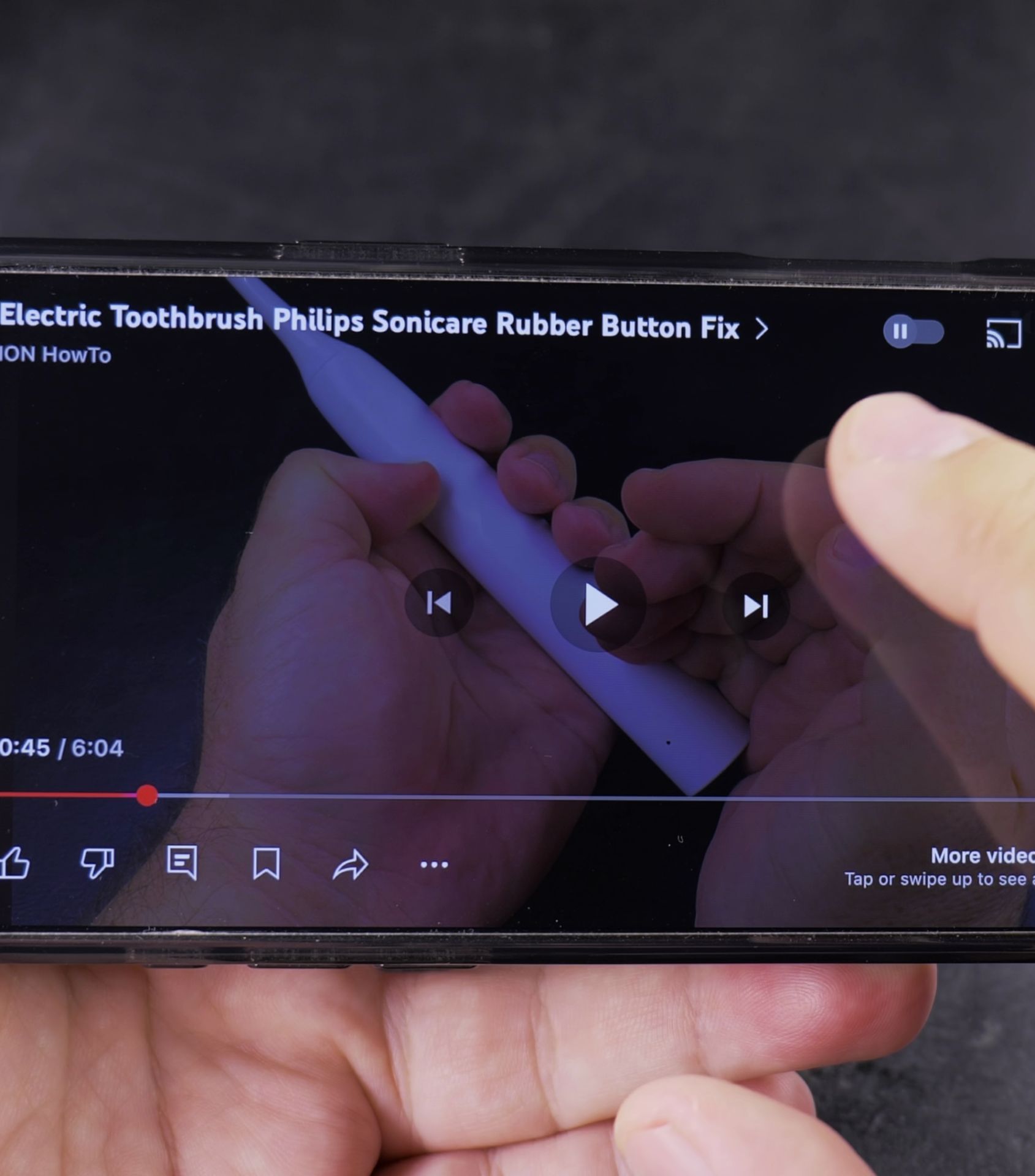
2. Play a video that supports auto dubbing
Play a video that supports auto dubbing (not all videos have this feature).
3. Tap the screen to reveal the player
Tap the screen to reveal the player controls.
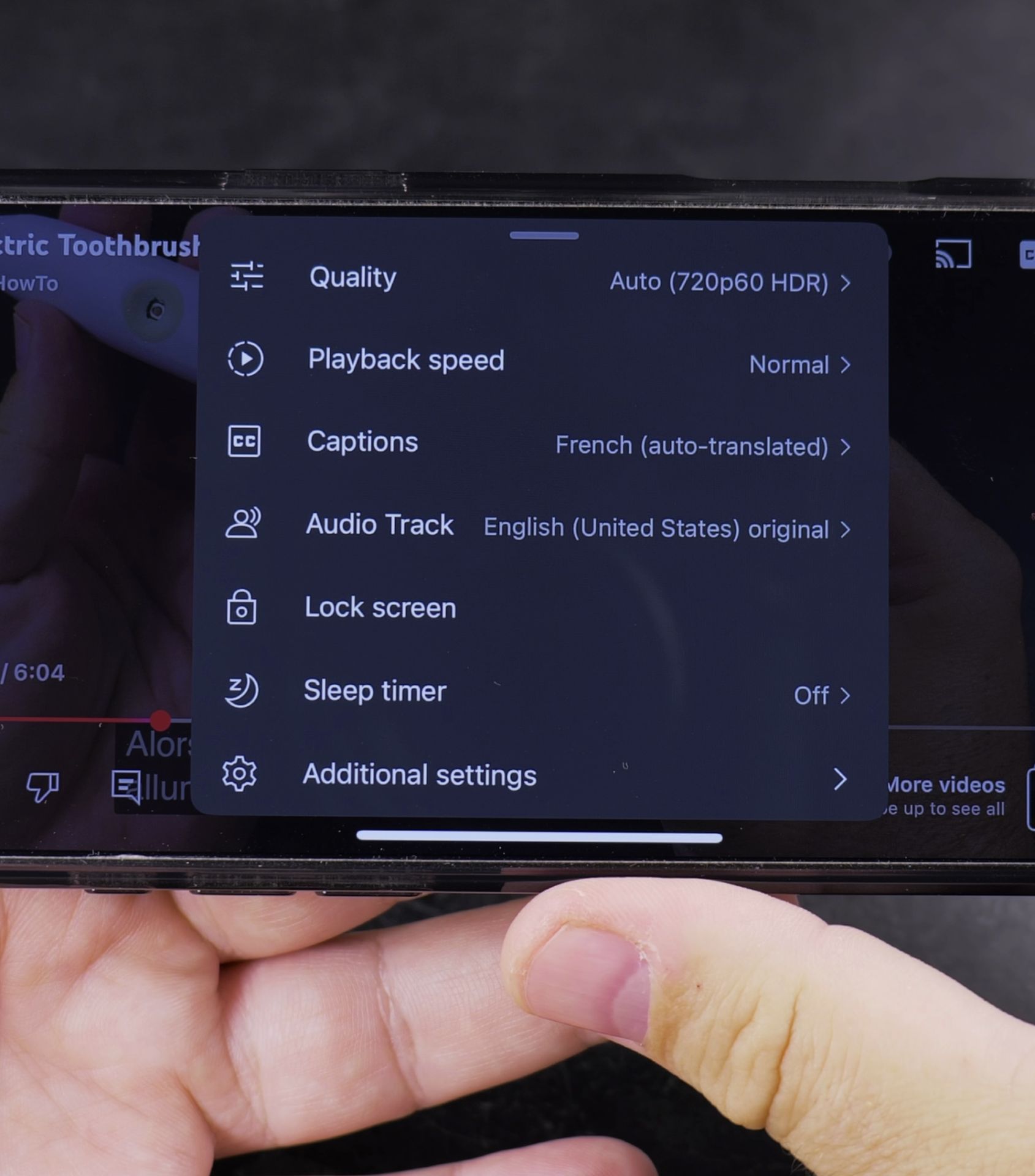
4. Tap the Settings icon (gear symbol)
Tap the Settings icon (gear symbol) in the top-right corner.

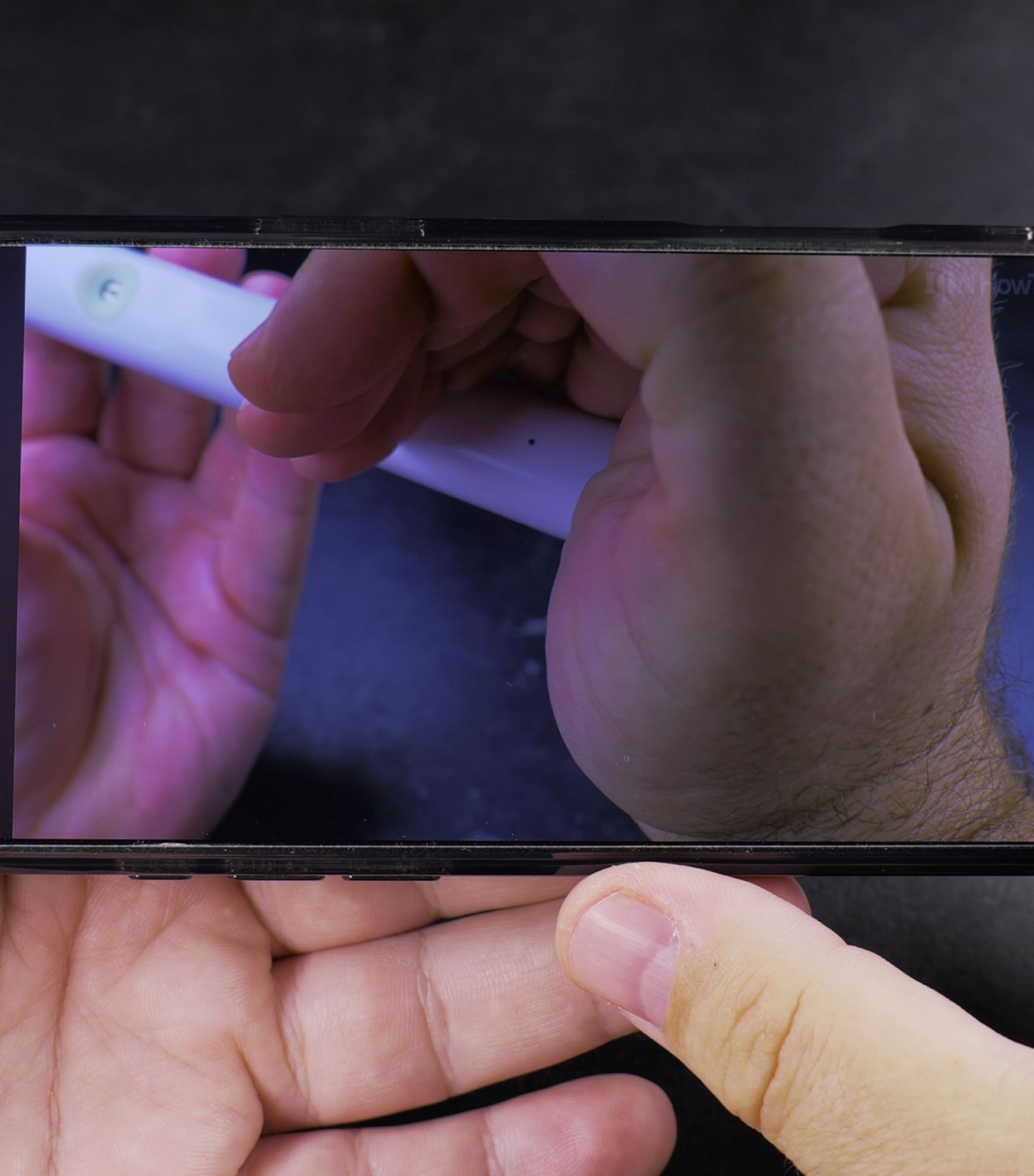
5. Select “Audio track” from the menu
Select “Audio track” from the menu.
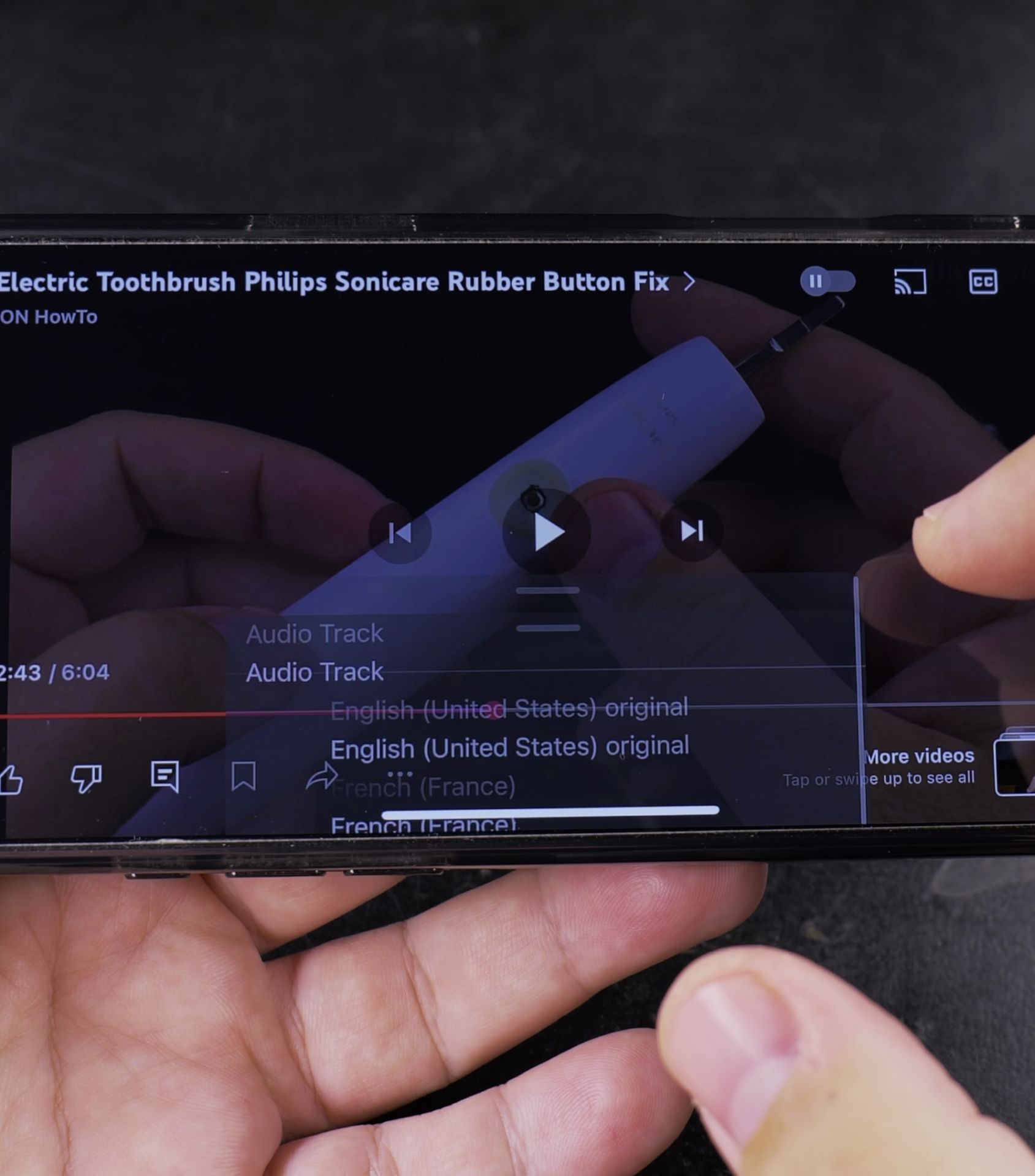
6. Choose your preferred language from the available
Choose your preferred language from the available options.
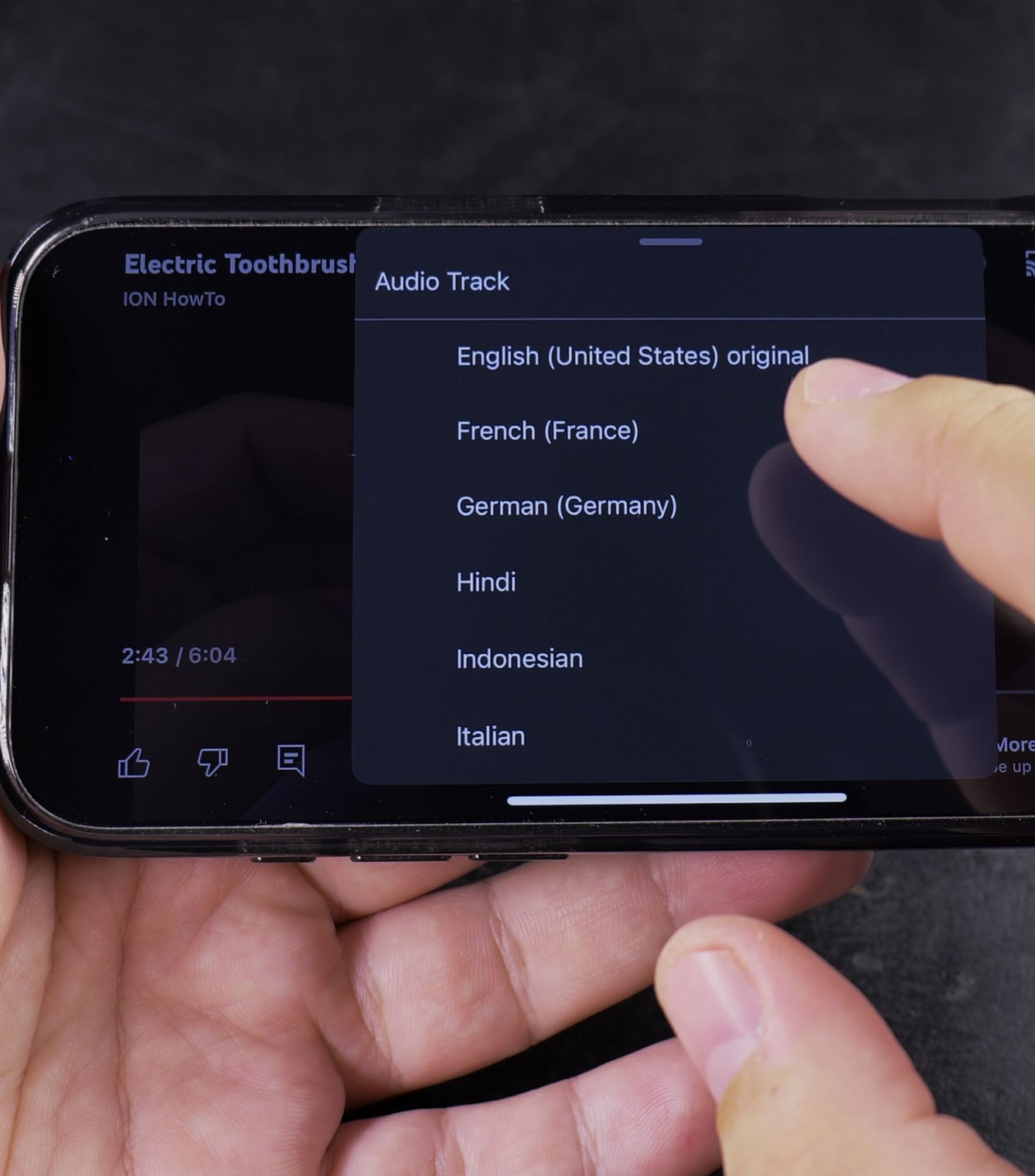
If the video doesn’t have dubbing available, the option won’t appear.
How Auto Dubbing Differs from Subtitles
Auto dubbing provides translated audio, while subtitles only show text translations. Some videos have professional voiceovers, while others use AI-generated translations.
Changing Languages While Watching
- Tap the Settings icon during playback.
- Select “Audio track” again.
- Pick a different language if available.
Your selection may be saved for future videos, but this depends on the content.
Managing Language Preferences
If you want to hear the original audio instead of translations:
- Go back to the “Audio track” menu.
- Select “Original” (if available).
Troubleshooting Auto Dubbing
- If you don’t see the option, the video may not support dubbing.
- Try updating the YouTube app if the feature isn’t working.
- Some languages may not be available for certain videos.
Conclusion
Auto dubbing is useful for learning new languages or understanding foreign content. YouTube may improve this feature in the future, allowing users to set default preferences for original vs. translated audio.
For now, test it out on supported videos and see if it works for you!
Helpful Tips
Take your time and check the screen carefully after each tap so you can confirm the setting changed as expected. If an option appears in a slightly different spot on your device, watch the embedded video above for a closer look.
Related Guides
- Disable Audio Auto Dubbing on YouTube Shorts – How to Disable Audio Auto Dubbing on YouTube Shorts.
- Captions and Auto-Translate on YouTube App – How to Enable Captions and Auto-Translate on the YouTube Android App
- Auto Sync Audio Tracks in DaVinci Resolve – How to Auto Sync Audio Tracks in DaVinci Resolve.
- Android & Mobile Guides – Browse more tutorials and practical guides in this section.
Leave a Reply Cancel reply