


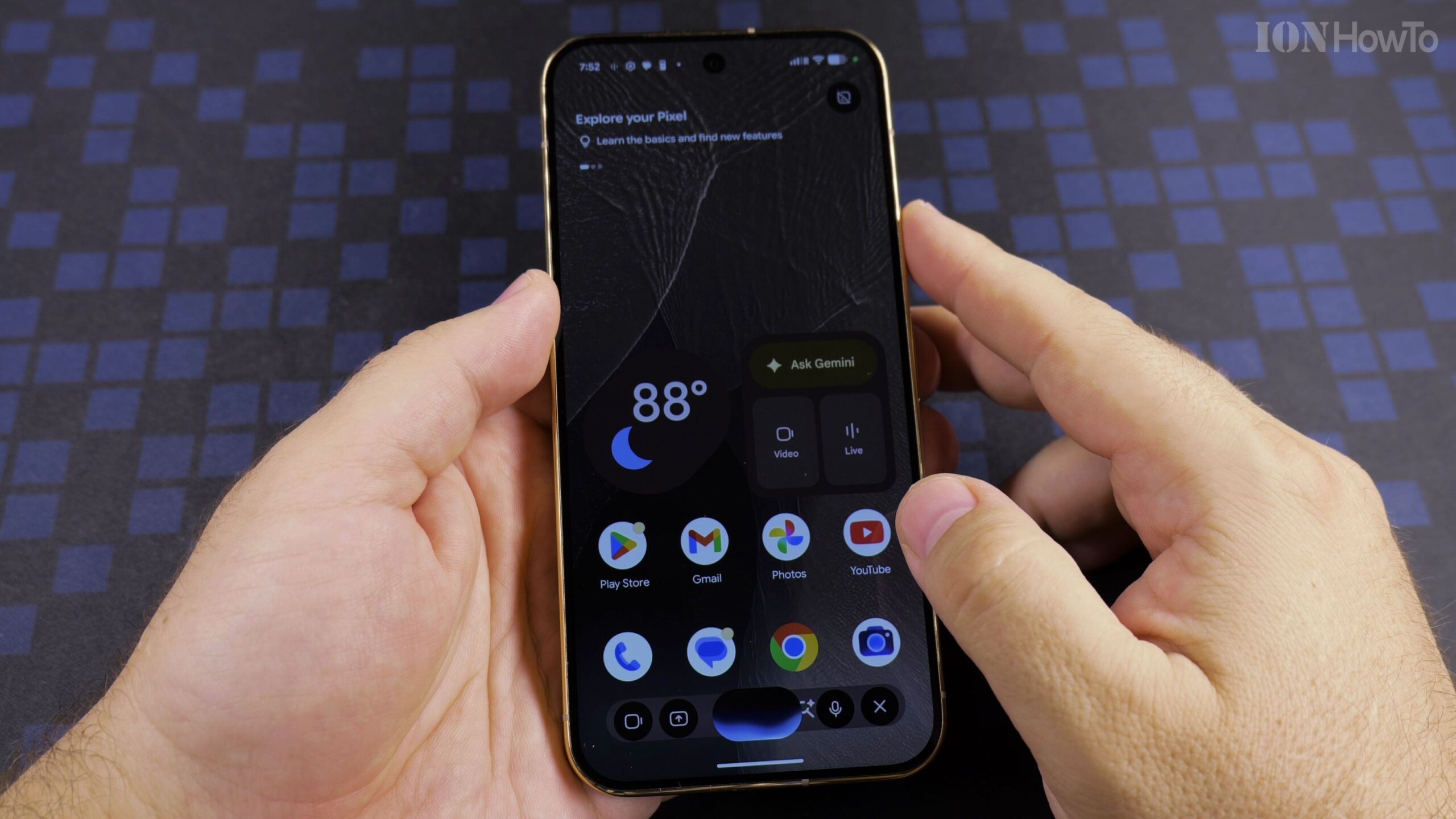
Setting up your Google Pixel 11 Pro XL as a brand-new phone gives you a clean start without carrying over old clutter or unused apps. In this extended step-by-step guide, we cover every screen of the initial Android 17 configuration on the Google Pixel 11 Pro XL Canyon 512GB (16GB RAM) from first boot to optimal home screen settings.

Turn On the Pixel 11 Pro XL and Choose Setup Without Another Device
Hold down the side power button until the Google logo appears and Android 17 loads the welcome screen. Pick your language and tap Set up without another device when asked if you want to copy data from an older phone.
Connect to Wi-Fi and Insert Your SIM Card or Activate eSIM
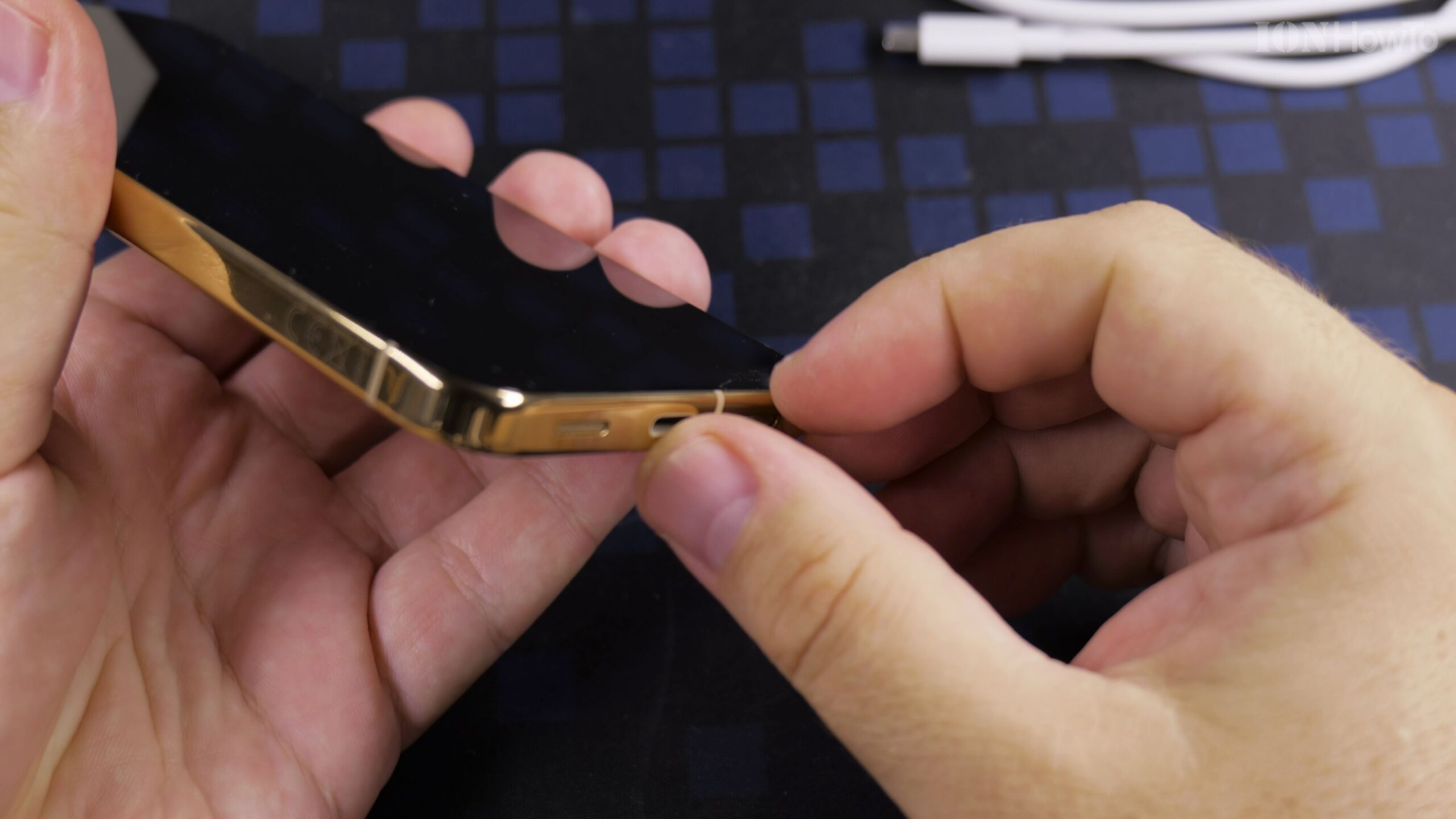
Join a stable Wi-Fi network so the phone can verify security updates. When the mobile network prompt appears, either insert your physical nano-SIM using the included SIM ejector tool or choose to download an eSIM profile later in Settings.
Sign In to Your Google Account and Review Cloud Backup Options
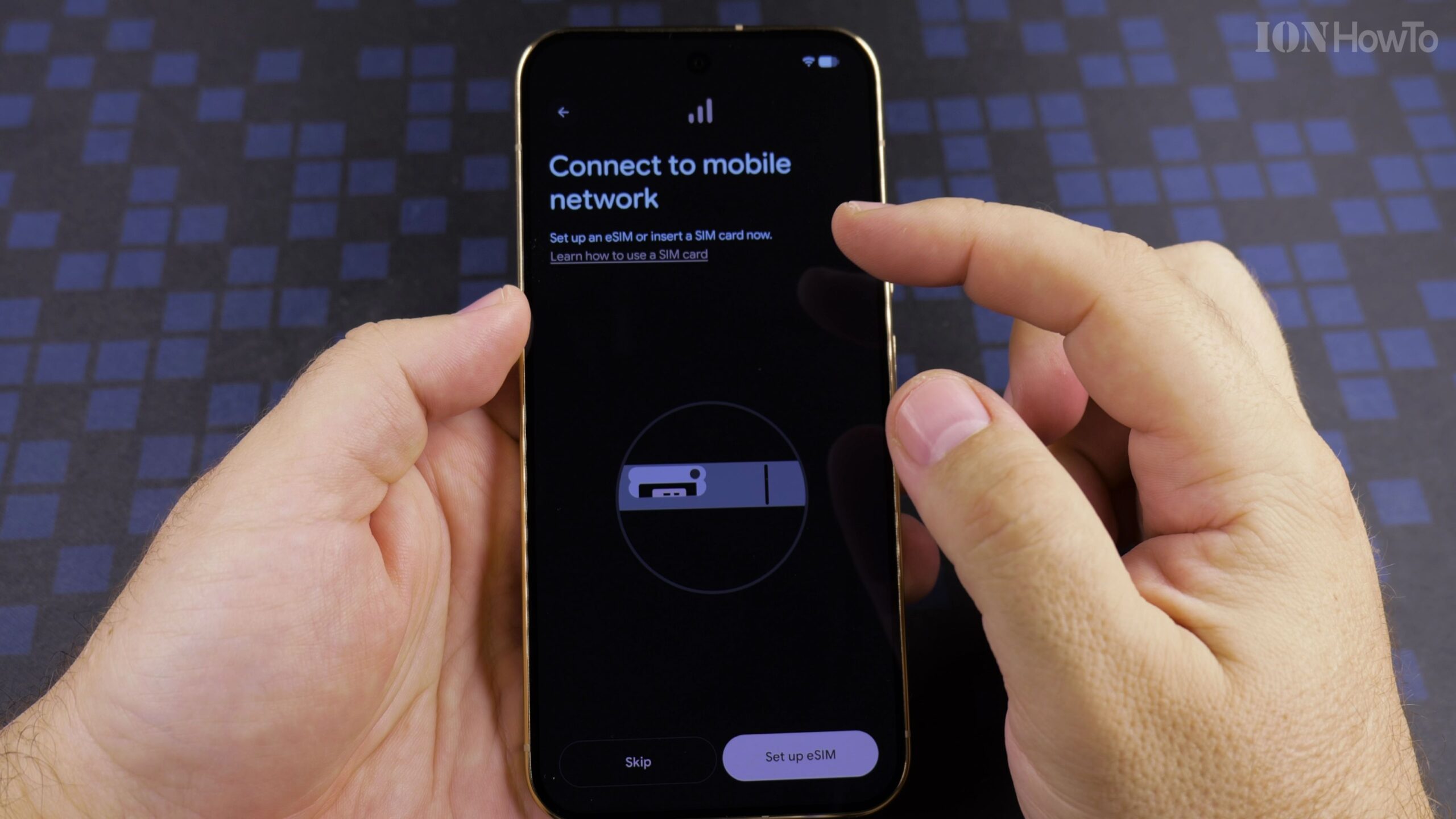
Enter your Gmail address and password to link the phone to your Google account. Enable automatic Google One device backup so your new photos, device settings, SMS messages, and call history stay safely backed up in the cloud.
Set Up PIN Security, Ultrasonic Fingerprint, and Face Unlock
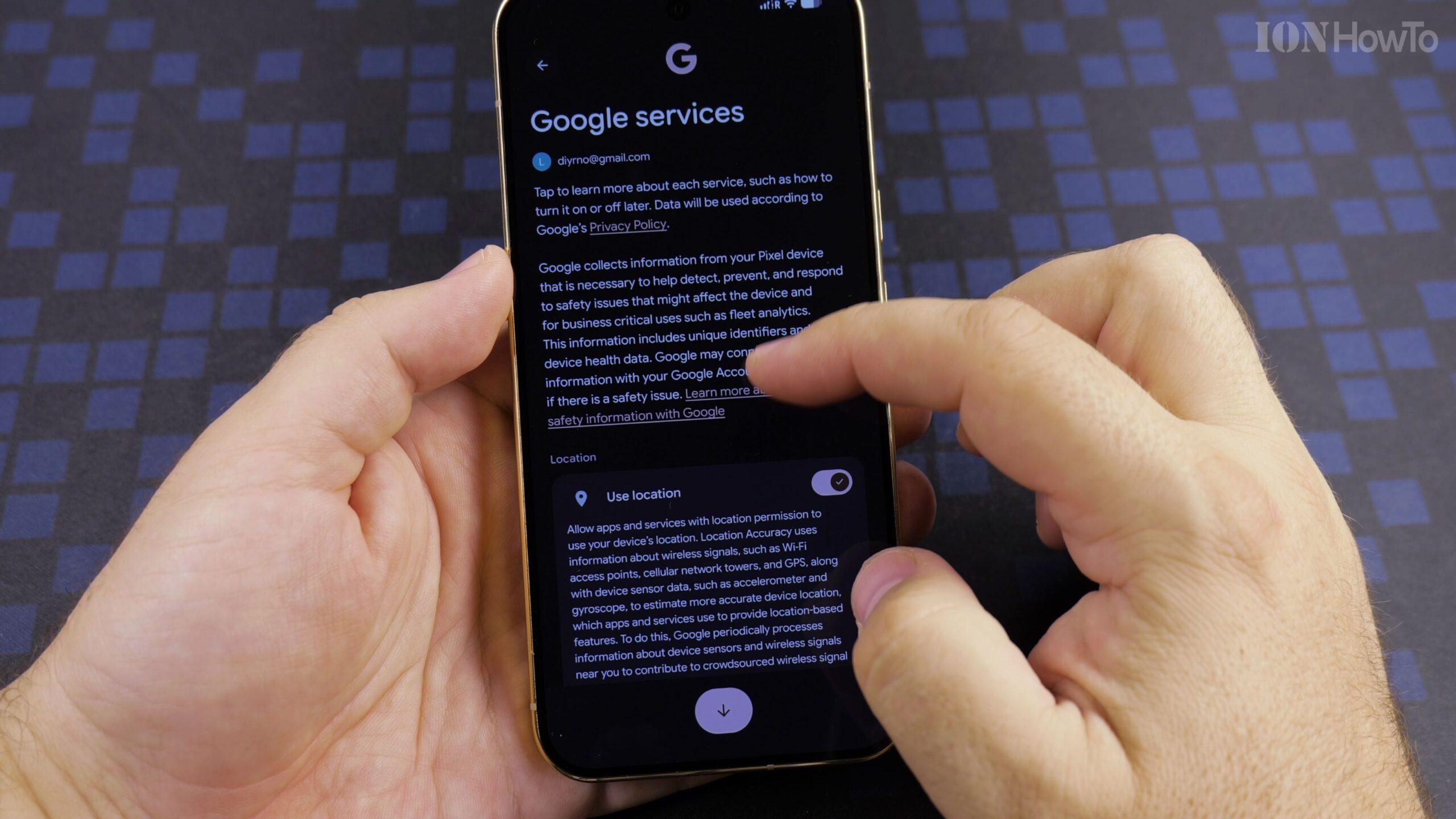
Create a strong six-digit security PIN, then follow the on-screen rings to register your thumbprint on the under-display fingerprint sensor. Afterward, position your face inside the circular frame to enable quick Face Unlock.
Customize Android 17 Display Settings, Gestures, and System Updates
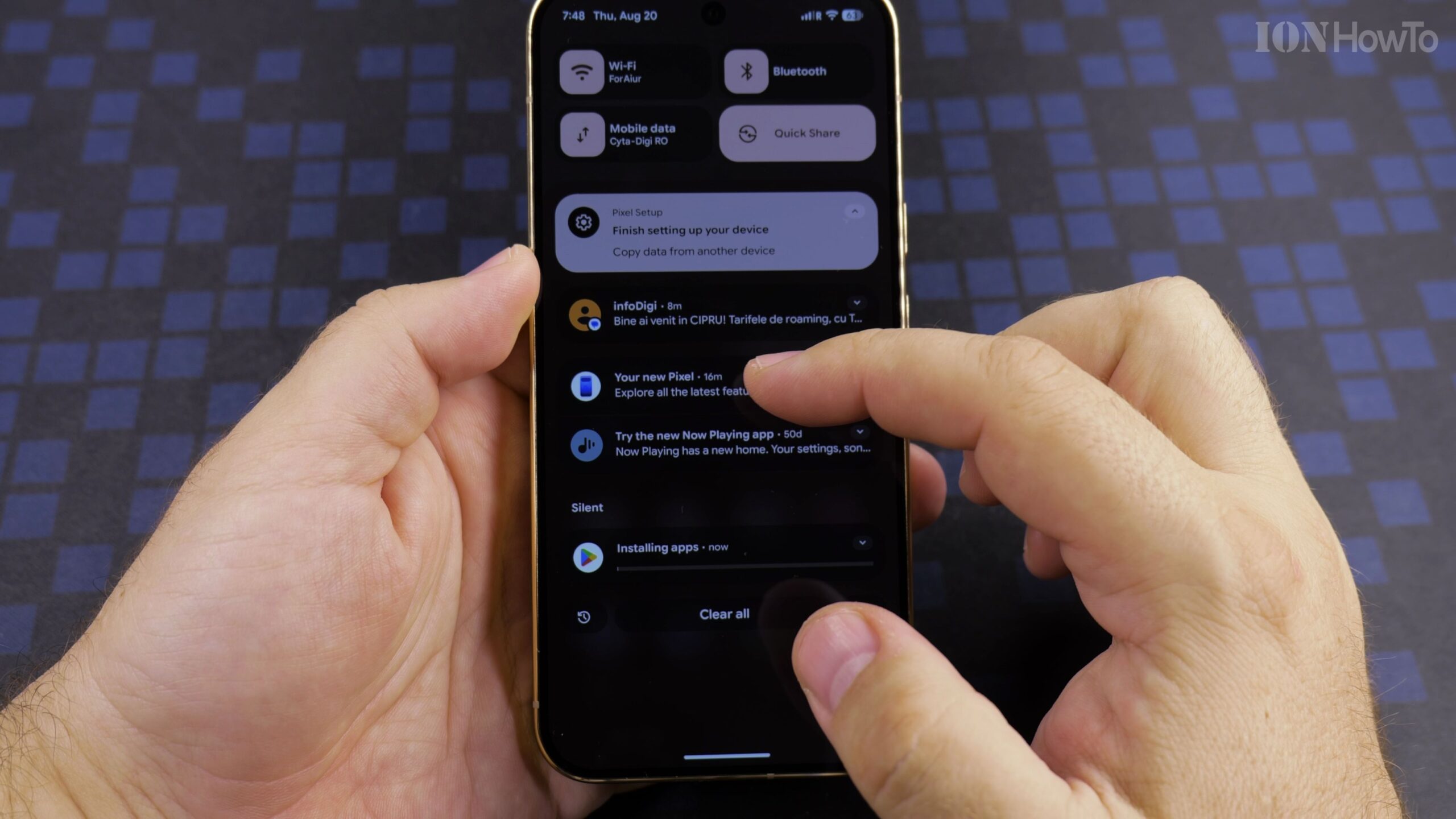
Select between Light and Dark theme, review the swipe navigation tutorial, and complete the setup wizard. Open the Settings app right away to check for the latest Android 17 system and security patches so your new Pixel runs smoothly.
Helpful Tips and Related Guides
Configuring your phone as a fresh device is a great way to keep your 512GB storage organized from day one. Remember that the 512GB configuration includes 16GB of RAM compared to 12GB on the 256GB base model. Explore more tutorials in our Google Pixel 11 Pro XL category, visit our Google Pixel Phone archive, or see our guide on Google Pixel 11 Pro XL 50MP and RAW Camera Settings.
Leave a Reply Cancel reply