


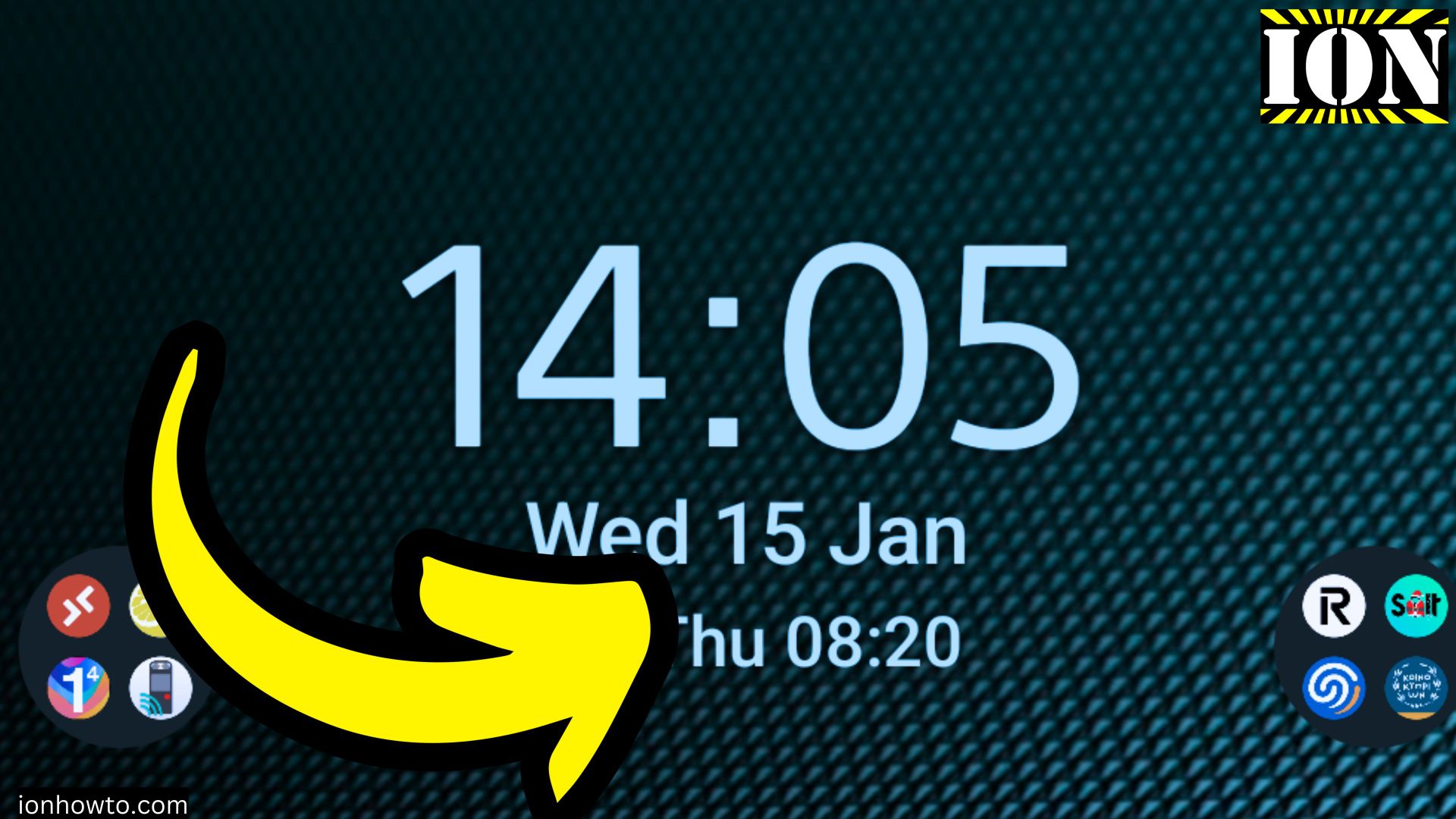
How to Add a Clock to Your Android Home Screen.
Learn how to easily add a clock widget to your Sony Xperia 1V (Android 14) home screen. I’ll show you the steps to customize your display for quick time checks.
Amazon links
As an Amazon Associate I earn from qualifying purchases:
- Phone Accessories
- Screen protectors
- Phone Cases
- Mobile Tripods
- Usb-c charger
- Usb-c cable
- Docking stations
- Wireless car chargers
- Wireless charger stand
- SIM card removal tool
- SIM card holder
Why Add a Clock Widget?
Having a clock on your home screen lets you:
- See the time at a glance
- Skip unlocking your phone just to check the time
- Personalize your home screen’s look

Steps to Add a Clock Widget
- Long press on any empty space on your home screen
- Tap Widgets from the menu that appears
- Scroll to find the Clock section
- Press and hold your preferred clock style
- Drag it to your desired location and release
Customizing Your Clock Widget
After placing the clock:
- Resize it by long-pressing and dragging the edges
- Move it by dragging to a new position
- Some clocks offer style options – tap the widget to check
Alternative Clock Options
If you want more choices:
- Open the Google Play Store
- Search for “clock widgets”
- Install a third-party option like Digital Clock Widget
- Follow the same steps above to add it
Troubleshooting Tips
If you don’t see clock widgets:
- Your launcher might limit widgets – try a different launcher
- Some manufacturers hide widgets in a “Tools” category
- Restart your phone if widgets aren’t loading properly
Final Thoughts
Now you know how to add and customize a clock on your Sony Xperia 1V home screen. Experiment with different styles and positions to find what works best for you.
Got any questions about Android home screen customization? Ask in the comments below!
Leave a Reply Cancel reply