


Learn how to quickly disable Bluetooth on your Android phone to save battery life and improve security. I’ll show you multiple ways to turn it off and explain why you might want to.
Amazon links
As an Amazon Associate I earn from qualifying purchases:
- Phone Cases
- Mobile Tripods
- Usb-c charger
- Usb-c cable
- Docking stations
- Wireless car chargers
- Wireless charger stand
- SIM card removal tool
- SIM card holder
Why Turn Off Bluetooth?
Keeping Bluetooth on when you’re not using it can:

- Drain your battery faster
- Potentially expose your device to security risks
- Cause interference with other wireless devices

Quick Steps and Scenarios Overview
| What You Need to Do | Quick Jump |
|---|---|
| Why Turn Off Bluetooth? | Jump to Step 1 |
| Quickest Way to Turn Off Bluetooth | Jump to Step 2 |
| Alternative Method Through Settings | Jump to Step 3 |
| How to Tell If Bluetooth Is Really Off | Jump to Step 4 |
| When to Keep Bluetooth On | Jump to Step 5 |
| Extra Tip: Automatic Bluetooth Control | Jump to Step 6 |
Quickest Way to Turn Off Bluetooth
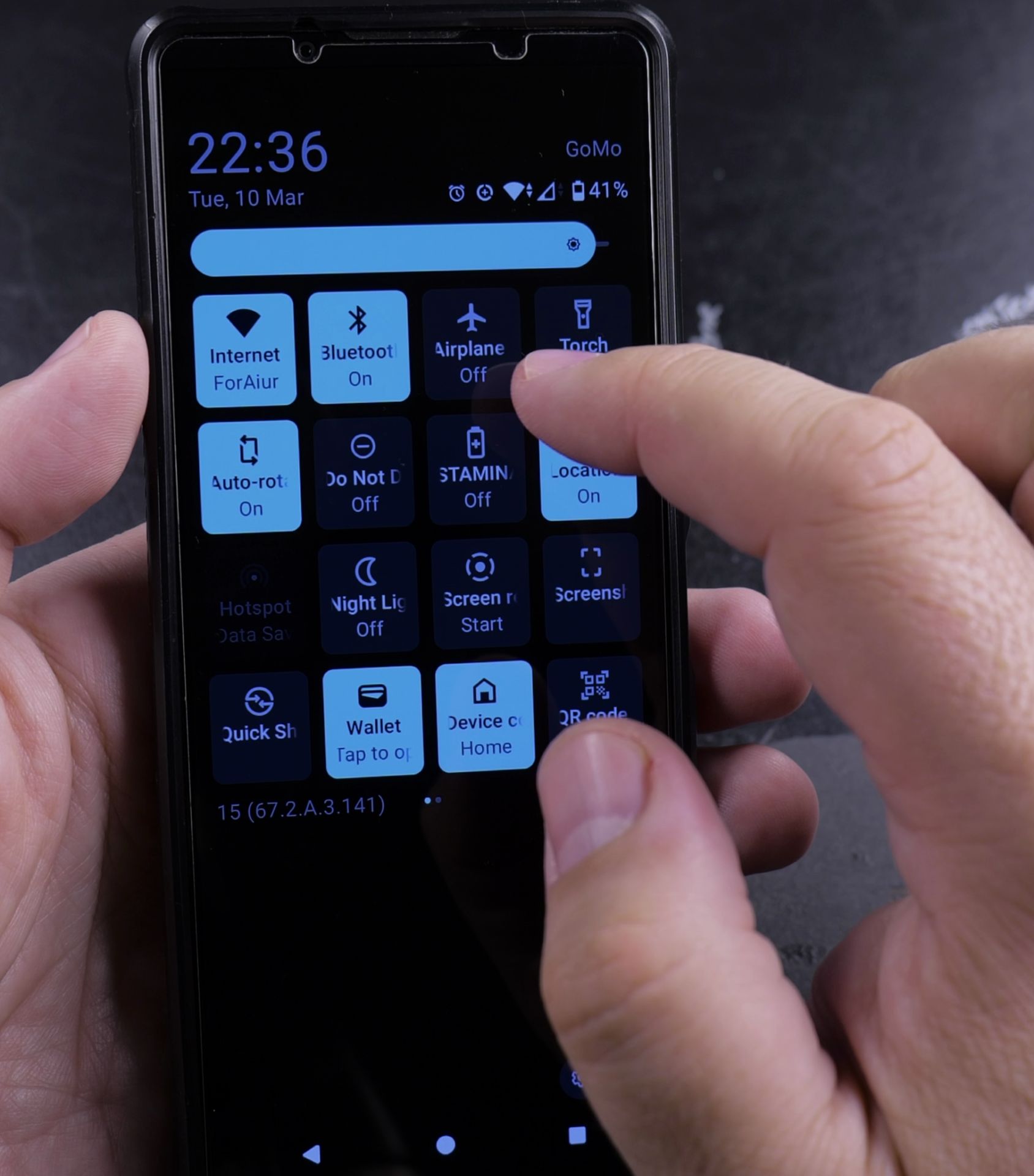
- Swipe down from the top of your screen to open the Quick Settings panel
- Look for the Bluetooth icon (it looks like a stylized “B”)
- Tap the icon to turn it off (it will turn gray when disabled)

Alternative Method Through Settings
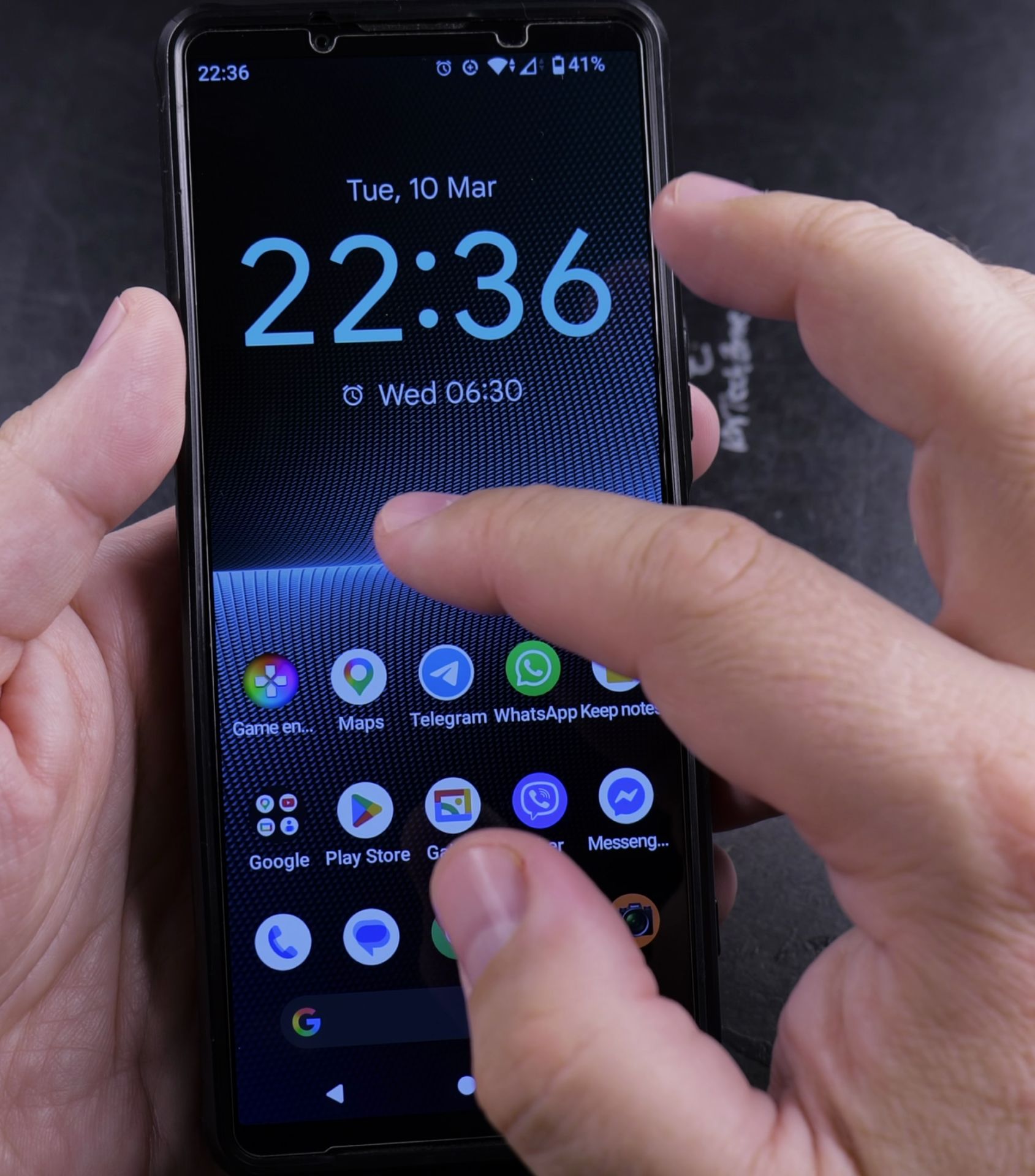
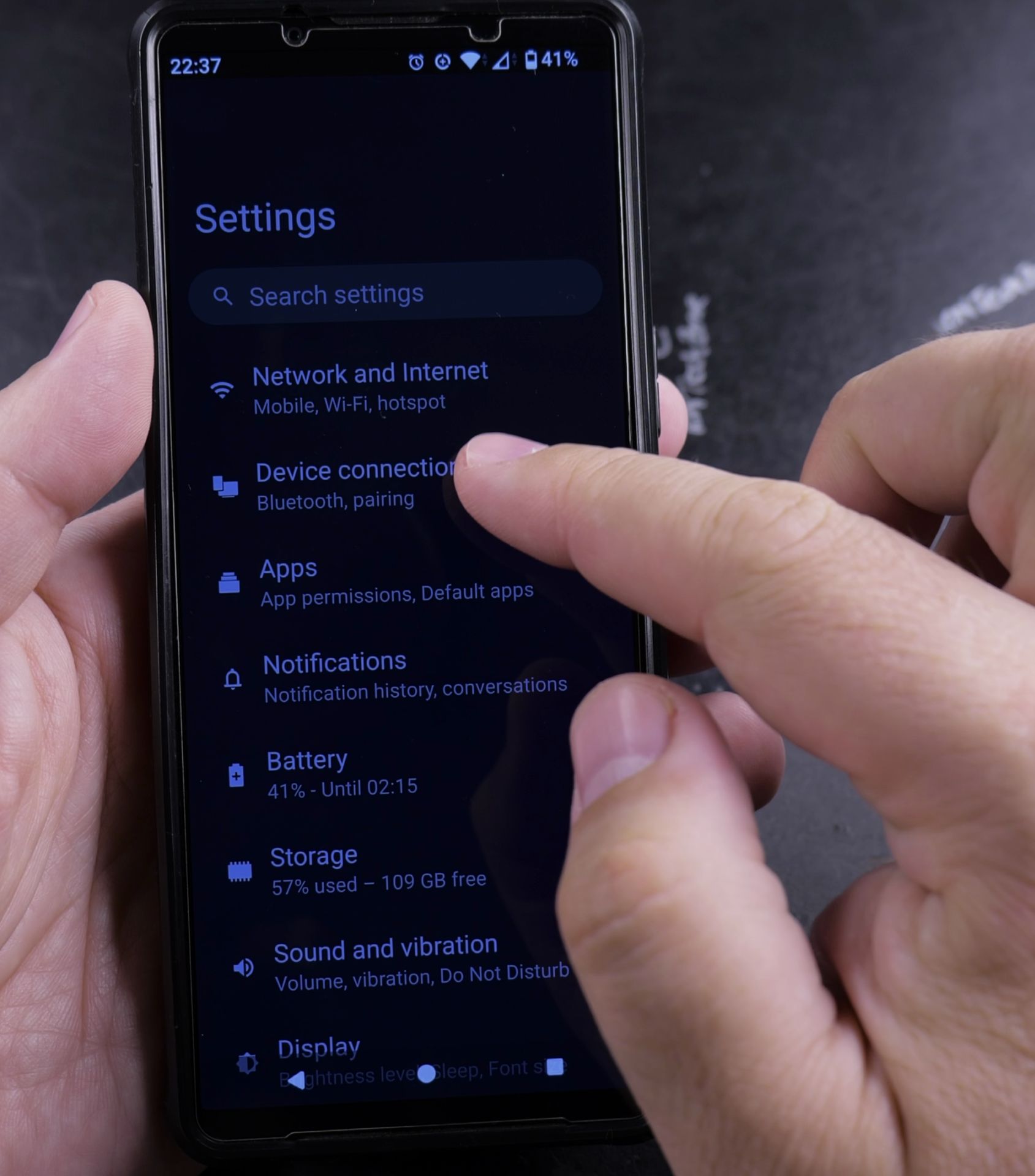
- Open your Settings app
- Tap Connected devices
- Select Connection preferences
- Choose Bluetooth
- Toggle the switch to the Off position
How to Tell If Bluetooth Is Really Off
After disabling:
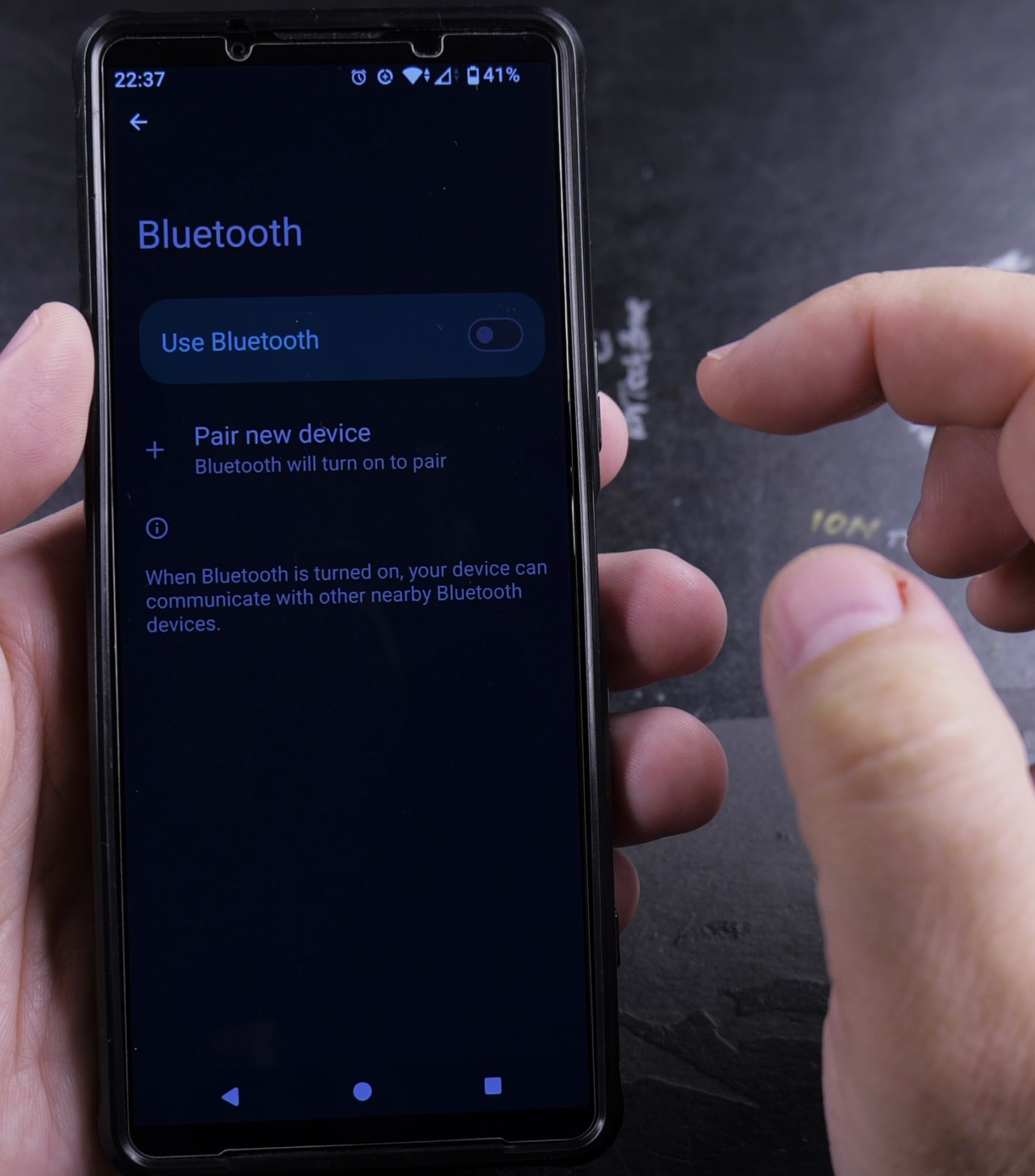
- The Bluetooth icon should disappear from your status bar
- The Quick Settings icon will appear grayed out
- Your phone won’t appear in other devices’ Bluetooth scans
When to Keep Bluetooth On
You might want to leave Bluetooth enabled if you:
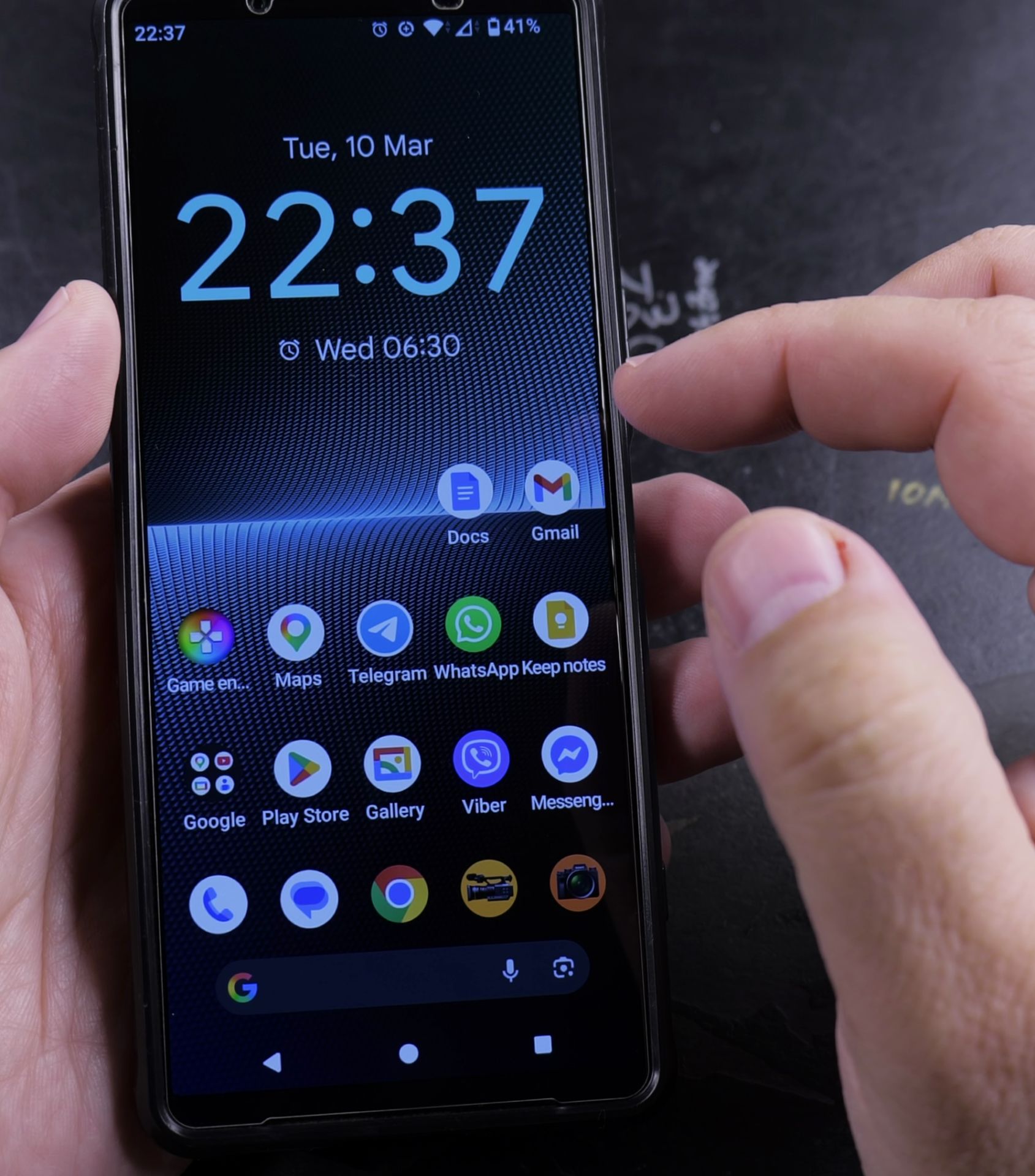
- Use wireless headphones regularly
- Have a smartwatch that stays connected
- Frequently connect to your car’s audio system
Extra Tip: Automatic Bluetooth Control
Learn how to use Android‘s Automation features to:
- Turn Bluetooth on/off at specific times
- Enable Bluetooth only when certain apps are open
- Disable Bluetooth when your battery is low
That’s all there is to it! Now you know how to easily turn Bluetooth on and off whenever needed. If you have any questions about managing your Bluetooth connections, feel free to ask in the comments below.
Helpful Tips
Take your time and check the screen carefully after each tap so you can confirm the setting changed as expected. If an option appears in a slightly different spot on your device, watch the embedded video above for a closer look.
Related Guides
- Remove Apps from Samsung Android Home Screen – How to Remove Apps from Home Screen on Samsung Android.
- Remove App From Android Home Screen – How to Remove an App from Your Home Screen on Android.
- Change Wallpaper on Android Lock Screen and Home Screen – How to Change Wallpaper on Android Lock Screen and Home Screen.
- Android & Mobile Guides – Browse more tutorials and practical guides in this section.
Leave a Reply Cancel reply