


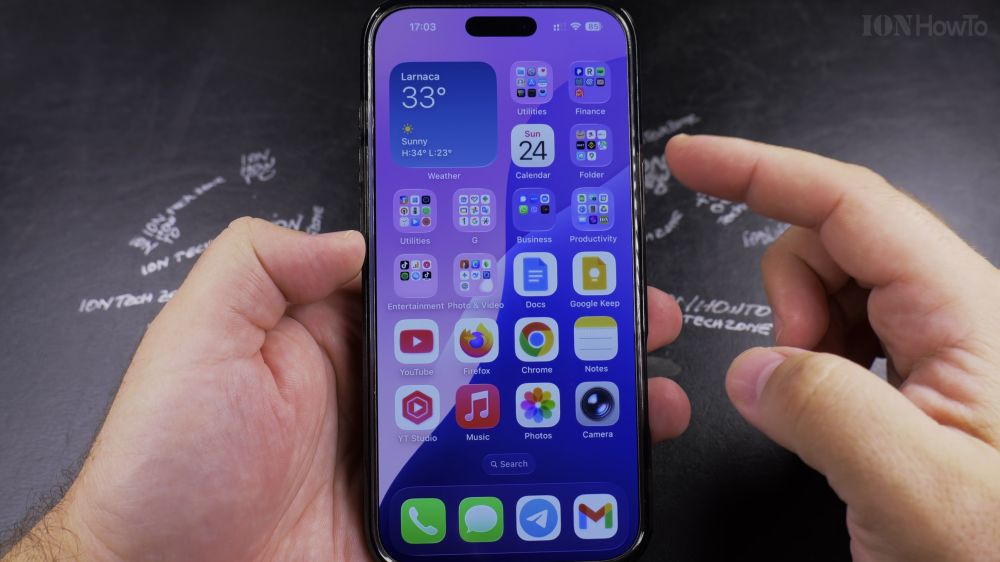
If you added a new rewards card or bank card to Apple Wallet, you probably want it to be your default card for tap-to-pay. I’ll show you two quick ways to set your preferred payment card on your iPhone.

1. Quick Drag Method in Wallet
Open the **Wallet** app. Touch and hold the card you want as your primary card, then drag it down to the very front of the card stack.

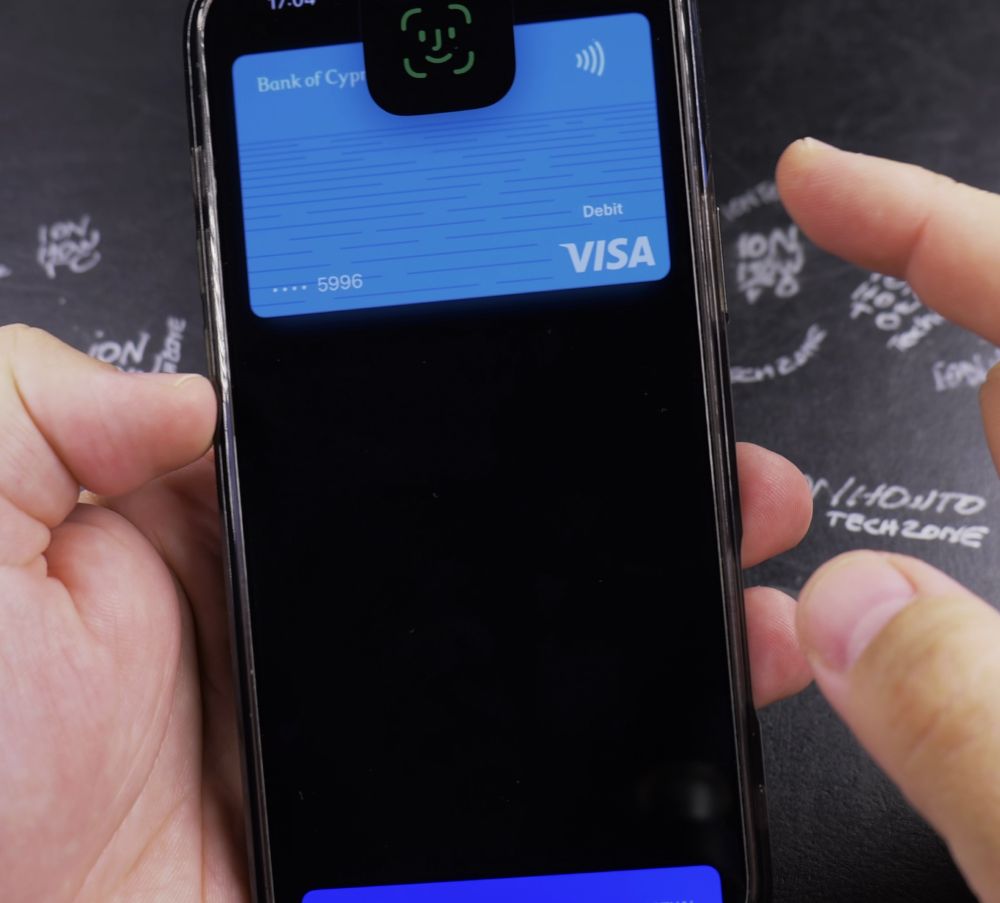
2. Release to Set as Default
Release your finger. A prompt confirms this card is now your default payment card for Apple Pay.
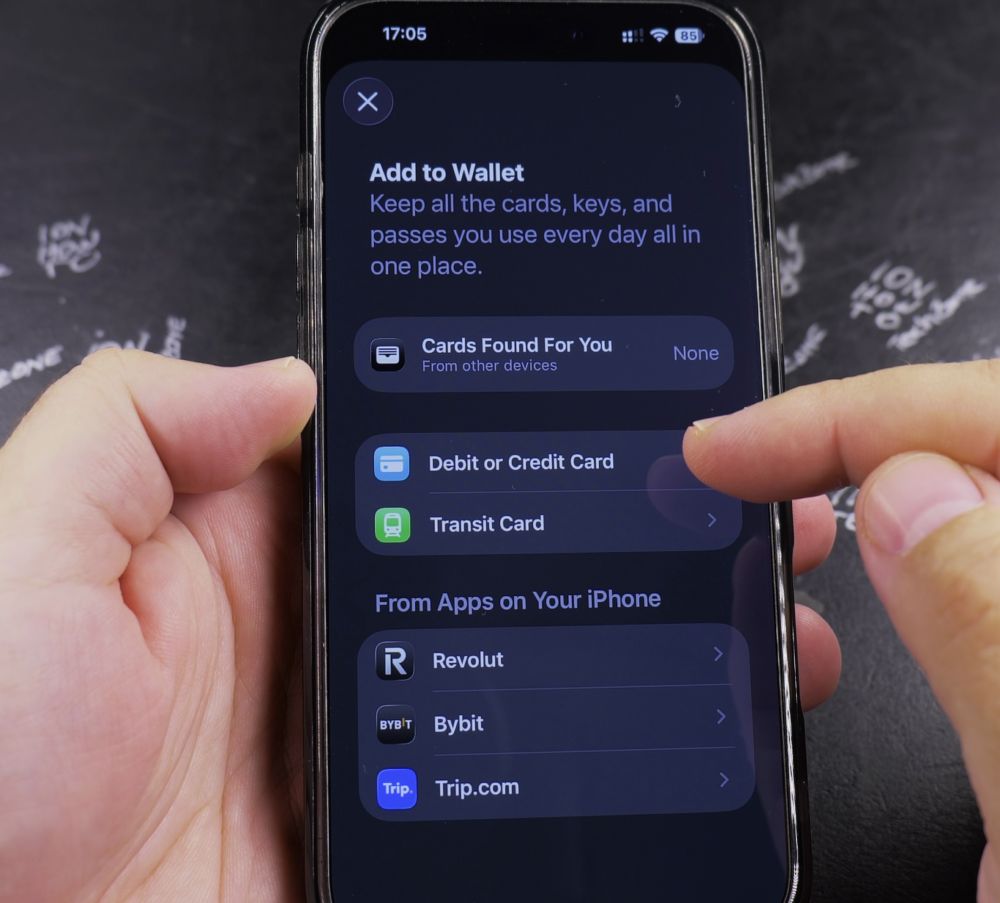
3. Alternative Settings Method
Open the **Settings** app on your iPhone and tap **Wallet & Apple Pay**.
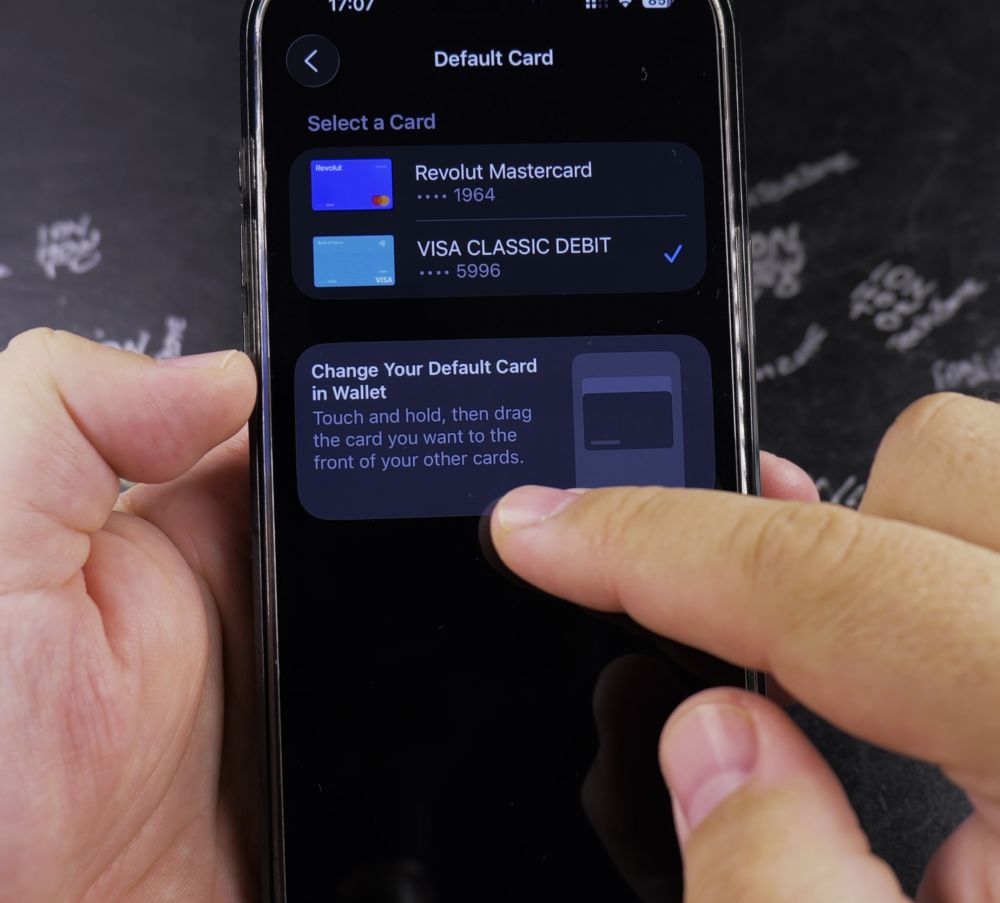
4. Scroll to Transaction Defaults
Scroll down to the Transaction Defaults section and tap **Default Card**.
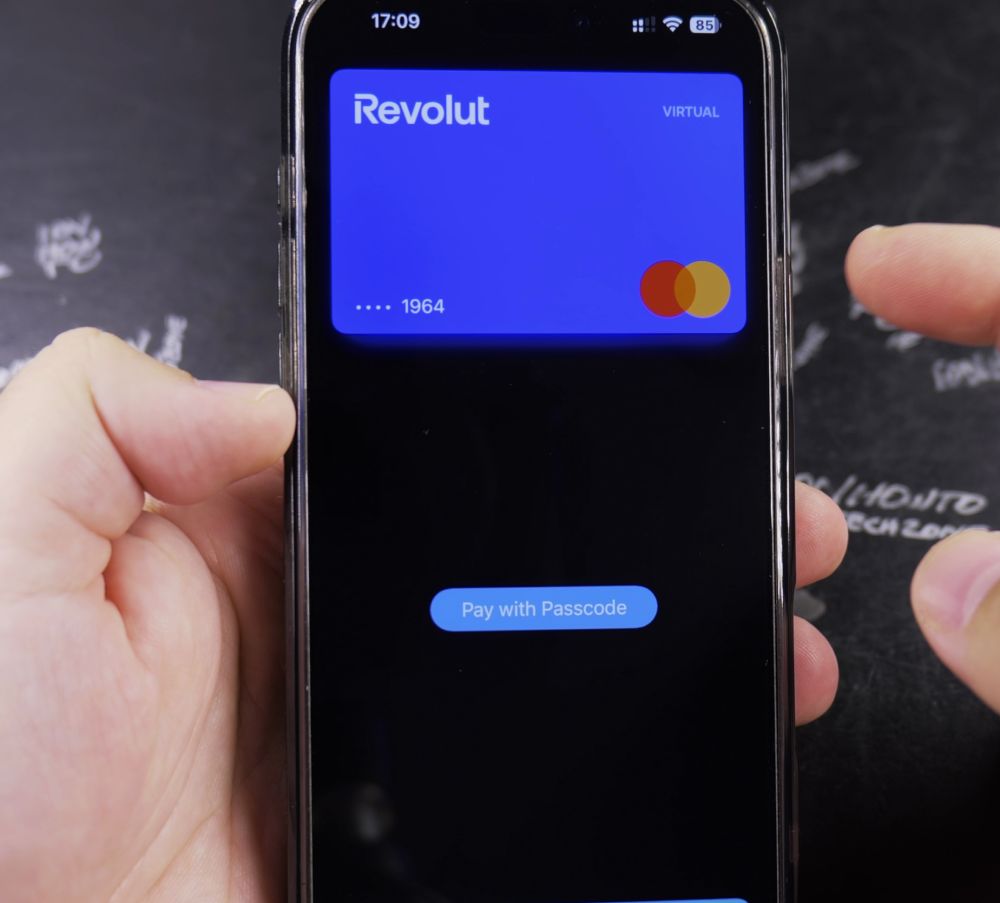
5. Select Your Preferred Card
Tap the checkmark next to the credit or debit card you want to use automatically whenever you double-click the side button.
Helpful Tips
You can still choose another card at the checkout terminal before tapping by simply tapping the card stack to reveal other cards. For more convenient iPhone walkthroughs, explore our iPhone Guides collection.
Leave a Reply Cancel reply