


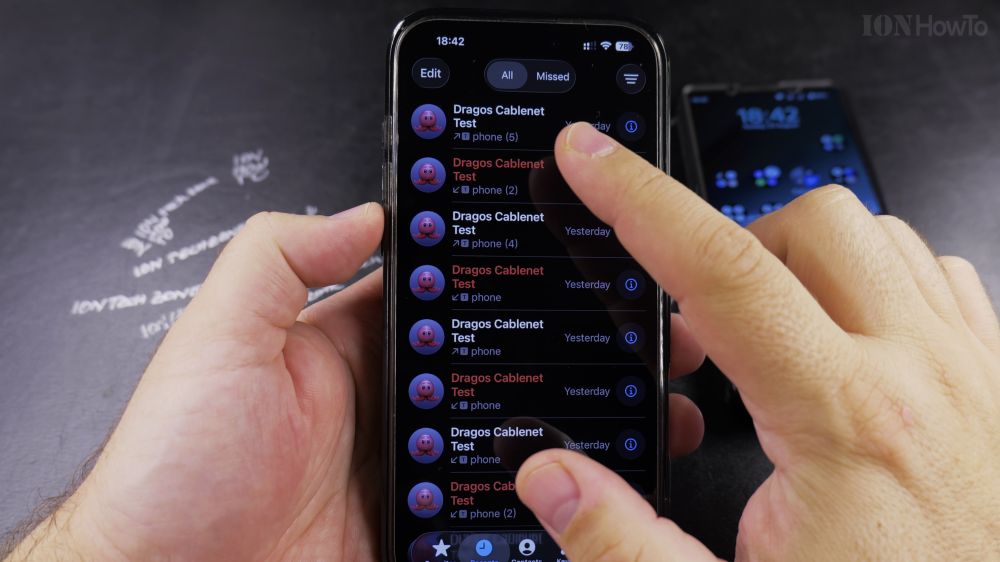
If your phone rings while across the room or while driving, you can have Siri speak the caller’s name automatically. I’ll show you how to enable caller name announcements in your iPhone settings in a few taps.

1. Open Settings
Tap the gray **Settings** gear icon on your iPhone home screen.

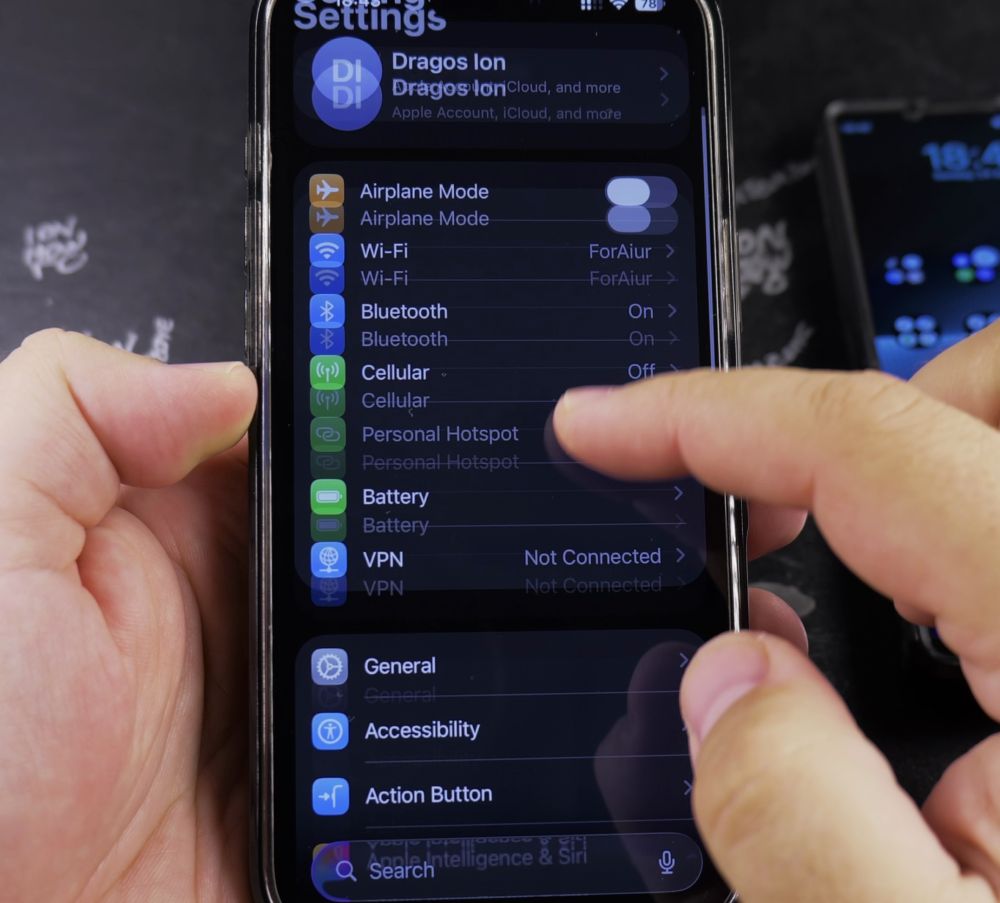
2. Scroll to Phone
Scroll down past the main options and tap **Phone** (or tap **Siri & Search**).
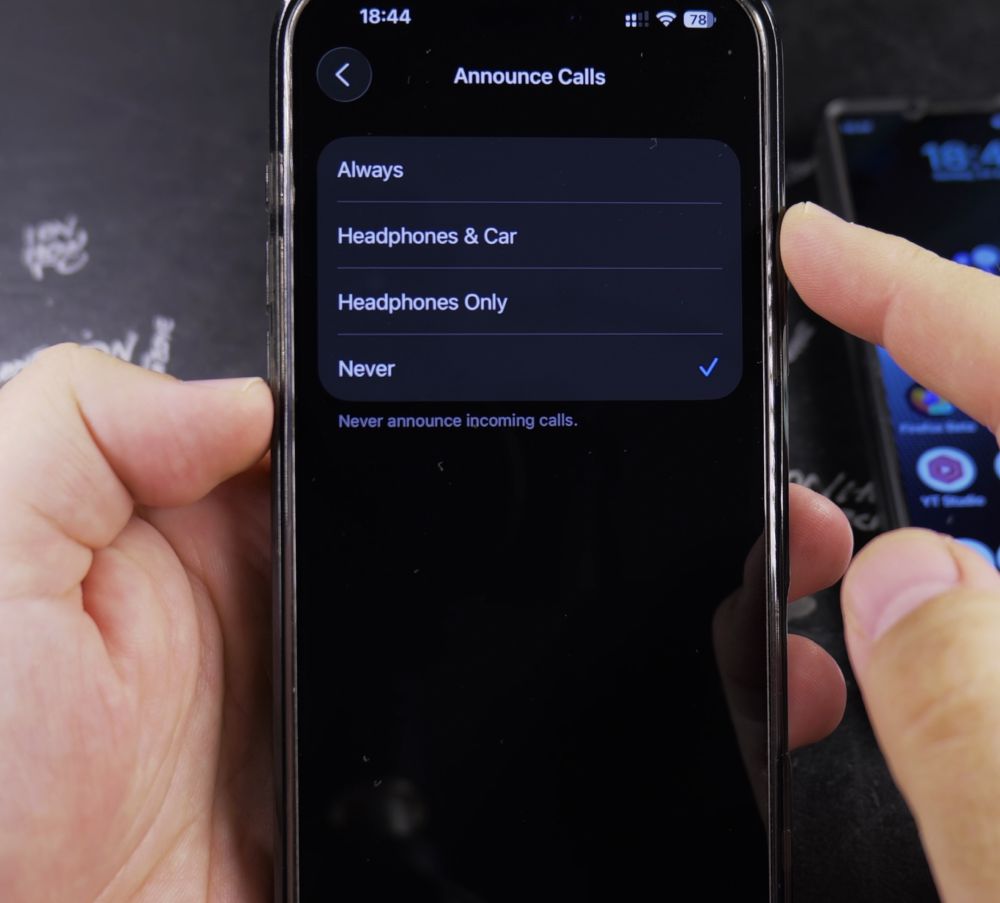
3. Tap Announce Calls
Under the Calls section, tap **Announce Calls**.
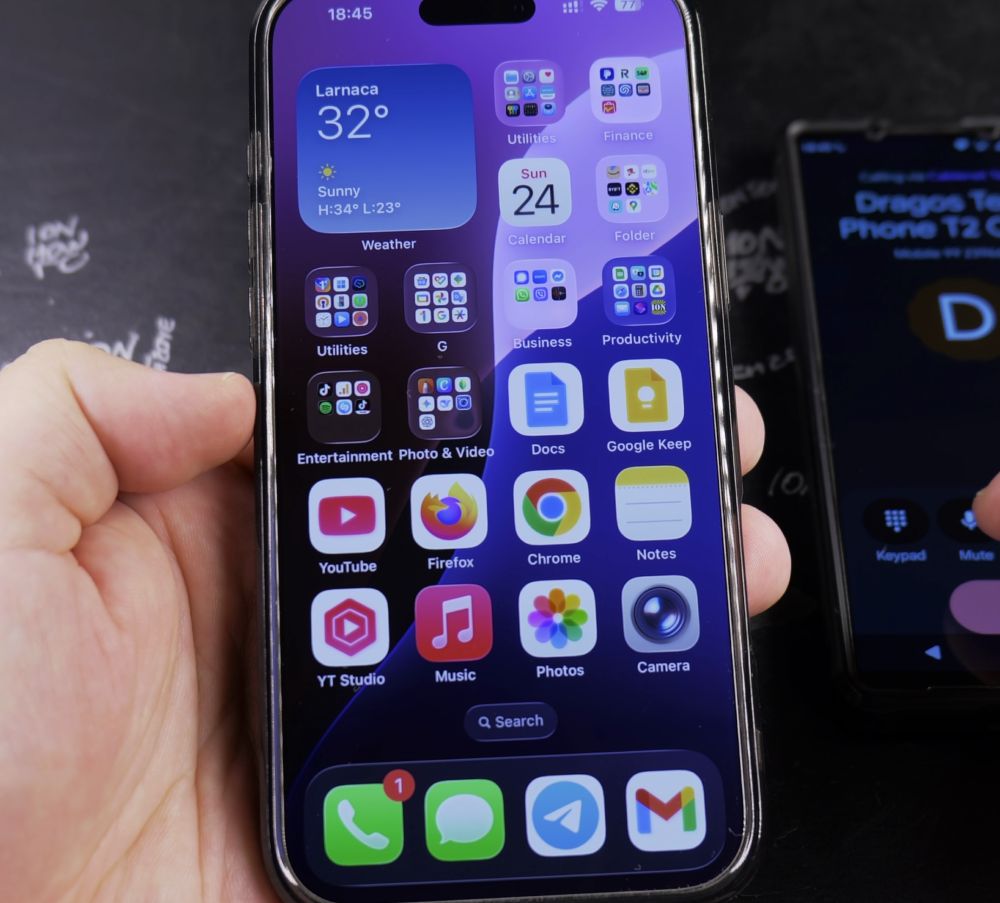
4. Select Always or Headphones & Car
Tap **Always** if you want Siri to announce callers anytime the phone rings. Choose **Headphones & Car** if you only want announcements when connected to AirPods, headsets, or vehicle Bluetooth.
5. Place a Test Call
When a contact calls your iPhone, Siri will announce their saved name aloud between rings.
Helpful Tips
For unknown numbers not saved in your contacts list, Siri will simply announce ‘Unknown caller’. If you ever want silent incoming calls, switch this setting back to **Never**. For more helpful Apple tips, visit our iPhone Guides collection.
Leave a Reply Cancel reply