


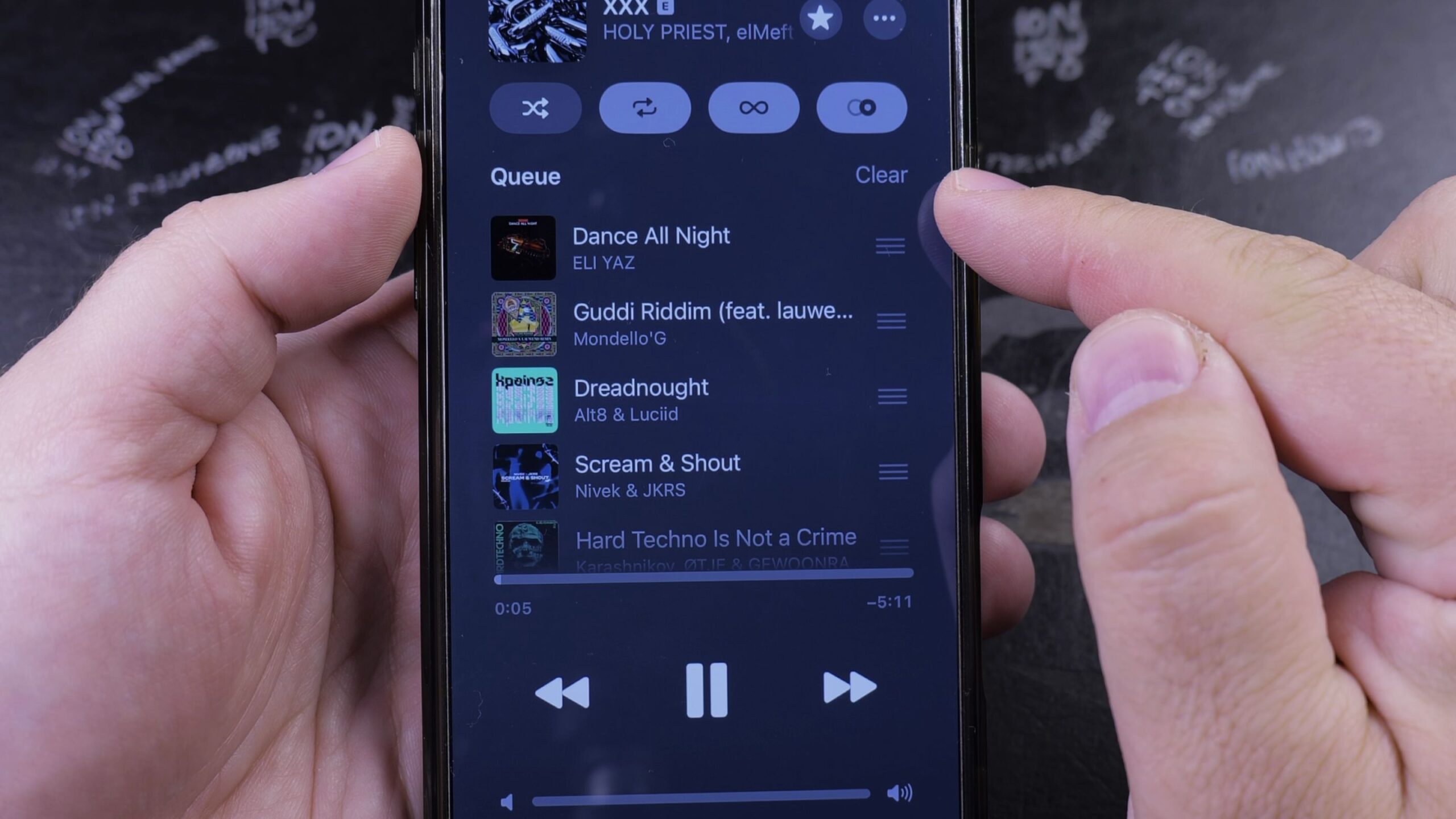
If you added several tracks to your music list and want to reset what plays next, emptying the queue gives you a fresh start. I’ll show you how to clear the queue in Apple Music on your iPhone in just a few taps.

1. Open the Now Playing Screen
Open the Music app on your iPhone.
Look at the bottom of the screen where your current track is playing. Tap the mini-player bar to open the full-screen view.

2. Open the Playing Next Queue
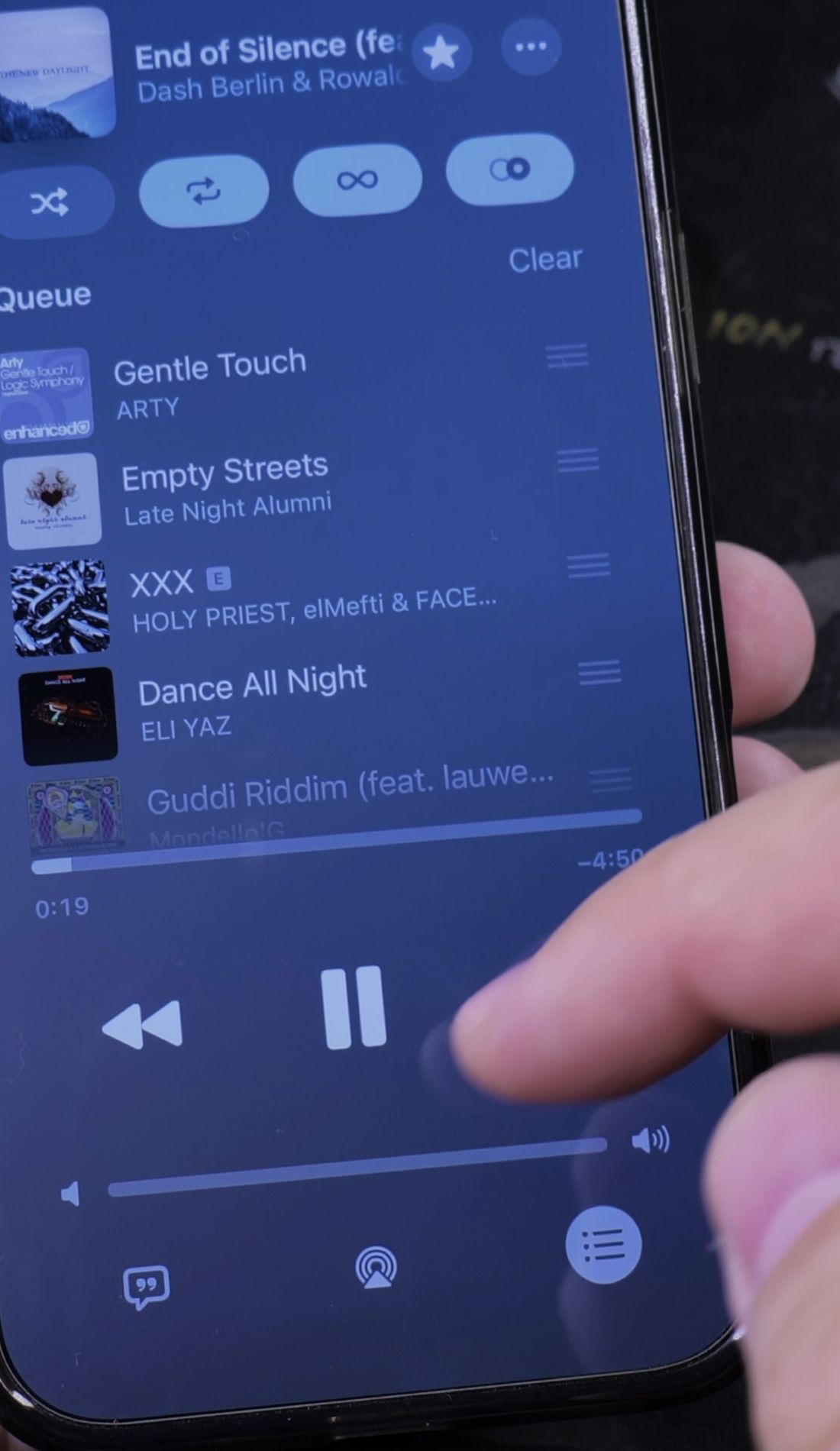
Look at the bottom-right corner of the full player screen.
Tap the Queue icon, which looks like three horizontal lines with small bullet points.
A list of upcoming songs labeled Playing Next slides up onto your screen.

3. Tap the Clear Button
Look right above the first upcoming song on the right side.
Tap the red Clear button.
All manually queued songs disappear immediately, leaving only your current playing track.
4. Turn Off AutoPlay if Needed
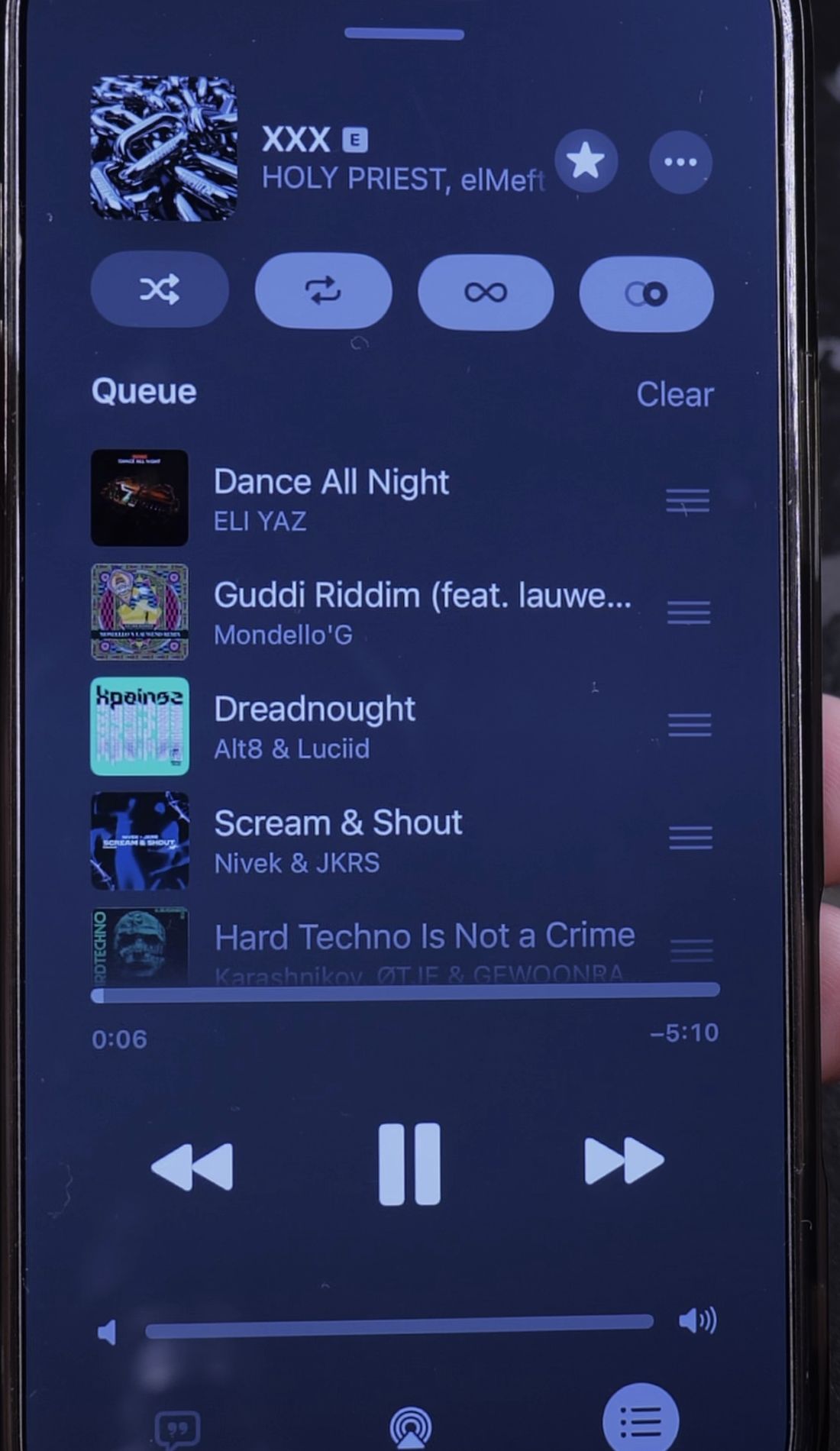
If new recommendations still keep playing after your songs finish, AutoPlay is turned on.
Look at the top of the queue screen next to the repeat and shuffle buttons.
Tap the Infinity icon so it is not highlighted. Music will now stop playing completely once your current track or album ends.

Helpful Tips
To remove just a single song instead of the whole queue, swipe left across that specific song title and tap the red Remove button.
If you like building custom listening sessions, check our guide on how to create a playlist in Apple Music. You can also learn how to set a sleep timer for Apple Music, or explore our full collection of Apple Music guides.
Leave a Reply Cancel reply