


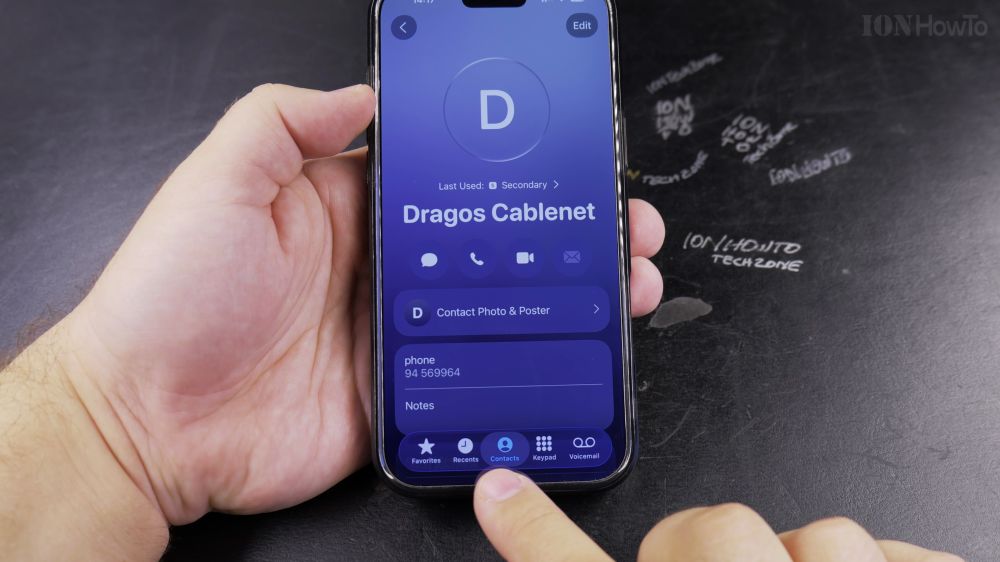
When someone changes their phone number or gets a new email address, keeping their contact card updated prevents missed messages. I’ll show you how to edit any contact’s details on iPhone in seconds.

1. Open Contacts
Open the **Phone** app, tap the **Contacts** tab, and tap the person you want to edit.

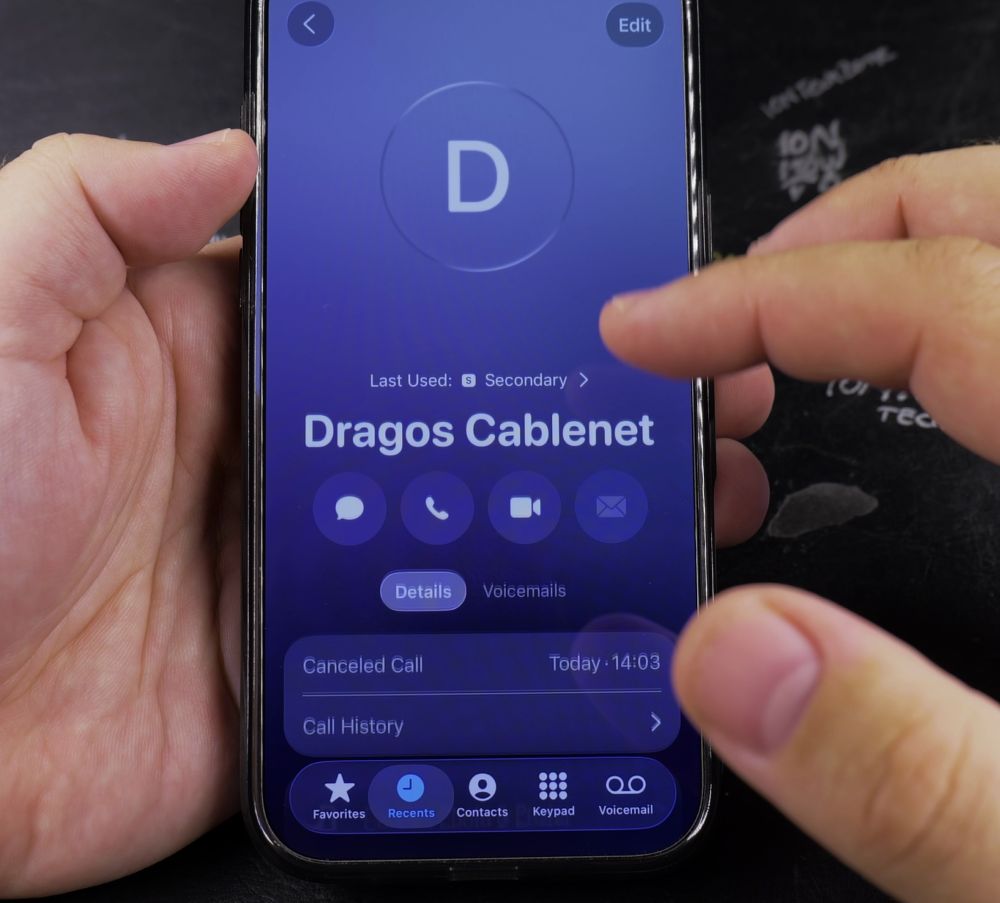
2. Tap Edit
In the top-right corner of their contact card, tap **Edit**.
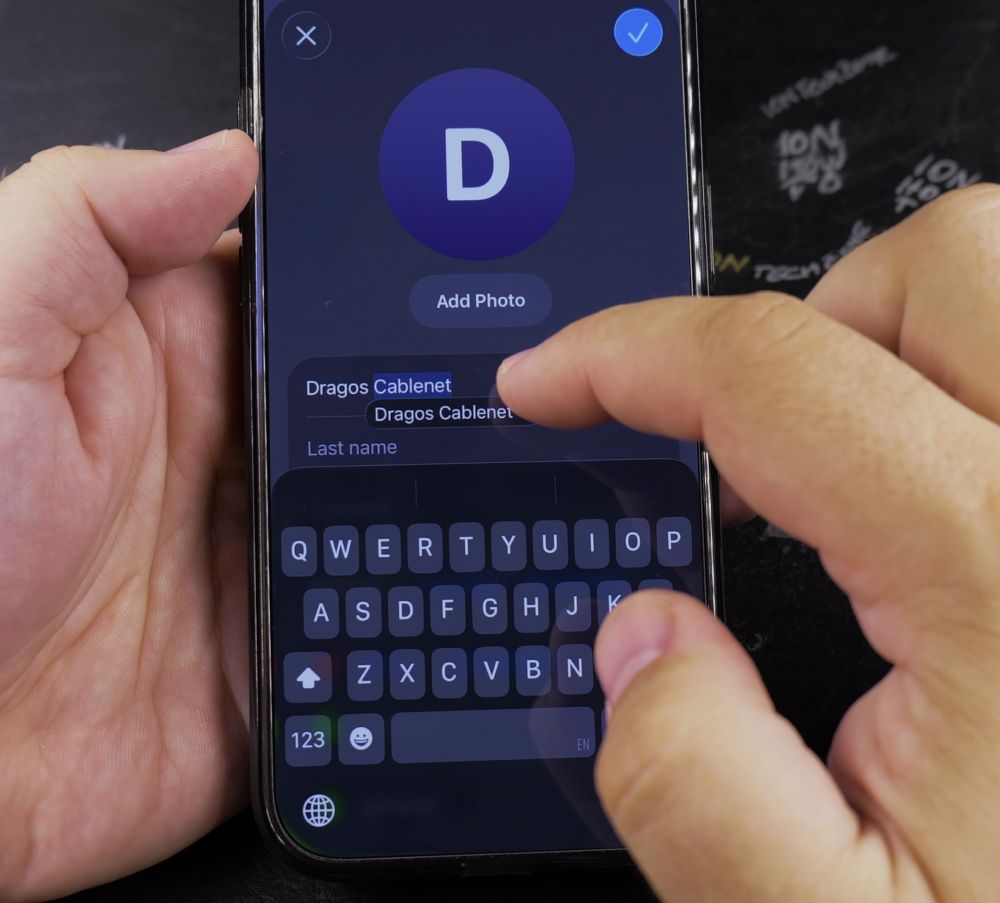
3. Update Name or Info
Tap on the **First Name** or **Last Name** field to make corrections.
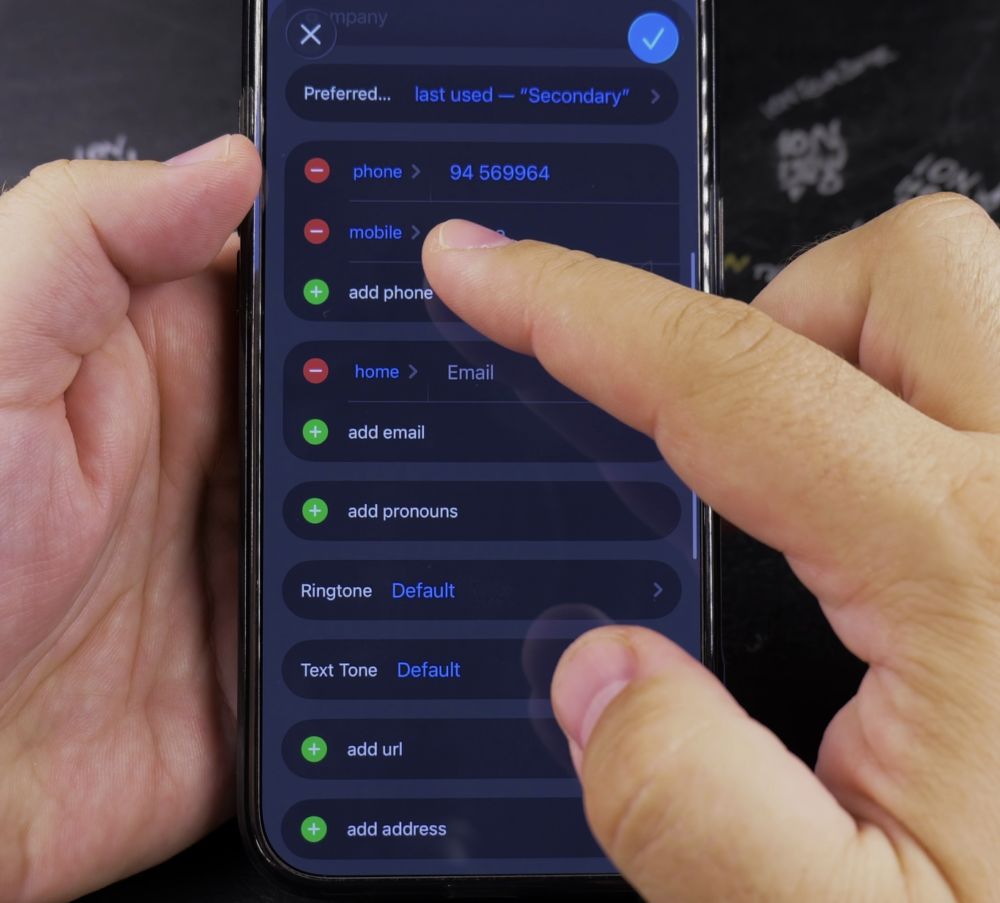
4. Add Another Number
Tap the green **+ (add phone)** button to add a second mobile number, work line, or home phone.
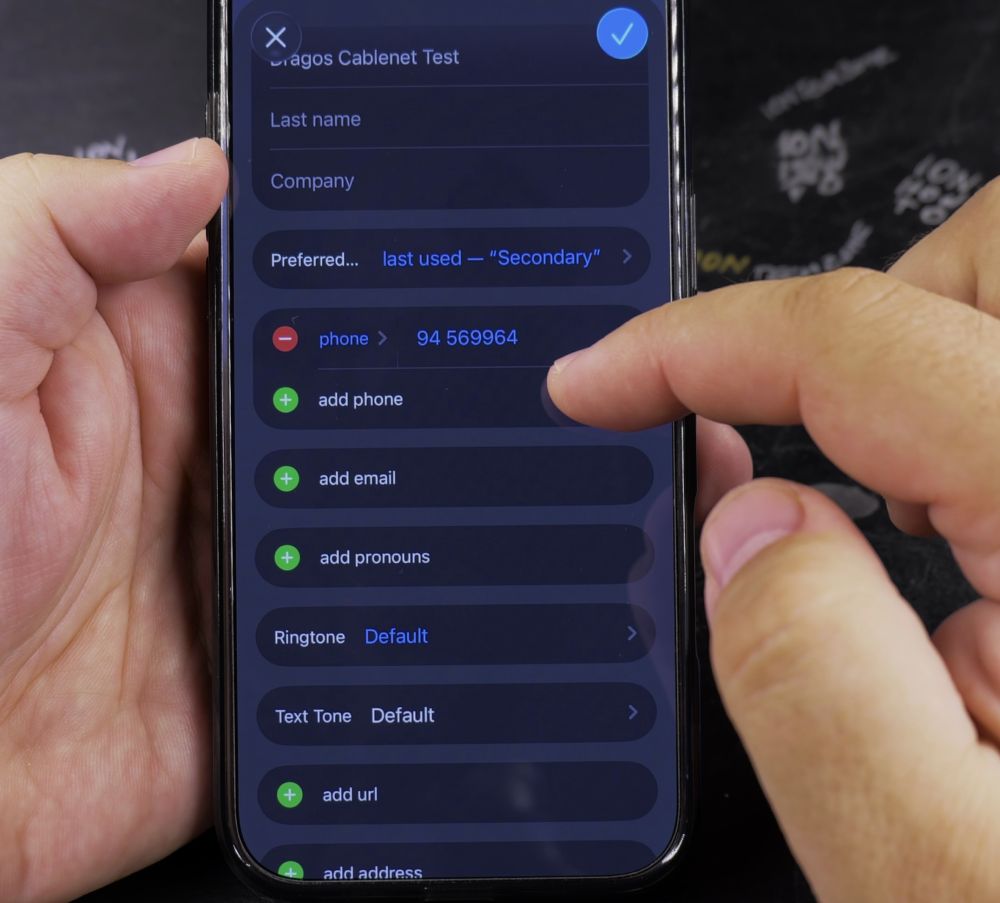
5. Tap Done
Tap **Done** in the top-right corner to save your changes immediately.
Helpful Tips
To change a phone number’s label (such as switching from ‘Mobile’ to ‘Work’ or ‘iPhone’), tap the label name on the left side of the number field. For more iOS guides, check out our iPhone Guides collection.
Leave a Reply Cancel reply