


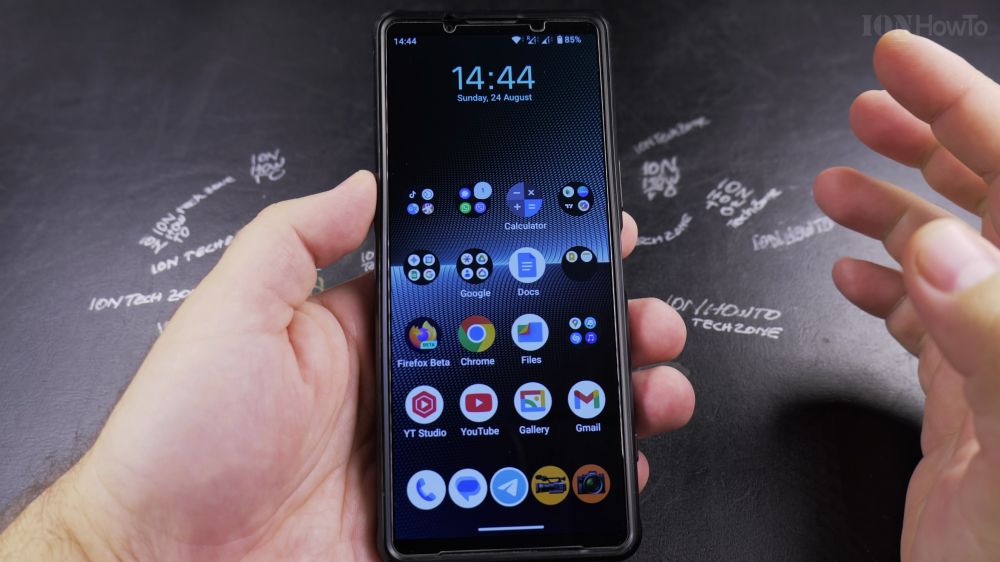
If a friend or grandchild asks to borrow your phone to make a call or play a game, you might worry about them snooping through private data. I’ll show you how to lock your screen onto a single app using Android App Pinning.

1. Open Settings
Swipe down from the top of your screen and tap the **gear icon** to enter Settings.

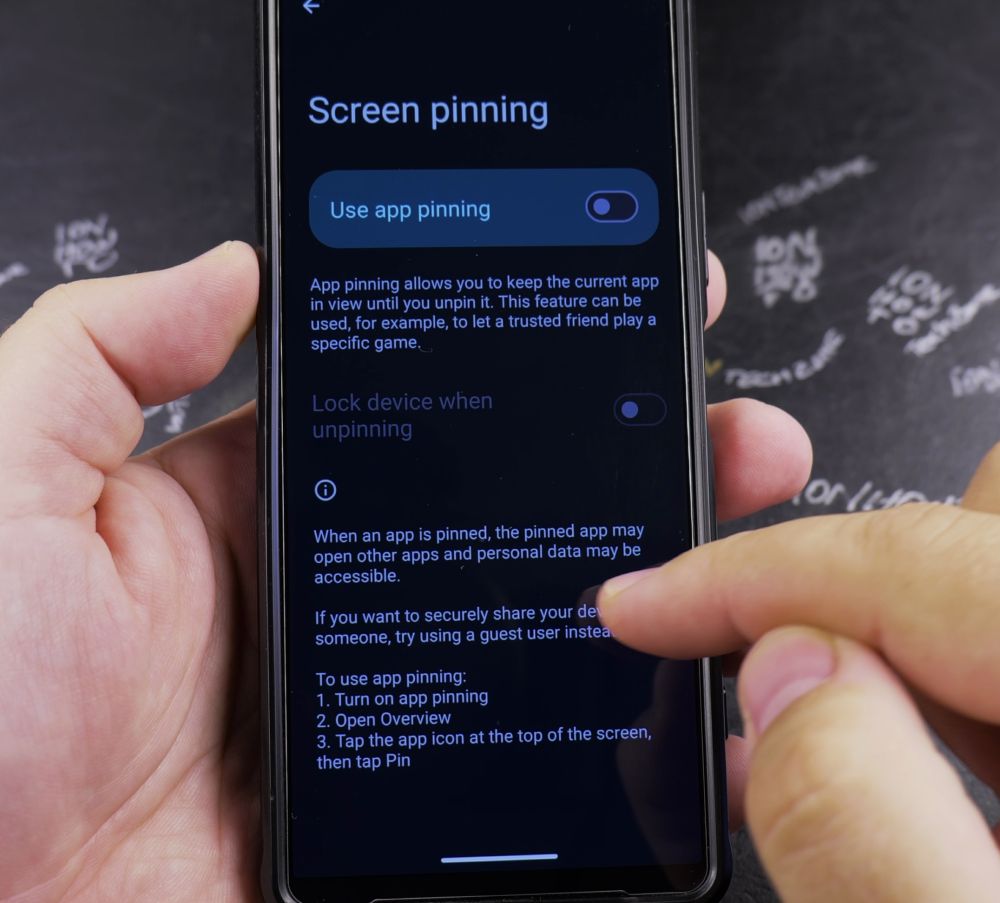
2. Go to Security & Privacy
Scroll down and tap **Security & privacy** (or **Lock screen and security** on Samsung).
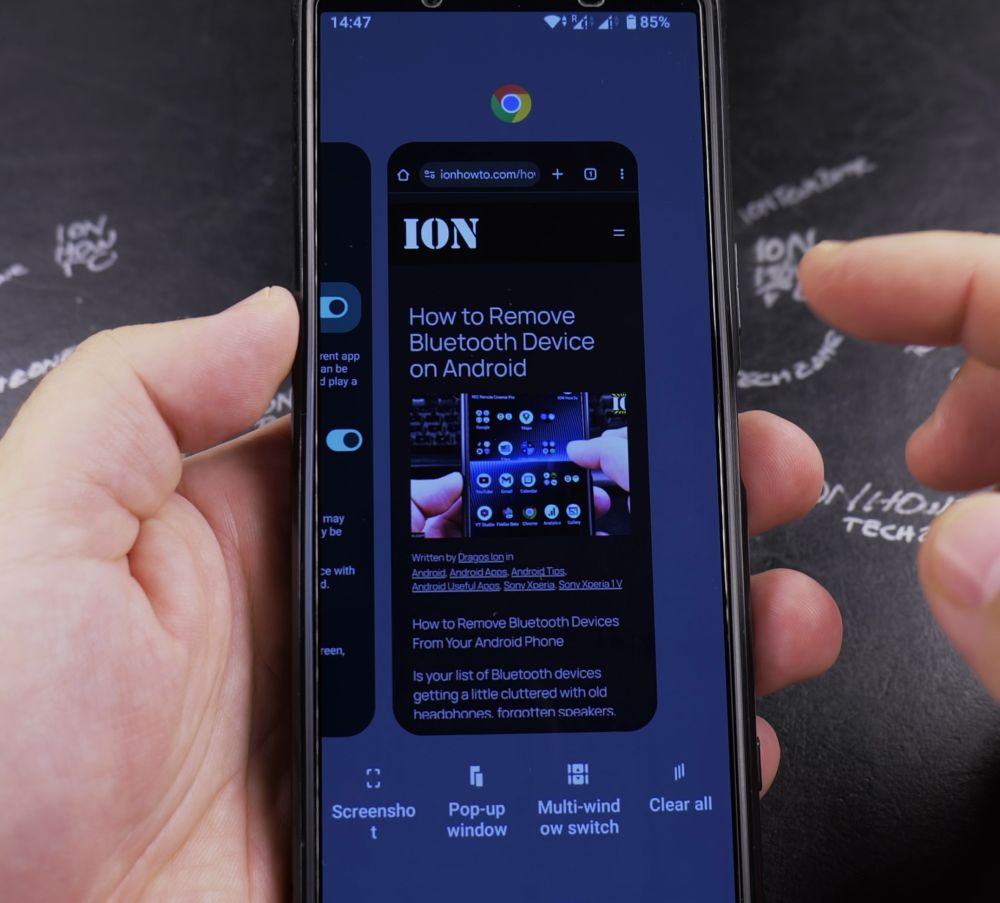
3. Turn On App Pinning
Tap **More security settings**, then tap **App pinning** and switch the master toggle to **On**.
4. Require PIN to Unpin
Make sure the toggle for **Ask for PIN before unpinning** is also turned **On** so no one can exit without your passcode.

5. Pin Your Chosen App
Open the app you want to lend out, swipe up from the bottom and hold to open Recent Apps, tap the app’s top icon, and tap **Pin**.
6. How to Exit and Unpin
To unlock the phone, swipe up and hold (or press **Back** and **Overview** together) and enter your screen lock PIN or fingerprint.
Helpful Tips
While an app is pinned, phone calls and notifications are blocked from opening other apps, keeping your personal accounts completely protected. For more Android security walkthroughs, visit our Android Guides hub.
Leave a Reply Cancel reply