


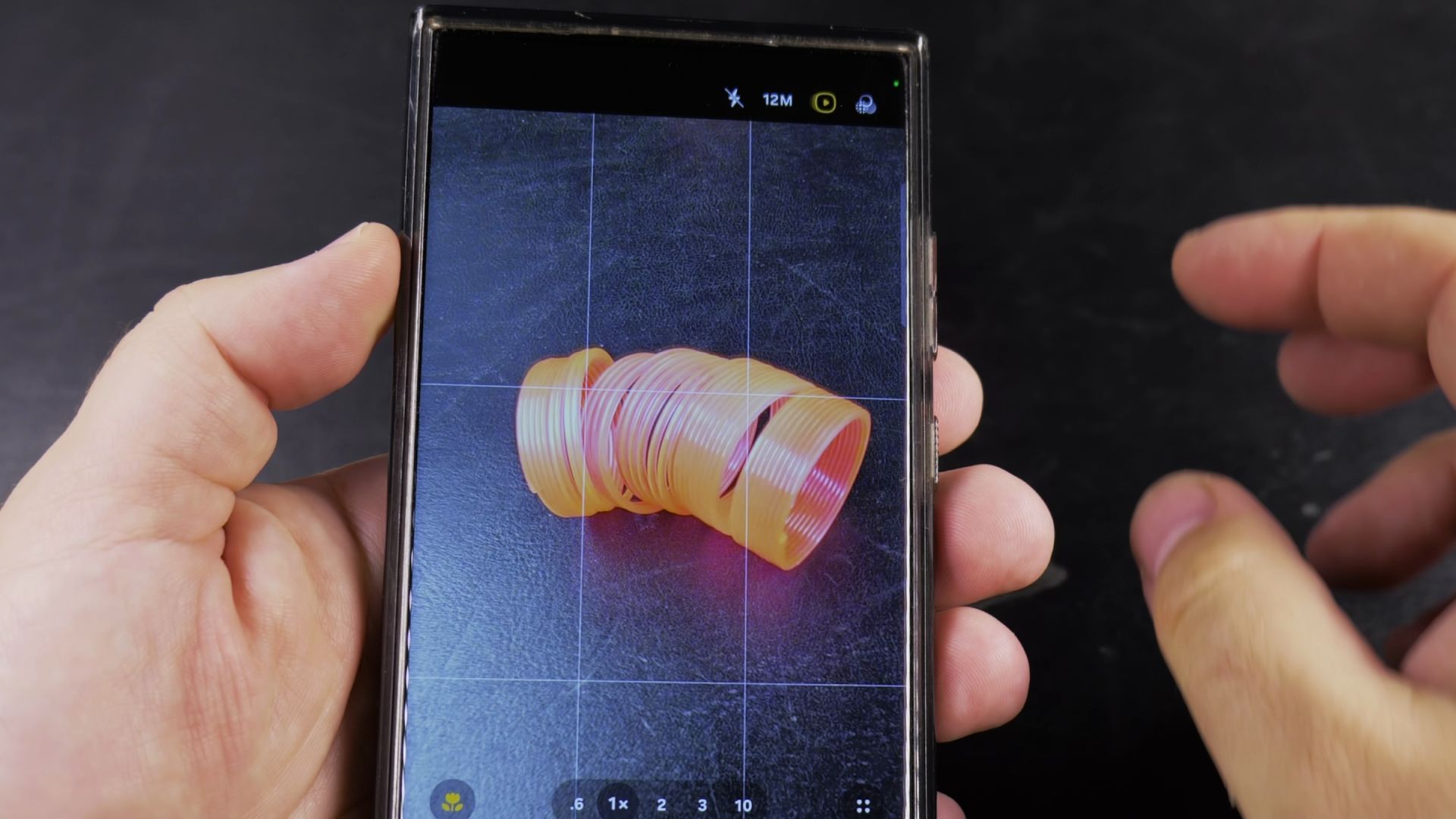
If you want your Samsung Galaxy phone to record a short video clip each time you press the shutter button – similar to Live Photos on an iPhone – you can turn on Motion Photo. I’ll show you how to enable Motion Photo in the Camera app and watch your clips in the Gallery.

1. Open the Camera App in 12M Photo Mode
Open the Camera app on your Samsung Galaxy phone and make sure PHOTO is selected at the bottom. Check the top toolbar to confirm your resolution is set to 12M, then look right next to it for the white crossed-out Motion photo icon.

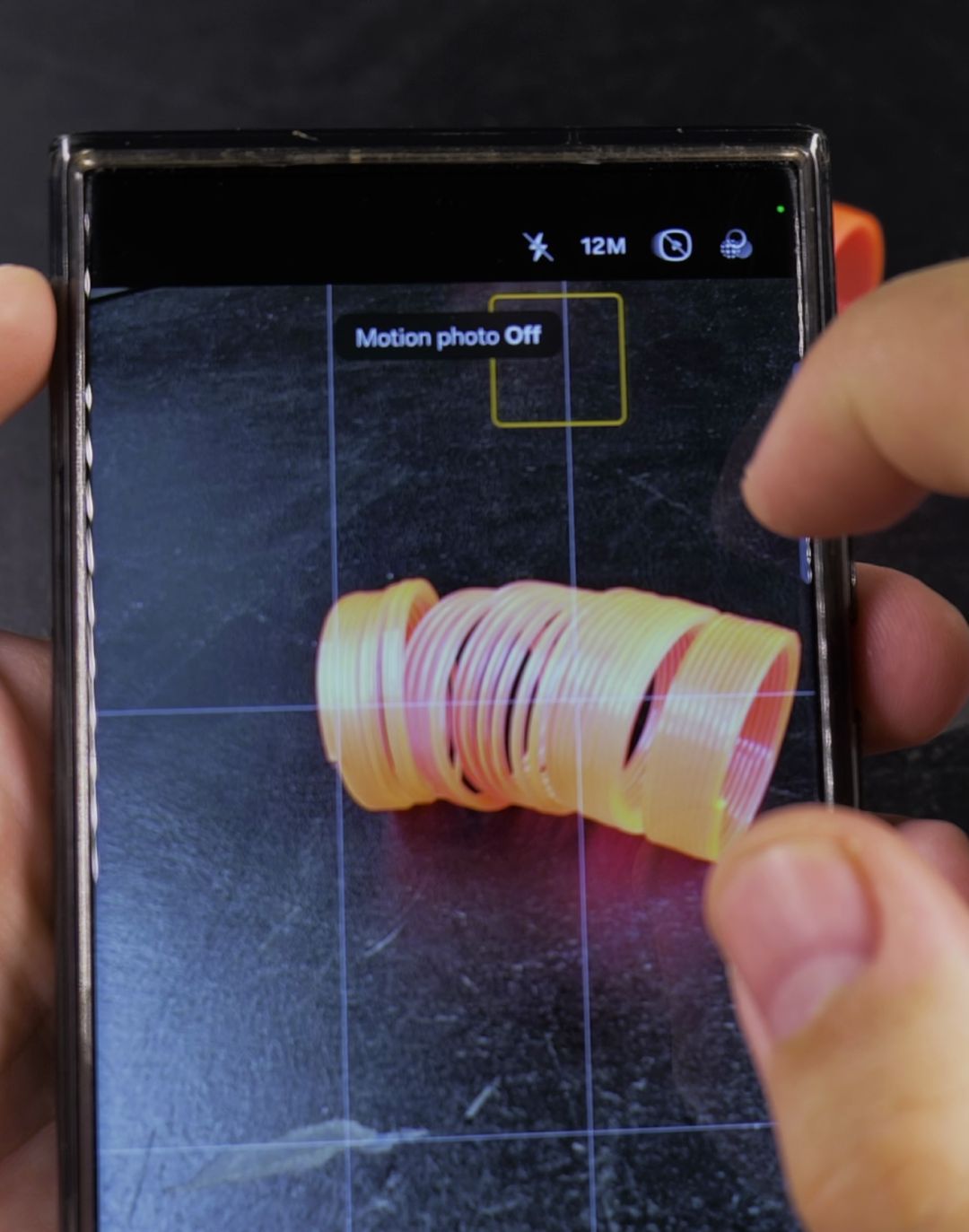
2. Tap the Motion Photo Icon Until It Turns Yellow
Tap the Motion photo icon in the top-right toolbar once so it turns yellow. Whenever that icon is yellow, your camera automatically saves a brief video clip along with your still photo each time you tap the shutter button.

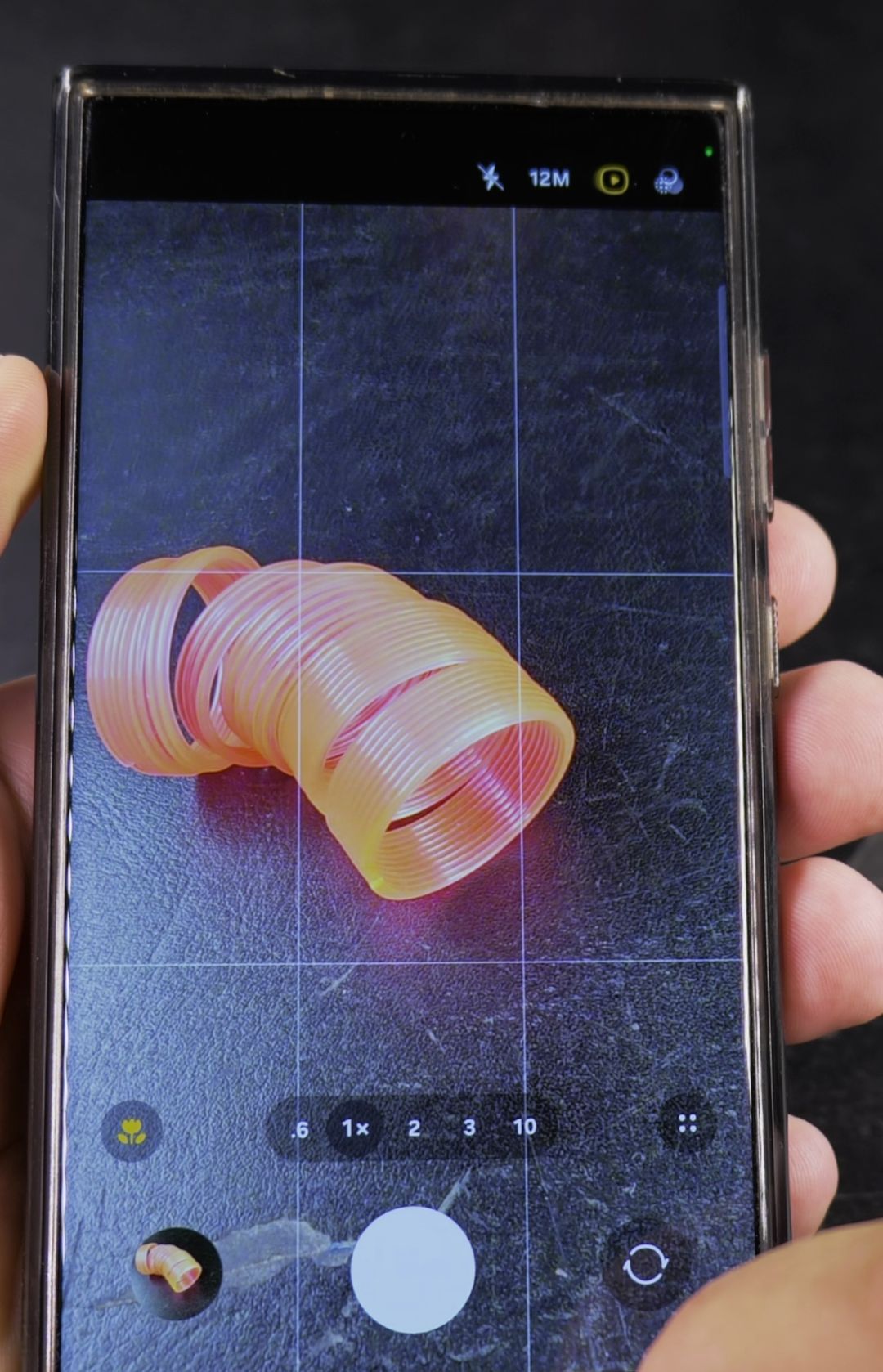
3. Play Your Motion Photo in the Gallery App
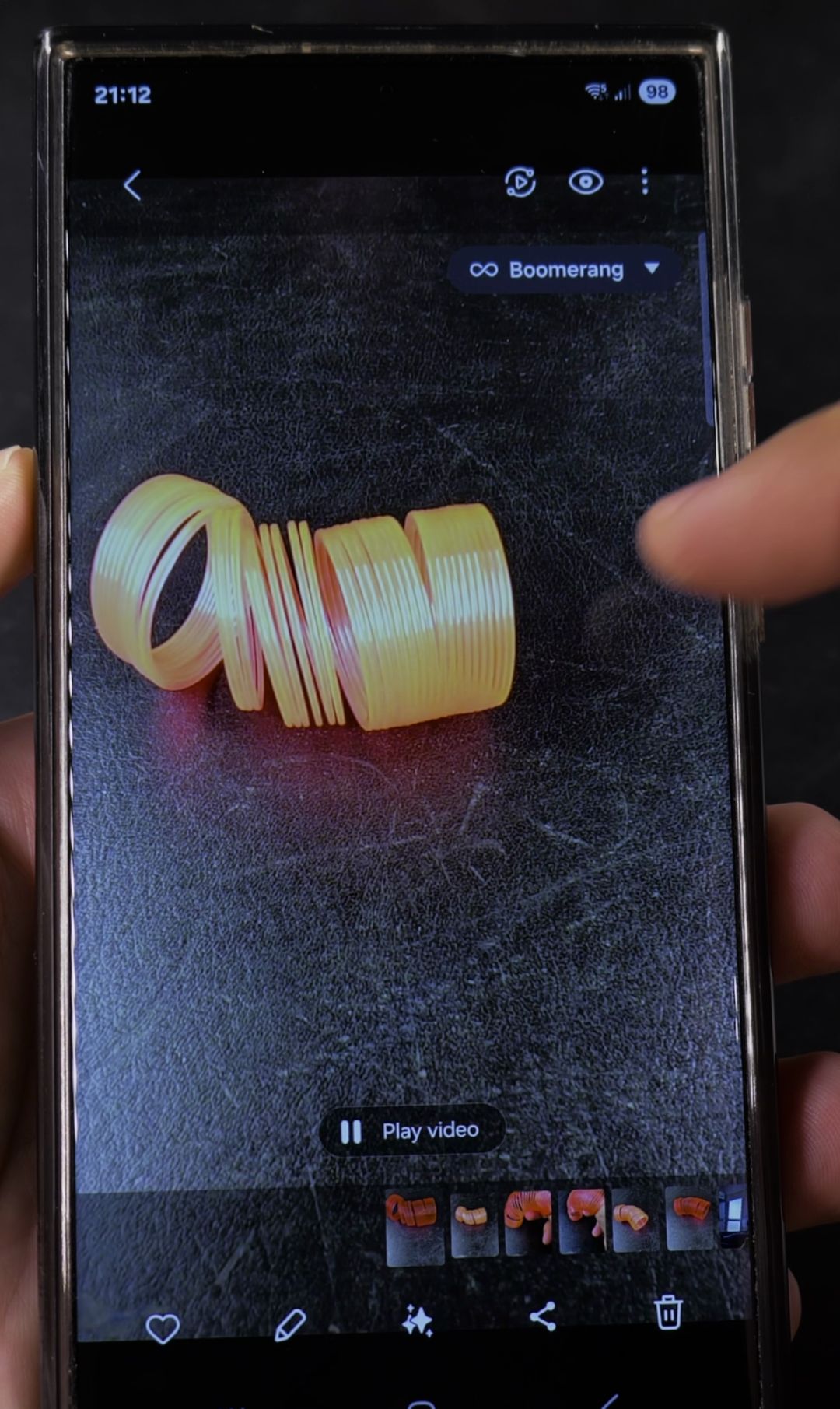
Tap the round photo preview in the bottom-left corner of the camera screen to open your shot in the Gallery app. Tap Play video at the bottom of the screen to watch the clip, or use the effect menu in the top-right corner to try Slow-mo or Boomerang.

Helpful Tips
- Works only in 12M mode: Motion Photo is only available when shooting in standard 12M resolution; switching to 50M or 200M automatically turns it off.
- Save storage space when needed: Because each Motion Photo includes a short video clip, you can disable Motion Photo on your Samsung camera anytime you want smaller file sizes.
Related Guides
- How to Disable Motion Photo on Samsung Camera
- How to Switch Between Rear and Front Cameras on Samsung Phones
- How to Fix Apps Not Working on Mobile Data on Samsung Galaxy
Leave a Reply Cancel reply