


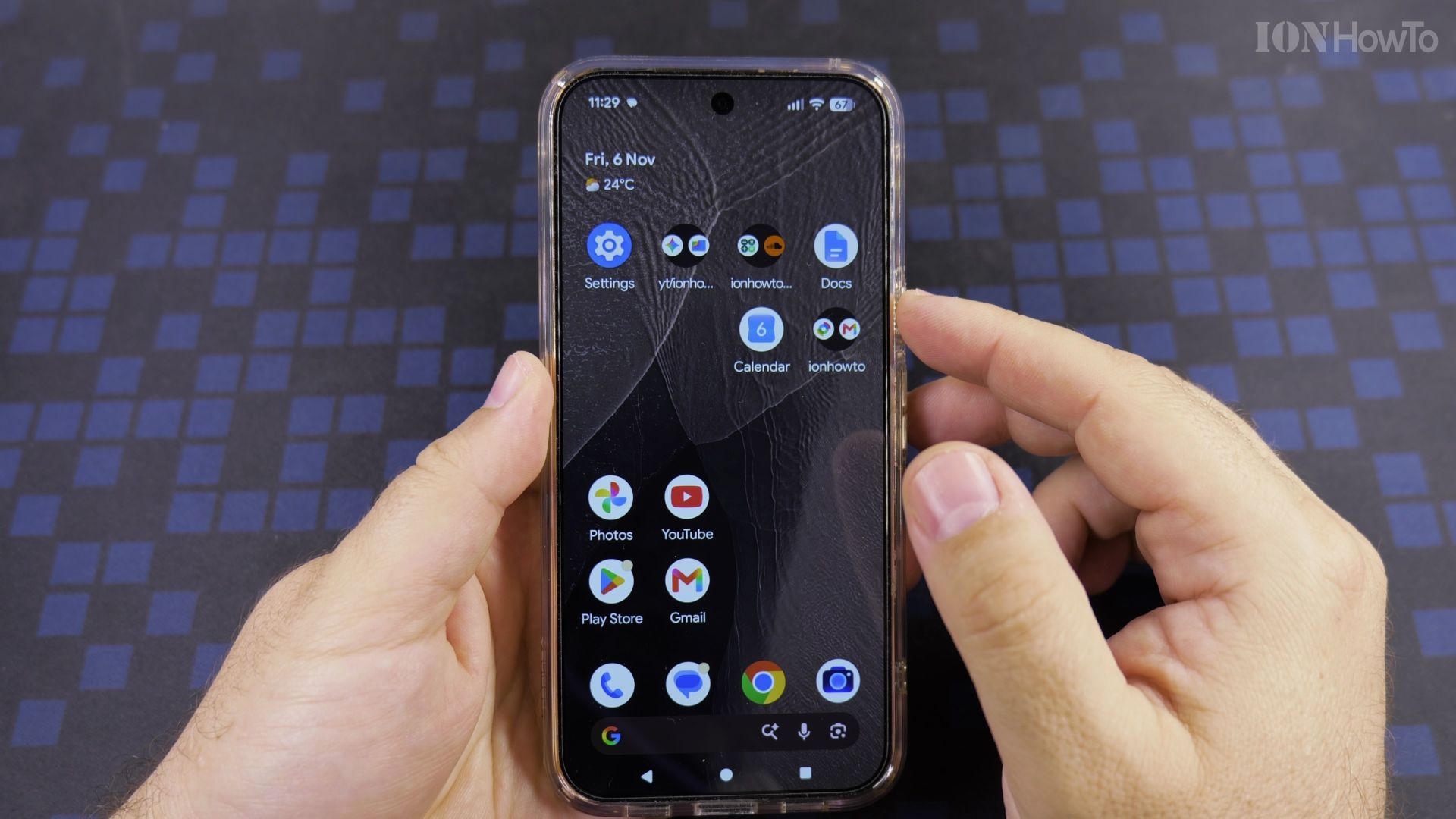
Want your photos filed on the map at the exact spot where you took them? Precise location makes that happen.

Jump straight to a step
- When exact locations help
- Open the Camera app permissions
- Turn on Use precise location
- See the pinpoint in Google Photos
Recommended Amazon Gear and Accessories
Disclosure: This article contains Amazon affiliate links. As an Amazon Associate, we earn from qualifying purchases at no extra cost to you.
- Phone Accessories
- Android Phone Case
- USB-C Charger
- USB-C Cable
- Wireless Charger Stand
- Wireless Car Charger
1. When exact locations help
Trips, house hunting, or a spot you want to find again: exact GPS makes your photo map accurate to the street.

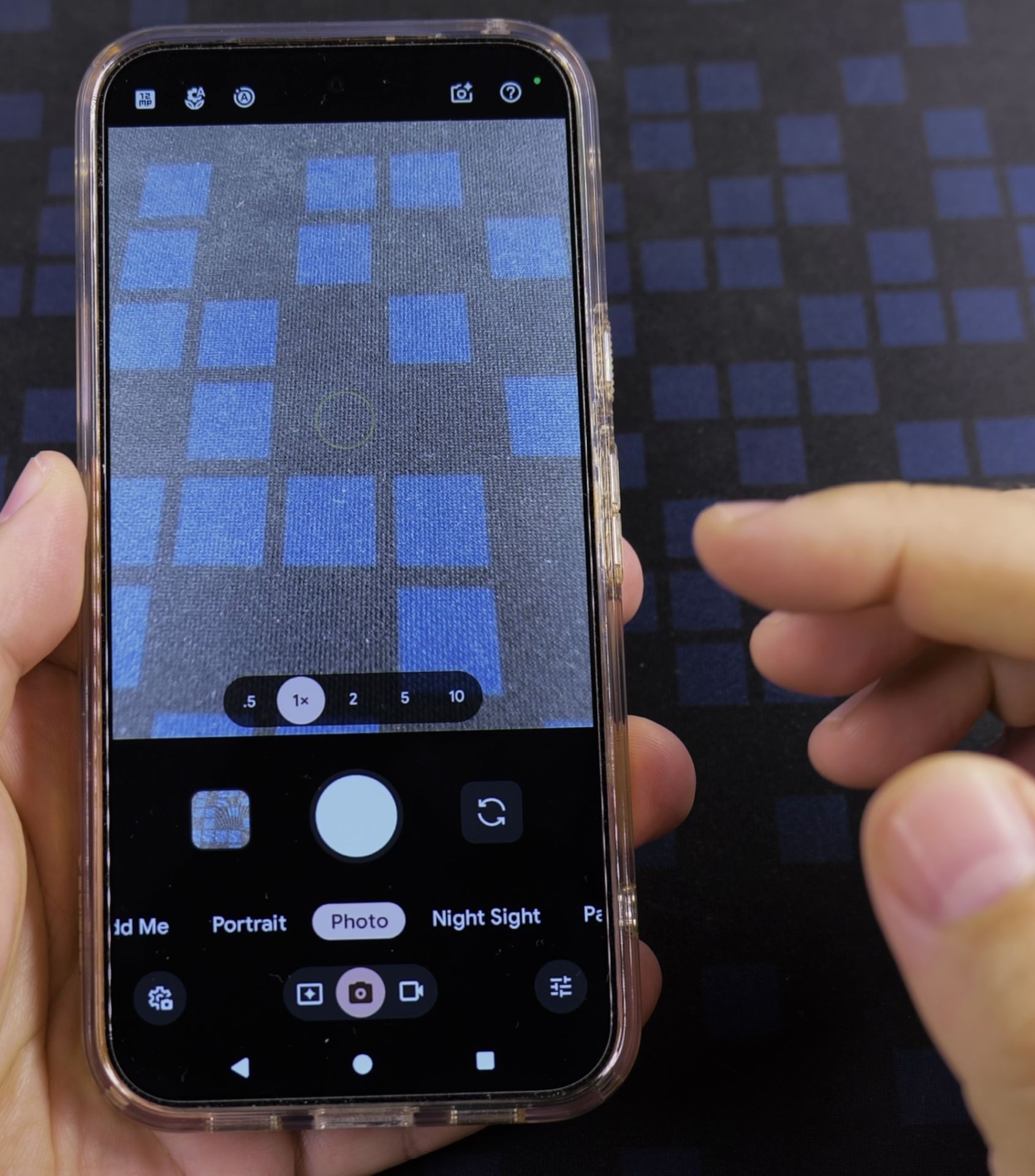
2. Open the Camera app permissions
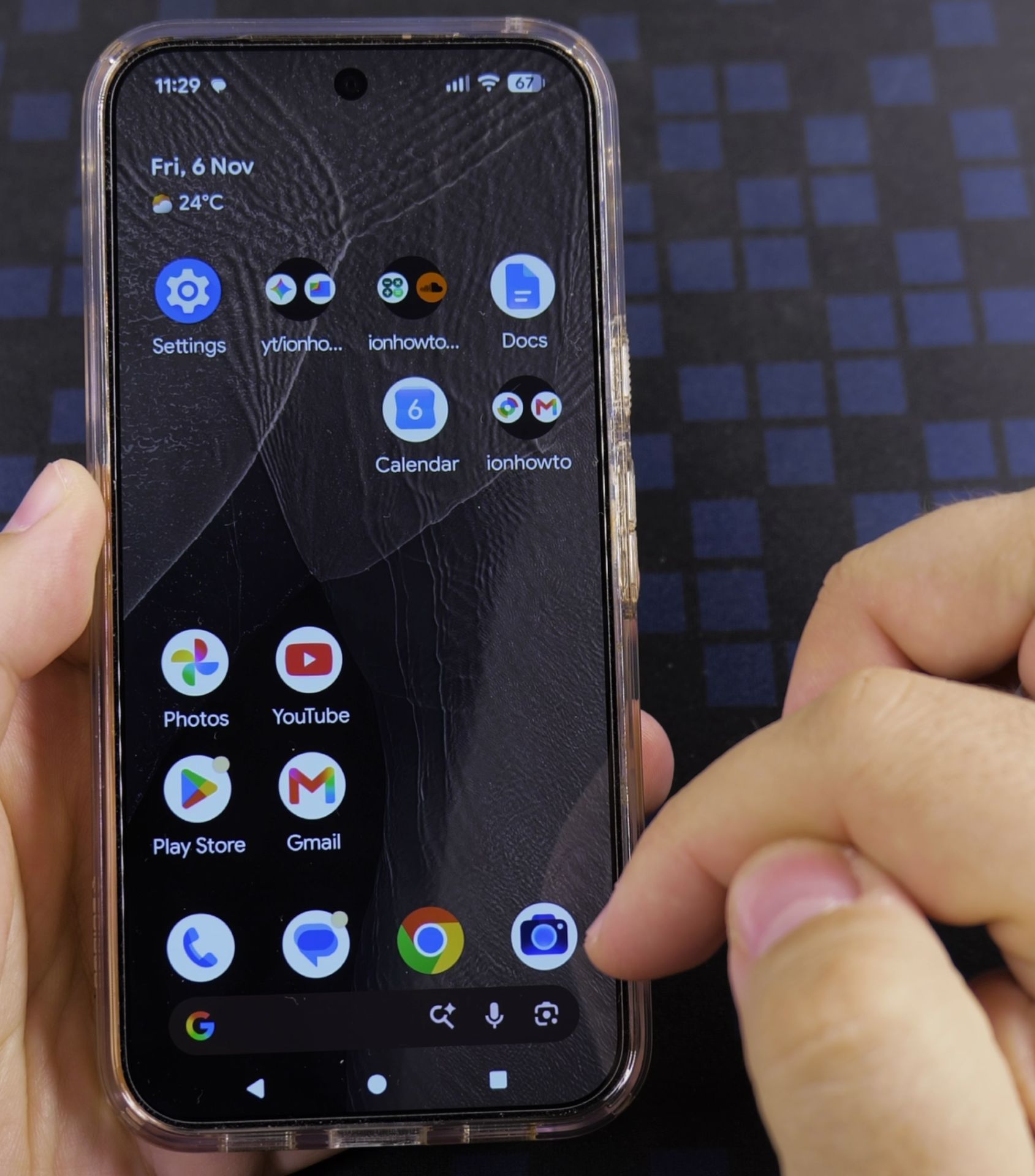
In **Settings**, open **Privacy and security**, then **Location**, then **App location permissions**, and tap **Camera**.
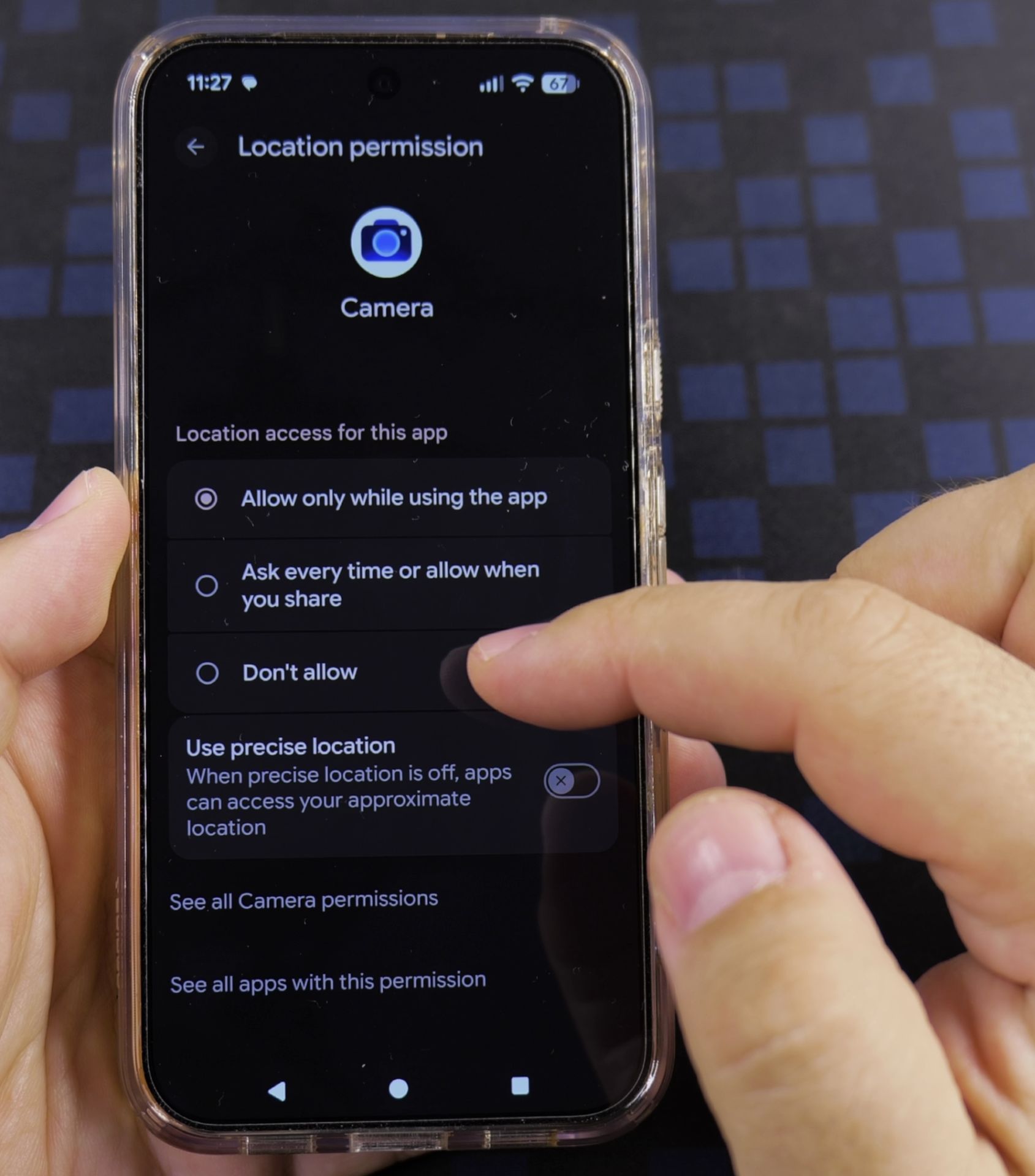
3. Turn on Use precise location
Switch **Use precise location** on. Pick **Allow only while using the app** if you want to keep tight control.
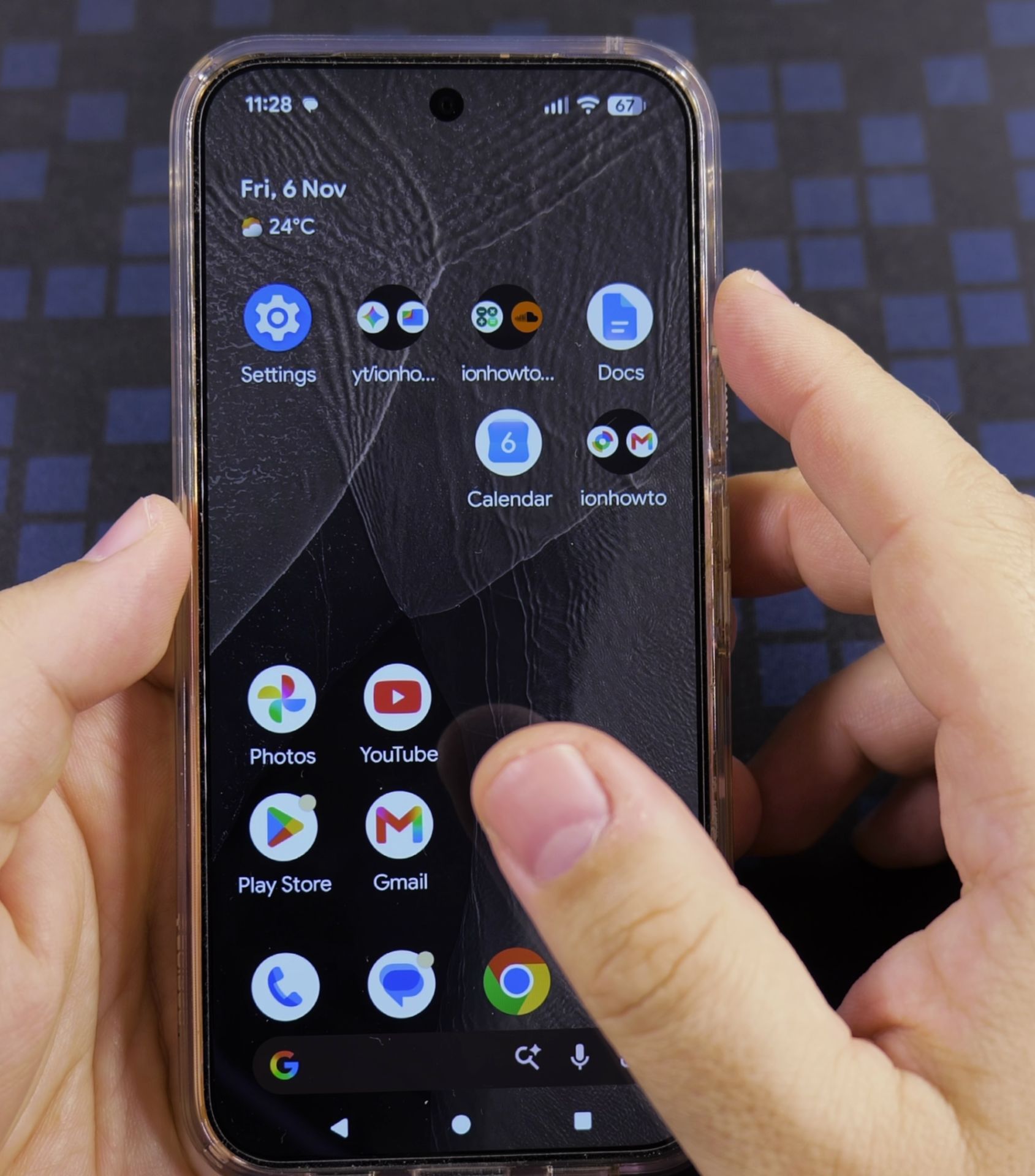
4. See the pinpoint in Google Photos
Take a photo, open it in **Google Photos** and swipe up. The map now shows the exact place.
Helpful Tips
- Remove location details before posting photos publicly.
- Leave it off if you often share originals with strangers.
Related Guides
- How to Remove Location from Photos on Android Devices – Phone: Samsung Galaxy S23 Ultra 512GB Android 14 OneUI 6.1 smartphone.
- Android & Mobile – Browse more tutorials and practical guides in this section.
Leave a Reply Cancel reply