


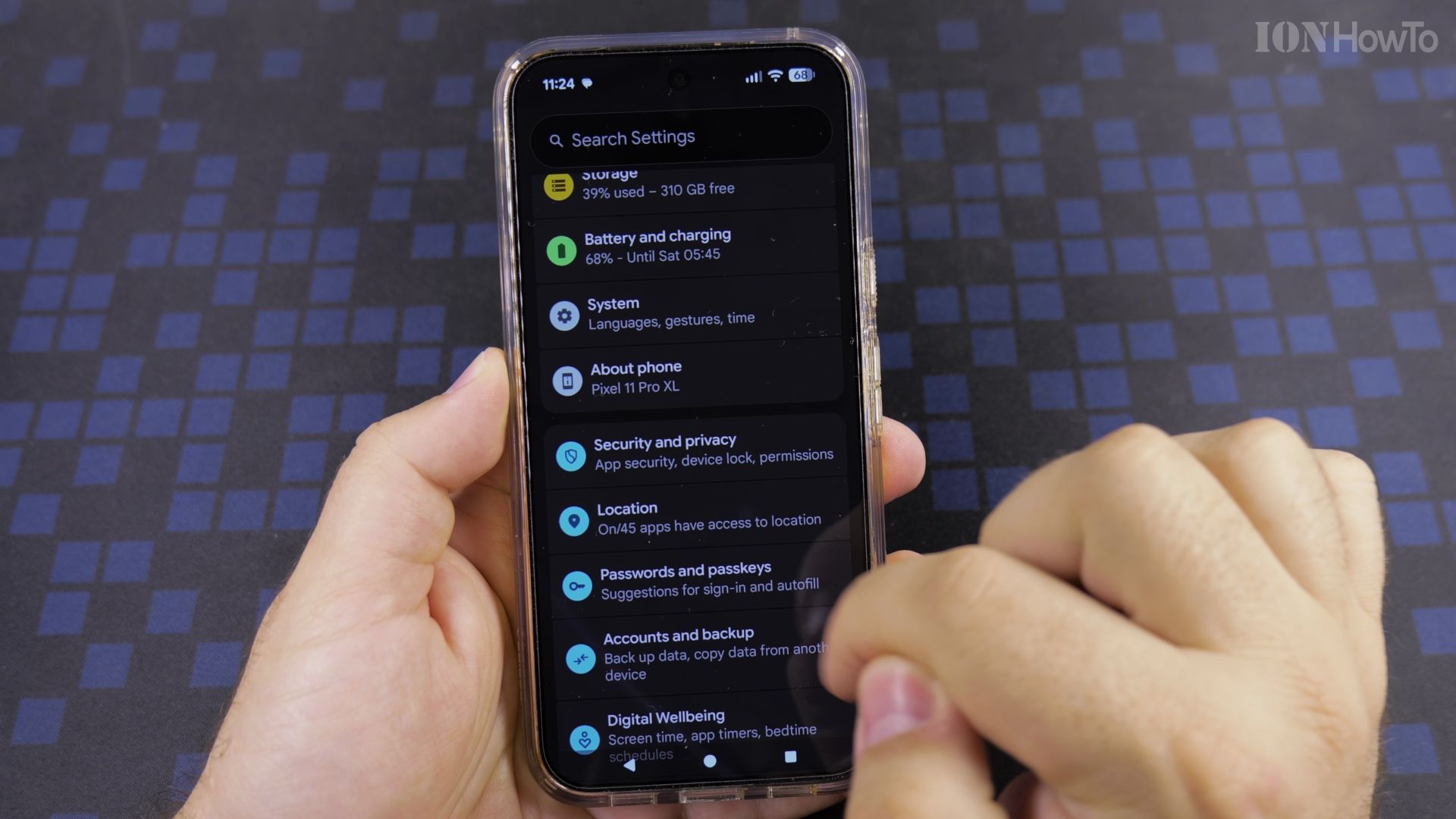
Every photo you take can quietly record exactly where you were. If you share pictures, that is worth a minute of your time.

In a hurry? Start here
- Why photos can give away your spot
- Open Location settings
- Turn off Use precise location
- Check a new photo
Recommended Amazon Gear and Accessories
Disclosure: This article contains Amazon affiliate links. As an Amazon Associate, we earn from qualifying purchases at no extra cost to you.
- Phone Accessories
- Android Phone Case
- USB-C Charger
- USB-C Cable
- Wireless Charger Stand
- Wireless Car Charger
1. Why photos can give away your spot
Your phone can store GPS details inside each picture. Anyone you send the original to may be able to read them.

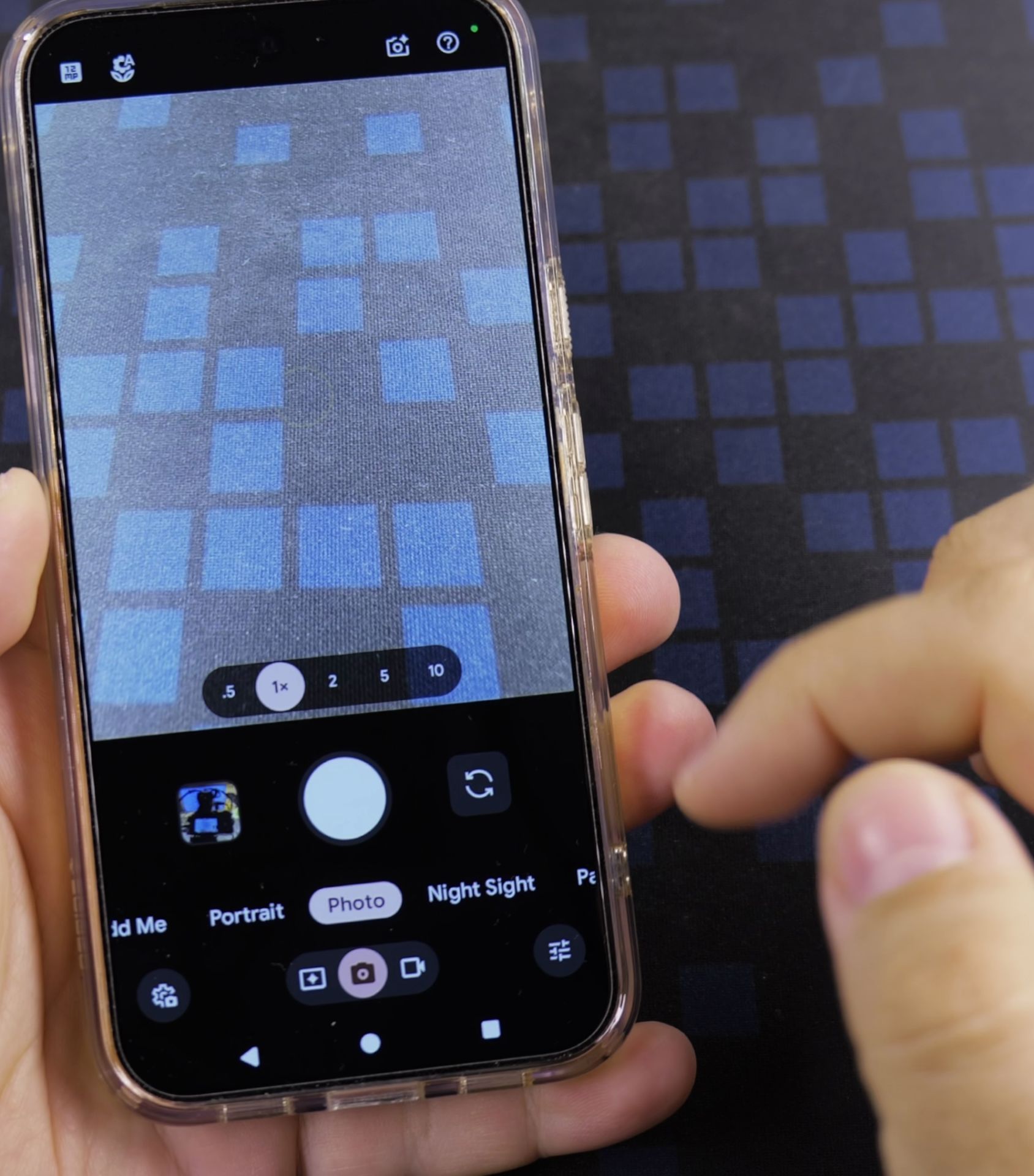
2. Open Location settings
Go to **Settings**, then **Privacy and security**, then **Location**. Tap **App location permissions** and pick **Camera**.

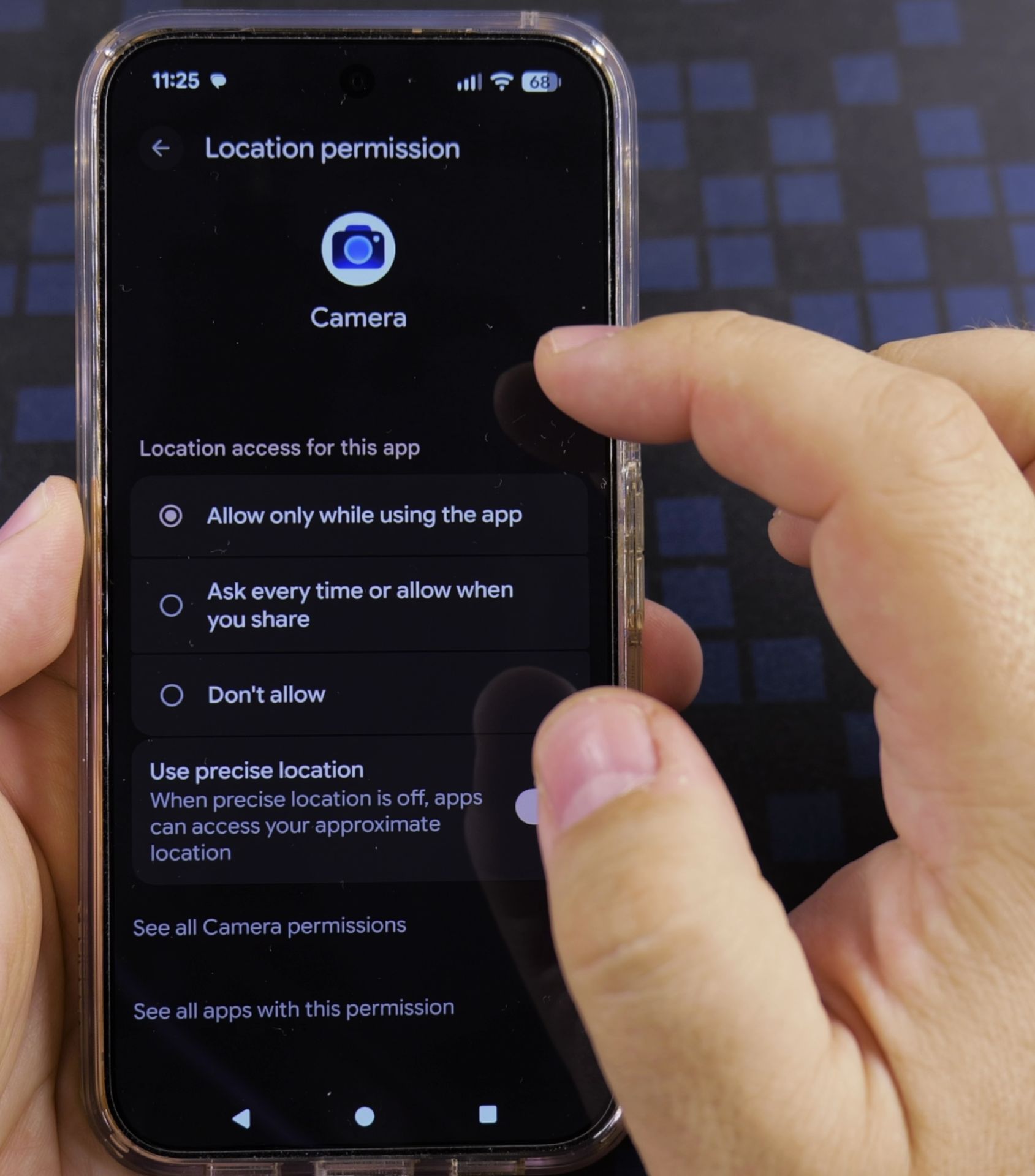
3. Turn off Use precise location
Switch **Use precise location** off for Camera. It will now save only your general area, such as your town.
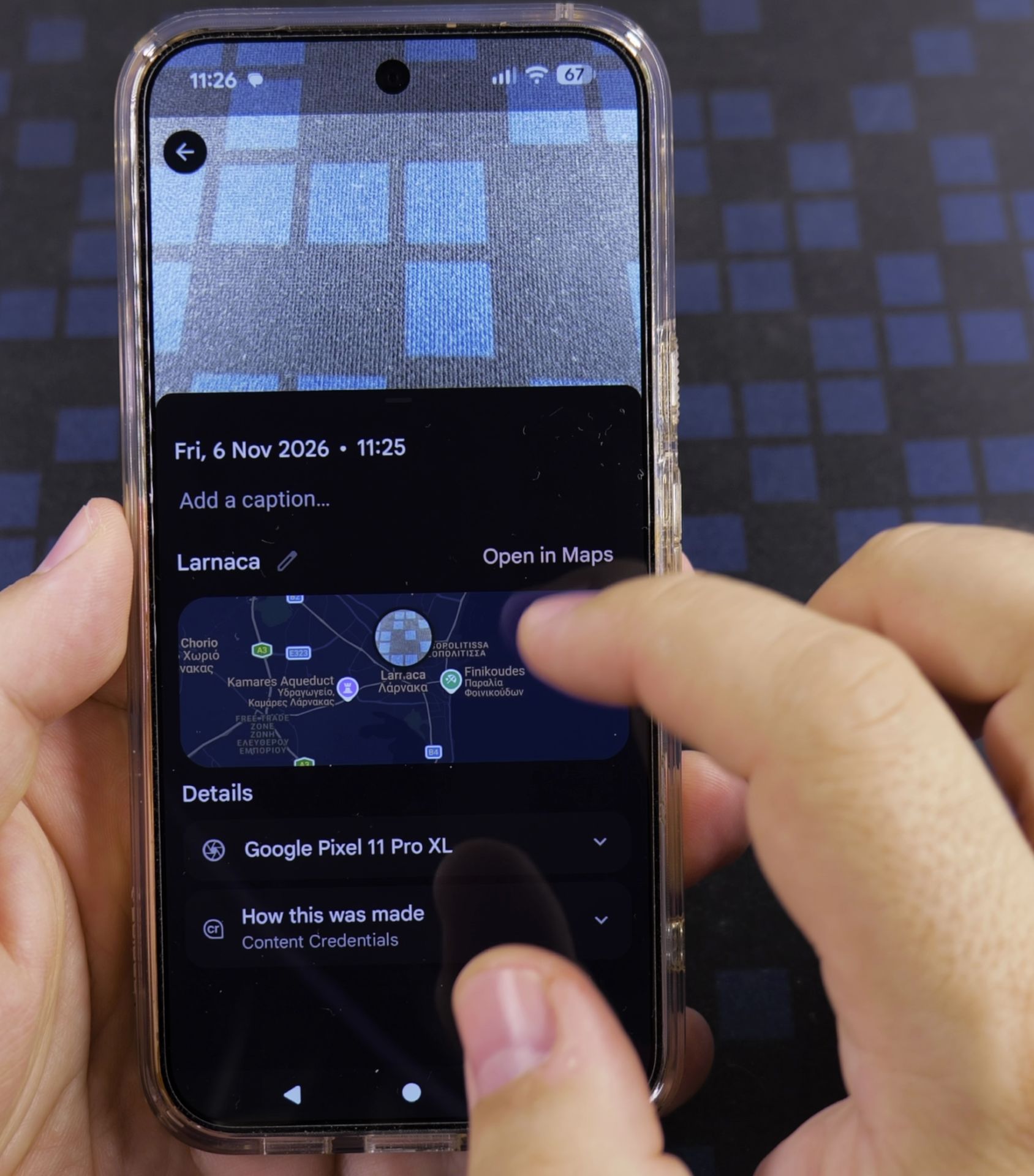
4. Check a new photo
Take a picture, open it in **Google Photos**, and swipe up. You should see the town, not a pinpoint on the map.
Helpful Tips
- Only the Camera app is changed, so maps and navigation still work normally.
- Turn the switch back on any time if you want exact locations in your photos.
Related Guides
- Switch Between Front and Back Camera on Android – How to Switch Between Front and Back Camera on Android.
- Android Samsung Galaxy 23 Iltra Cameras Not Working Use Selfie Camera – Android Samsung Galaxy 23 Iltra Cameras Not Working Use Selfie Camera When Main Camera Freezes.
- How to Remove Location from Photos on Android Devices – Phone: Samsung Galaxy S23 Ultra 512GB Android 14 OneUI 6.1 smartphone.
- Camera Gear & Accessories – Browse more tutorials and practical guides in this section.
Leave a Reply Cancel reply