


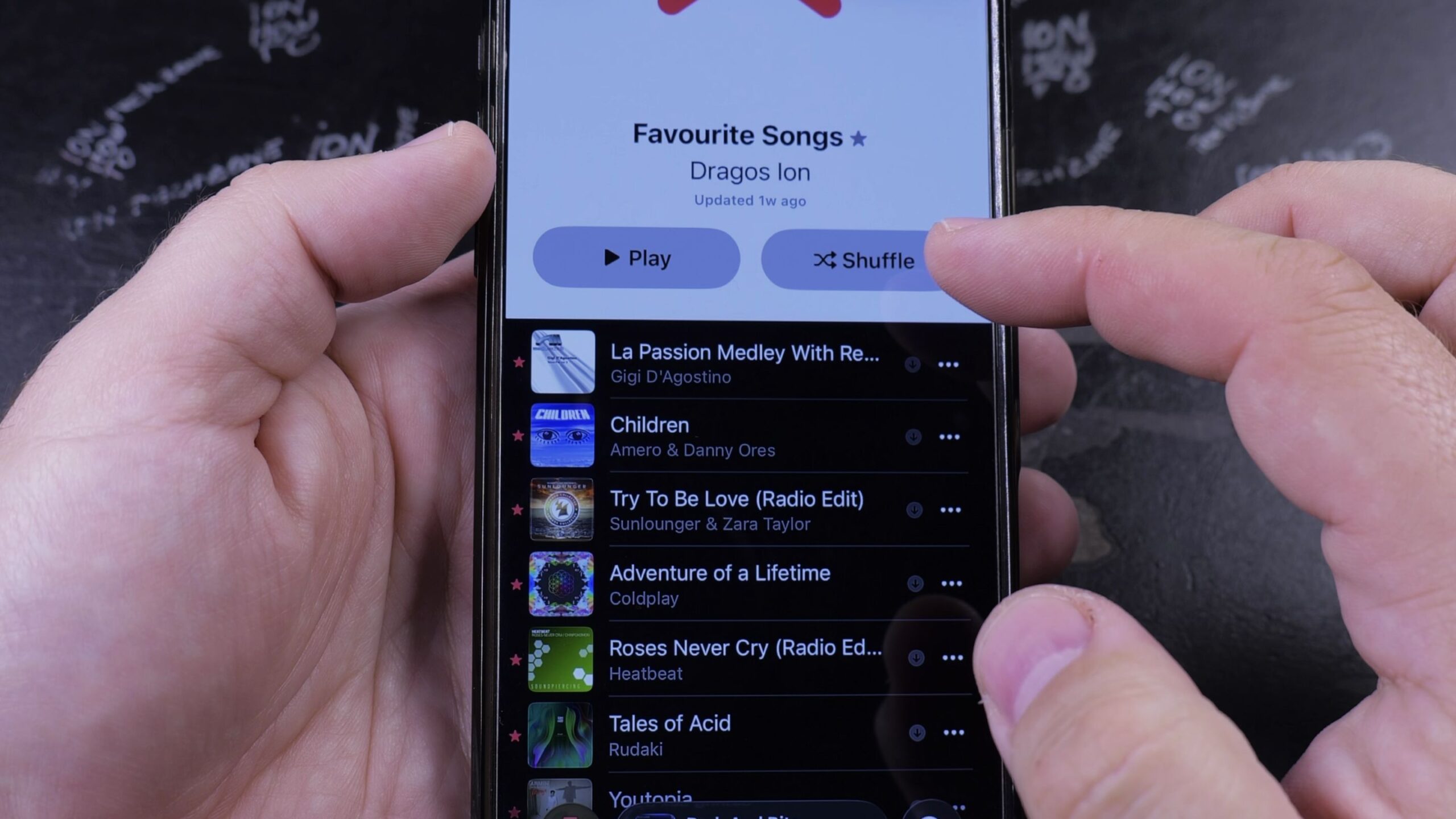
If you have been tapping the star icon on songs you love and want to find them all in one place, Apple Music automatically collects them into a dedicated playlist. I’ll show you how to see your favorite songs in Apple Music on your iPhone in just a few taps.

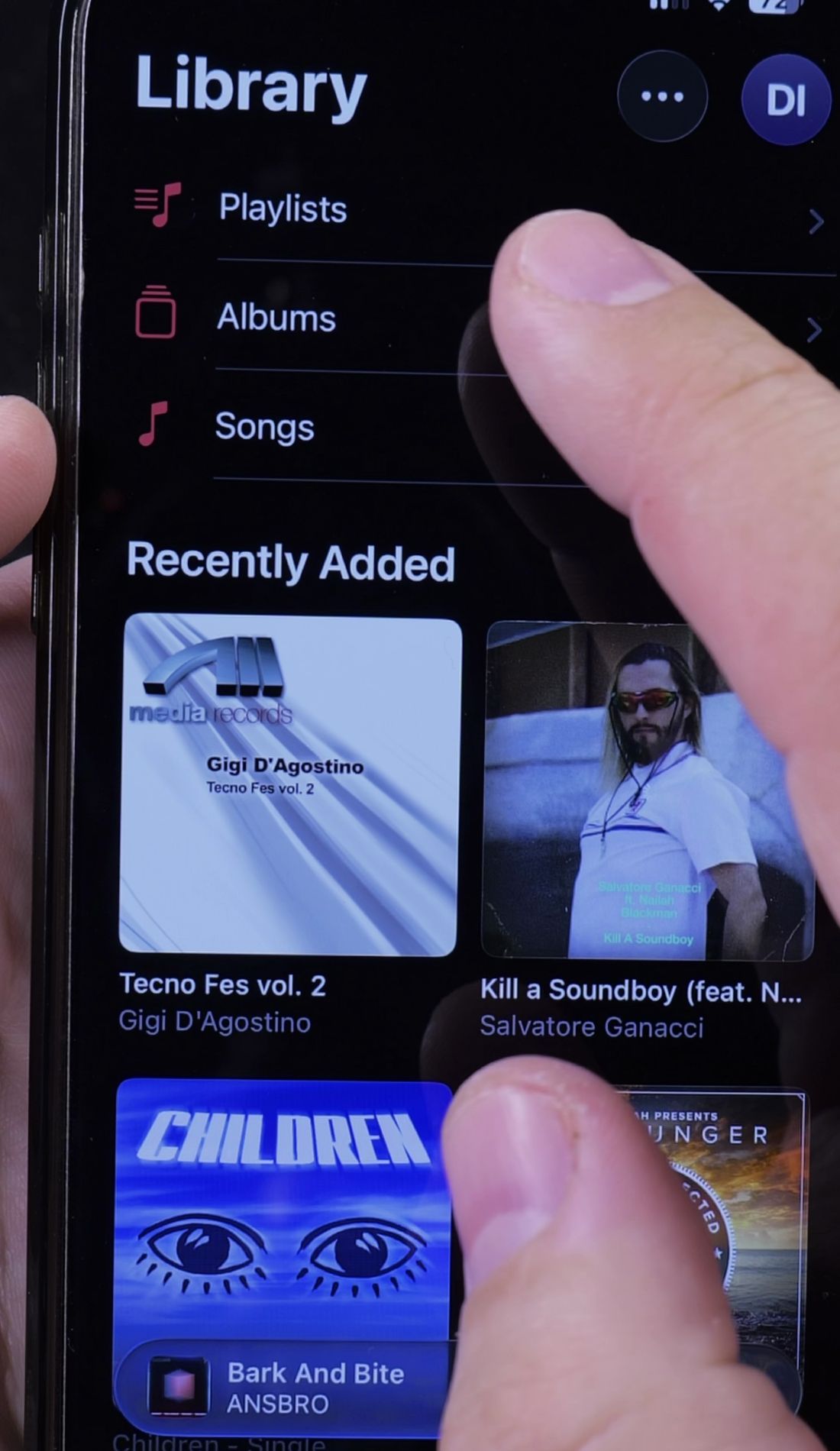
1. Open Library and Tap Playlists
Open the Music app on your iPhone.
Look at the bottom menu bar and tap the Library tab.
Near the top of your library list, tap Playlists.

2. Tap the Favorite Songs Playlist
At the very top of your playlists list, look for the special playlist named Favorite Songs.
It features a red icon with a large white star in the center.
Tap on it to open your collection.
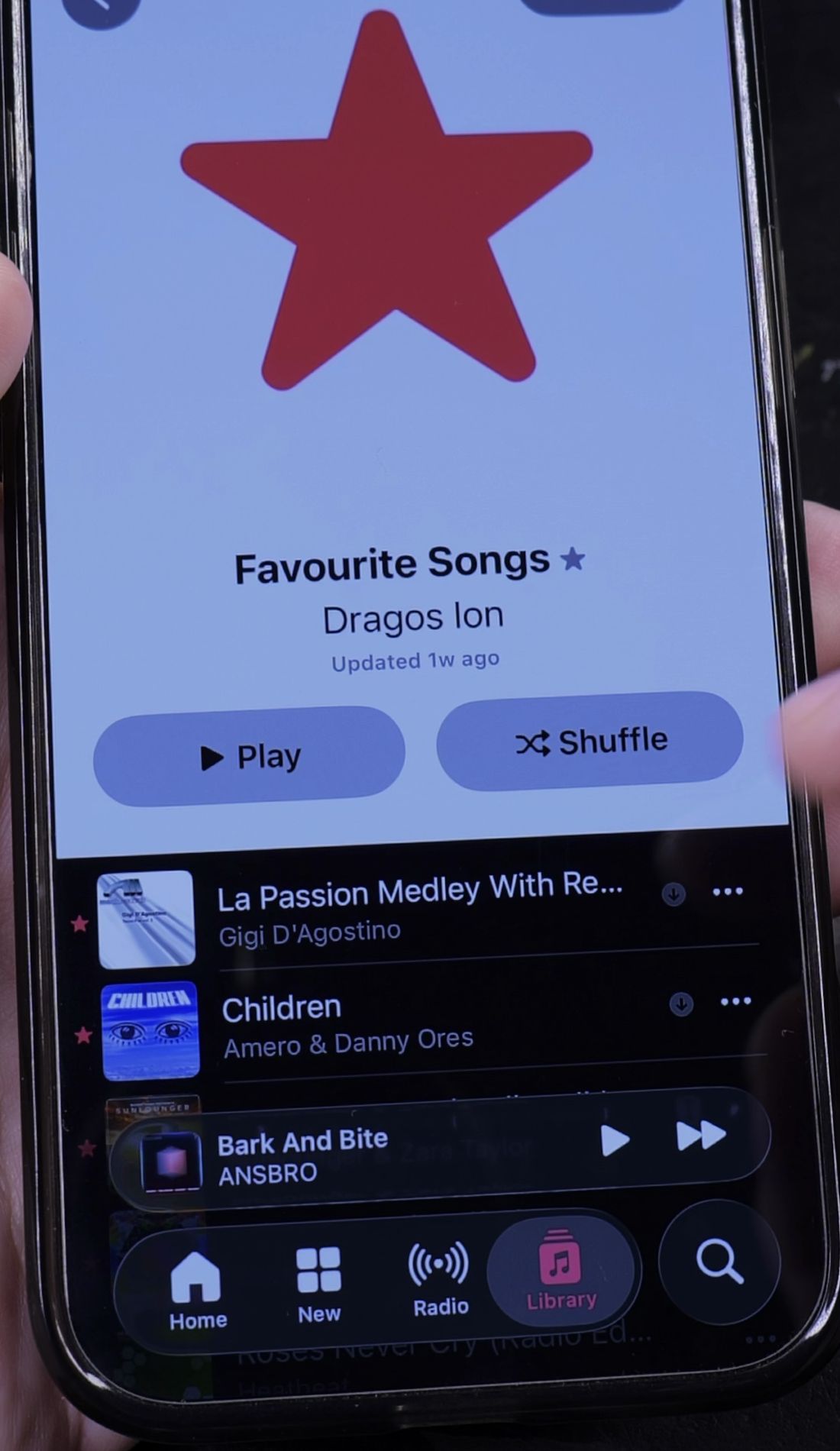
3. Browse and Play Your Favorite Tracks
Here you will see every song you have ever starred in chronological order.
Tap the red Play button to start from the top, or tap Shuffle to listen in a random sequence.
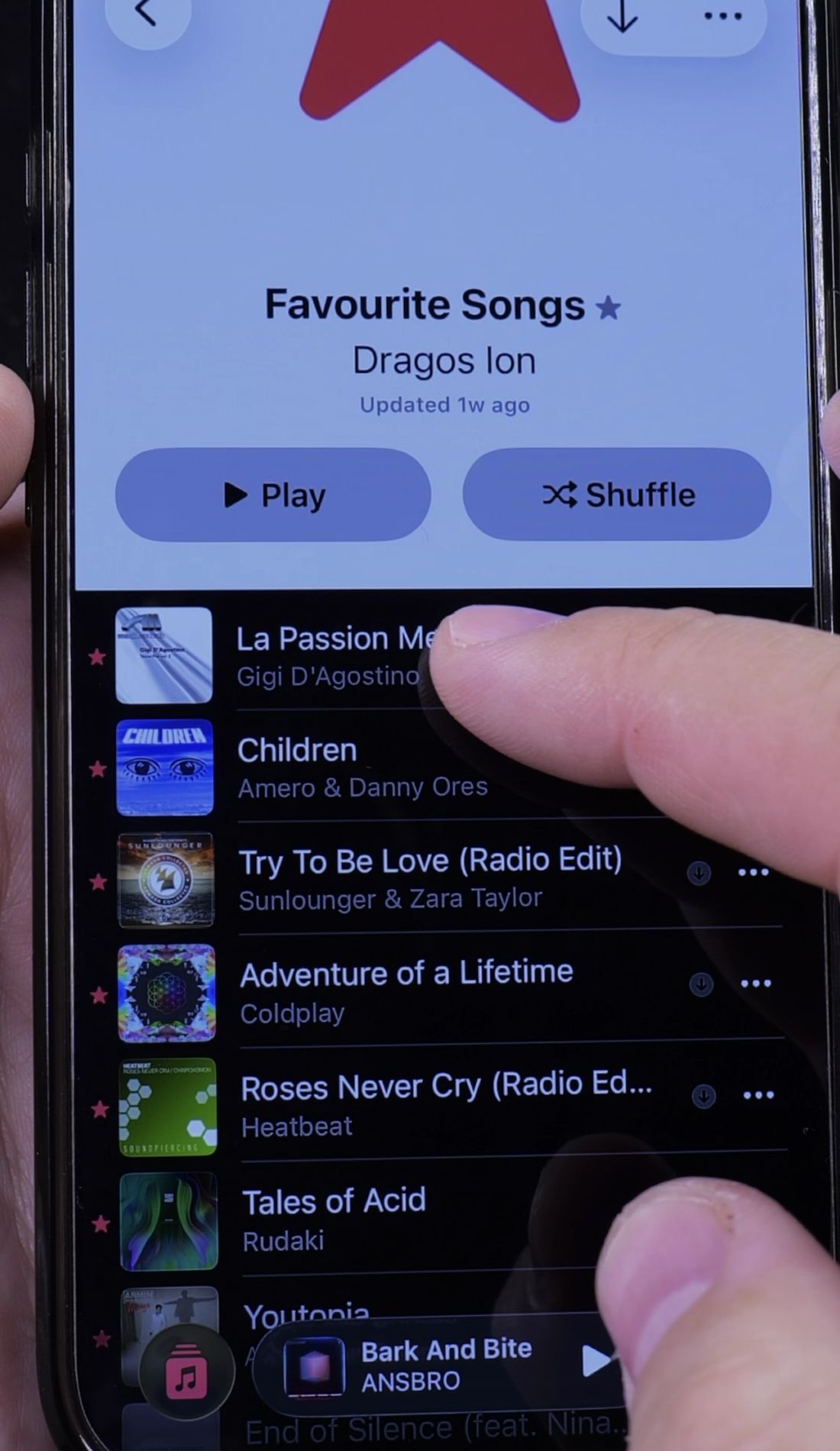
4. How to Remove Songs from Favorites
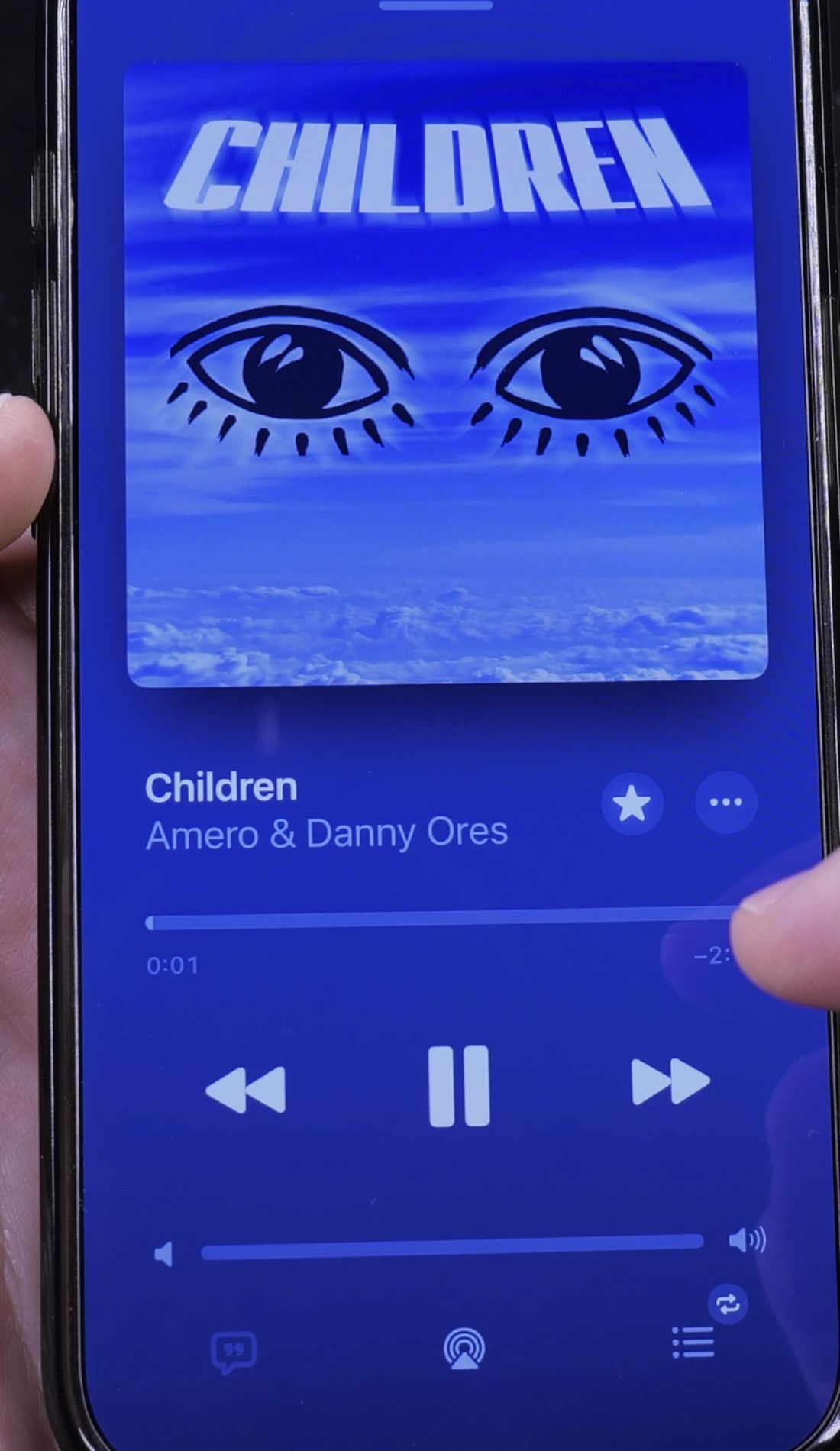
If you no longer want a song in this list, tap the track to start playing it.
In the Now Playing player, tap the highlighted Star icon once.
The star turns hollow, and the song is immediately removed from your Favorite Songs playlist.
Helpful Tips
You can also favorite songs directly from your lock screen while music is playing without unlocking your phone. Just tap the star icon next to the track name in the media player widget.
To let Apple Music build an infinite radio station around your favorites, learn how to find your station in Apple Music. You can also explore how to see your most played songs in Apple Music, or browse our full library of Apple Music guides.
Leave a Reply Cancel reply