


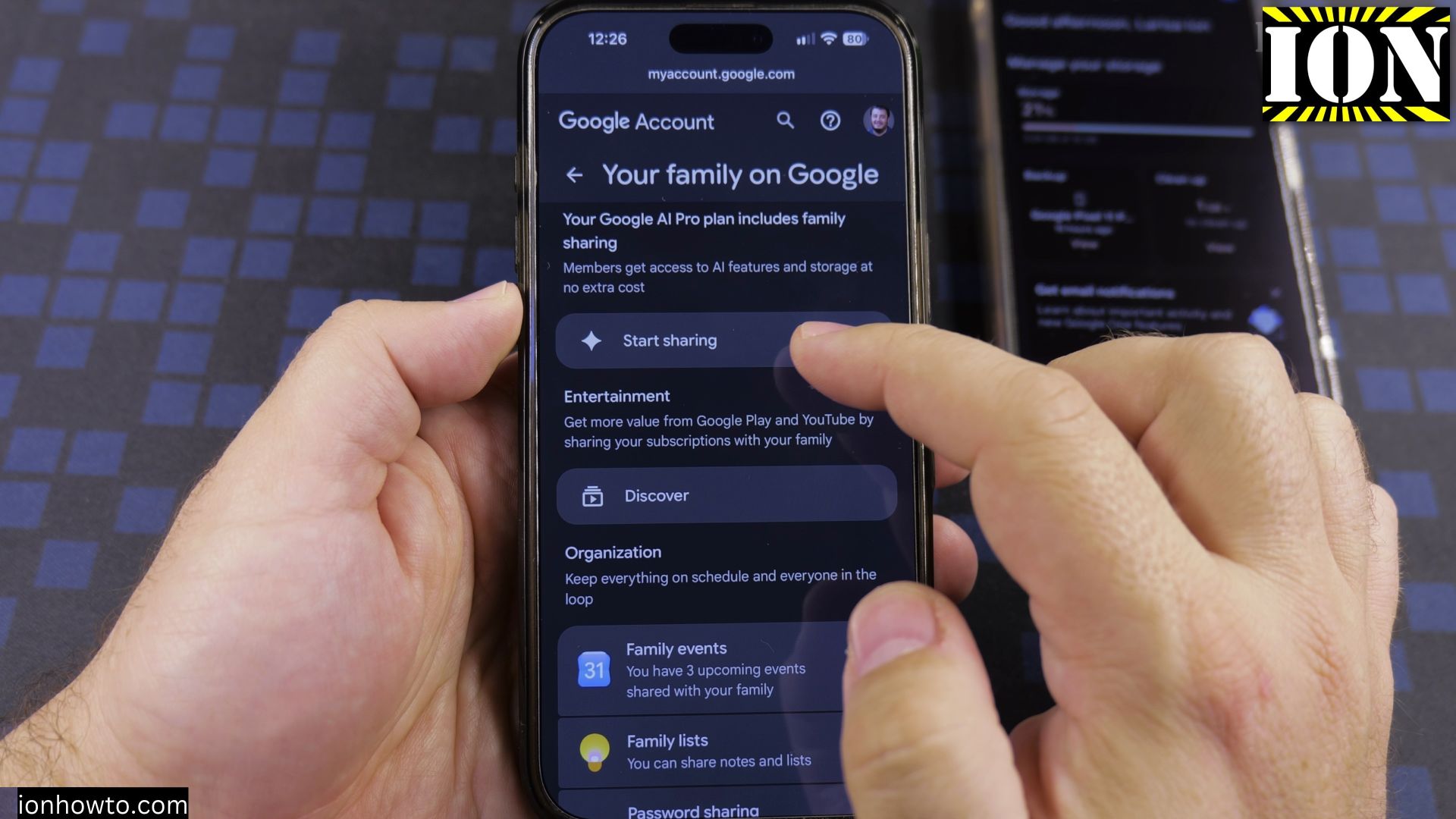
If you subscribe to Google AI Pro or another Google One plan, you can share your 5 TB storage and AI features with up to five family members at no extra cost. In this step-by-step tutorial, I’ll show you how to turn on family sharing on both iPhone and Android and keep everyone’s files private.

The short route
- Check your family group at myaccount.google.com
- Tap Start sharing on your Google AI Pro card
- Refresh the secondary phone to confirm 5 TB storage
- Try the unlocked Gemini AI features across iPhone and Android
1. Check your family group at myaccount.google.com
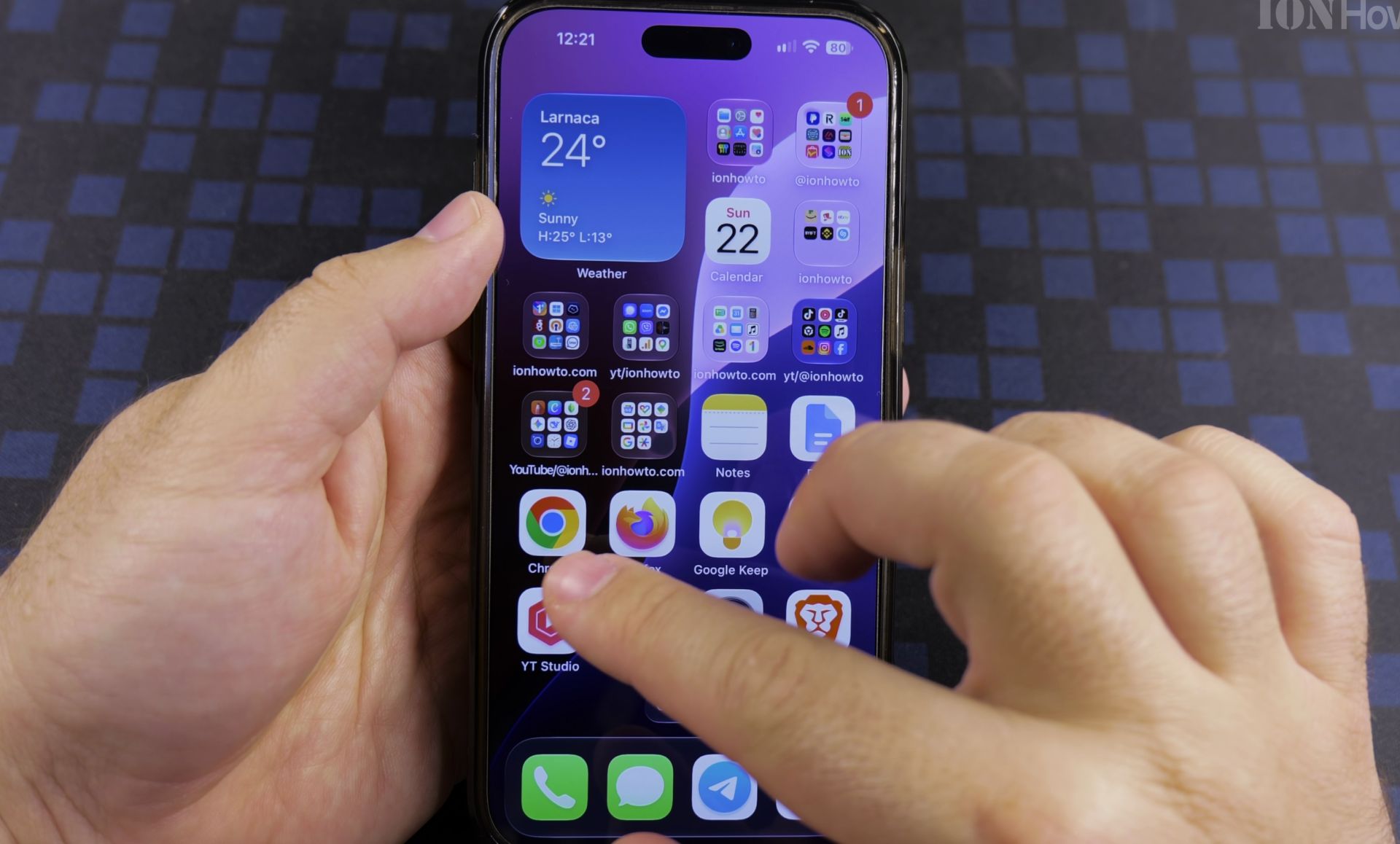
Open Chrome or any browser on your phone and go to myaccount.google.com, then tap Family to open Your family on Google. If you have not created a family group yet, add up to five family member Google accounts first before sharing your Google AI Pro plan.

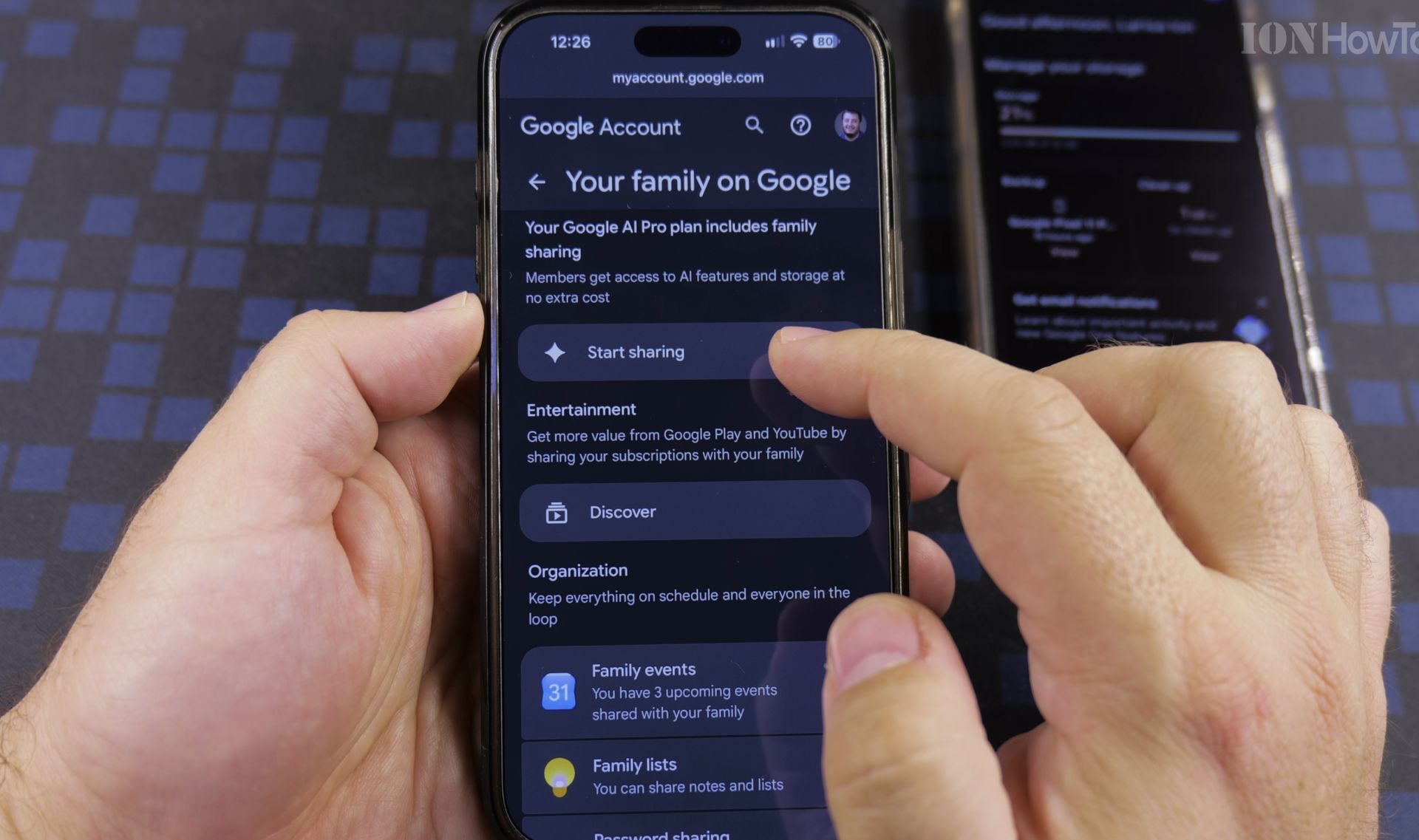
2. Tap Start sharing on your Google AI Pro card
Find your Google AI Pro 5 TB subscription card inside the Family menu or inside the Google One app under Share with family. Tap Start sharing and read the confirmation summary explaining that your personal documents, photos, and Drive files stay completely private for every member.

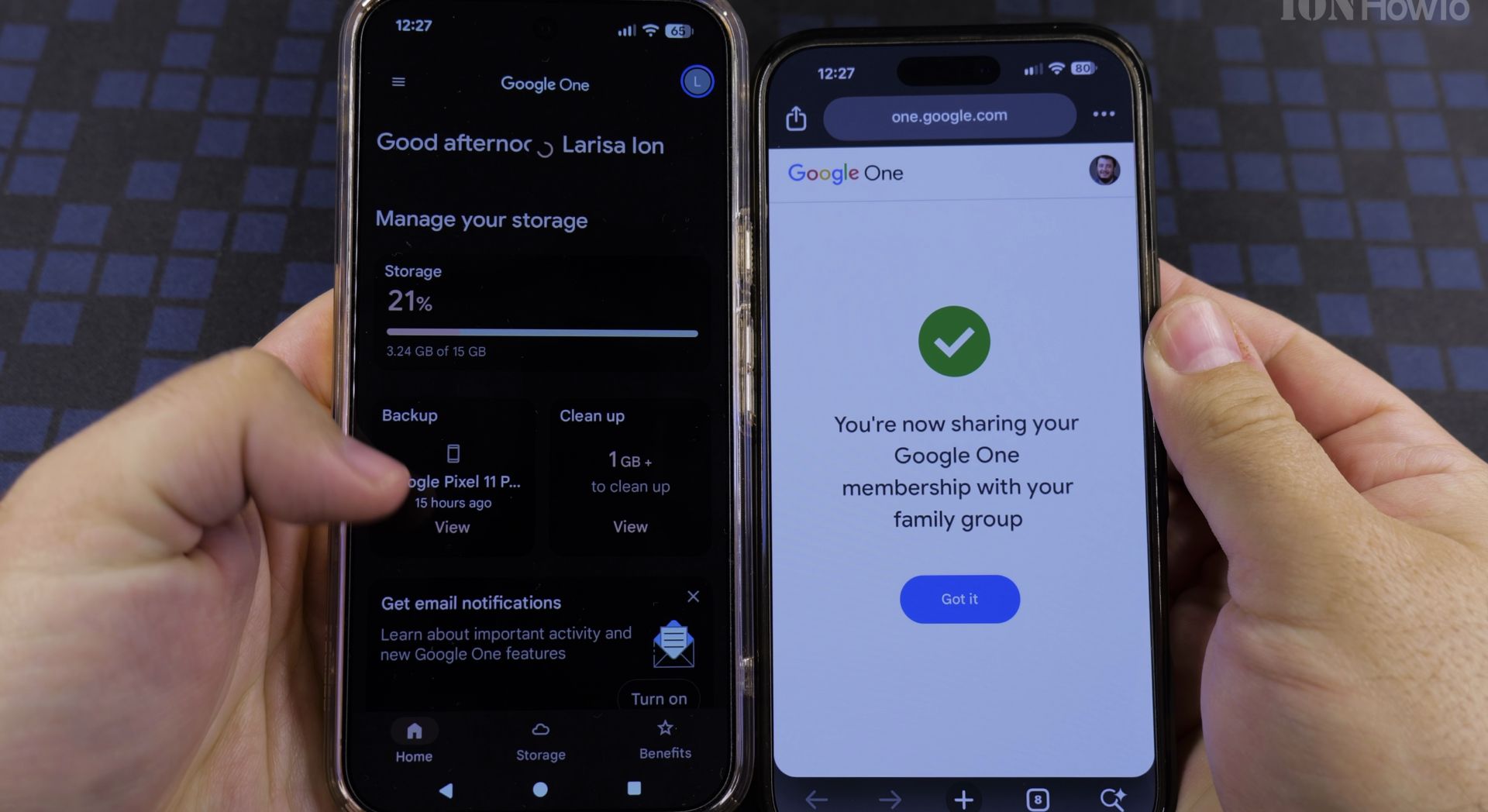
3. Refresh the secondary phone to confirm 5 TB storage
Open the Google One app on the family member’s phone, which starts on the standard 15 GB free plan. Pull down to refresh the screen or wait for the email notification, and the account updates to show the shared Google AI Pro 5 TB storage pool.

4. Try the unlocked Gemini AI features across iPhone and Android
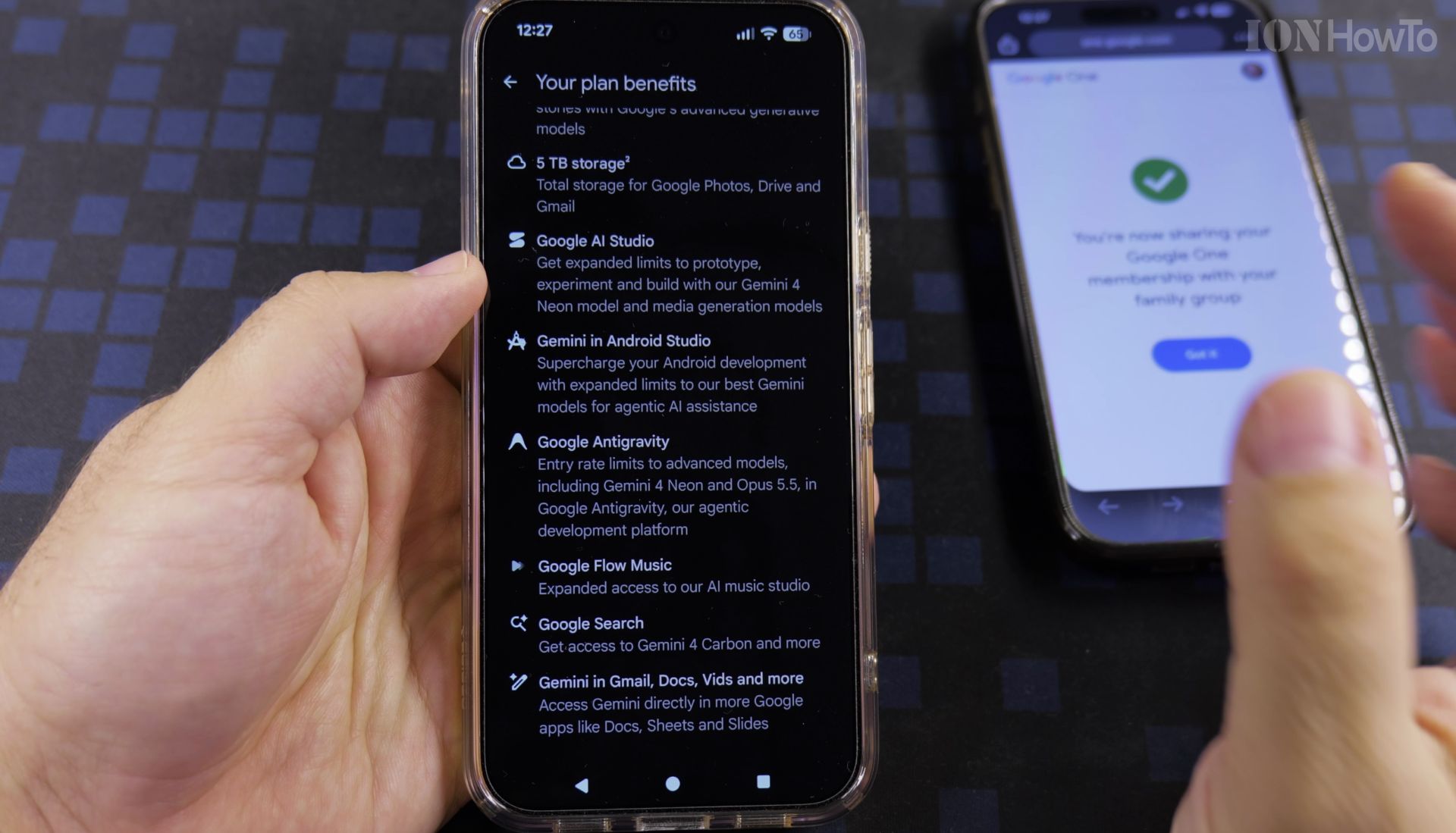
Open the Gemini app or Google One benefits screen on the family member’s iPhone or Android phone to see unlocked features such as Gemini in Gmail and Docs, Google Antigravity, NotebookLM, and model selection options. Remember that the 5 TB storage and AI usage limits are pooled across the family group.

Helpful Tips
- Sharing works smoothly across iPhone and Android as long as each family member signs in with a Google account inside your Google Family group.
- The 5 TB capacity is shared across everyone in the group rather than 5 TB per person, so remind family members before large photo or video uploads.
- If the colored Google One ring around a family member’s profile photo takes a few minutes to appear, check the storage bar inside Google Drive or Google One to confirm sharing is active.
Related Guides
- How to Transfer Data from iPhone to Google Pixel 11 Pro XL Step-by-Step – Moving from an iPhone to a new Android smartphone is much simpler when you use the built-in Transfer to Android feature…
- Remove AI Overview from Google Search Results – How to Remove AI Overview from Google Search Results.
- iPhone How-To Guides – Browse more tutorials and practical guides in this section.
Watch the Extended Step-by-Step Guide (iPhone and Pixel Side by Side)
If you want the full walkthrough showing both an iPhone and a Google Pixel 11 Pro XL side by side, including setting up family invitations, checking shared storage limits, and testing unlocked Gemini AI models and tools, watch my 8-minute extended video guide below.

Leave a Reply Cancel reply